Connect: Polling Scoring for LMS Users
Understand how polling questions are scored for LMS users in Connect.
Tags
- Higher Ed Student
- Higher Education
- Customer Support


Scoring for LMS Users
NOTE: Scoring for Polls in Connect only sync to the LMS Gradebook if the Connect Section is paired using the LTIA standard.
For the initial placement of the Polling Scores gradebook entry in the LMS Gradebook, Polling in Connect requires the context of the LMS course. This means that before conducting the first scored poll, you will need to launch to Connect from your LMS course rather than navigating directly to connect.mheducation.com. You can find the specific path to launch directly into Connect for your LMS in the links below.
- Launch to Connect from your LMS and open the Polling tab in Connect
- Create a poll
- After adding questions to your poll, on the Poll Overview page, select the “Enable Scoring” option in Settings
-
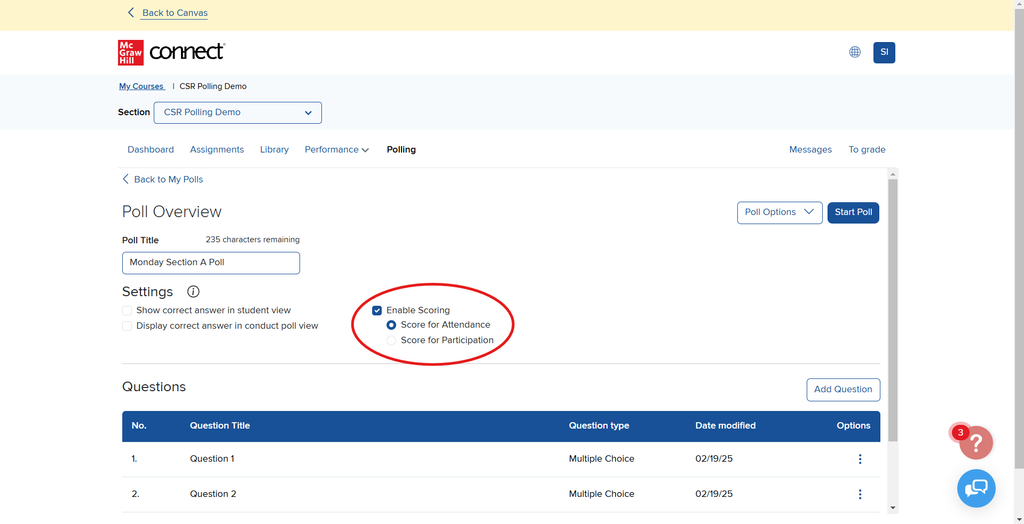
- Score for Attendance is automatically selected. Score for Attendance gives the student a 100 or 0 for the poll if they respond to a single question in the poll, regardless of whether they got it right or wrong.
- Score for Participation give the student a score based on the number of questions they responded to out of the total regardless of whether they got it right or wrong. Example: Student A responds to 3 of the 5 questions in a poll, they will receive a score of 60% for the poll while Student B, who responded to all 5 questions, gets a score of 100%.
- Start and conduct the poll.
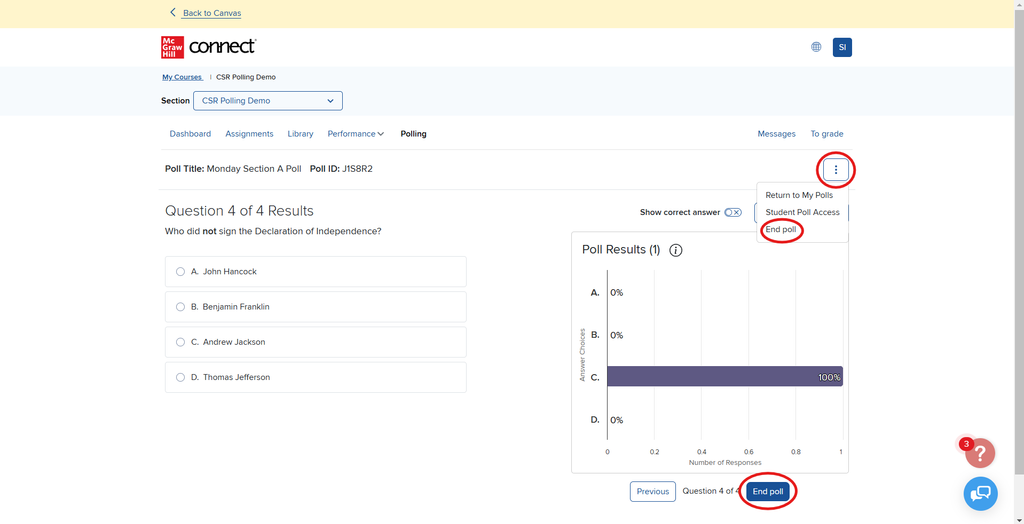
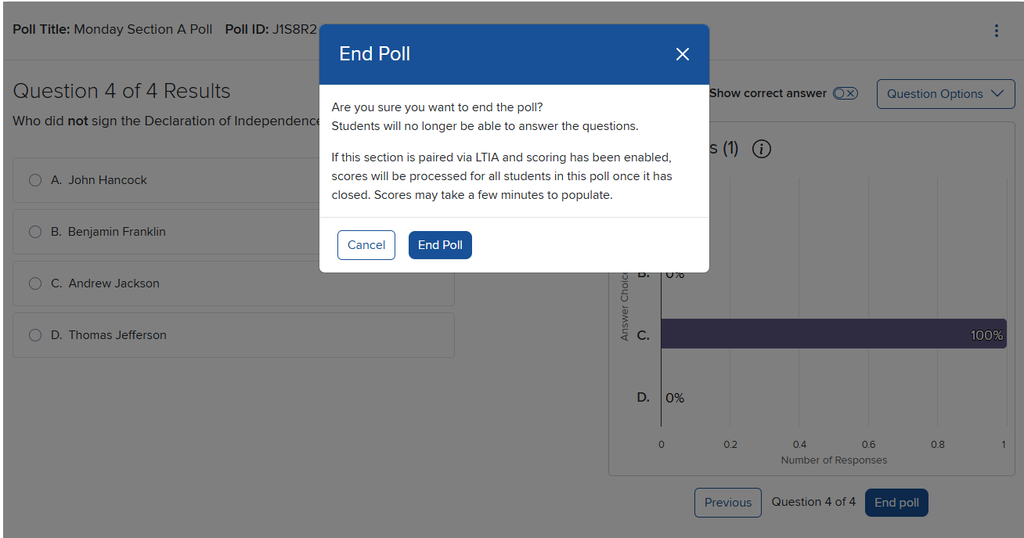
- At the end of the poll ensure you select “End Poll” after the final question OR from the three dot menu if you did not make it through every question in the poll.
-
- NOTE: Scores are calculated only for questions with responses in ended polls. Example: the created poll has 6 questions but you were only able to get through 5 of the questions in class, students are not penalized for the final question that was never displayed to them in class and scores will be calculated from the 5 questions that were made available to them.
- Polling in Connect will calculate the grade for every student on the Connect roster and add it to Polling Scores tab within the Polling feature.
-
- NOTE: This can take several minutes, scores may not be available immediately within the Polling Scores tab or the LMS Gradebook entry
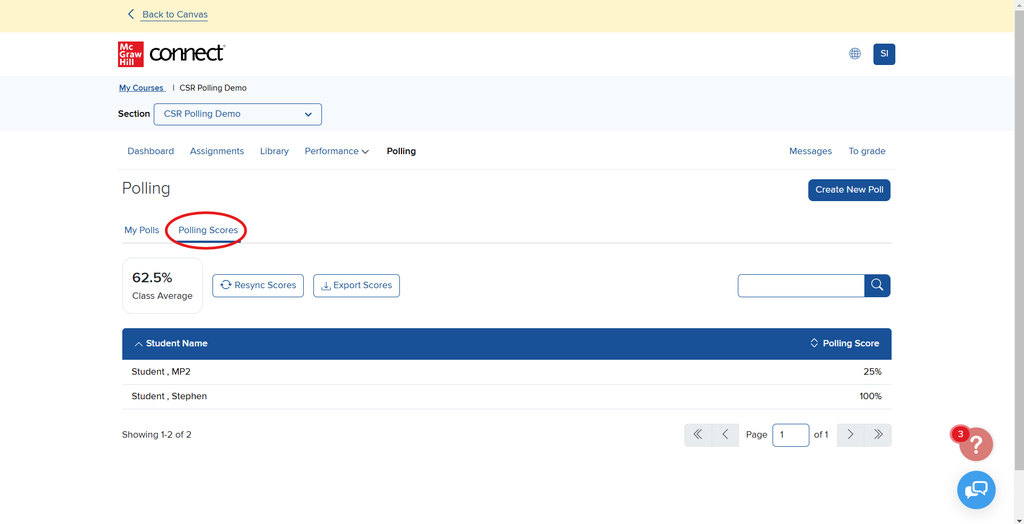
- If this is your first scored poll as a LMS user, a new assignment titled “Polling Scores” will be created in your LMS course. Creating this assignment may take several minutes in the LMS.
-
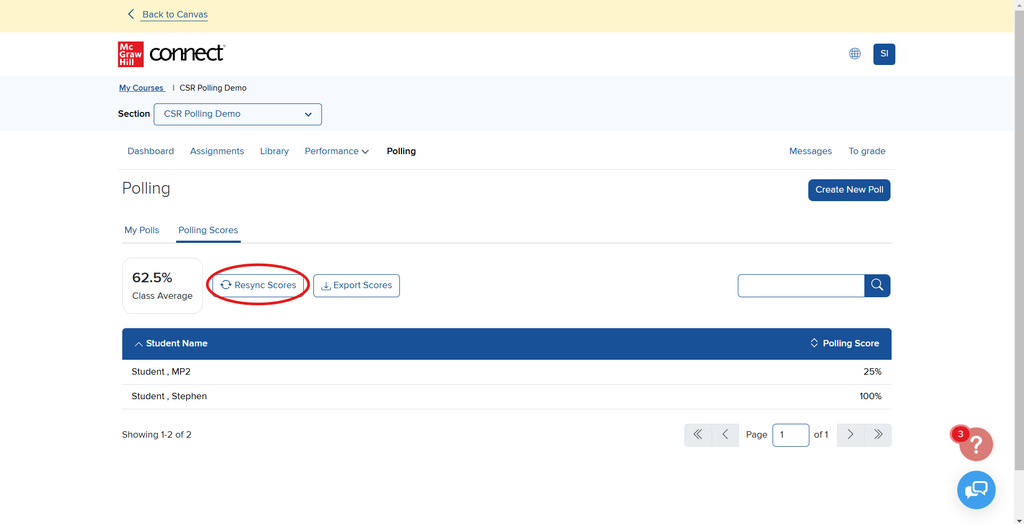
- NOTE: If the new assignment is not available in your LMS select the “Resync Scores” button in the Polling Scores tab within the Polling feature.
-
- This new “Polling Scores” assignment in the LMS will serve as your single gradebook entry within the LMS gradebook so every poll does not create a new gradebook entry. It will automatically update after every scored poll is ended to reflect each student’s overall performance on polling in your class. The default value will be out of 100 in your LMS gradebook, you may update the points in your LMS gradebook as required.
- Example: If there are 5 polls scored for attendance and a student shows up to class for 4 of those polls, they will have an 80% for the Polling Scores entry in your LMS Gradebook
- If you attempt to launch the Polling Scores assignment from the LMS, you will be taken to the Polling Scores tab within the Polling feature
- Note for Canvas users: The Polling Scores gradebook entry will not be visible until you publish the assignment in your Canvas course
- This new “Polling Scores” assignment in the LMS will serve as your single gradebook entry within the LMS gradebook so every poll does not create a new gradebook entry. It will automatically update after every scored poll is ended to reflect each student’s overall performance on polling in your class. The default value will be out of 100 in your LMS gradebook, you may update the points in your LMS gradebook as required.
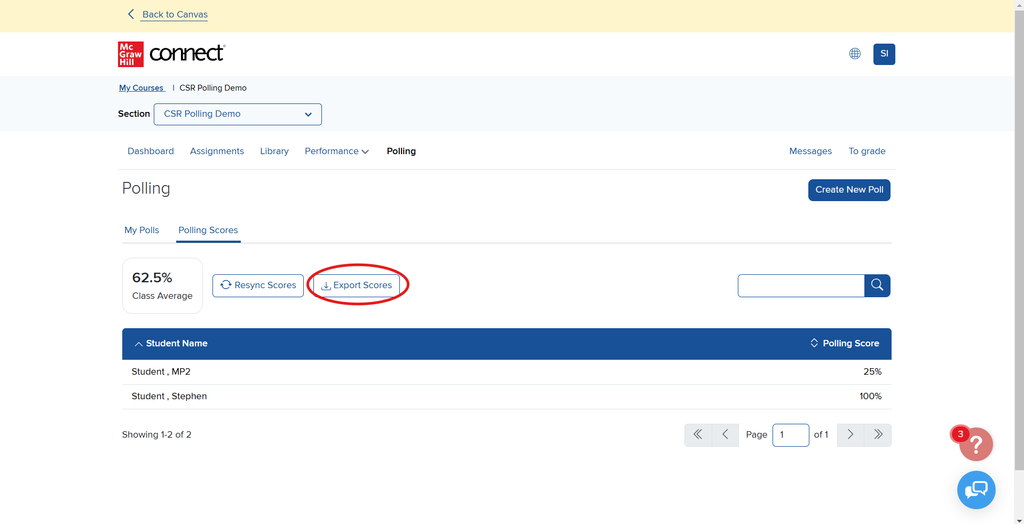
- For LMS users not using the LTIA (LTI 1.3) standard: There will be a button in the Polling Scores tab labeled “Export Scores”, selecting this button will trigger the download of a .csv file with the overall average and the score for each scored poll for every student in your Connect roster.