
Connect - Create an Application Based Activity
Use the Instructor Info widget in Connect to view course details, term dates, and section information.
- Higher Ed Student
- Higher Education
- Customer Support
- Connect
- Instructor
- Assignment Management


In this article, you will learn about creating an Application-Based Activity in your Connect section. Application-Based Activities are highly interactive, automatically graded exercises that provide students a safe space to practice using problem-solving skills and apply their knowledge to realistic scenarios. Each scenario addresses key concepts and skills that students must use to work through and solve course specific problems, resulting in improved critical thinking and relevant workplace skills.
Please note that you can edit, copy or share Application-Based Activity assignments, and these can be added to a prerequisite set of assignments. The assignments created will be available on the Connect Section Home page and the scores will be in Reports. To use your Connect course with your learning management system (LMS) such as Blackboard and Canvas, you must go through the pairing process.
You can edit dates for Application-Based Activities using Assignment Extensions.
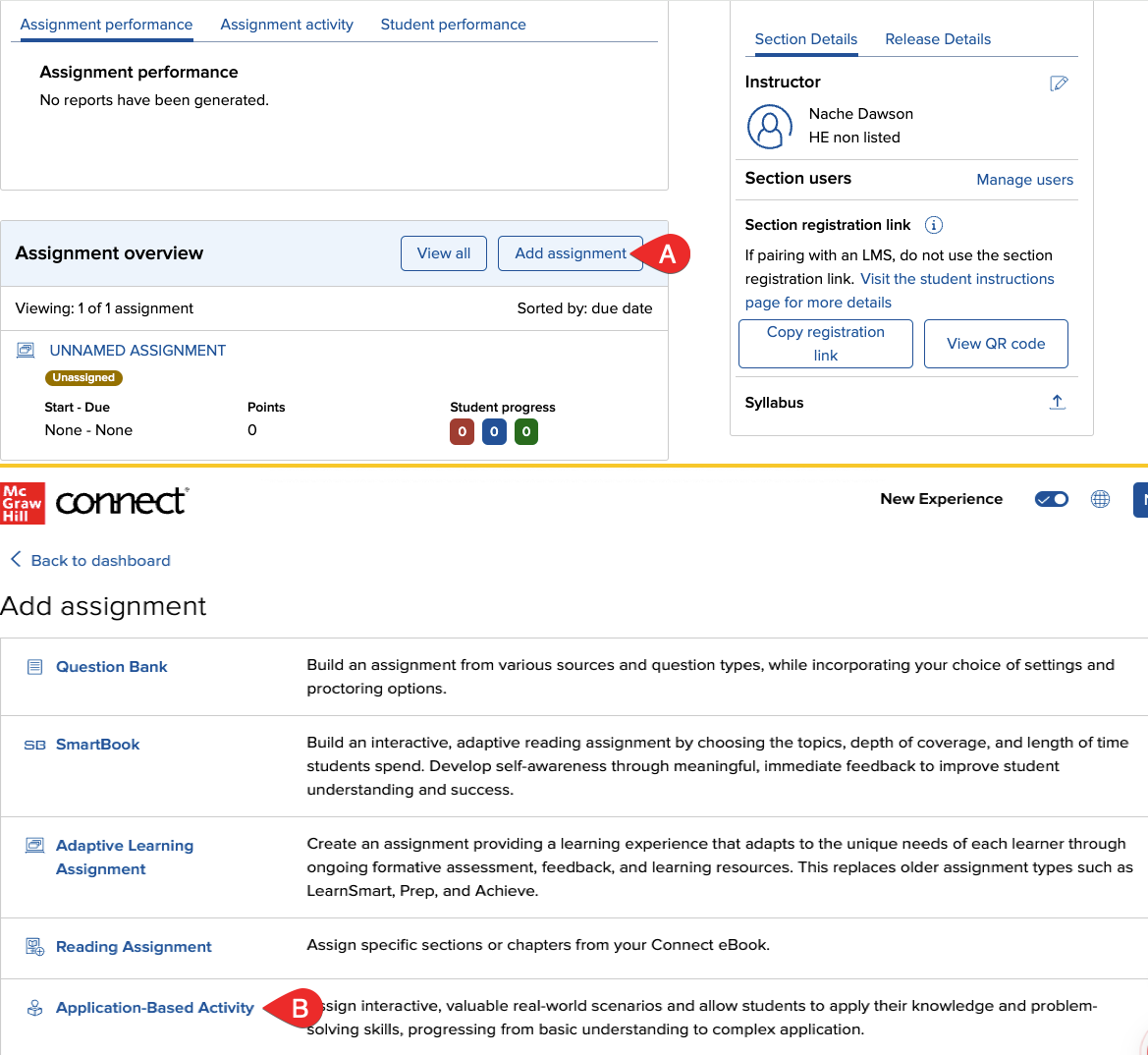
From your Connect section home page Add Assignment (A) and then select Application-Based Activity (B).
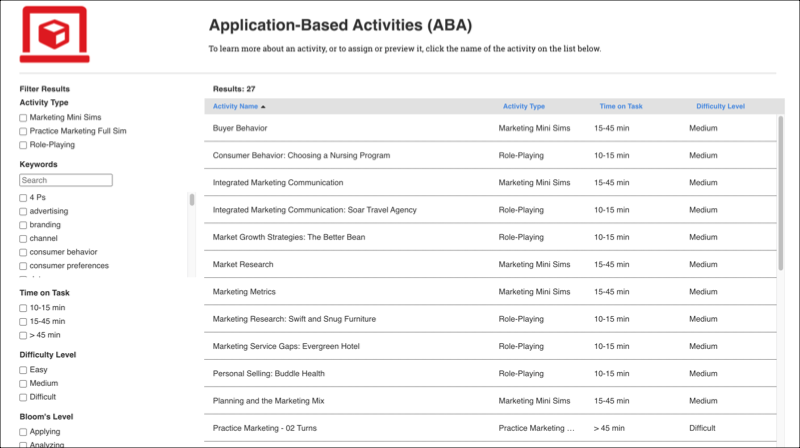
Depending on the course, you may have multiple types of application-based activities available to you. You can use the “Filter” options on the left-hand side of the screen to filter for various ABA types, keywords, difficulty level, Bloom’s level, etc.
To learn more about the application-based activity (ABA), click on the toggle arrow to see an expanded description and the option to Activity Details or Student Preview. If you select Student Preview, you will preview the activity as a student in a separate window. Be sure to follow the prompts, select your avatar and explore the ABA. If you are ready to assign, close the second window and proceed through the assignment creation process.
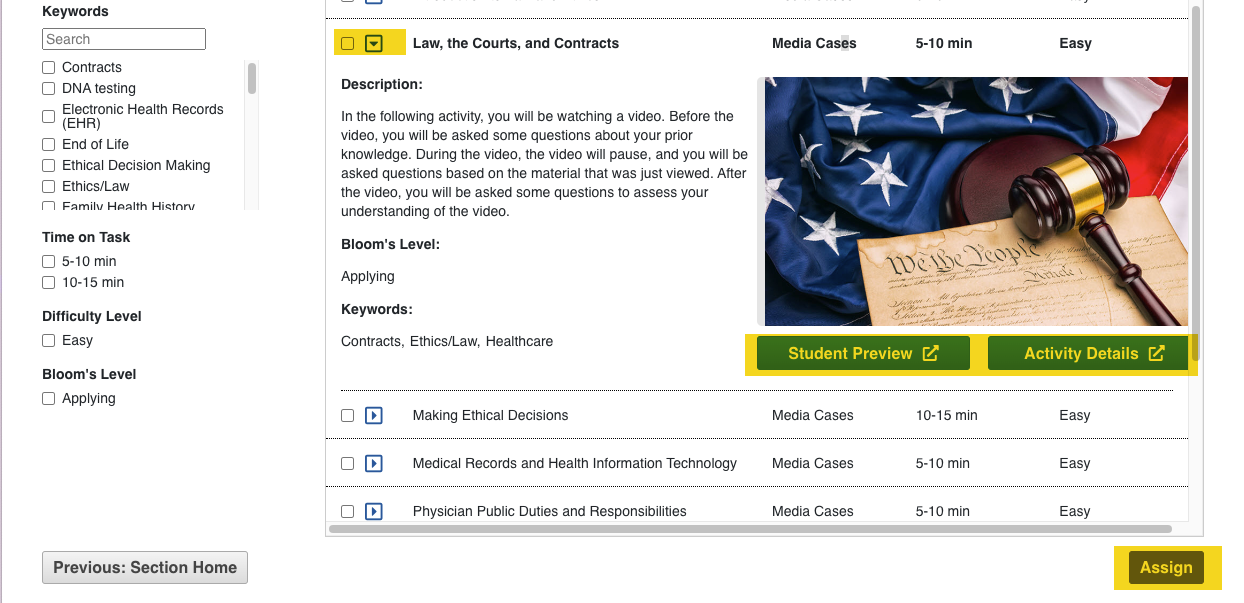
When you are ready to assign an ABA, select Assign to be taken to the policies page.
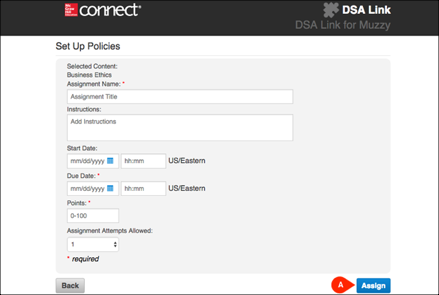
Fill out the Assignment Name, Instructions (optional), Start and Due dates, Point Value for this assignment and the Assignment Attempts Allowed. Then click Assign (A).
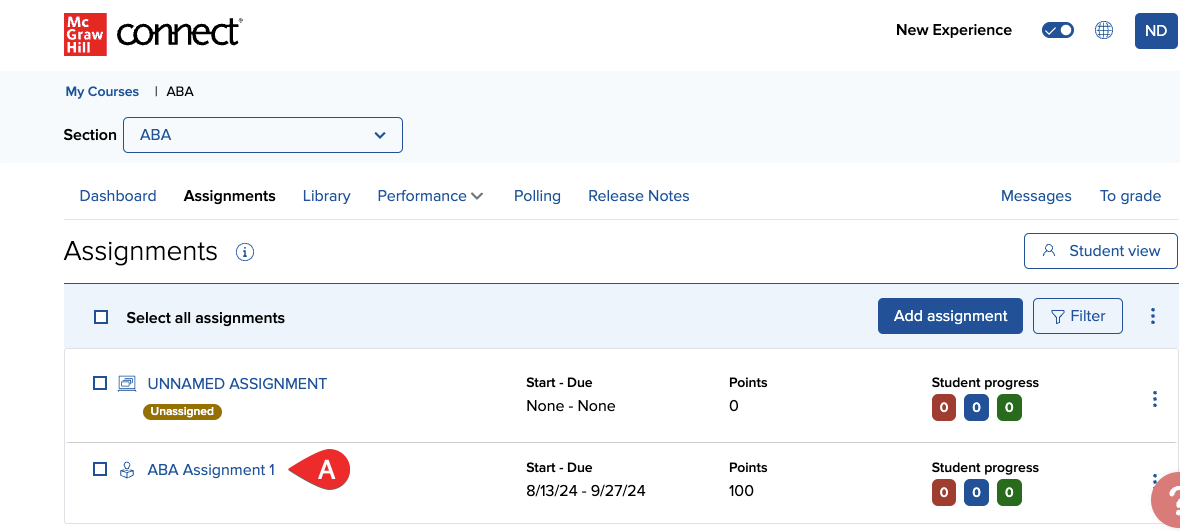
The Application-Based Activity will appear in your section home page assignment list (A).
Sample Instructor View
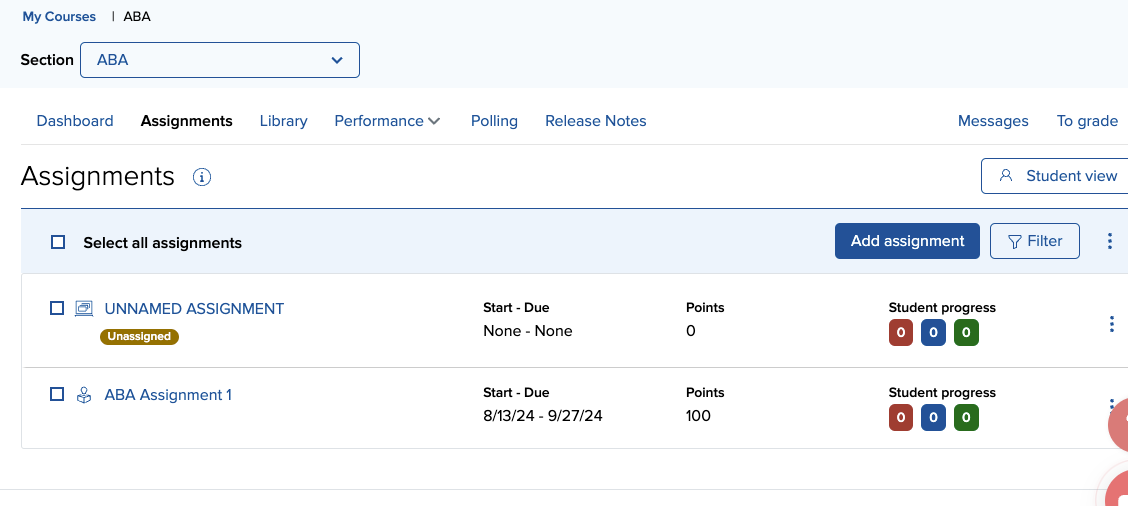
Sample Student View
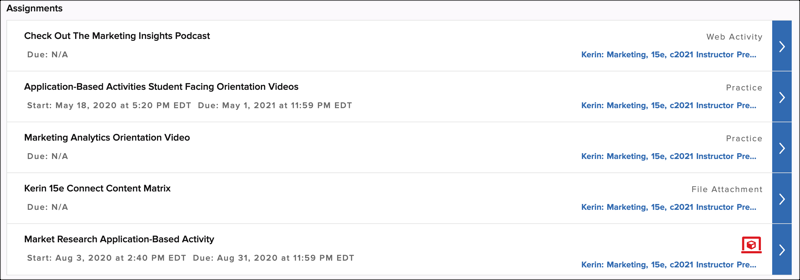
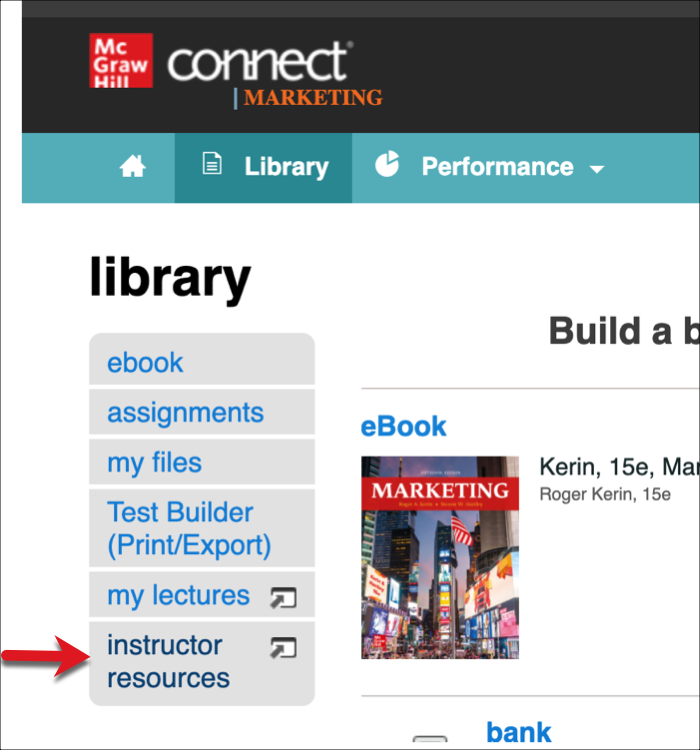
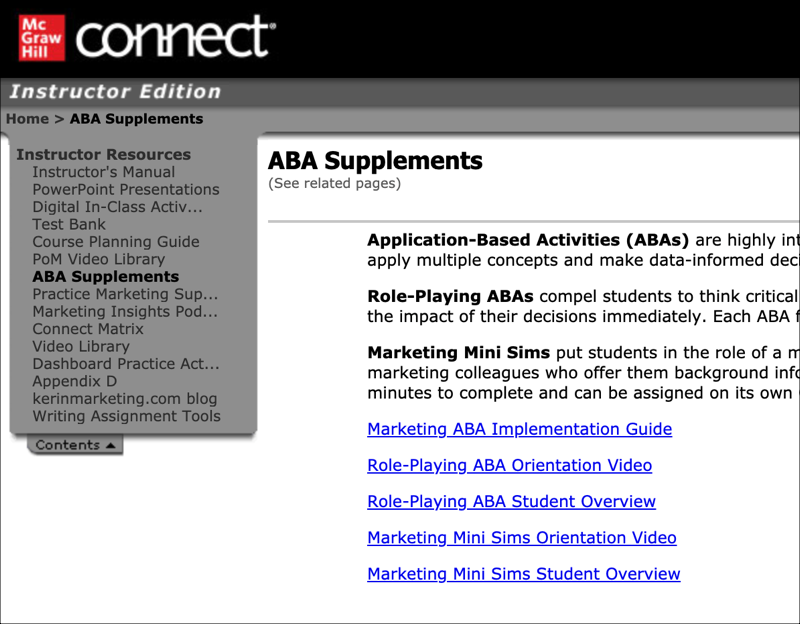
Be sure to click on Library → Instructor Resources to find additional course-specific ABA resources to help both you and your students. (Sample images below)
Click here to Contact a Support Representative.
