
Connect - Assignment Extensions
Grant assignment extensions in Connect to allow additional time for specific students.
Tags
- Higher Ed Student
- Higher Education
- Customer Support
- Connect
- Instructor
- Assignment Management


This article explains how to manage student extensions from within individual assignments, by specific students, and in bulk.
- Access your course/section.
- Below the section name, click "Assignments"
- Click the assignment name you wish to add the extension to
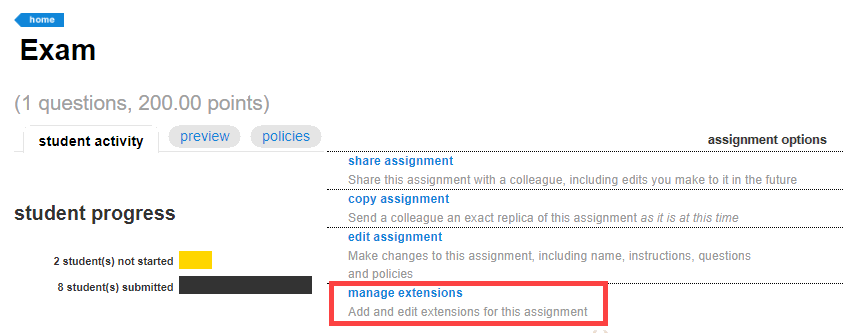
a. If your assignments are grouped, expand the group to select the desired assignment - Click "assignment options", top right, then click "manage extensions"
- Check the student's name for whom you will add the extension, this will also activate the "Edit" options
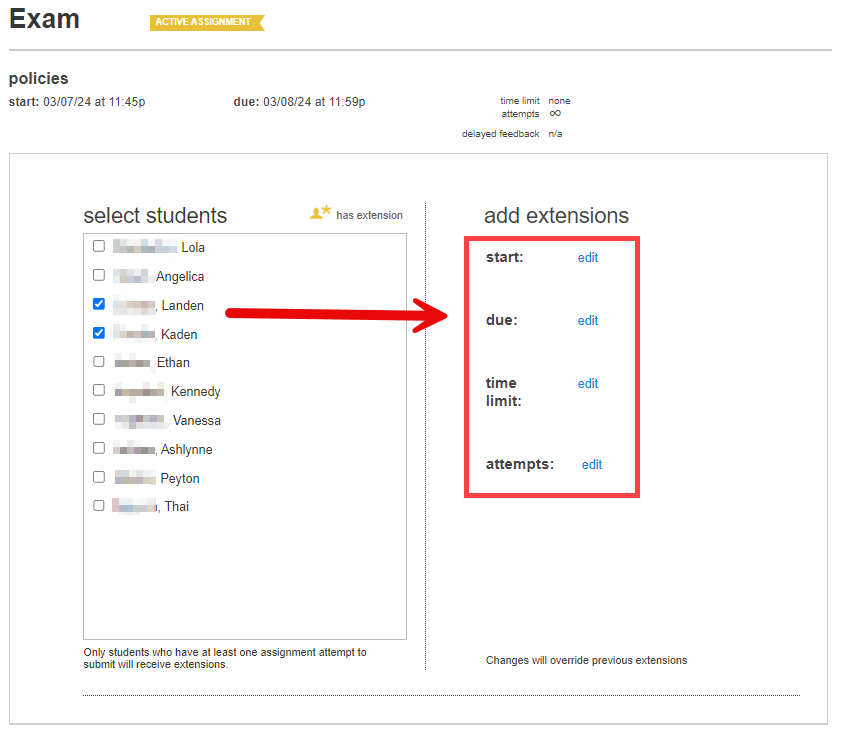
- Make the required edits:
a. start: allows you to set an earlier or later start date
b. due: allows you to extend the due date and time
c. time limit: allows you to specify a time limit
d. attempts: allows you to set the number of attempts allowed - Once you have made your selections, click Save
- Next time you visit the extension settings you will see previously added extensions
When the student, or students, access their section page they will see the extension parameters adjacent to the assignment.
Best Practices:
- Extend assignment due dates, time limits, and/or number of attempts for students with excused extensions or other special circumstances.
- This option will only appear if the student is enrolled in the course.
- Some assignment policy settings can impact your usage of and ability to manage extensions.
- If a student has already submitted the maximum number of attempts set for the assignment, you will need to allow additional assignment attempts as part of the extension.
