
Student Display Options
Adjust student display options in ALEKS to support accessibility and preferences.
Tags
- Training
- Higher Education
- PreK-12
- Customer Support
- Independent Use
- ALEKS
- Higher Ed Student
- School Student


Student Display options (Accessibility)
Change Display options in student account – Contrast or Color Blindness
- Go to your student Settings by clicking on your name (Hi Student!)
- Scroll down to Accessibility and slide the button to the right to expand the selections
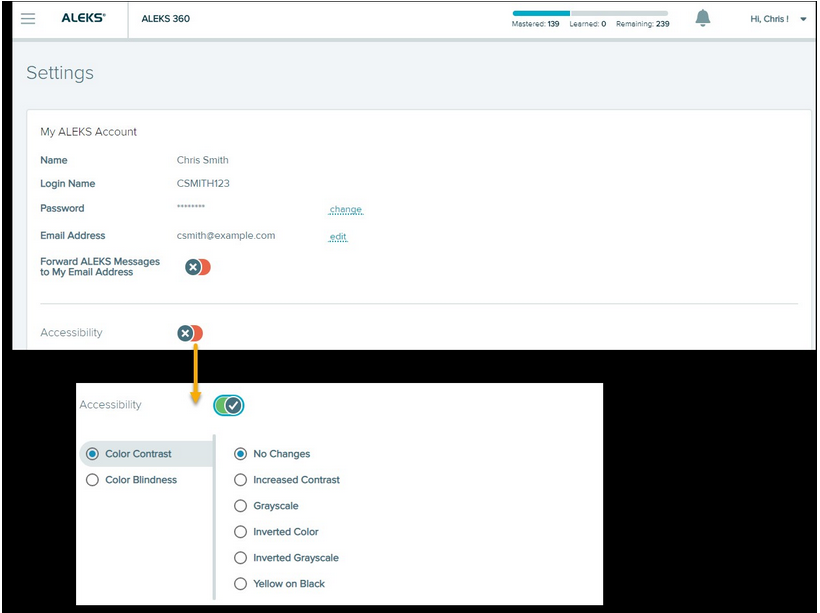
Color Contrast
After selecting the Color Contrast option, students can choose from six different options for their preferred color setting. Students see their screen change immediately after making a selection. The options below are available for Color Contrast:
- No Changes (default setting): Standard color settings are applied to the student's screen.
- Increased Contrast: Changes the screen to use high contrast colors (e.g., green, blue, white) to conform with specific ratios specified by WCAG AA.
- Grayscale: Changes objects on the screen to shades of gray, black, and white. The grayscale display setting is an alternative high contrast/low contrast setting for accessibility.
- Inverted Color: Replaces a color with its opposite color. For example, black becomes white and white becomes back.
- Inverted Grayscale: Works in opposite of the Grayscale option. Replaces a color with its opposite color.
- Yellow on Black: Changes objects on the screen to shades of yellow and black.
Color Blindness
After selecting the Color Blindness option, students complete a two-step process to choose their preferred color setting.
- Step 1: From the three different options available, students select the option next to the row with the least visible pies displayed in each box.
- Step 2: Students use the interactive slider to adjust it to where all the pies in each box are visible in the selected row. Using the slider button, students drag the button from left to right. As the slider is adjusted, the visibility of the pies also adjusts. Students stop dragging the slider when all pies are visible in the selected row.
