Customize Self-Paced Pie Content in New ALEKS
Learn how to set and edit self-paced ALEKS Pie content in the new ALEKS.
- Customer Support
- PreK-12
- Classroom Teacher
- Elementary School
- Middle School
- High School
- Direct Login & Auto-Rostering
- Direct Login & Manual-Rostering
- SSO & Auto-Rostering
- SSO & Manual-Rostering
- Supplemental
- Math
- ALEKS
- Class Management
- Plan & Present


View the demo in a separate tab.
View the Spanish version of the demo.
Self-paced content is the default setting in ALEKS. It allows students to work in their adaptive path on any topic from the Pie that they are ready to learn. The content in the Pie comes pre-selected by ALEKS based on course and state standards. This article shows teachers how to edit the Pie content by adding or removing topics.
1. SSO or log in at my.mheducation.com.
2. Launch ALEKS.
3. Select the Class from the drop-down.
4. Click on Class Content.
5. Click ALEKS Pie and Modules from the menu.
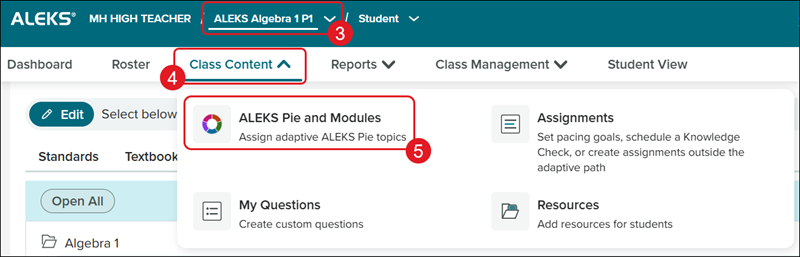
Unless your class already contains modules, your content type is Self-Paced and your screen defaults to the Pie Content view where you can add and remove topics from the Pie.
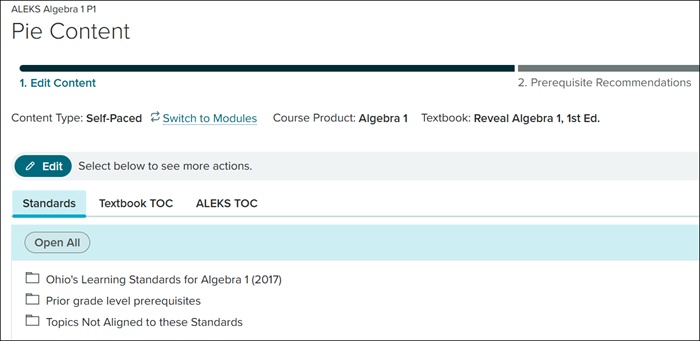
If your class contains modules, refer to the Create Custom Modules in the New ALEKS or Create Custom Modules in the New ALEKS articles.
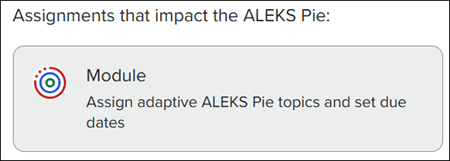
If you want to remove the Modules and switch to Self-Paced, click the +New button (A) and click Assignment (B) from the menu.
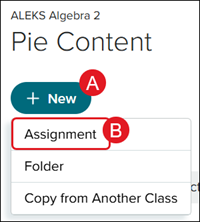
Click the Module option.
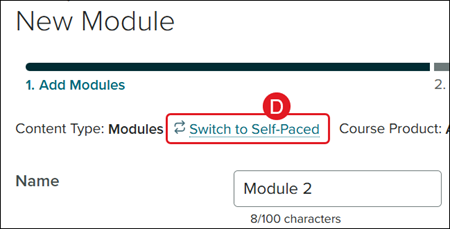
Click the Switch to Self-Paced link (C).
Warning! This action will delete any modules that have already been created.
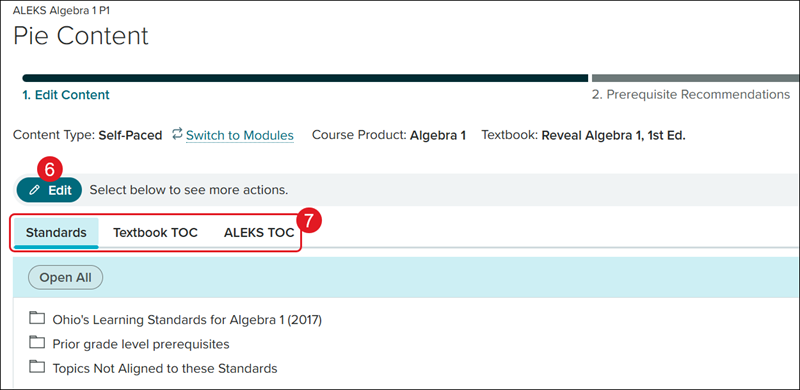
6. Click the Edit button.
7. Select to add content by Standards, Textbook TOC, or ALEKS TOC.
Note: You will not see the Textbook TOC tab if you do not have an associated textbook. To associate a textbook to the class, refer to the Class Content section of the Customize the New ALEKS View Class Settings article.
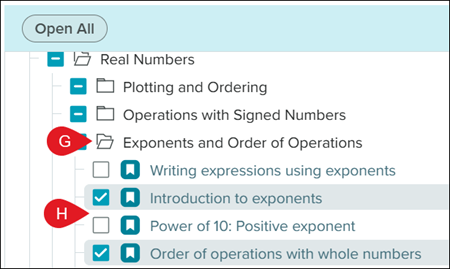
Options with a checkmark (E) have all topics for that section currently assigned for student completion, while everything with a dash (F) only has a selection of topics assigned for that section.
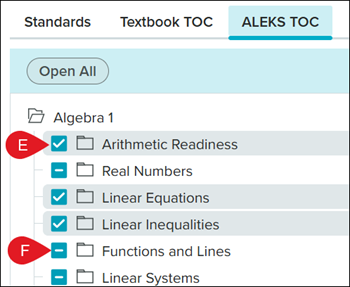
Click on the different folders (G) to expand the section. Check/uncheck the box (H) for the topics you want to remove/include.
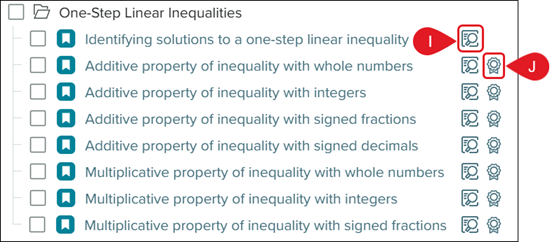
Expanding down to the individual topics allows you to preview (I) and view the associated standards (J).
8. Click the Continue button at the bottom.
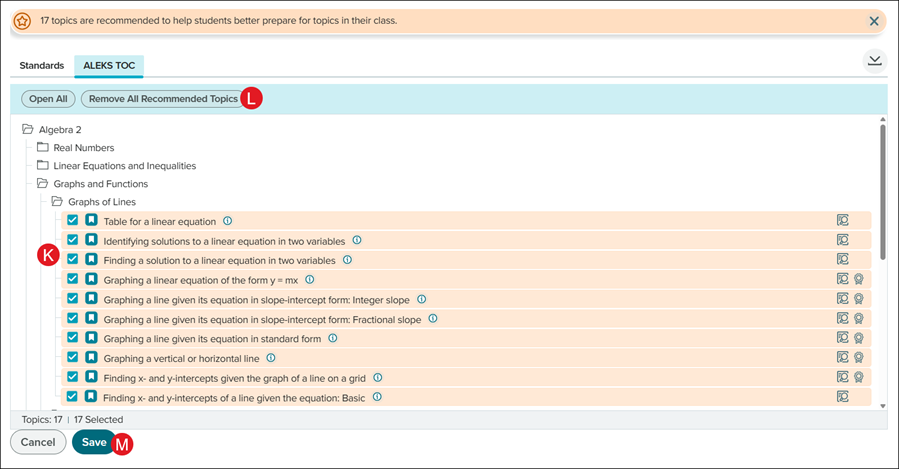
Depending on the topics selected, the ALEKS program may suggest Prerequisite Recommendations for topics to add to the syllabus to better help students prepare for the topics in the class.
Uncheck (K) any highlighted options you do not want to add or click the Remove All Recommended Topics (L) button if you do not want to include any of them.
Click Save (M) at the bottom.
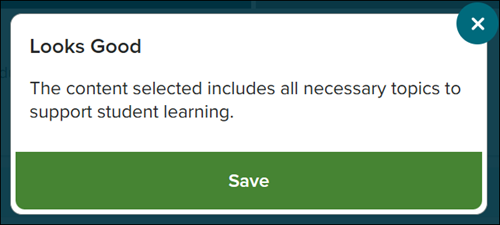
9. On the pop-up, click the Save button.