
Use New ALEKS Pre-Built Textbook-Based Modules
Create textbook‑based modules in the new ALEKS view to guide student learning using pre‑built content aligned to your integrated course textbook.
- Customer Support
- PreK-12
- Classroom Teacher
- Elementary School
- Middle School
- High School
- Direct Login & Auto-Rostering
- Direct Login & Manual-Rostering
- SSO & Auto-Rostering
- SSO & Manual-Rostering
- Supplemental
- Math
- ALEKS
- Plan & Present
- Tools & Resources


View the demo in a separate tab.
View the Spanish version of the demo.
Article Contents
The Modules feature allows teachers to direct student learning in the adaptive path. The following steps show teachers how to use pre-built Modules based on the textbook being used. To build custom Modules, refer to the Creating Custom Modules article.
About Selecting Topics
When creating Modules, you'll be able to select topics from the entire ALEKS course. However, ALEKS will automatically include the prerequisite material required to learn each topic in a Module. Therefore, students who have not mastered the prerequisite material required to learn a topic successfully will be required to learn this material before being able to complete the assigned Module.
Similarly, students who are ready to learn topics that are not part of the current Module will not see those topics until they reach the Module in which those topics have been placed.
Important Note! At this time the only way to access the Textbook Module option within the New ALEKS view is by first creating a module and then deleting the module. This will be resolved in the coming months, so these extra steps will not need to be taken to get to the Textbook Module option.
Module Customization
1. SSO or log in at my.mheducation.com.
2. Launch ALEKS.
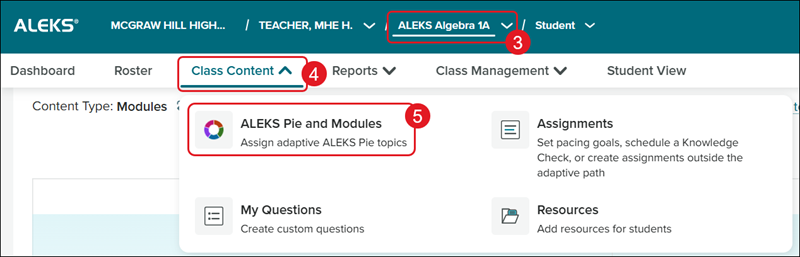
3. Select the Class from the drop-down.
4. Click on Class Content.
5. Click on ALEKS Pie and Modules from the menu.
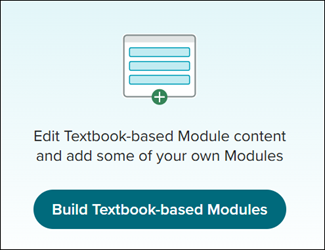
6. Click the Build Textbook-based Modules button.
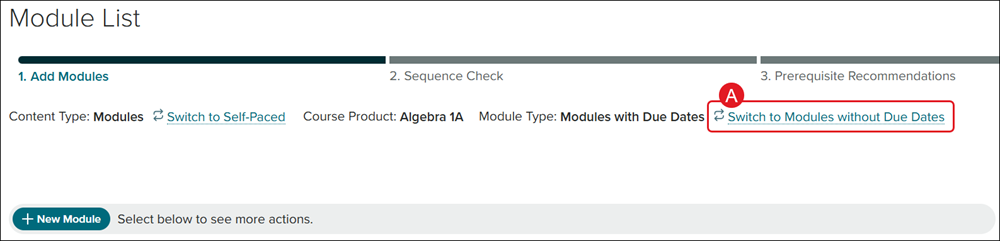
A. Click the Switch to Modules without Due Dates link to enter a Progress Level percentage instead of entering a Start and Due date for each Module.
Each Module for the course will be listed.
7. Enter a Start and Due date or Percentage Level for each Module.
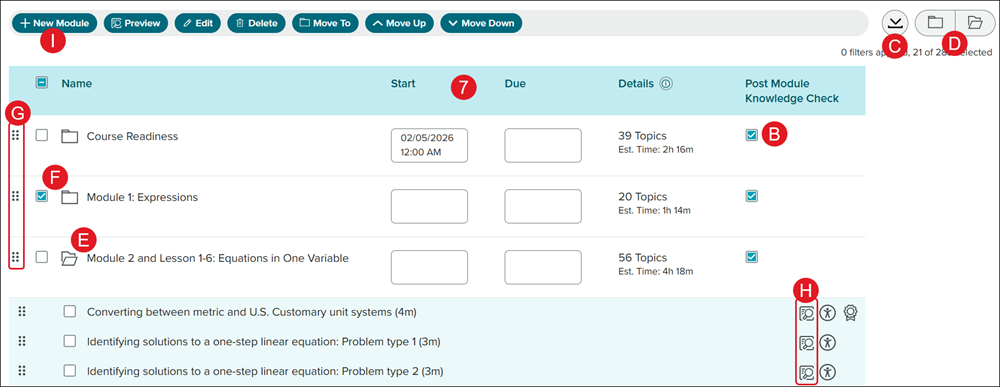
B. Uncheck the Post Module Knowledge Check box to make it so students do not have to complete a Knowledge Check after completing the module.
C. Click the Download the Module table.
Note: Each option first needs to have a Start/Due date or Percentage Level entered.
D. Click the Expand/Collapse buttons to open/close all Module folders.
E. Click on an individual Module to expand the section.
F. Check the box next to a Module to Preview, Edit, Delete, or Move it to another location.
G. Click the kebob icon to the left of the Module to drag and drop it in another location within the list.
H. Click on the Preview button to view an example of the topic.
I. Click the +New Module button to add additional modules to the list.
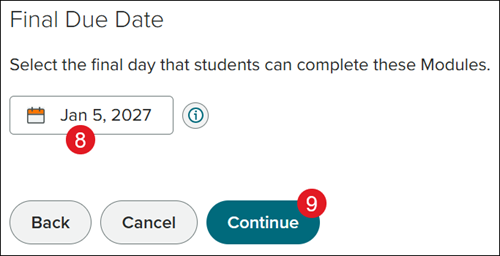
8. If the Switch to Modules without Due Dates option was selected, select a Final Due Date.
9. Click the Continue button at the bottom.
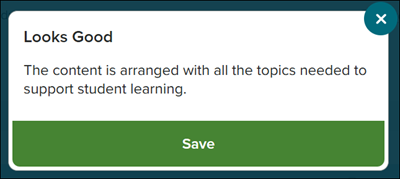
10. On the pop-up, click the Save button.
Edit Module
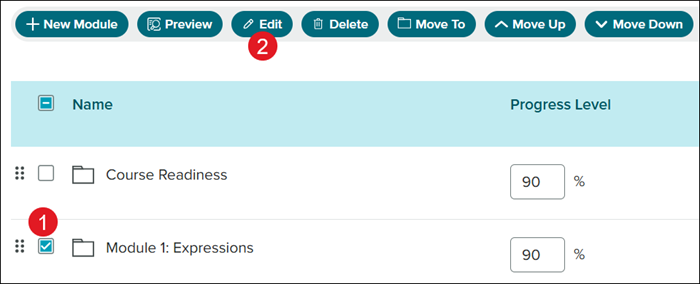
1. Click the box next to the Module.
2. Click the Edit button.
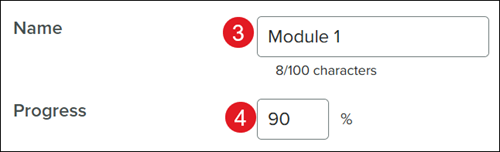
3. Enter a new Name, if preferred.
4. Enter a new Start/Due dates or Progress percentage.
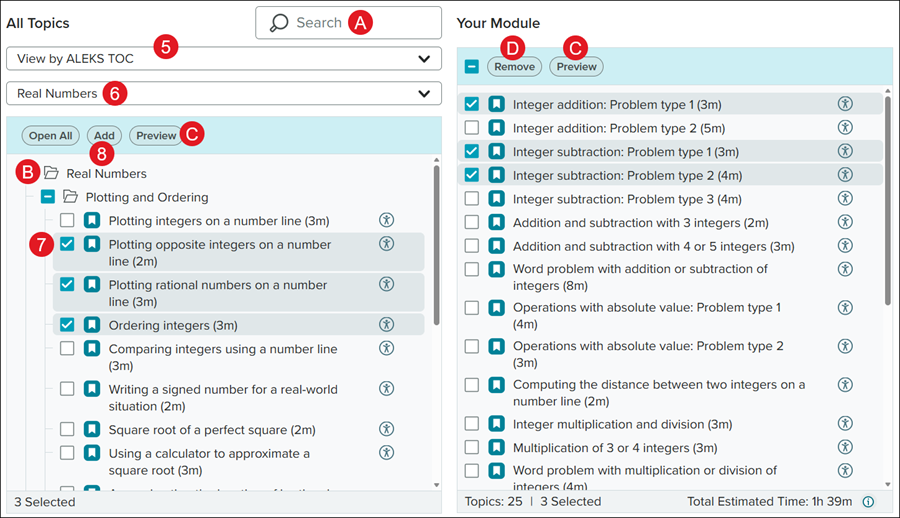
5. Select View by Textbook TOC or by ALEKS TOC from the drop-down. Once a module has been completed, ALEKS Modules will be available in the drop-down as well.
Note: The Textbook TOC option will only show if a textbook has been integrated into the course. For steps on how to do this, refer to the Class Content section of the Customize the New ALEKS Class Settings article.
6. Select a topic from the drop-down.
A. The Search field can also be used to locate a specific topic.
B. Click on the folder icon to expand the section.
7. Check the box next to the topics/questions to include in the module.
8. Click the Add button.
C. Click the Preview button to view examples of the selections.
D. Click the Remove button in the Your Module section to delete the selection.
9. Click the Continue button at the bottom.
Add New Module
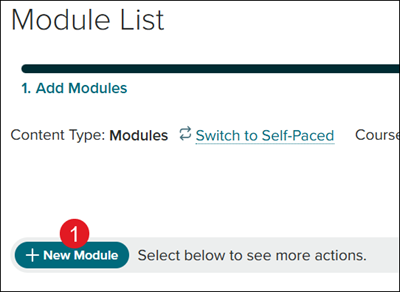
1. Click the +New Module button.
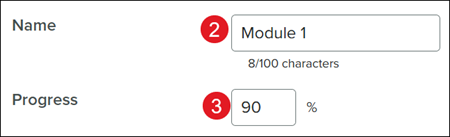
2. Enter a Name for the module.
3. Select the Dates for the module to be available.
If the Modules without Due Dates option is selected, enter a Progress percentage.
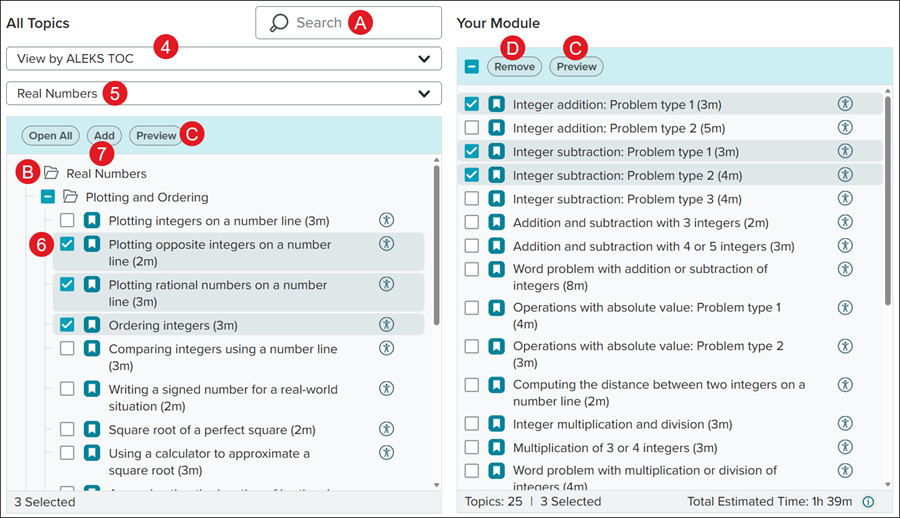
4. Select View by Textbook TOC or by ALEKS TOC from the drop-down. Once a module has been completed, ALEKS Modules will be available in the drop-down as well.
Note: The Textbook TOC option will only show if a textbook has been integrated into the course. For steps on how to do this, refer to the Class Content section of the Customize the New ALEKS Class Settings article.
5. Select a topic from the drop-down.
A. The Search field can also be used to locate a specific topic.
B. Click on the folder icon to expand the section.
6. Check the box next to the topics/questions to include in the module.
7. Click the Add button.
C. Click the Preview button to view examples of the selections.
D. Click the Remove button in the Your Module section to delete the selection.
8. Click the Continue button at the bottom.
