
Higher Ed: Online Access Code Purchase Problems
Troubleshoot Higher Ed online access code purchase problems.
- Registration
- Higher Education
- Customer Support
- ALEKS
- Instructor
- Higher Ed Student


If your online purchase is not going through, please confirm the billing address information is accurate, or try a different credit card. You can also try purchasing the access code using Paypal or Google Pay.
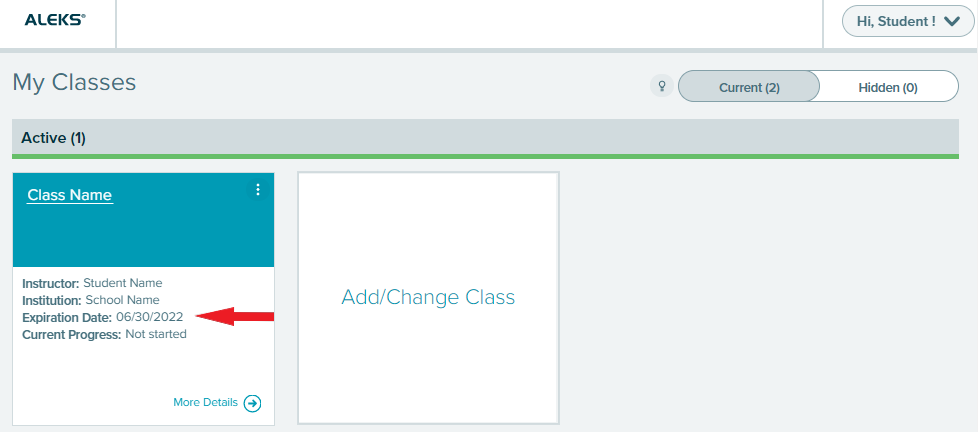
When you purchase an access code online through your ALEKS account, it automatically applies the access code to your account during the online purchase process once you click on “Complete Registration.” To confirm the access code was applied successfully to your account, login into your ALEKS account and check the expiration date on your class tile, see example below.
If you did not click on “Complete Registration” and you are no longer on that page, an email confirmation should have been sent to you. In the email, click on "Retrieve ALEKS access code" to apply the access code to your account, or go to https://www.aleks.com/paris_ecom/code and fill out form with the information provided in the email confirmation to retrieve your access code.
If you did not receive an email confirmation, check your Spam or Junk email folders. If you still can’t locate this email, please contact us at https://mh.my.site.com/aleks/s/alekscontactsupport. We will confirm whether a successful purchase was made and retrieve your access code, if necessary.
