Classic ALEKS Adventure Dashboard Navigation Overview
Learn how to navigate the ALEKS Adventure dashboard to access reports, settings, and tools.
- Customer Support
- PreK-12
- Classroom Teacher
- Elementary School
- Direct Login & Auto-Rostering
- Direct Login & Manual-Rostering
- SSO & Auto-Rostering
- SSO & Manual-Rostering
- Supplemental
- Math
- ALEKS Adventure
- Dashboard & Navigation Overview
- Getting Started & Orientation
- Back-to-School Setup


Dashboard Overview
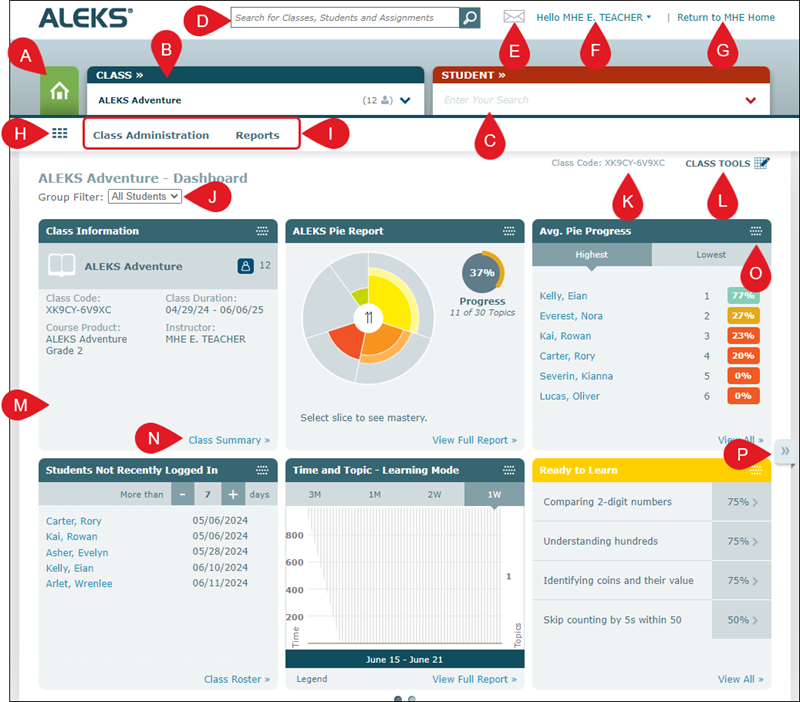
A. Instructor Dashboard Home button - navigates back to the default home page where no class is selected.
B. Class drop-down - select from a list of your ALEKS Adventure classes and sub-classes.
C. Student drop-down - select a specific student after a class has been selected.
D. Search - use to search for a specific class, student, or assignment.
E. Message Center - click the envelope icon to send and receive messages from students and the ALEKS team.
F. Profile drop-down - provides access to the Settings, Message Center, and additional help links.
G. Return to MHE Home - navigates back to the My Programs page on Open Learning.
H. Class/Student Home button - navigates back to the home page for the class or student you've selected.
I. Navigation Menu - hover over the different menu options to access additional page links.
J. Group Filter - if groups have been created for the class, you can navigate between them from the Group Filter drop-down.
K. Class Code - every class has its own class code specific for ALEKS. This code only shows when a class is selected.
L. Class Tools - provides access to the Student View of ALEKS Adventure.
M. Dashboard Tiles - the class tiles provide an overview of different reports and class details.
N. Tile Links - click the link located at the bottom-right of a class tile to navigate to the page to view additional details.
O. Move Selector - click the icon in the top-right of a tile to move the tile to another location on your dashboard.
P. Page Navigator - click the arrows to the side of the dashboard to navigate throughout the different groups of tiles.
Instructor Dashboard
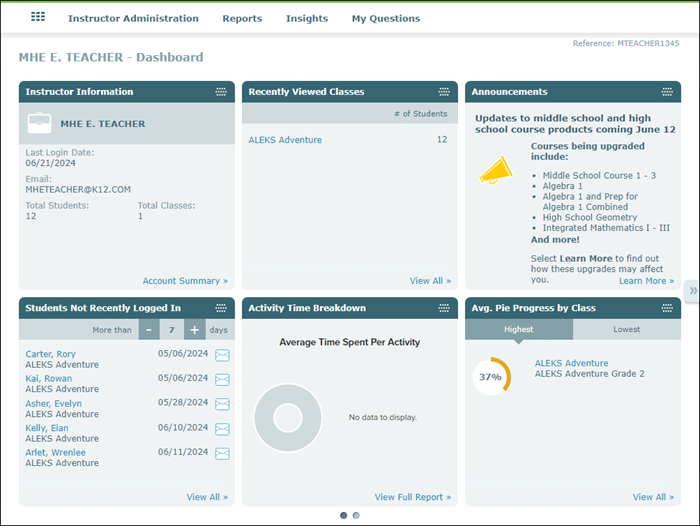
The Instructor Dashboard provides overall information about all classes assigned to the instructor and how many total students are assigned to the classes combined. The dashboard also includes tiles such as Announcements, Recently Viewed Classes, Students Not Recently Logged In, Pie Progress by Class, and the Time & Topic Report.
The Instructor menus include Instructor Administration, Reports, Insights, and My Questions. The Instructor Administration menu provides links to pages such as your class list and student roster; the Reports menu includes links to Activity Time Breakdown and Custom Reports; while the Insights menu includes links to Failed Topics, Decreased Learning, Unusual Learning, and Procrastination page options.
Click on the associated link on a tile to navigate to the page for that option for additional details and data.
Class Dashboard
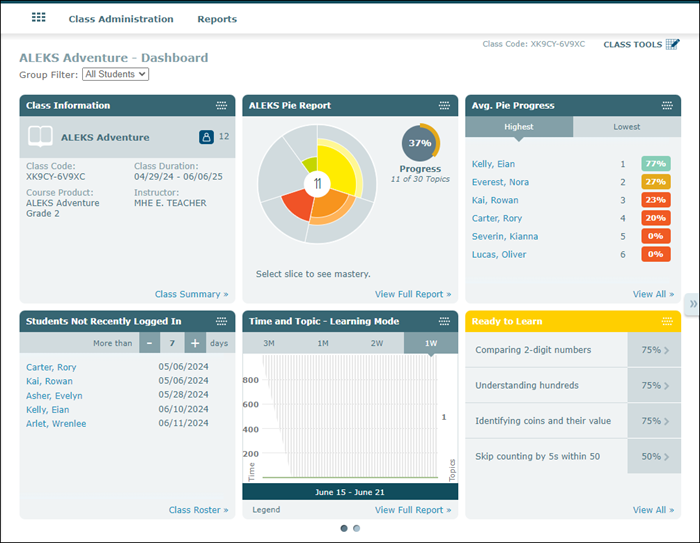
The Class Dashboard provides Class Information that includes the ALEKS Class Code, the Class Duration, and the Course Product assigned to the class. It has tiles that include an overall ALEKS Pie report for the class, Time and Topic report, and topic breakdowns.
The Class menus include Class Administration and Reports. The Class Administration menu provides links to easily navigate to pages such as the Class Summary, Class List, and Class Roster. The Reports menu gives access to various reports including Progress, Time & Topic, Standards, ALEKS Pie, and Custom Reports.
Student Dashboard
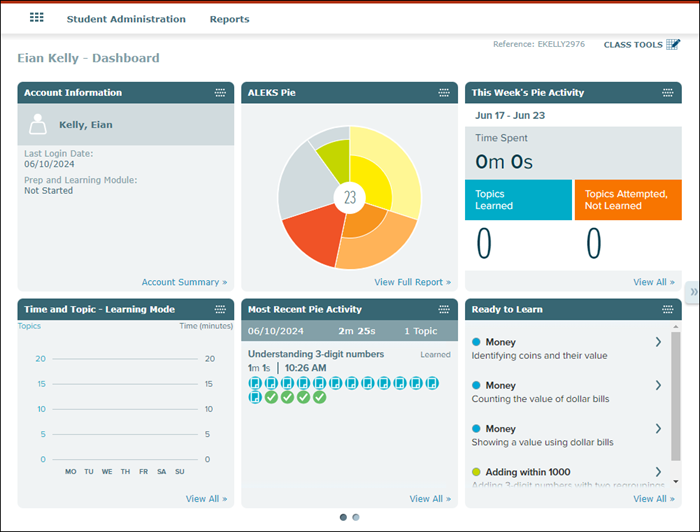
The Student Dashboard provides Account Information for the student, their ALEKS Pie data, their Week's Pie Activity, Time and Topic report, and topics they are ready to learn and need more practice on, among other information for the selected student.
The Student menus include Student Administration and Reports. The Student Administration menu provides links to their account summary and the Cleanup Tool. The Reports menu gives access to various reports, including Progress, Time & Topic, Standards, ALEKS Pie, and more.