
ALEKS Accessibility Accommodations For Visually Impaired Students
Explore ALEKS accessibility accommodations for visually impaired students.
- Higher Education
- PreK-12
- Customer Support
- ALEKS
- Accessibility


How to Find It: Select a class | Select Class Administration | Select Account Summary | Select Edit in Class Options
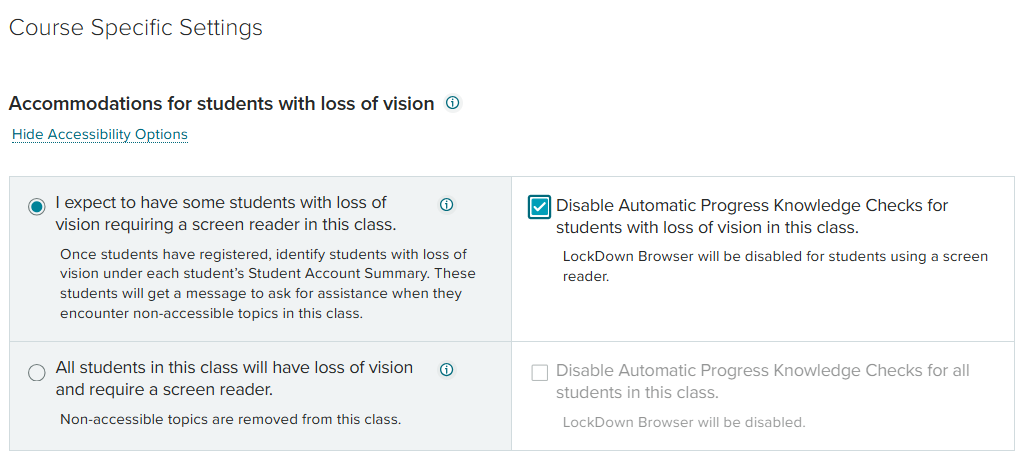
The course setting Accommodations for visually impaired students appears for select ALEKS course products, which include content that has been rewritten and coded to conform to screen-reader technology and level AA Web Content Accessibility Guidelines (WCAG). In the Class Options page, select Show Accessibility Options to turn on this course setting. The default setting is "I expect to have some visually impaired students requiring a screen reader in this class."
There are two ways to turn on accessibility for students:
Accessibility at the Individual Student Level (Default Setting): If you expect to have some visually impaired students who require a screen reader in your class, select this option.
Accessibility at the Class Level: If all students in the class are visually impaired and require a screen reader, select this option.
You can also disable automatic progress knowledge checks for the visually impaired students.
When should an instructor select the Accessibility at the Individual Student Level option?
This scenario is ideal for classes or academic centers that have a mix of students who are visually-impaired and students who are not. Instructors should use this setting if they expect some students in the class to use a screen reader.
What happens when the Individual Student Level option is selected?
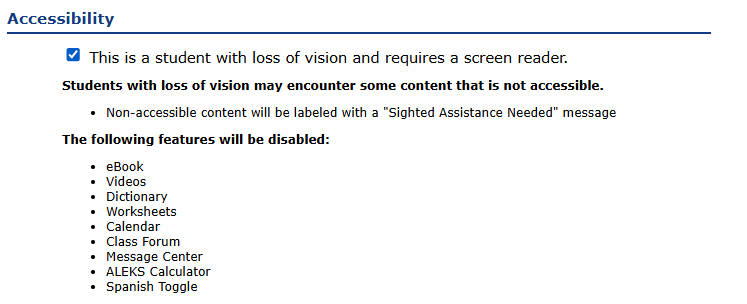
Students identified as visually impaired will be able to work on content that has been rewritten and coded to conform to screen-reader technology and level AA WCAG. These students will be prompted to ask for sighted assistance when they encounter topics that are not compatible with screen readers. The Modules/Content Editor shows which topics are accessible, indicated by an Accessible Topic icon. The following features in the student module will also be disabled: eBook and its assets, ALEKS Dictionary, worksheets, calendar, class forum, message center, bilingual toggle, and the ALEKS Calculator.
How does an instructor identify individual students as visually impaired?
Make sure all visually impaired students have enrolled in the ALEKS class. Once enrolled, go to the Student Account Summary page for each student.
How to Find It: Navigate to the student's dashboard | Locate Account Information tile | Select Account Summary | Select Edit in Account Settings
Check the box designating the student as visually impaired and requires a screen reader. The instructor will need to do this for
each visually impaired student.
When should an instructor select the Accessibility at the Class Level option?
This scenario is ideal for classes or academic centers that cater specifically to blind and visually-impaired students. Instructors should use this setting if they expect all students in the class to use screen-reader technology.
What happens when the Class Level option is selected?
The ALEKS course content will be restricted to only include topics that have been rewritten and coded to conform to screen-reader technology and level AA WCAG. Any topics that are not compatible with screen readers will not be included in the ALEKS Pie, nor will they appear to instructors during the class setup. The following features will also be disabled: eBook and its assets, ALEKS Dictionary, worksheets, calendar, class forum, message center, bilingual toggle, and the ALEKS Calculator.
What are the system requirements for using screen readers with ALEKS?
See Accessibility System Requirements section at https://www.aleks.com/support/system_requirements for latest system requirements.
Related Article: Student Display options (Accessibility)