Access the Student View Feature in new ALEKS Adventure
Switch between teacher and student views in ALEKS Adventure to preview the learner experience.
- PreK-12
- Customer Support
- Classroom Teacher
- Elementary School
- Direct Login & Auto-Rostering
- Direct Login & Manual-Rostering
- SSO & Auto-Rostering
- SSO & Manual-Rostering
- Supplemental
- Math
- ALEKS Adventure
- Dashboard & Navigation Overview


Teachers can view the student experience for ALEKS Adventure from their class dashboard. Accessing the Student View creates a fake account for the teacher, which can be used to interact with ALEKS Adventure the same way a student would.
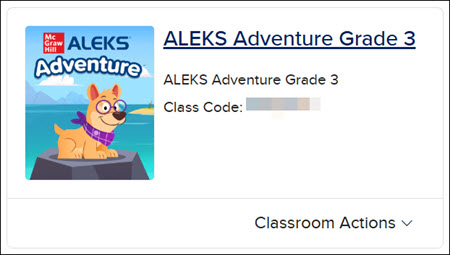
1. From your My Programs page, click on the ALEKS Adventure class tile.
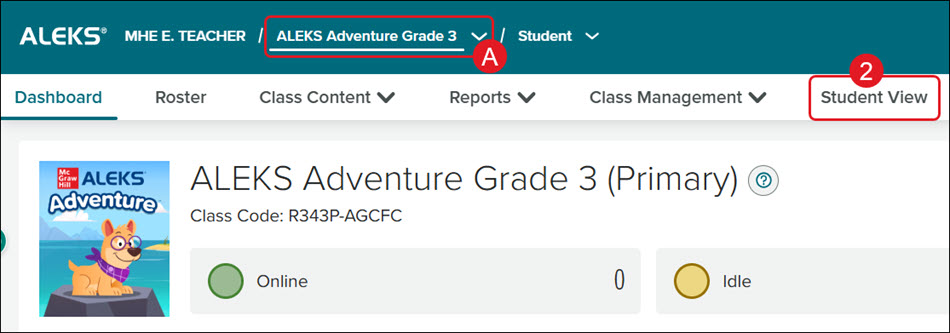
2. Click on Student View on the dashboard menu.
If you do not see Student View on the dashboard menu, make sure you have a Class (A) selected.
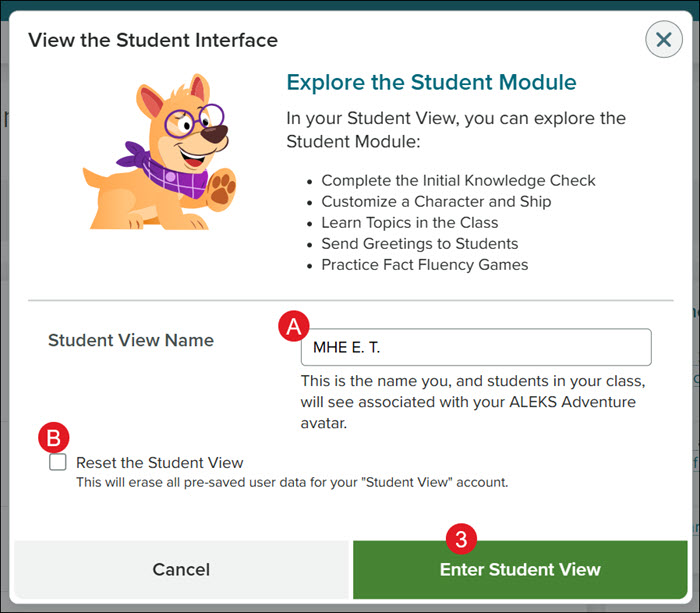
A. The Student View Name defaults to the name set for your instructor account. You can change the name that will be seen for your ALEKS Adventure avatar by entering a different one in the provided field.
B. You can reset your progress in the Student View by selecting the Reset the Student View checkbox.
3. Click the Enter Student View button.
The fake teacher account starts you at the beginning of the student experience, including the introduction, character, ship creation, and the Initial Knowledge Check. The system remembers where you left off, so when you access the Student View at a later date, you can pick up exactly where you left off.
The program will then open in a secondary browser tab.