Using WonderWorks Intervention (Adaptive Learning) in Wonders/Maravillas
Learn how teachers access and use WonderWorks printable resources to support targeted reading intervention instruction.
- Literacy
- SSO & Manual-Rostering
- Customer Support
- Direct Login & Auto-Rostering
- Wonders 2014
- Core
- Direct Login & Manual-Rostering
- Add-On Content
- Classroom Teacher
- Wonders 2023 2020 2017
- SSO & Auto-Rostering
- PreK-12
- Elementary School
- Plan & Present
- Tools & Resources
- Kindergarten
- 1st Grade
- 2nd Grade
- 3rd Grade
- 4th Grade
- 5th Grade
- 6th Grade
- Middle School


WonderWorks is an intervention resource that allows you to provide differentiated instructions for students who may need additional help building their reading and writing skills. Note: WonderWorks is an add-on program that your district has to purchased separately. For more information about what is used in your district, contact your system administrator.
Access WonderWorks
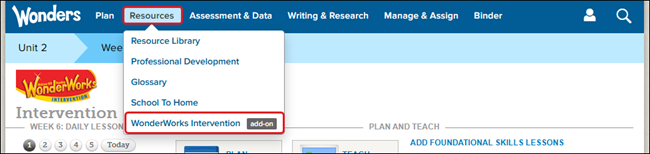
1. Hover over Resources in the Navigation Banner and select WonderWorks Intervention from the drop menu.
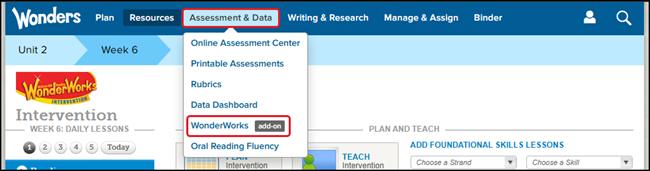
Another option is to hover over Assessment & Data and select WonderWorks from the drop menu.
The WonderWorks (Adaptive Learning) page provides access to the Active/Inactive and Locked student lists, as well as the button to access the Adaptive Learning Dashboard.
This page will also provide you access to different resources to use with students completing the adaptive program.
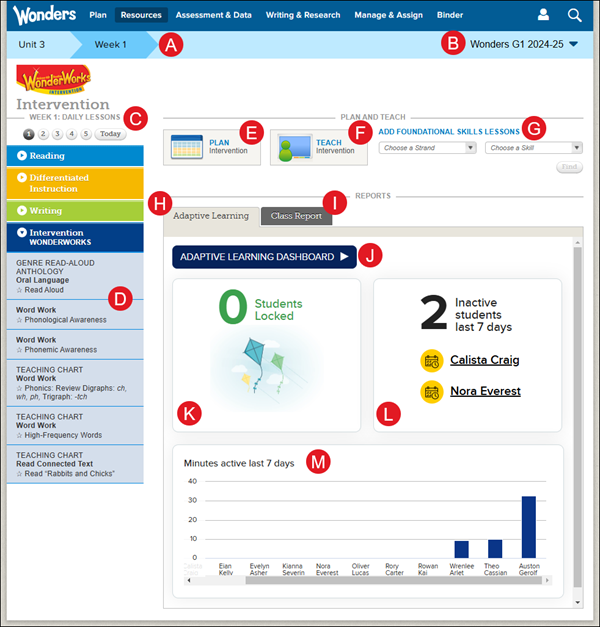
A. The current Unit and Week based on your Calendar are displayed by default. Select a different Unit/Week to view the Intervention WONDERWORKS resources available.
B. If you have more than one class created, select the desired class from the drop-down to navigate that class's data.
C. Like that of the Unit and Week selections, select a Day of the week to view the different resources for that day.
D. Click on the resource in the left panel to Daily Lessons page for that selection.
E. Click on Plan to navigate to the Intervention WONDERWORKS section of the Weekly Planner for the Unit/Week selected.
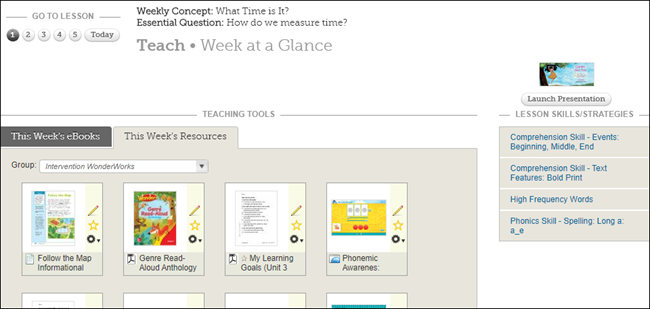
F. Click on Teach to that week's Teaching Tools page that include the week's eBook selections and resources.
G. Select a Strand and Skill from the Add Foundational Skills Lessons drop-downs to add certain skill options to the planner.
H. The Adaptive Learning tab shows all active and inactive students for the last 7 days, as well as any students that have been locked.
I. The Class Reports tab provides information on Mid-Unit, Unit, and Fluency assessments completed by the students.
J. Click the Adaptive Learning Dashboard button to open a secondary tab with Student Progress and Placement Test details.
K. The Locked Students widget shows students that are locked in an activity. This alerts to the teacher that these students cannot move forward in their program and need teacher intervention to move forward. If there are 3 or less, the names are listed. If there are 4 or more, then it will display a number.
L. The Inactive Students widget highlights students that have not logged into their program within the last 7 days.
M. The Minutes Active in Last 7 Days bar graph shows the number of minutes each student in the roster that has worked within the program over the last 7 days and is sorted by students that have worked the least to the most.
Daily Lessons
Daily lessons for the selected week appear on the left side of the page. For in-depth details about the Daily Lessons, refer to Wonders/Maravillas - Daily Lessons.
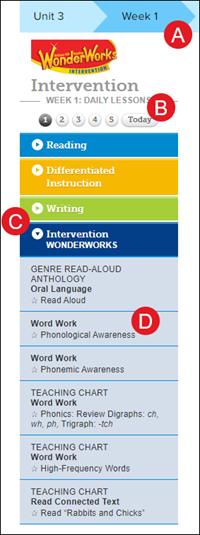
A. Select a Unit/Week if you want to view the resource for.
B. To view a particular day's lessons, select the day button.
C. Lessons are organized and color-coded by group, with Intervention WONDERWORKS on the bottom.
D. To open the details for a lesson, expand the group and select a lesson.
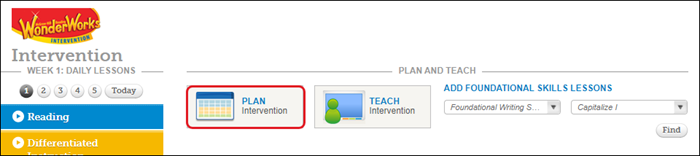
Plan
Click the Plan widget to access the intervention lessons for the select Unit/Week.
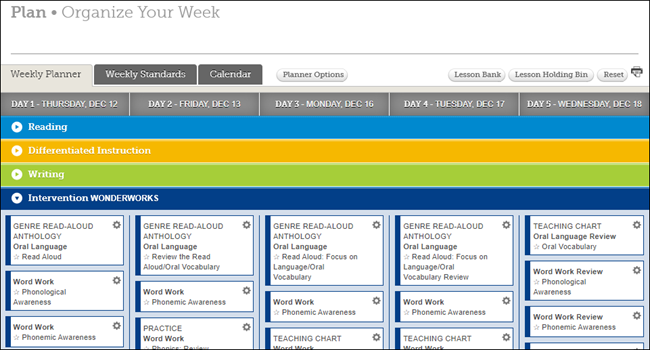
This will navigate you to the Weekly Planner page with the Intervention WONDERWORKS section automatically expanded. Click on a lesson option to navigate to Daily Lessons page for that selection.
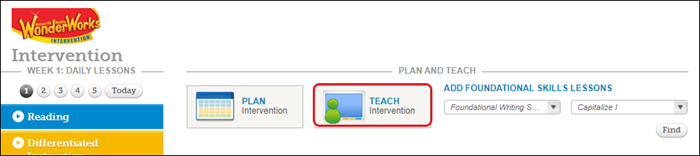
Teach
Click Teach widget to access the intervention resources for the week.
This will navigate you to the Teach page with the Teaching Tools, such as the eBooks, and resources, for the selected Unit/Week.
Add Foundational Skills Lessons
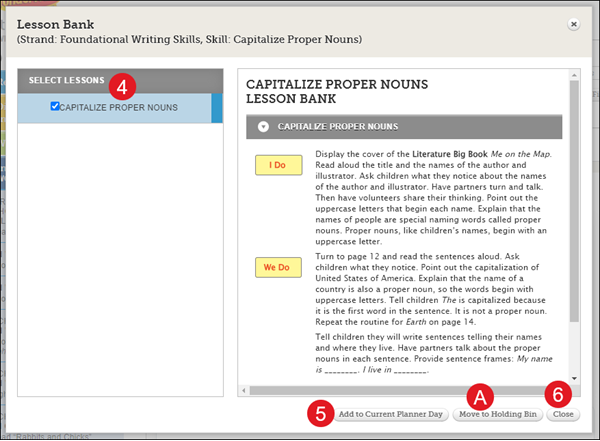
1. To add Foundational Skills Lessons to your current lesson plan, choose a Strand from the drop-down.
2. Select a Skill from the second drop-down list.
3. Click the Find button.

4. On the Lesson Bank pop-up, click the check box for an option in the Select Lessons panel on the left.
5. Click the Add to Current Planner Day button to add it to your current lesson.
A. Click the Move to Holding Bin button to remove the option from your current lesson plan.
6. Click the Close button to return to the Adaptive Learning page.
Class Reports
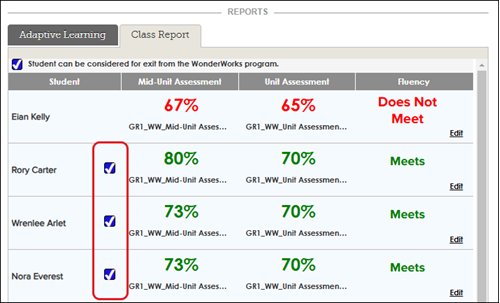
Once your students have completed a WonderWorks a Mid-Unit or Unit assessment, the data for those assessments can be easily located under the Class Report on the WonderWorks page. For steps on assigning an assessment to your students, refer to the MH Assess - Assign and Grade Assessments (ConnectED) document.
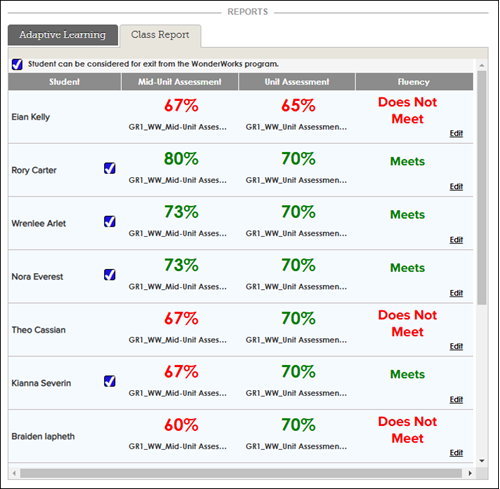
The Class Report tab is also where you can enter in the student's Fluency Check value. For more information on conducting a Fluency Check, refer to the Wonders/Maravillas - Oral Reading Fluency article.
To enter a Meet or Does Not Meet in the Fluency column, click the Edit link and select the desired option from the drop-down.
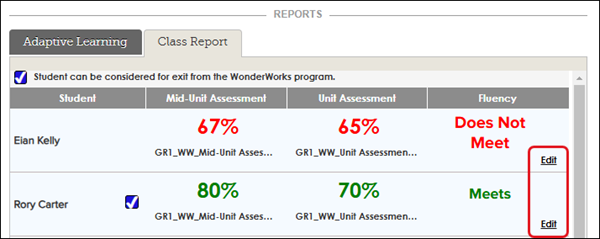
You will see a blue checkmark next to the student(s) that can be considered for completion of the WonderWorks program based on their assessment scores.