
Wonders/Maravillas Student eBook
Learn how students use the Wonders eBook to read, search, highlight, take notes, and access audio and bookmarks.
- Literacy
- SSO & Manual-Rostering
- Customer Support
- Direct Login & Auto-Rostering
- Wonders 2014
- Maravillas 2020 & 2017
- School Student
- Core
- Direct Login & Manual-Rostering
- Wonders Balanced Literacy 2016
- Wonders 2023 2020 2017
- School Parent
- SSO & Auto-Rostering
- PreK-12
- Elementary School
- Student Resources
- Kindergarten
- 1st Grade
- 2nd Grade
- 3rd Grade
- 4th Grade
- 5th Grade
- 6th Grade
- Middle School


When you open an eBook, you will see a number of tools you can use to enrich your experience. There are three areas to use tools in an eBook and are available on every page:
1. Top Toolbar
2. On-Page Tools
3. Bottom Toolbar
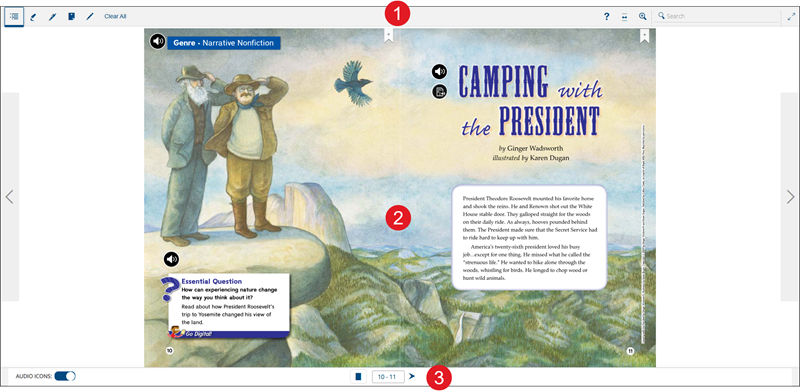
Top Toolbar - Left Side
The top toolbar contains a number of tools to help you view the eBook.
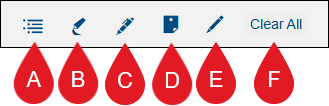
A. Contents - Navigate directly to chapters, lessons, bookmarks, and book resources.
B. Highlight - Highlight page text. Select a color, then select text.
C. Pen - Write on the page. Select a color and line width, then draw or write on an eBook page.
D. Note - Add a note to the page. Click the Notes tool then click the page to add the note.
E. Box/Circle/Underline - Add a box, circle, or underline selected text.
F. Clear All - Clears all markings made on the eBook page(s).
Contents
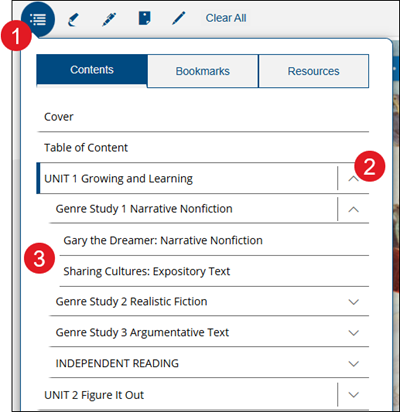
1. Click the Contents button.
2. Click the arrow to the right of the Unit to expand the section and view the available sections.
3. Click on a listed option to navigate to that selection.
Bookmarks
Make a Bookmark
To create a bookmark, click the ribbon icon at the top of the eBook page.
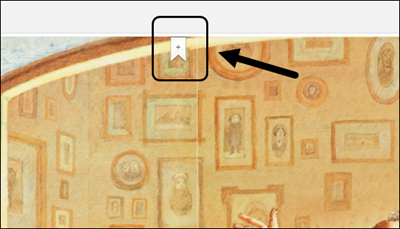
Click the Save button to save the bookmark.
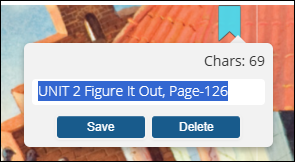
To remove the bookmark, click on the ribbon icon again and click the Delete button.
View Saved Bookmarks
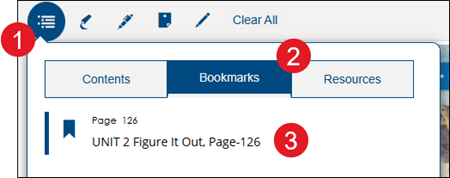
1. Click on the Contents button.
2. Click on the Bookmarks tab.
3. Click on a listed bookmark to navigate to that page.
Resources
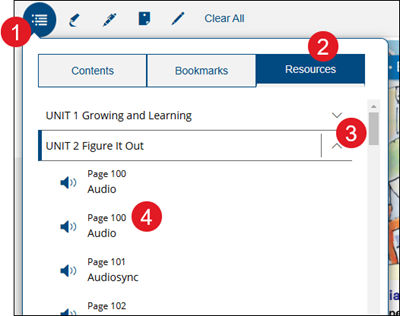
1. Click on the Contents button.
2. Click on the Resources tab.
3. Click on the arrow to the right of the Unit to view the list of Audio selections.
4. Click on an Audio selection to automatically navigate to that page. The audio will automatically start to play.
Top Toolbar - Right Side
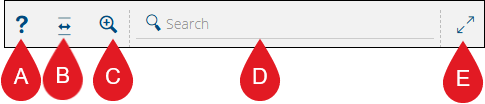
A. Help - Click the question mark icon to open the Navigation help menu.
B. Fit Width - Expand the page view to fit the width of the screen.
C. Zoom - Click and use the scroll bar to enlarge and decrease the page view.
D. Search - Search the eBook by keyword.
E. Full Screen - Expand the eBook to full screen view.
Search
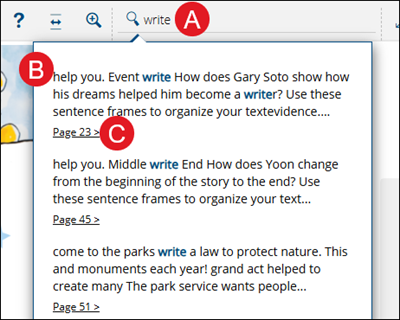
A. To search for a specific term in the eBook, type a keyword in the Search field and press the Enter key.
B. The results of the search appear below. This list contains all instances where the keyword appears.
C. Click a link to go to that page in the eBook.
On Page Materials
The eBook is the digital version of the textbook. In addition to the toolbars, there are icons available on the pages you can use.
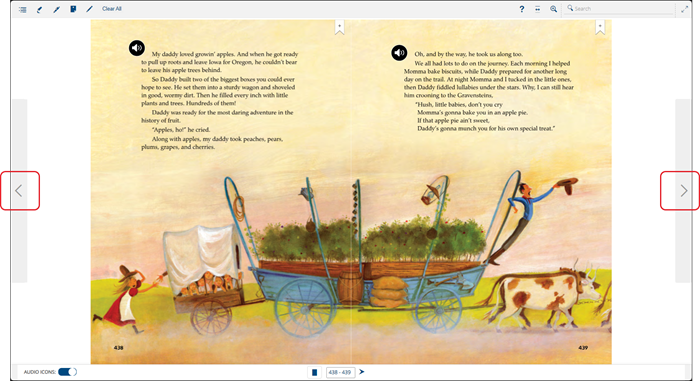
Page Navigation
You can navigate the pages of the eBook by using the arrows on either side of the screen.
Audio
Click an audio icon to hear the audio version of the page text.
You can rewind, pause, and adjust the volume of the audio in the lower left area of the eBook.

Notes
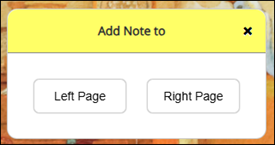
1. To add a note to the page, click the Note tool at the top-right of the page.

2. On the Add Note to pop-up, click to add the note to the Left Page or the Right Page.
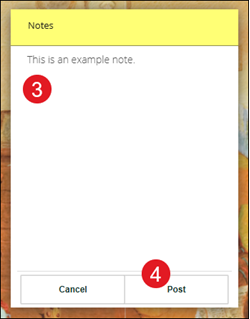
3. Enter the desired note in the space provided.
4. Click the Post button.
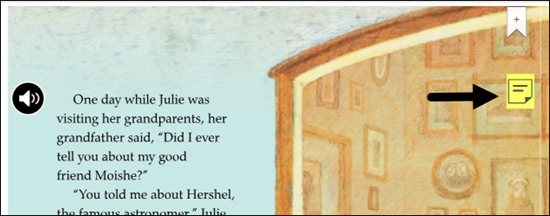
The note will post to the right of the page.
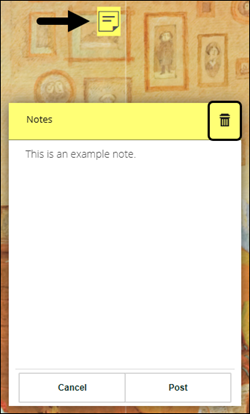
To delete the note, click on the note icon on the page and then click the trash can icon on the Notes pop-up.
Bottom Toolbar
There are additional tools located on the eBook's bottom toolbar.

A. Audio Icons - Toggle on/off to show/hide audio icons on the eBook page.
B. Page View - Display the eBook in one-page or a two-page view.
C. Location - This is the current page number(s). Click in the field and enter a page number and then click the arrow to navigate to a different page.
