Wonders/Maravillas - School to Home
Explore Wonders Inquiry Space and how it supports research, questioning, and inquiry-based learning.


School to Home is where the weekly Family Letters and Spelling Lists can be found, as well as where teachers can send messages to a student's family.
Contents:
Access School To Home
For the Week
My Messages
Create a New Message
Access School To Home
1. Hover over Resources in the Navigation Banner.
2. Click on School To Home from the menu.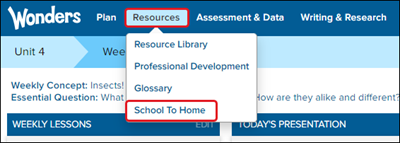
For the Week
The For the Week tab includes a ready-made collection of school-to-home communication letters. The letters come in ten different languages, can automatically be sent home each week using students' accounts, and can be customized.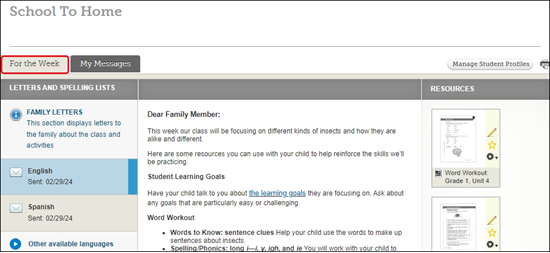
Select a different Unit and Week to view the resources for a different lesson plan.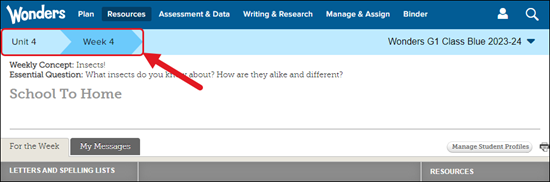
A. The Family Letter is scheduled to be sent automatically at the beginning of each week. The letter displays information about what the class will be focusing on that week, the Word Workout and Comprehension activities, and the student learning goals.
B. Click on the Other available languages blade to view the Family Letter in an alternative language.
C. Click the Customize button to make adjustments to the Family Letter before it is sent. If the letter has already been sent for the week, you will not see the Customize button.
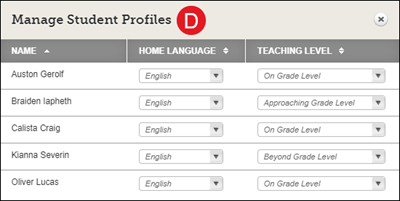
D. Click the Manage Student Profile button to change the Home Language and Teaching Level for each student in the selected class.
E. Click the Print icon to print out the Family Letter for the week for the selected language.
F. Click a Resource to open it.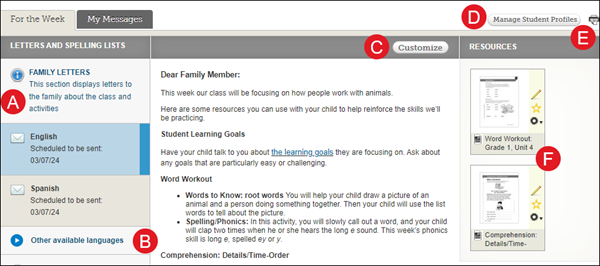
A. Students also receive a Spelling List each week based on the Teaching Level assigned to their student profiles.
B. Click on a different level of the spelling list to view it.
C. Click on the Customize button to make edits to the spelling list before it is sent each week. You will not see the Customize button if the list has already been sent.
D. Click the Manage Student Profile button to change the Home Language and Teaching Level for each student in the selected class.
E. Click the Print icon to print out the Spelling List for the week for the selected level.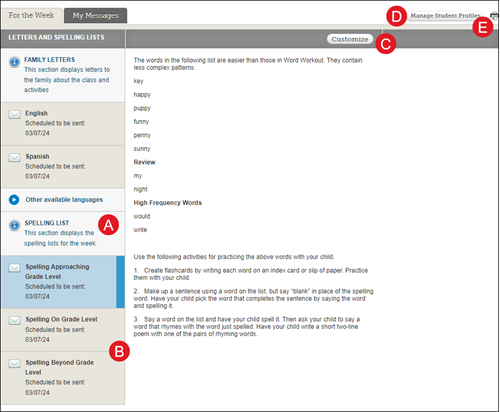
My Messages
This section displays the messages from the teacher to the family.
A. Click on the New Message to create a message to send to the students' families.
B. Click on the different messages to review what was sent to the families. The message will show the date it was sent, the day it will be available until, the subject, the message, and any resources that were attached.
C. Click the Message Archive button to view old messages that were sent.
D. Click the Manage Student Profile button to change the Home Language and Teaching Level for each student in the selected class.
E. Click the Print icon to print the selected message.
F. Click on any attached Resources to open them.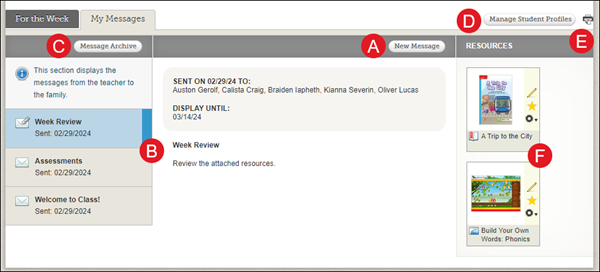
Create a New Message
1. Click on the My Messages tab under School to Home.
2. Click the New Message button.
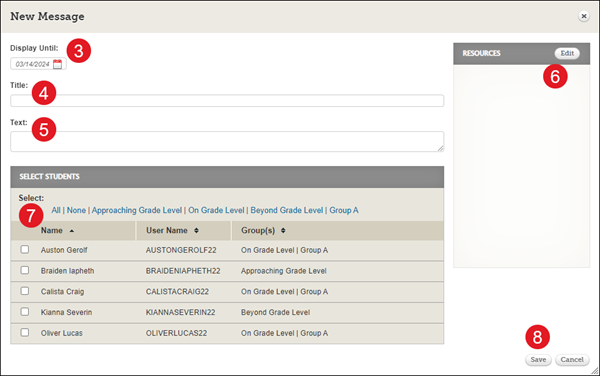
3. On the New Message pop-up, select a Display Until date.
4. Enter a Title for the message.
5. Enter any Text you want for the message.
6. Click the Edit button under Resources to attach any resources you want the families to have access to.
7. Check the box next to the students, or use the available filters, to select the students you want to send the message to.
8. Click the Save button to send the message.