
Create Wonders/Maravillas Rubrics
Review Wonders rubrics used to assess student work and writing.
- Literacy
- SSO & Manual-Rostering
- Customer Support
- Grades & Assignments
- World of Wonders 2017
- Direct Login & Auto-Rostering
- Wonders 2014
- Maravillas 2020 & 2017
- Core
- Direct Login & Manual-Rostering
- Classroom Teacher
- Wonders Balanced Literacy 2016
- Wonders 2023 2020 2017
- SSO & Auto-Rostering
- PreK-12
- Elementary School
- Tools & Resources
- Online Assessments
- Middle School
- Kindergarten
- 1st Grade
- 2nd Grade
- 3rd Grade
- 4th Grade
- 5th Grade
- 6th Grade


Access Rubrics
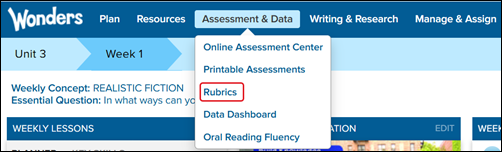
1. On the Navigation Banner, click Assessment & Data.
2. Select Rubrics.
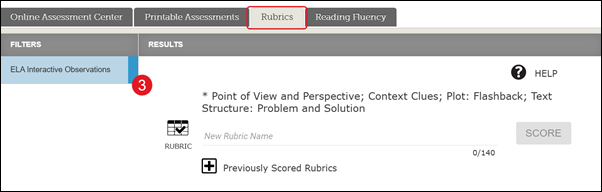
3. On the Rubrics tab, select the ELA Interactive Observations filter on the left for this week’s Observational Rubric.
Scoring a Rubric
1. Enter a title for the rubric. Suggestion: Choose a title describing the student activity.
2. Click the Score button.

The new rubric automatically opens.
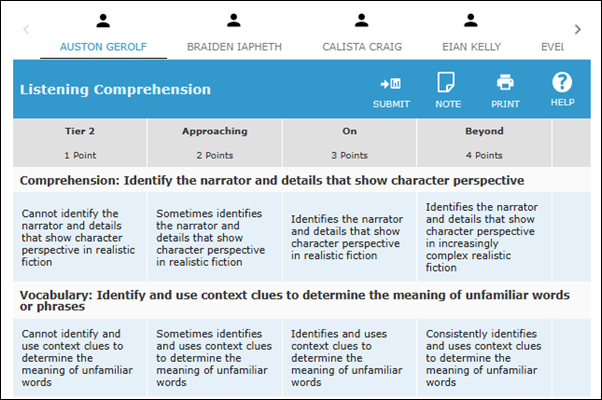
3. Select a student's name from the top to score.
4. For each skill, select a block to give that student the indicated score. Note: Leaving a skill area blank does not impact the student’s rubric score.
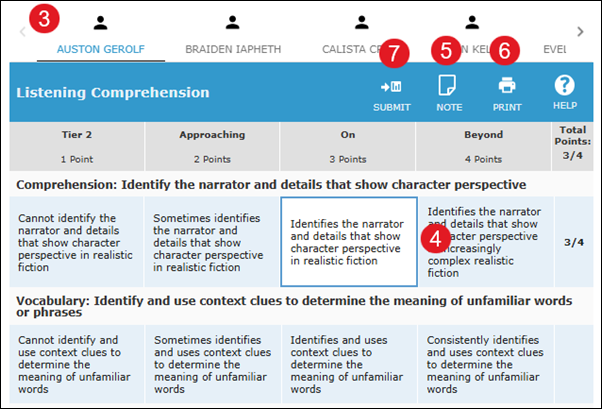
5. Click Note to add a note to the student’s rubric.
6. Click Print to print the rubric. From the print menu, you can choose to print an unscored or scored rubric, for one student or all students. You can also decide whether to print notes you may have added to student rubrics.
7. Click Submit.
Each rubric appears as a separate activity in the Data Dashboard.
Previously Scored Rubrics
You can always change scores or score additional students on the same activity at a later time.
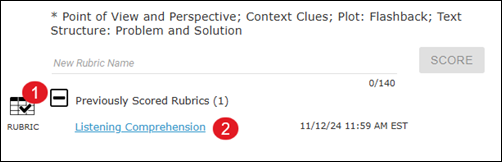
1. Click the + (plus sign) next to Previously Scored Rubrics to expand.
2. All the rubrics for this unit and week are available here. The most recently created rubric will be at the top of the list.
3. Click the rubric title to open.
4. Make your changes to the rubric and click Submit.
