
Using the Achieve3000 Literacy Student Writing Assistant
Learn how to use the Writing Assistant to help complete lessons in Achieve3000 Literacy.
- PreK-12
- Customer Support
- School Student
- School Parent
- Elementary School
- Middle School
- High School
- Direct Login & Auto-Rostering
- Direct Login & Manual-Rostering
- SSO & Auto-Rostering
- SSO & Manual-Rostering
- Supplemental
- Literacy
- Achieve3000 Literacy
- Student Resources
- Grades & Assignments


The Writing Assistant is an AI-powered feature that empowers teachers by giving students instant, on-demand support in the writing process. It engages students, fosters creativity, and helps refine writing skills by providing continuous feedback and revision in a simple, user-friendly interface. When students are engaged in the Write Step, they will have access to support from the Writing Assistant.
Students can use the tool to brainstorm, ask questions, and get feedback before submitting your final response.
Your teacher can see everything you write to the Writing Assistant. Do not share personal information like your full name, address, or phone number. Remember, Writing Assistant uses generative AI and AI can make mistakes, so make sure to carefully check your work!
Note: If you do not have access to the Writing Assistant, this may mean that your teacher or district/school administrator has turned the feature off. Reach out to your teacher for further assistance if you do not have access and believe you should.
One way for students to use the Writing Assistant is to enter their response to a question (A) in a lesson and click the Ask Writing Assistant button (B).
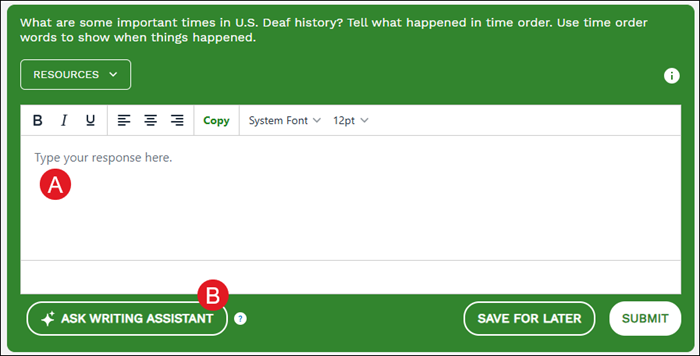
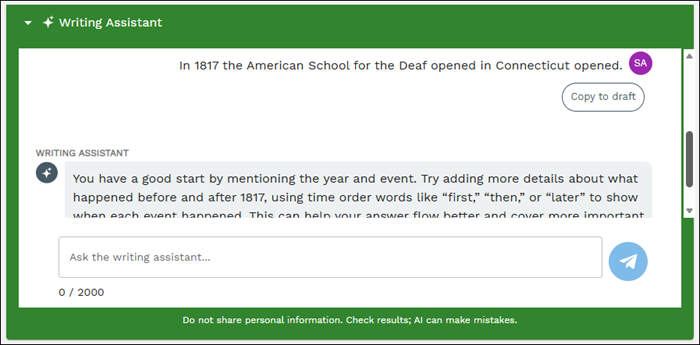
In the Writing Assistant section below, the tool will provide feedback based on your response in the Write Step section above and the rubric for the lesson. You can then continue to ask the Writing Assistant for further instruction on how to better your response, if needed.
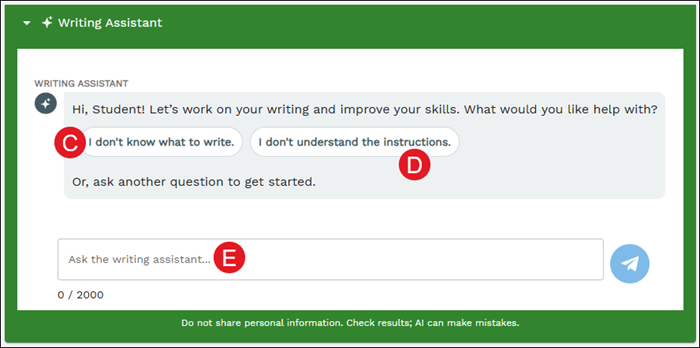
If you're unsure what to write for your response, or need further instruction on what to write, you can click the I don't know what to write (C) or I don't understand the instructions (D) buttons in the Writing Assistant section.
You can also enter a question in the provided field (E) if you need further assistance on how you should answer the question in the Write Step section.
Remember! Don't share personal information, AI can make mistakes, and your teacher can see everything that is communicated within the Writing Assistant.
