
Touchscreen Support for Websites
Check touchscreen support details for McGraw Hill websites.
- SSO & Manual-Rostering
- Customer Support
- Direct Login & Auto-Rostering
- School Student
- Middle School
- Direct Login & Manual-Rostering
- High School
- Classroom Teacher
- School Parent
- SSO & Auto-Rostering
- PreK-12
- School Administrator
- Preschool
- Elementary School
- AP Biology
- AP Chemistry
- AP History & Geography
- AP Psychology
- AP Economics
- AP African American Studies
- AP Precalculus
- AP Statistics
- AP Computer Science
- AP Language and Composition
- AP Public Speaking
- AP Music Theory
- 5 Steps to a 5 - AP Test Prep
- Glencoe Health 2022
- Teen Health 2021
- Arrive Math
- Building Blocks 2015
- Building Blocks 2024
- Building Blocks PreK 2025
- Number Worlds 2024
- SRA Reading Laboratory 2025
- SRA Reading Mastery Transformations
- Achieve3000 Literacy
- Actively Learn
- McGraw Hill Literacy Emerge!
- McGraw Hill Literacy Summit!
- McGraw Hill Literacy Soar!
- Open Court Reading 2025
- Redbird
- StudySync 2021
- ALEKS
- ALEKS Adventure
- CA Reveal Math (K-12)
- Illustrative Math
- Redbird Math
- Reveal Math (K-12)
- Texas Math
- CA Inspire Science 2020
- FL Science 2025 (K-12)
- Inspire Science 2020
- TN Science (K-12)
- TX Science 2025 (K-12)
- CA Impact 2019
- FL Social Studies 2024 (K-12)
- Impact Social Studies
- McGraw Hill Social Studies
- All Sorts 2026 (K-5)
- Asi se Dice 2024
- CTE - Health Science
- CTE - Agriculture
- CTE - Computing and Technology
- CTE - Culinary Arts
- CTE - Early Childhood Education
- CTE - Business, Marketing, and Finance
- CTE - Criminal Justice
- Glencoe Health 2014
- McGraw Hill Health 2014
- 2Inform
- Connecting Math Concepts
- Number Worlds 2015
- Corrective Reading
- Early Interventions in Reading
- Spelling Mastery
- WonderWorks 2022 & 2014
- Maravillas 2020 & 2017
- OCR Foundational Skills Kit
- OCR Word Analysis Kit
- Open Court Reading 2016, 2018, 2023
- StudySync 2015 & 2017
- Wonders
- Wonders 2014
- Wonders 2023 2020 2017
- Wonders Balanced Literacy 2016
- Wonders EL 2016
- World of Wonders 2017
- Core Plus Math 2015
- Everyday Mathematics 4 (K-6)
- Glencoe Algebra 1 2014
- Glencoe Algebra 2 2014
- Glencoe Algebra 1 2018
- Glenoce Algebra 2 2018
- Glencoe Math
- Glencoe Geometry 2014
- Glencoe Geometry 2018
- Glencoe Math Course 1
- Glencoe Math Course 2
- Glencoe Math Course 3
- Glencoe Math Accelerated
- McGraw Hill My Math
- McGraw Hill My Math 2013 & 2016
- McGraw Hill My Math 2018
- Pre-Algebra 2012
- Glencoe Science
- Glencoe Science 2017
- Inspire Science 2017
- iScience 2017
- Networks
- Networks 2014 (K-5)
- Networks 2018
- Networks 2014 & 2016
- Music! Its Role
- Spotlight on Music
- Asi se Dice 2016
- Troubleshooting


Overview
Early touchscreen devices – such as Apple iPads and Android tablets - were designed to mirror or complement familiar input from a mouse or touchpad. On these devices, touch is tightly integrated with the hardware, system, and apps, including browsers.
Newer touch interfaces were developed for:
- Interactive Whiteboards – Large displays either with an embedded device or connected to a host computer, allowing direct interaction with a finger or pen. Gesture support can vary by hardware and software generations within the same product line. Early education-focused brands included SMART Tech and Promethean.
- Hybrid Devices – Laptops with a touchscreen and the ability to convert to a tablet (separate screen, or flip/rotate). Common devices include Chromebook Touch and Windows Surface.
Because newer devices add touch interactivity to multiple environments, they have greater dependence on intermediate layers:
- The Hardware must send identifiable signals to the system.
- The Host System must accept input through various drivers and display modes.
- The Browser must group and standardize input from different sources.
- The Website must define a meaningful response for each type of input.
At any layer, input can be intercepted, redefined or ignored, preventing a website from receiving all input and responding as the user might expect.1 For example, hardware may have a pre-defined gesture to start calibration, or be paired with software to display custom controls, interpret multitouch, or receive remote input (“clickers”).
Over time, manufacturers will likely increase standardization, allowing software and websites to deliver more predictable and intuitive response. In the short term, the settings and practices on the following pages may improve responsiveness sooner.

Suggestions for Most Devices
If supported, a touchpad or external mouse may provide an immediate workaround and can help identify which interactions a website supports.
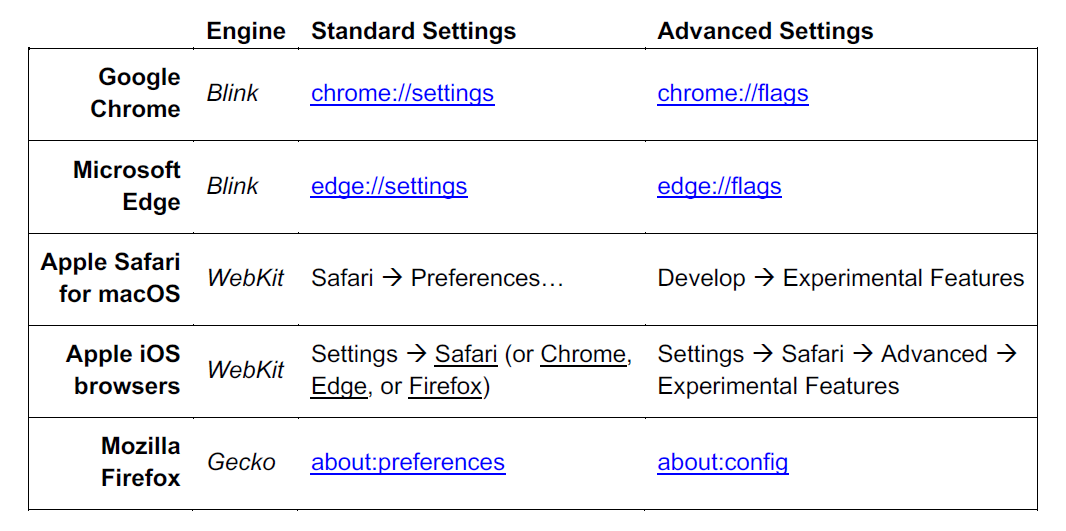
When touch input is recognized everywhere but, in the browser, or on certain websites, response can likely be improved through browser settings. In late 2018, browsers began adopting common standards to classify and respond to touch input, with additional refinements over time. However, since these are relatively new, they may also provide options to change interpretation, or to return to a mode that is better supported by certain hardware and websites. Settings are often associated to keywords like “touch” and “pointer”, and are found in similar areas for browsers with the same “engine”:
Suggestions for Interactive Whiteboards
Here are some manufacturer “best practices” that seem to apply across the industry:
- Use approved and preferred cabling. (e.g. Certified by manufacturer or industry, prefer digital over analog.)
- Keep the driver and software up to date.
- When redundant or irrelevant to an application or website’s functions, disable:
- Multi-touch.
- Remote input. (e.g. Clickers, complex remotes, mobile apps.)
- Manufacturer tools. (e.g. Overlay markup controls, software integrations.)
- Use the whiteboard’s native resolution.
- When calibration is required, use the finest option available.
Websites are increasingly designed to adapt to the user’s screen size and orientation. When a touchscreen mirrors a built-in screen, the browser may only recognize the built-in screen, and not pass the touchscreen’s resolution and independent controls to the website. To focus website response on the touchscreen, use the steps for your chosen display mode:
- In Extended mode, move the desired browser window to the interactive whiteboard. This also allows non-presentation items (such as a gradebook) to be kept on other screens.
- In Mirror mode, set the primary display to the interactive whiteboard, instead of to the standard screen. This will bias scaling and response to the whiteboard, rather than to the host and its other attached input devices.
After switching display settings, you may also need to:
- Restart the browser so it can recognize the new configuration.
- Tell the system to prioritize the whiteboard for touch input.
Chrome frequently updates flag options, but the following may be useful in some environments or through command-line:
- chrome://flags/#touch-events – AUTOMATIC (the default) lets Chrome adapt to external hardware, but only if attached before launching the Chrome application. Other options make response more predictable through hardware changes. You should find the best fit for your environment, but anecdotally, ENABLED is most common, while DISABLED helps with some older devices.
- chrome://flags/#enable-touch-drag-drop – ENABLED may allow drag gestures that were otherwise misinterpreted or ignored.
- chrome://flags/#disable-touch-adjustment – DISABLED may increase sensitivity to smaller gestures.
Suggestions for Hybrid Devices
Hybrid manufacturers emphasize certain practices in their documentation, and suggestions from one manufacturer often apply to others:
- Keep the driver and software up to date.
- Use a “native” resolution. Avoid zooming or scaling, and display as an extended monitor instead of mirroring.
- Apply the finest calibration.
- When redundant or irrelevant to an application or website’s functions, disable:
o Multi-touch.
o Manufacturer tools. (e.g. Overlay markup controls, software integrations.)
After switching display settings, you may also need to:
- Restart the browser so it can recognize the new configuration.
- Tell the system to prioritize the right screen for touch input.
Many hybrids convert to a tablet or other touch-focused mode through a physical reconfiguration - e.g. when the keyboard detaches or flips under screen. The system may also include controls, as Microsoft explains here for Windows 10:
With multiple displays, the system can misidentify which should receive touch, as discussed for Windows 10 on this Microsoft forum:
On particular hybrid devices, the Chrome browser will provide special flags, such as:
- chrome://flags/#force-tablet-mode – If Chrome offers this, the TABLET option may improve touch recognition while in laptop mode.
- chrome://flags/#show-touch-hud – If Chrome offers this, drawing motions may just open a contextual menu. This is part of the hardware and cannot be changed, but the ENABLED option will bring up an overlay for temporary drawings. Pressing the Ctrl-Opt-i keys will cycle between “drawing mode”, “location mode”, and neither.
