Texas Math Student eBook Navigation
Learn how students navigate through the Texas Math Interactive and Print eBooks.
- PreK-12
- Customer Support
- School Student
- School Parent
- Middle School
- High School
- Math
- Texas Math
- Dashboard & Navigation Overview
- Student Resources


Article Contents
Student eBook Navigation
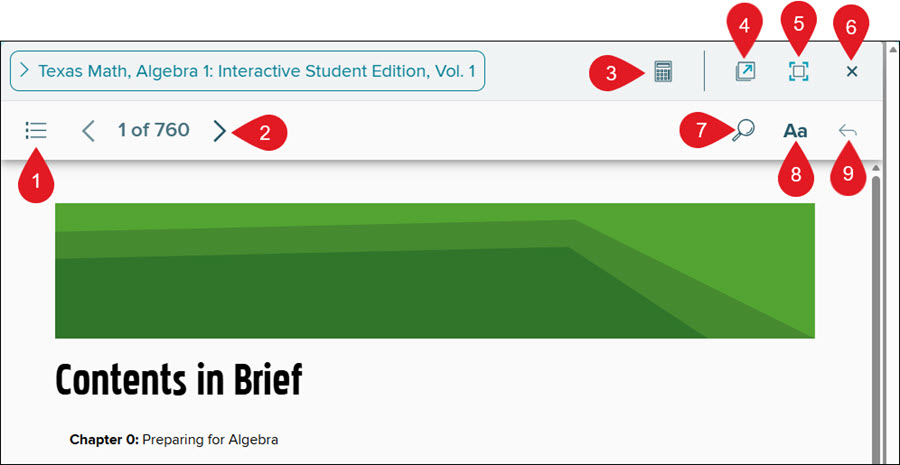
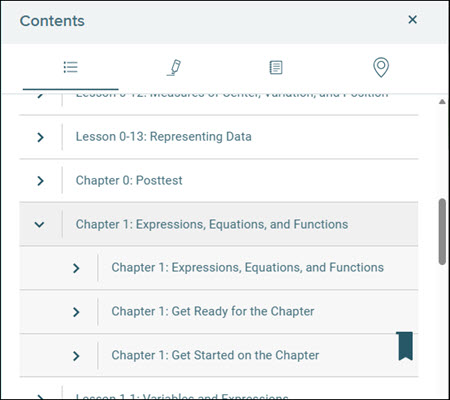
1. Contents - Provides access to the table of contents and any highlights, notes, and placemarks made in the eBook.
A bookmark icon will show on the table of contents for the page that is currently showing.
2. Page Navigation - Use the back-and-forth arrows to navigate between the pages.
3. Calculator - Opens the calculator tool in a secondary browser tab. This tool is only available for select programs.
4. New Tab - Opens the eBook in a secondary browser tab.
5. Full Screen - Opens the eBook in full screen mode. Click the button again to exit this mode or you can exit full screen mode via the browser tools.
6. Exit - Closes out the eBook page.
7. Search - Locate specific terms or phrases within the eBook. Clicking on a search result will automatically navigate you to that page.
8. Font Size - In the Interactive version of the eBook, the font size can be adjusted by clicking on the Aa and clicking/dragging the dot on the bar to make it smaller or larger.
9. Previous Location - Navigates you back to the previous page you were on.
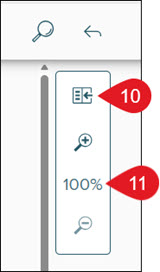
10. Single/Double Page View* - Allows you to toggle between viewing one or two eBook pages at a time.
11. Zoom* - Click the plus and minus magnifying glass icons to zoom in and out of the page. This option is only available when in single page view.
*These features are not available in the Interactive Student Edition.
eBook Toolbar
The eBook toolbar is accessed by highlighting text within the eBook.
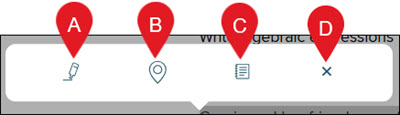
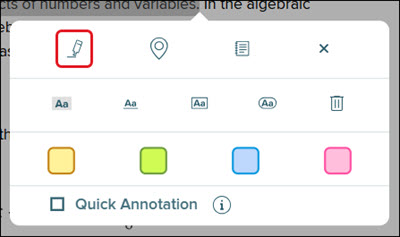
A. Add Annotation - Highlight, underline, box, and circle the highlighted word(s). Checking the Quick Annotation option allows you to highlight, underline, box, and circle text without having to reselect the option(s) multiple times.
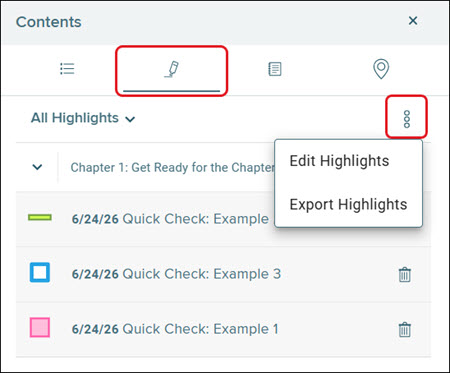
All annotations can be accessed by clicking on Contents and then the Highlights option. Clicking on an highlight will automatically navigate you to that location in the eBook.
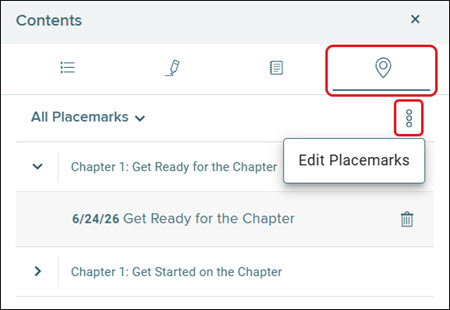
B. Add Placemark - Bookmarks the location of the selected text. These can then be accessed by clicking on Contents and then the Placemark option. Clicking on a placemark will automatically navigate you to that location in the eBook.
C. Add Notes - Add additional teacher notes to that section of the eBook. Enter the preferred text and then click the X icon on the toolbar. The entered text is automatically saved.
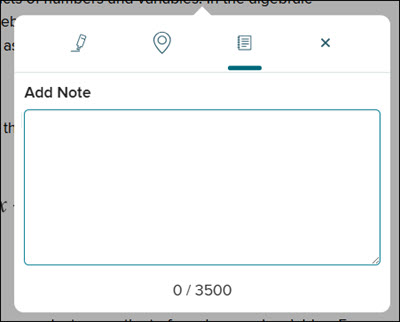
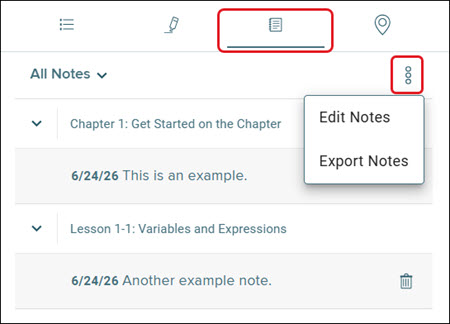
These can then be accessed by clicking on Contents and then the Notes option. Clicking on a note will automatically navigate you to that location in the eBook.
Using the WIRIS Editor
Teachers and students have access to the WIRIS Editor within the interactive version of the eBook that allows them to enter various operations for their activity answers.
For some activities, you will need to click into the blank answer field to bring up the WIRIS Editor button.
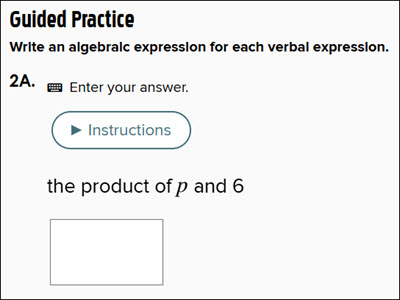
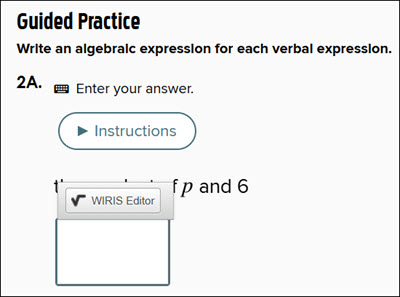
To access the tool, click on the WIRIS Editor button on the answer box.

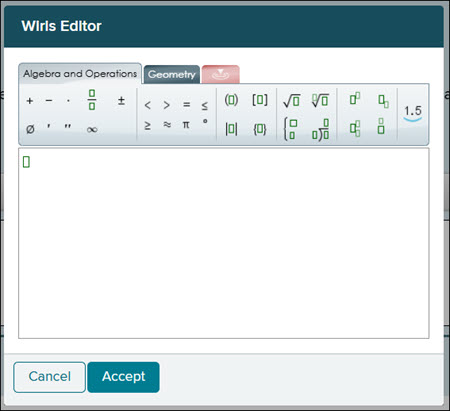
The WIRIS Editor will pop-up, allowing students to use various equation options to enter their answer to the activity. After entering in the answer, click the Accept button.