Learn how students use StudySync mobile apps for reading, assignments, and collaboration.
Tags
PreK-12
Customer Support
School Student
School Parent
Middle School
High School
Direct Login & Auto-Rostering
Direct Login & Manual-Rostering
SSO & Auto-Rostering
SSO & Manual-Rostering
Core
Literacy
StudySync 2021
StudySync 2015 & 2017
StudySync
Mobile Apps
Troubleshooting
Share:
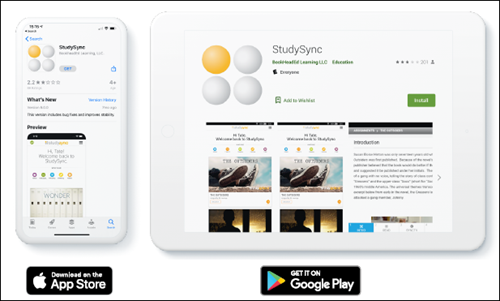
StudySync provides a mobile companion app to the StudySync ELA Curriculum that, once assignments have been downloaded, allows students to work on and complete assignments using a phone or tablet. Using the app instead of the browser is perfect for those times when students are working offline and don’t have access to a cellular or Wi-Fi network.
Next, retrieve the StudySync App Key from your student account.
2. Using a browser, log into your student account through my.mheducation.com.
3. Click to launch your StudySync content.
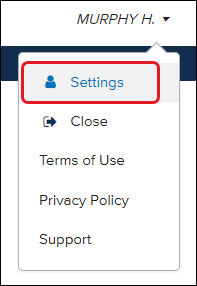
4. Click on your name in the top-right of the screen.
5. Click Settings.
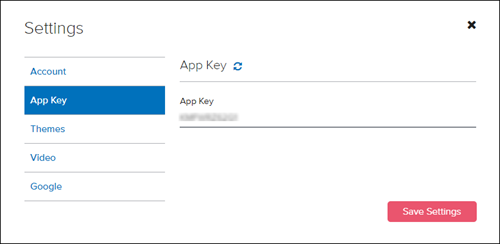
6. Click on the App Key tab. Write down or copy the multi-character key to the right.
Connect to StudySync Account
1. Open the StudySync app on your mobile device.
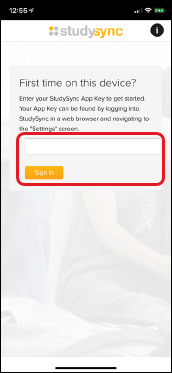
2. Enter the App Key that you wrote down/copied from your student account. Click Sign In.
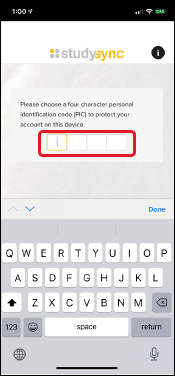
3. Create a specific 4-digit Pin that you will use each time you log into the mobile app.
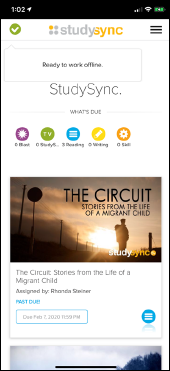
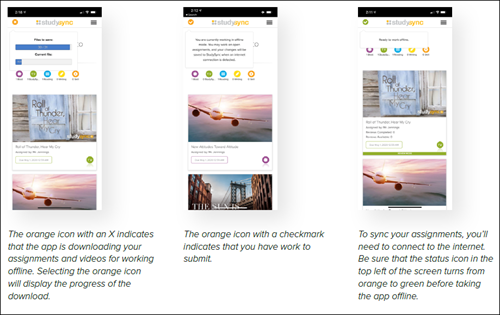
4. Download any assignments or videos. Once the green checkmark appears, you can work those assignments offline.
Sync Completed Assignments
The app downloads assignments locally to the device so that a student may access and complete assignments while offline. They must first have Wi-Fi network in order to sync and receive assignments. The app will save the work students complete locally to that device while offline.
Remember, you will need to be connected to the internet for your teacher to receive their completed assignments. If the assignment has been completed offline, and the student has pressed Submit, you will need to eventually reconnect to Wi-Fi and log into the app. The device remembers the time and date when you clicked Submit, and this is the time/date recorded for your teacher, even if you are offline at the time.
If you have been using the mobile app while having an internet connection, the app will immediately attempt to sync to your account. You will want to wait until you see the green checkmark before disconnecting.
StudySync Mobile App FAQ
I forgot my Pin. What do I do?
Students who forget their mobile app Pin can go back to the browser-based StudySync and get a new App Key. When they enter the new App Key it will re-attach to the existing account on the device without losing any locally stored assignments. The student will be prompted to create a new Pin.
The app won’t download my assignments. What’s going on?
It may be downloading a video, or the device is warning that there is no space for video. It can be useful to visit the Support screen and turn off video downloads. With video downloads disabled, any video viewing will require an internet connection.
Will my finished work be counted as late if I didn’t have access to the internet before the assignment was due?
If the assignment has been completed offline and the student has selected Submit, the student will eventually need to get back online. The device remembers the time and date when students selected Submit, and this is the time/date recorded for the teacher even if the student was offline at that time (their work will not be counted late).
What do I do if the cloud ate my homework?
If a student is having trouble with the mobile app, the best thing to do is to reset. This can be done by clicking the info icon at the top right of the screen before logging in. This is essentially the same as deleting the app from the device and reinstalling it. Any locally stored student work that has not been synced to the StudySync servers will be lost.
The Wi-Fi stopped working. Will I lose my work?
If a student has synced the mobile app they can continue to work offline to complete downloaded assignments. The student will need an internet connection to complete their submissions and to receive any new assignments or reviews from their teacher.
The App Key is no longer working. What happened?
App Keys expire after 14 days. If this occurs, log back in via the browser to get a new app key.
Can students access the library offline?
The Library is only available when connected to a Wi-Fi or cellular network.
studysync
student
school-parent
prek-12
PreK-12, Customer Support, School Student, School Parent, Middle School, High School, Direct Login & Auto-Rostering, Direct Login & Manual-Rostering, SSO & Auto-Rostering, SSO & Manual-Rostering, Core, Literacy, StudySync 2021, StudySync 2015 & 2017, StudySync, Mobile Apps, Troubleshooting
dts
2026-03-24T18:34:37.706-03:00
StudySync provides a mobile companion app to the StudySync ELA Curriculum that, once assignments have been downloaded, allows students to work on and complete assignments using a phone or tablet. Using the app instead of the browser is perfect for those times when students are working offline and don’t have access to a cellular or Wi-Fi network. Article Contents Install StudySync App and Retrieve App Key Connect to StudySync Account Sync Completed Assignments StudySync Mobile App FAQ Install StudySync App and Retrieve App Key 1. Download the app to a mobile phone or tablet. Next, retrieve the StudySync App Key from your student account. 2. Using a browser, log into your student account through my.mheducation.com. 3. Click to launch your StudySync content. 4. Click on your name in the top-right of the screen. 5. Click Settings. 6. Click on the App Key tab. Write down or copy the multi-character key to the right. Connect to StudySync Account 1. Open the StudySync app on your mobile device. 2. Enter the App Key that you wrote down/copied from your student account. Click Sign In. 3. Create a specific 4-digit Pin that you will use each time you log into the mobile app. 4. Download any assignments or videos. Once the green checkmark appears, you can work those assignments offline. Sync Completed Assignments The app downloads assignments locally to the device so that a student may access and complete assignments while offline. They must first have Wi-Fi network in order to sync and receive assignments. The app will save the work students complete locally to that device while offline. Remember, you will need to be connected to the internet for your teacher to receive their completed assignments. If the assignment has been completed offline, and the student has pressed Submit, you will need to eventually reconnect to Wi-Fi and log into the app. The device remembers the time and date when you clicked Submit, and this is the time/date recorded for your teacher, even if you are offline at the time. If you have been using the mobile app while having an internet connection, the app will immediately attempt to sync to your account. You will want to wait until you see the green checkmark before disconnecting. StudySync Mobile App FAQ I forgot my Pin. What do I do? Students who forget their mobile app Pin can go back to the browser-based StudySync and get a new App Key. When they enter the new App Key it will re-attach to the existing account on the device without losing any locally stored assignments. The student will be prompted to create a new Pin. The app won’t download my assignments. What’s going on? It may be downloading a video, or the device is warning that there is no space for video. It can be useful to visit the Support screen and turn off video downloads. With video downloads disabled, any video viewing will require an internet connection. Will my finished work be counted as late if I didn’t have access to the internet before the assignment was due? If the assignment has been completed offline and the student has selected Submit, the student will eventually need to get back online. The device remembers the time and date when students selected Submit, and this is the time/date recorded for the teacher even if the student was offline at that time (their work will not be counted late). What do I do if the cloud ate my homework? If a student is having trouble with the mobile app, the best thing to do is to reset. This can be done by clicking the info icon at the top right of the screen before logging in. This is essentially the same as deleting the app from the device and reinstalling it. Any locally stored student work that has not been synced to the StudySync servers will be lost. The Wi-Fi stopped working. Will I lose my work? If a student has synced the mobile app they can continue to work offline to complete downloaded assignments. The student will need an internet connection to complete their submissions and to receive any new assignments or reviews from their teacher. The App Key is no longer working. What happened? App Keys expire after 14 days. If this occurs, log back in via the browser to get a new app key. Can students access the library offline? The Library is only available when connected to a Wi-Fi or cellular network.
Top
Regional Page Available
It looks like you're outside the United States. Do you want to see your regional version of this page?