How to Mimic a Student Account in StudySync
Use the mimic student account feature in StudySync to preview the student experience.
Tags
- Getting Started & Orientation
- StudySync 2021
- Literacy
- SSO & Manual-Rostering
- Customer Support
- Direct Login & Auto-Rostering
- StudySync 2015 & 2017
- Middle School
- Core
- Class Management
- Direct Login & Manual-Rostering
- High School
- StudySync
- Classroom Teacher
- SSO & Auto-Rostering
- PreK-12
- Plan & Present
- Tools & Resources


This article will walk teachers through how to access a student's StudySync account through their teacher account.
1. After launching StudySync, click on the Users tab.
2. Click on Students in the menu bar.

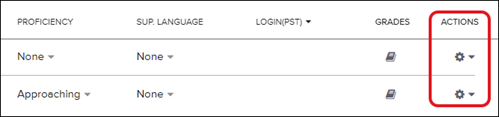
3. Click on the Actions icon to the right of the student's name.
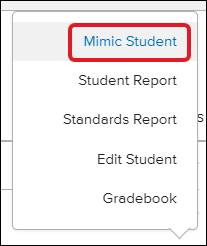
4. Click Mimic Student from the pop-up menu.
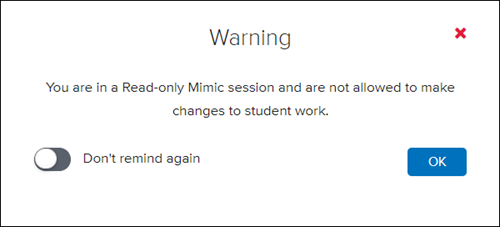
Note: Mimic is read-only and you will not be able to make any changes to student work.
To return to your teacher StudySync account:
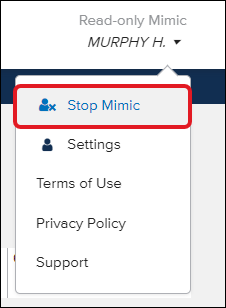
1. Click on the student's name in the top-right.
2. Click Stop Mimic.