Navigating the StudySync Library
Explore the StudySync library of texts, media, and instructional resources.
- StudySync 2021
- Literacy
- SSO & Manual-Rostering
- Customer Support
- Direct Login & Auto-Rostering
- StudySync 2015 & 2017
- Middle School
- Core
- Plan & Present
- Direct Login & Manual-Rostering
- High School
- Classroom Teacher
- SSO & Auto-Rostering
- PreK-12


Topics covered in this article:
How to view StudySync Library titles
How to save a title in the Library to your StudySync Bookshelf
How to make a suggestion for a text to be added to the StudySync Library
How to create your own Library item
How to find an item in the Library you created
How to view StudySync Library titles:
1. After launching StudySync, click on Library in the top navigation menu.
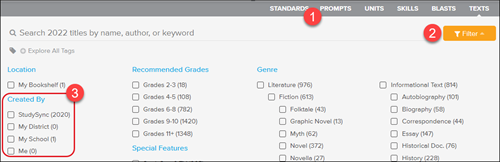
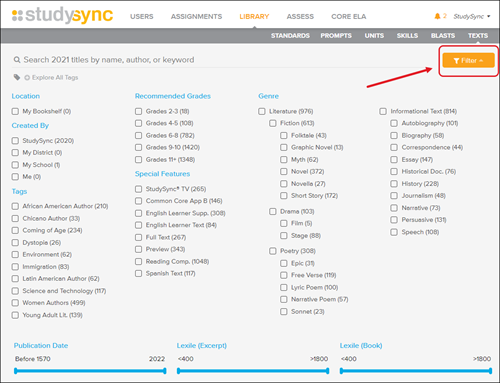
2. Click on the Library option you would like to search: PROMPTS, UNITS, SKILLS, BLASTS, or TEXTS.
3. Use the search bar to locate a specific title by name, author, or keyword.

Or, click the Filter button to choose filtering options.
How to save a title in the Library to your StudySync Bookshelf:
1. Follow the steps above on how to find your desired item in the Library.
2. Click on the title within the Library.
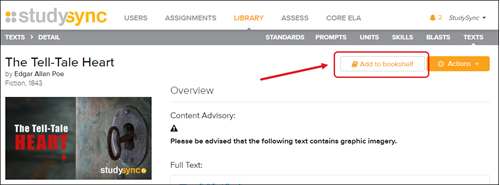
3. Click the Add to Bookshelf button at the top-right of the Library item page.
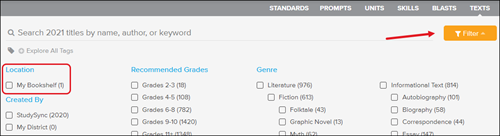
4. Click the Filter button, and then select My Bookshelf.
How to make a suggestion for a text to be added to the StudySync Library:
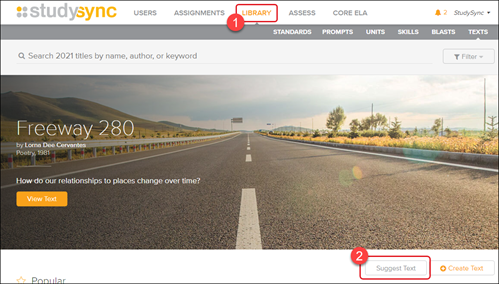
1. After launching StudySync, click on Library in the top navigation menu.
2. Click the Suggest Text button under the image banner.
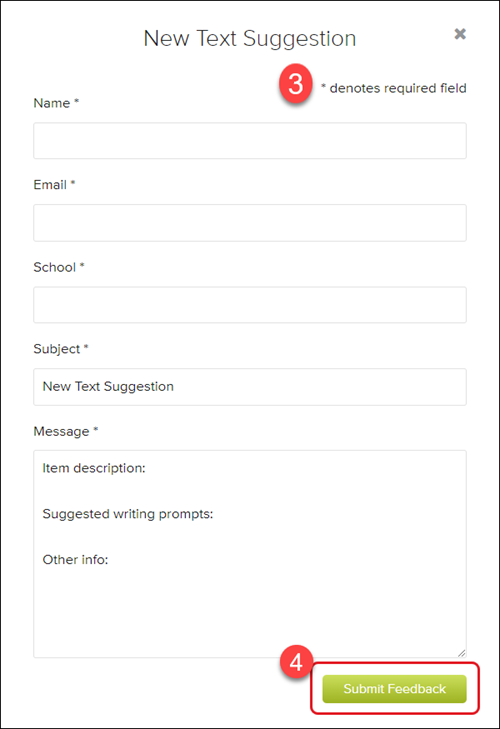
3. In the pop-up, fill in all required fields.
4. Click the Submit Feedback button.
How to create your own Library item:
1. From the Library tab, click the desired menu option: PROMPT, BLASTS, or TEXT.
2. Click the Create button under the image banner.
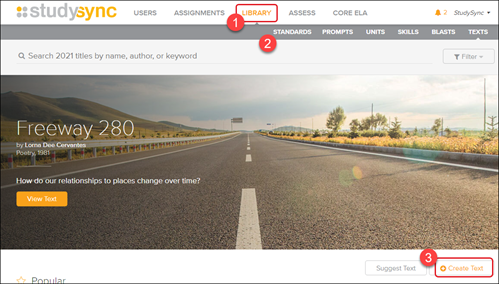
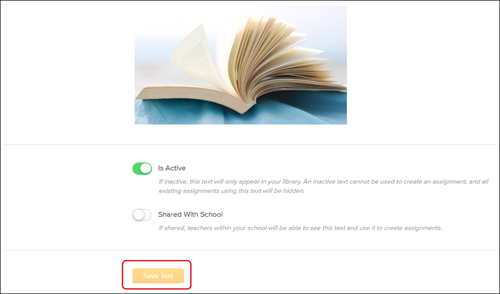
3. Fill in the template and click Create.
You can add text, images, and video for Library items.
How to find an item in the Library you created:
1. From the Library tab, click the desired menu option: PROMPT, BLASTS, or TEXT.
2. Click the Filter button, and then select the desired option under the Created By section.