
Download StudySync Resources as a PDF
Download StudySync resources as PDFs for offline use or printing.
Tags
- StudySync 2021
- Literacy
- SSO & Manual-Rostering
- Customer Support
- Direct Login & Auto-Rostering
- StudySync 2015 & 2017
- Tools & Resources
- Middle School
- Core
- Direct Login & Manual-Rostering
- High School
- Classroom Teacher
- SSO & Auto-Rostering
- PreK-12


This article provides instructions on how to save a resource as a PDF for StudySync.
1. From within StudySync, select the Library from the Navigation Menu. Then, select Units from the secondary menu.

3. Select Core ELA towards the bottom of the Units page.
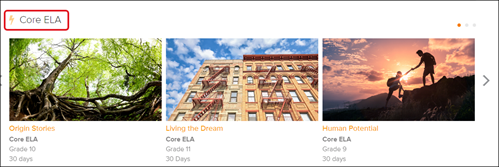
4. Select the Priority Instructional Content
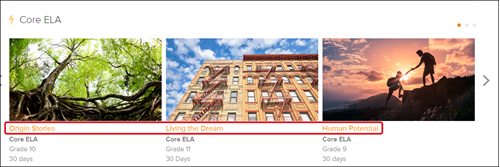
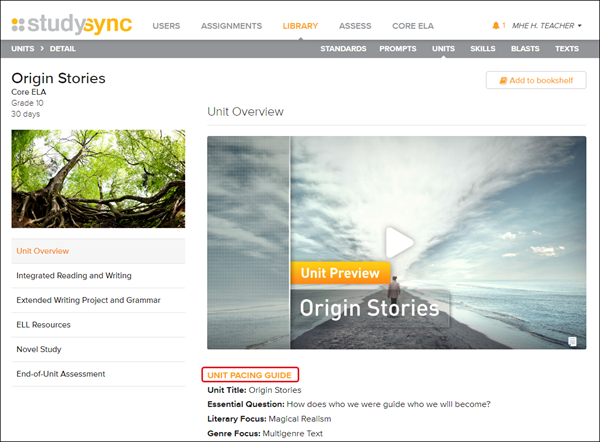
5. Click on the Unit Pacing Guide. This will open in a secondary browser tab.
6. From anywhere on the Pacing Guide page, right-click to open the browser menu. Select Print from the menu.
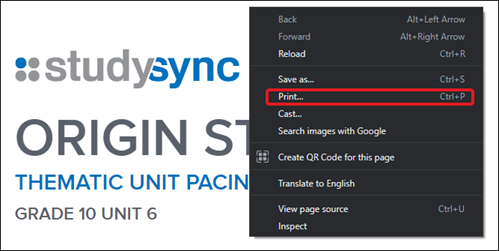
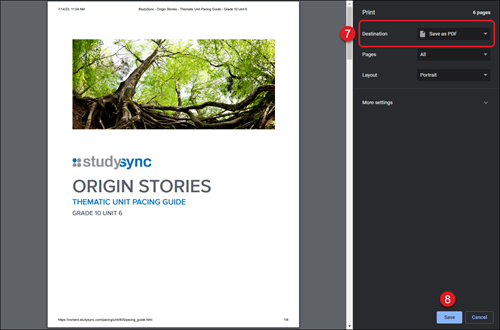
7. Select Save as PDF from the Destination drop-down.
8. Click the Save button.
9. Select the location you want to save the PDF to. Click the Save button.
