Assign StudySync Blasts
Send announcements and updates to students using StudySync Blasts.
- StudySync 2021
- Literacy
- SSO & Manual-Rostering
- Customer Support
- Direct Login & Auto-Rostering
- StudySync 2015 & 2017
- Middle School
- Core
- Plan & Present
- Direct Login & Manual-Rostering
- High School
- Classroom Teacher
- SSO & Auto-Rostering
- PreK-12


Blasts provide students with the opportunity to apply their writing skills in a medium that many students will find comfortable and familiar. In each Blast, students will engage with a high-interest, current event topic, synthesize information from background reading and optional online research, compose a clear response in 140 characters or less, answer a QuikPoll question, and share their responses with the class digitally. All Blasts are non-fiction and they're often connected to news of the day. A few Blasts have been identified for each Core ELA unit as they relate to its theme. The Blast format is also used to start and end each unit, to present, and revisit the essential question.
Topics covered in this article:
How to Assign & Customize a Blast
How to Edit a Blast (Clone Blast)
Blast Leadership Board
How to Assign & Customize a Blast
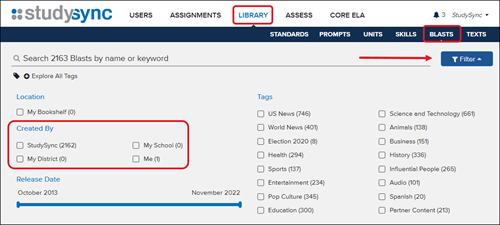
1. From the Library tab, click on Blasts from the gray menu bar.
2. Search for desired Blast title by using the search bar or the Filter.

3. Click on the title or image of the Blast.
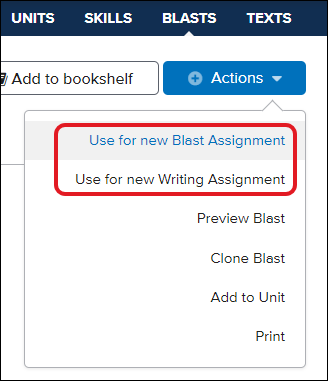
4. Click the Actions button in the top-right. Click Use for new Blast Assignment.
- You can also use it as a writing assignment by clicking on the Use for new Writing Assignment option.
5. Customize assignment with desired settings.
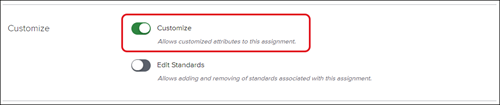
- To further customize the assignment beyond the usual options, you will want to toggle on the Customize option.
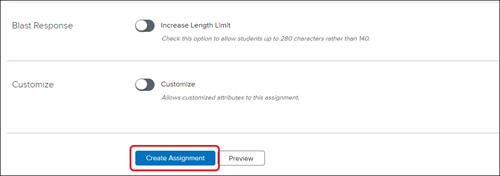
6. Click Create Assignment at the bottom of the page.
How to Edit a Blast (Clone Blast):
1. From the Library tab, click on Blasts from the gray menu bar.
2. Search for desired Blast title by using the search bar or the Filter.

3. Click on the title or image of the Blast.
4. Click the Actions button in the top-right. Click Clone Blast. This will copy all of the information from this Blast into a new Blast template.
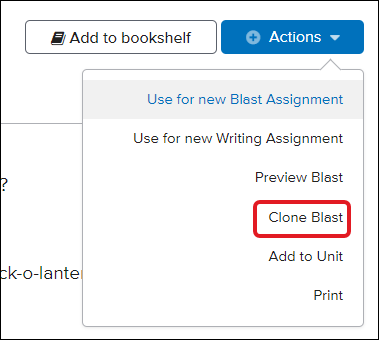
5. Edit any of the pieces of the Blast you desire.
6. Click Save Blast at the bottom of the page.
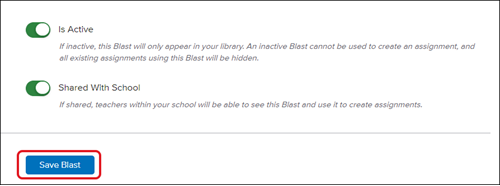
You can then easily find the Blasts you have edited and created by clicking on the Filter option under Blasts in the Library.
Blast Leadership Board
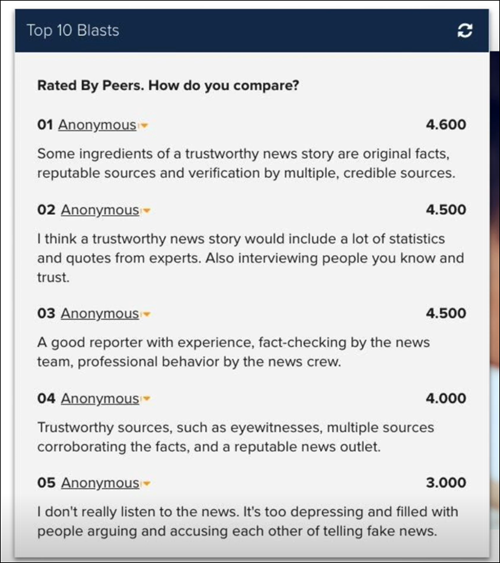
When students complete a Blast assignment by submitting their Blasts and peer-reviewing their classmates' responses, the assignment automatically generates a Leaderboard list of the Top 10 peer-rated Blasts. This data, along with the QuikPoll results, continues to update as long as responses and reviews continue to come in.
Note: Students must review at least five other student Blasts and have their Blast reviewed five times before the leadership board will show results, even if you have set the limit for the assignment to a number lower than five.
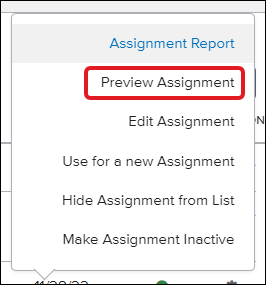
1. From the Assignments tab, click on the Action icon to the right of the Blast assignment.
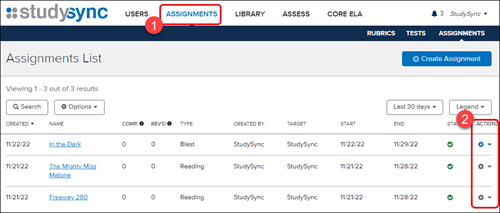
2. Click Preview Assignment.
The Leaderboard highlights which student responses have received the highest average rating in the Peer Review process for that class.
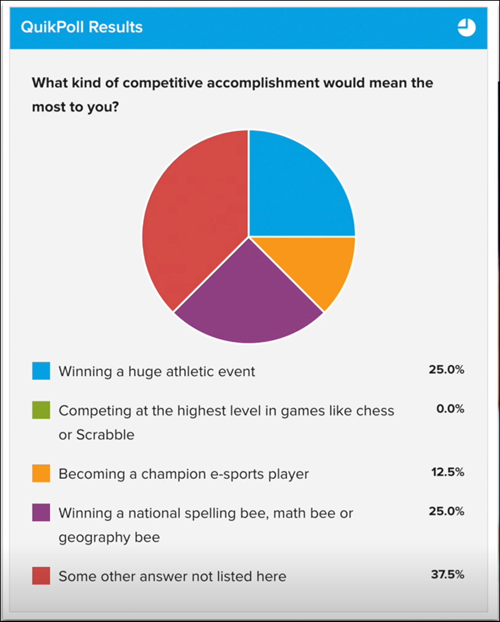
In addition, each Blast's live data will also include a color pie chart of the QuikPoll Results.