
Teacher StudySync Assessment Reports
Analyze student performance using StudySync Assess reporting tools designed for teachers.
- StudySync 2021
- Literacy
- SSO & Manual-Rostering
- Customer Support
- Direct Login & Auto-Rostering
- StudySync 2015 & 2017
- Reports & Analytics
- Middle School
- Core
- Direct Login & Manual-Rostering
- High School
- StudySync
- Classroom Teacher
- SSO & Auto-Rostering
- PreK-12


The reporting option under Assess allows you to run reports on any assessments that were assigned through the Assess tab. This includes the Beginning-of-the-Year assessments, Readiness Screeners and Diagnostic assessments, Benchmark assessments, End-of-Unit assessments, and Test Prep and Practice assessments. You will also be able to see all of the reports that you previously ran under the Reporting option.
To Create a Report
1. Click on Assess.
2. Click on Reporting.

3. Click on Create Report.

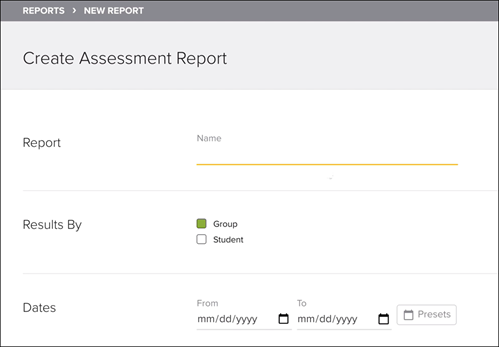
4. Enter a report name.
5. Select the Results By option.
- If you want class data, select Group.
- If you want individual data, select Student.
6. Select the data range that the assessment was administered by clicking on the calendar icons.
- You can select a Preset option of the Last 30 Days, Last 90 Days, and Academic Year.
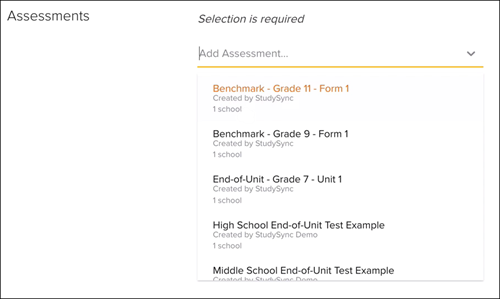
7. Select which assessment(s) you want to include in the report.
- The number of assessments and the list provided will vary on which assessments were assigned.
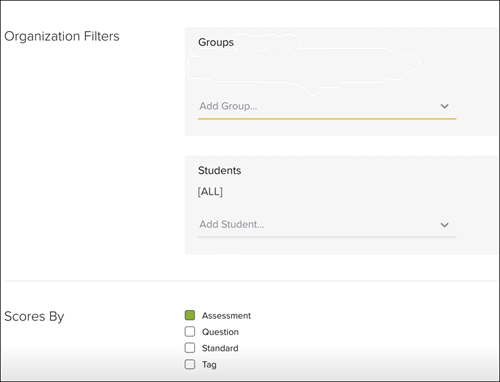
8. Select the Organization Filters.
- Select how many classes to include in the report.
- If the Student option was selected for step 5, select which students you would like to include in the report.
9. Select the Scores By option.
- Select additional options based on what is selected in the Scores By section.
10. Click Run.
- A box will come up that will show you all the information that is included in the report. You will have the option to Export Data to Excel or CSV by clicking on the arrow button.
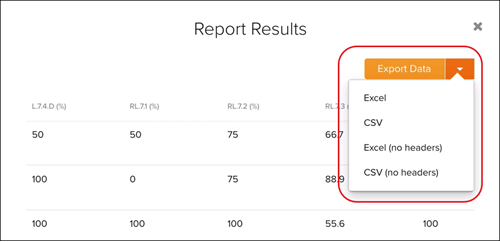
11. Click the small x on the Report Results pop-up. Click Save.
12. Click Back to report list to view all saved reports.
- In the list of reports, you will have the options to Edit, Clone, Run, or Delete (trash can icon) the report.
