Access and Navigate Student Course Presentations
Explore the presentation player used in the student experience for viewing lesson content.
- SSO & Manual-Rostering
- Customer Support
- Middle School
- Direct Login & Manual-Rostering
- High School
- School Parent
- SSO & Auto-Rostering
- PreK-12
- Elementary School
- World Languages
- Math
- Health
- Literacy
- Social Studies
- Direct Login & Auto-Rostering
- School Student
- Core
- AP, Honors & Electives
- Middle School Student
- High School Student
- Science
- Preschool
- AP Biology
- AP Chemistry
- AP History & Geography
- AP Psychology
- AP Economics
- AP African American Studies
- AP Precalculus
- AP Statistics
- AP Computer Science
- AP Language and Composition
- AP Public Speaking
- AP Music Theory
- 5 Steps to a 5 - AP Test Prep
- Glencoe Health 2022
- Teen Health 2021
- Arrive Math
- Building Blocks 2024
- Building Blocks PreK 2025
- Number Worlds 2024
- SRA Reading Laboratory 2025
- SRA Reading Mastery Transformations
- Open Court Reading 2025
- CA Reveal Math (K-12)
- Illustrative Math
- Reveal Math (K-12)
- Texas Math
- CA Inspire Science 2020
- FL Science 2025 (K-12)
- Inspire Science 2020
- TN Science (K-12)
- TX Science 2025 (K-12)
- CA Impact 2019
- FL Social Studies 2024 (K-12)
- Impact Social Studies
- McGraw Hill Social Studies
- All Sorts 2026 (K-5)
- Asi se Dice 2024
- CTE - Health Science
- CTE - Agriculture
- CTE - Computing and Technology
- CTE - Culinary Arts
- CTE - Early Childhood Education
- CTE - Business, Marketing, and Finance
- CTE - Criminal Justice
- Dashboard & Navigation Overview
- Student Resources


Access Presentation
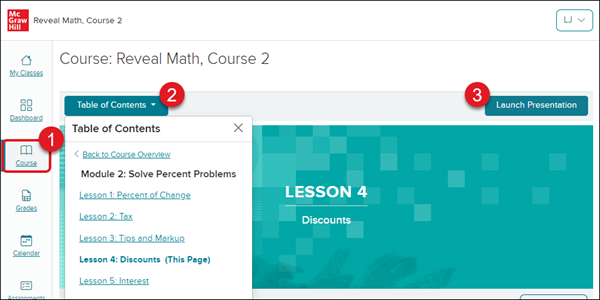
1. After launching your Open Learning class, click on Course in the Navigation menu.
2. Select the correct Unit/Chapter and Lesson from the Table of Contents.
3. Click the Launch Presentation button to the right of the page.
Presentation Player Navigation
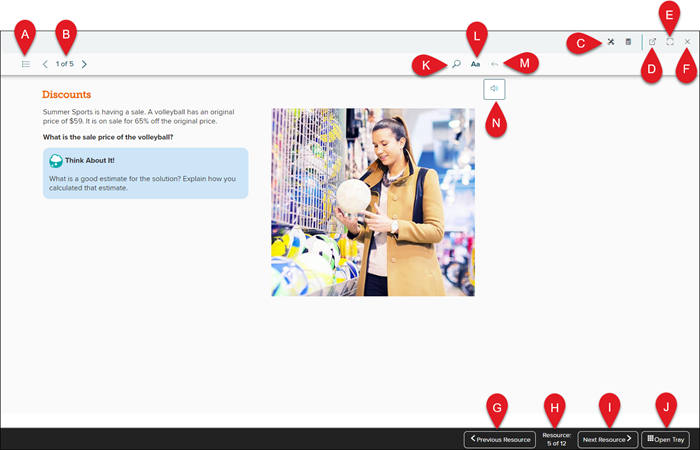
A. Table of Contents - if there is more than one page within a Resource slide, you can use the Contents tab to navigate quickly to a different page of the slide. You can also access any Highlights, Notes, and Placemarks.
B. Resource Navigation - if there is more than one page within a Resource slide, you will be able to navigate between the pages by using the back-and-forth arrows.
C. Presentation Tools - some presentations will provide you with additional tools to use, such as a calculator.
D. Open in New Tab - click the icon to open the presentation in a secondary browser tab.
E. Open/Exit Full Screen - click the icon to open or exit full-screen mode for the presentation.
F. Close - click the X icon to close out of the presentation.
G. Previous Resource - click to navigate to the previous Resource page.
H. Resource Page - this will show what Resource page you are currently on and how many pages are within the presentation.
I. Next Resource - click to navigate to the next Resource page.
J. Open Tray - click to open the Resource page tray and quickly navigate to a different page.
K. Search - use to search for particular terms within the presentation.
L. Font Size - click to increase or decrease font size.
M. Go to Previous Location - if there is more than one page within a Resource slide, click to navigate to the previous resource slide you were on.
N. Audio Player - click to have the presentation slide read aloud.
Presentation Tools
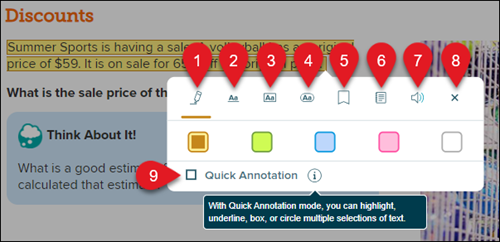
Select text within the presentation page to open the presentation tools menu.
1. Highlighter Text
2. Underline Text
3. Box Text
4. Circle Text
5. Add Placemark
6. Add Note
7. Play Audio of Selected Text
8. Close Toolbar
9. Quick Annotation - allows you to highlight, underline, box, or circle multiple selections of text.
Choose the desired color for the selected option for highlights, underline, box, and circle. Selecting the white box option to the far right will remove the highlight, underline, box, or circle. All highlights, underlines, boxes, circles, placemarks, and notes can be found under the Contents option at the top left of the presentation.
Presentation Contents
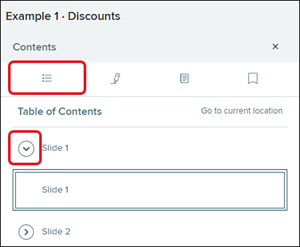
Table of Contents
Select the Table of Contents tab to access a list of all the Resource slides within the presentation. Click the arrow to the left of each slide to expand the section to navigate to any additional pages within the one resource page.
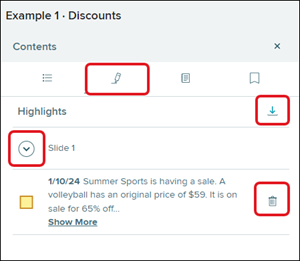
Highlights
Select the Highlights tab to access a list of all highlights made within the presentation. Click the arrow to expand a Slide section, the download button to download all highlights made, and the trash can icon to delete a highlight.
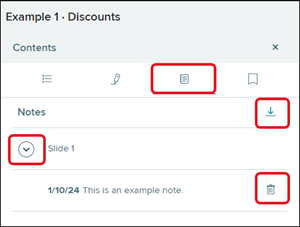
Notes
Select the Notes tab to access a list of all notes saved within the presentation. Click the arrow to expand a Slide section, the download button to download all notes made, and the trash can icon to delete a note.
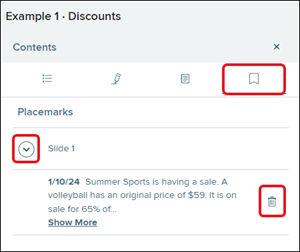
Placemarks
Select the Placemarks tab to access a list of all notes saved within the presentation. Click the arrow to expand a Slide section and the trash can icon to delete a note.