mh-social-studies
illustrative-math
5-steps-to-a-5-test-prep
impact
reveal-math
ap-edition
glencoe-health
teen-health
mcgraw-hill-literacy
mcgraw-hill-math
inspire-science
mcgraw-hill-science
asi-se-dice
mcgraw-hill-cte
level-up
student
school-parent
Programs & Solutions
Programs & Solutions/McGraw Hill Social Studies
Business Unit
Business Unit/PreK-12
Programs & Solutions/AP Edition
Programs & Solutions/AP Edition/AP Precalculus
Context
Context/Education Level
Context/Education Level/High School
Context/Subject
Context/Subject/Science
Context/Integration Type
Context/Integration Type/Direct Login & Auto-Rostering
Programs & Solutions/AP Edition/AP Biology
Programs & Solutions/AP Edition/AP Music Theory
Context/Integration Type/SSO & Auto-Rostering
Programs & Solutions/Glencoe Health
Programs & Solutions/Glencoe Health/Glencoe Health 2022
Programs & Solutions/Impact Social Studies
Programs & Solutions/Impact Social Studies/CA Impact 2019
Programs & Solutions/McGraw Hill Social Studies/FL Social Studies 2024 (K-12)
Context/Subject/World Languages
Programs & Solutions/Illustrative Math
Programs & Solutions/McGraw Hill CTE
Programs & Solutions/McGraw Hill CTE/CTE - Culinary Arts
Asset Format Type
Asset Format Type/Customer Support
Context/Curriculum Type
Context/Curriculum Type/Supplemental
Programs & Solutions/AP Edition/AP Statistics
Programs & Solutions/McGraw Hill Science
Programs & Solutions/McGraw Hill Science/TX Science 2025 (K-12)
Programs & Solutions/AP Edition/AP Public Speaking
Context/Subject/Health
Programs & Solutions/5 Steps to a 5 - AP Test Prep
Programs & Solutions/Asi Se Dice
Programs & Solutions/Asi Se Dice/Asi se Dice 2024
Personas
Personas/School Student
Programs & Solutions/Level Up
Programs & Solutions/Level Up/Level Up 9–12
Context/Curriculum Type/Career & Technical Education
Programs & Solutions/McGraw Hill Literacy
Programs & Solutions/McGraw Hill Literacy/McGraw Hill Literacy Soar!
Programs & Solutions/McGraw Hill CTE/CTE - Agriculture
Context/Subject/Math
Programs & Solutions/McGraw Hill Math
Programs & Solutions/McGraw Hill Math/Texas Math
Context/Curriculum Type/AP, Honors & Electives
Programs & Solutions/AP Edition/AP Chemistry
Context/Curriculum Type/Intervention
Programs & Solutions/McGraw Hill CTE/CTE - Computing and Technology
Context/Integration Type/Direct Login & Manual-Rostering
Context/Curriculum Type/Core
Programs & Solutions/AP Edition/AP Language and Composition
Context/Subject/Literacy
Programs & Solutions/McGraw Hill CTE/CTE - Health Science
Programs & Solutions/AP Edition/AP History & Geography
Programs & Solutions/Inspire Science
Programs & Solutions/Inspire Science/Inspire Science 2020
Context/Subject/Visual & Performing Arts
Programs & Solutions/AP Edition/AP Computer Science
Context/Subject/Social Studies
Programs & Solutions/Reveal Math (K-12)
Programs & Solutions/Reveal Math (K-12)/CA Reveal Math (K-12)
Context/Education Level/Middle School
Programs & Solutions/McGraw Hill CTE/CTE - Early Childhood Education
Personas/School Parent
Programs & Solutions/AP Edition/AP African American Studies
Programs & Solutions/McGraw Hill Science/FL Science 2025 (K-12)
Programs & Solutions/McGraw Hill CTE/CTE - Business, Marketing, and Finance
Programs & Solutions/McGraw Hill Literacy/McGraw Hill Literacy Summit!
Programs & Solutions/AP Edition/AP Economics
Programs & Solutions/AP Edition/AP Psychology
Programs & Solutions/McGraw Hill Science/TN Science (K-12)
Programs & Solutions/Teen Health
Programs & Solutions/Teen Health/Teen Health 2021
Programs & Solutions/McGraw Hill CTE/CTE - Criminal Justice
Support Topics
Support Topics/Assessments & Reporting
Support Topics/Assessments & Reporting/Grades & Assignments
Programs & Solutions/Inspire Science/CA Inspire Science 2020
Programs & Solutions/Level Up/Level Up 6–8
Context/Integration Type/SSO & Manual-Rostering
prek-12
2026-11-17T16:30:24.752-05:00
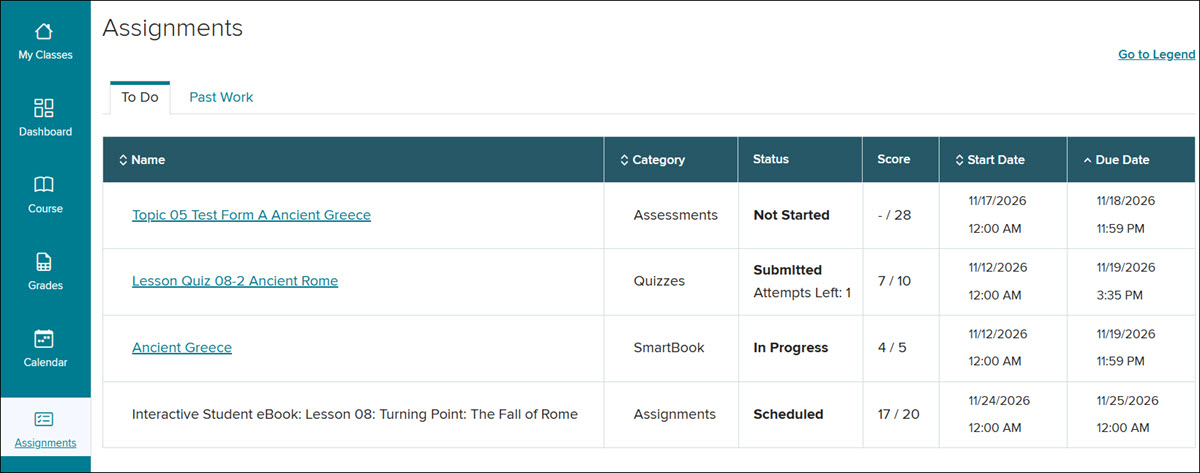
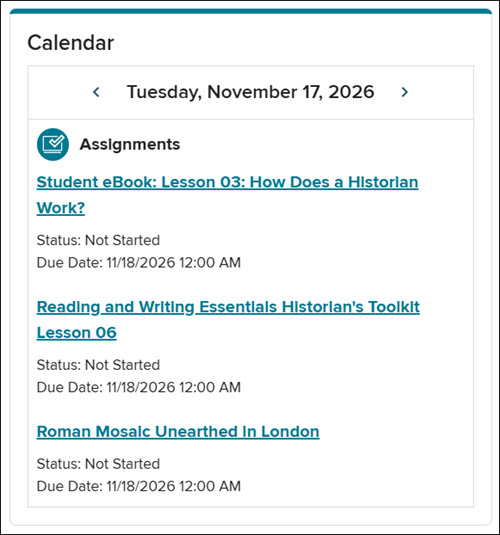
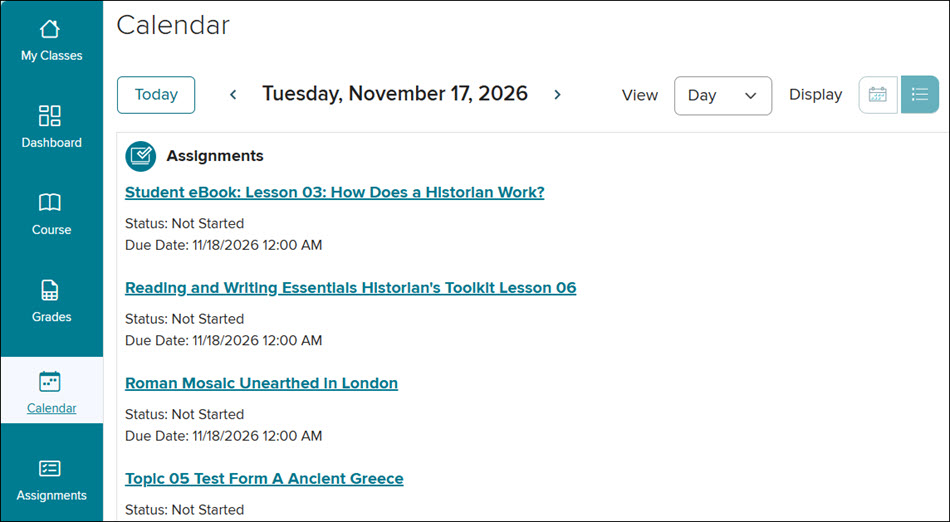
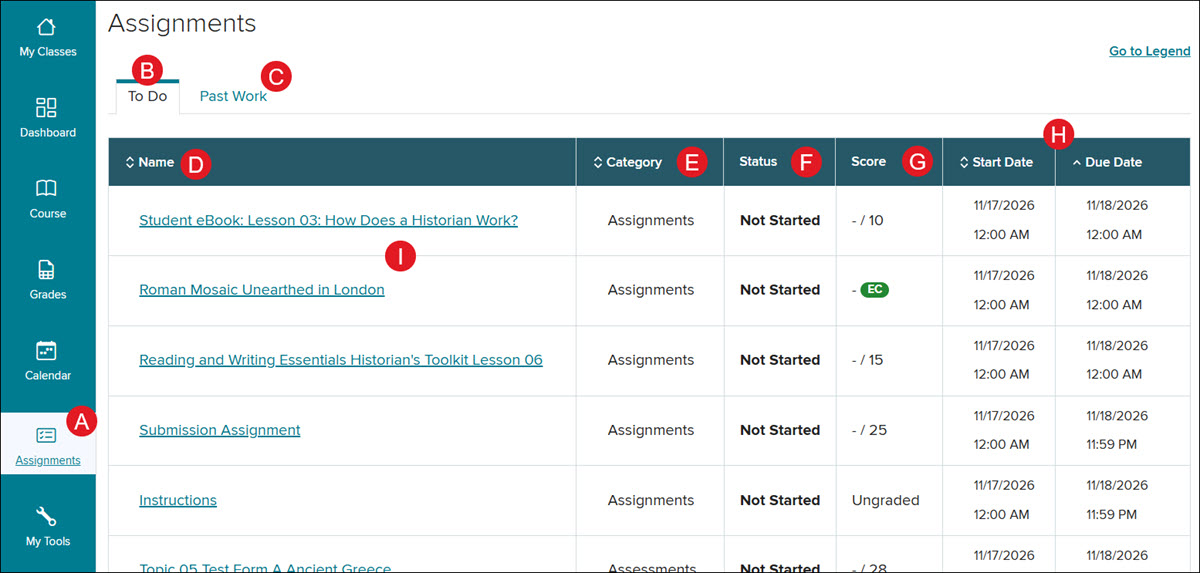
<h2 class="fs-5">Article Contents</h2> <p><a href="#assignment_list">Access Assignments List</a></p> <p><a href="#assignment_page">Assignment Page Navigation</a></p> <p><strong><a href="#complete_assignments">Complete Assignments</a></strong></p> <ul> <li><a href="#interactive_assignments">Interactive and eBook Assignments</a></li> <li><a href="#instruction_assignments">Instruction Assignments</a></li> <li><a href="#submission_assignment">Submission Assignments</a><ul> <li><a href="#upload_file">Upload a File</a></li> <li><a href="#add_link">Add a Link</a></li> <li><a href="#enter_text">Enter Text</a></li> <li><a href="#google_drive" target="_blank">Add a File from Google Drive</a></li> </ul> </li> <li><a href="https://www.mheducation.com/prek-12/support/knowledge/smartbook-2-0-student-guide.html" target="_blank">SmartBook</a> or <a href="https://www.mheducation.com/prek-12/support/knowledge/open-learning-platform-learnsmart-student-guide.html" target="_blank">LearnSmart Assignments</a></li> <li><a href="https://www.mheducation.com/prek-12/support/knowledge/open-learning-platform-take-an-online-assessment.html" target="_blank">Online Assessments</a></li> </ul> <p><strong>Assignment Results</strong></p> <ul> <li><a href="#assignment_results">Assignments Page</a></li> <li><a href="https://www.mheducation.com/prek-12/support/knowledge/student-experience-grades.html" target="_blank">Gradebook</a></li> </ul> <p> </p> <h3 class="fs-5"><a id="assignment_list"></a>Access Assignments List</h3> <p>Assignments can be accessed from multiple locations within your course content. Keep in mind, these options will vary based on the program being used.</p> <p>All past and present assignments can be found by clicking on <strong>Assignments </strong>from the navigation menu.</p> <p><img src="/content/dam/mhe/support/support-images/dts-k12-images/complete-ol-assignments-for-grades-6-12/ol-g612-student-assignments-3.jpg" data-assetref="ol-g612-student-assignments-3-1794940869501"></p> <p>Assignments are automatically added to the student calendar when created by the teacher. The <strong>Calendar widget</strong> is accessible from the <strong>Dashboard </strong>with the list of assignments that have yet to be completed.</p> <p>Click on an assignment name to navigate to that assignment.</p> <p><img src="/content/dam/mhe/support/support-images/dts-k12-images/complete-ol-assignments-for-grades-6-12/ol-g612-student-assignments-1.jpg" data-assetref="ol-g612-student-assignments-1-1794940544496"></p> <p>Assignments are also accessible by clicking on Calendar from the navigation menu. The page will default to the current day and list any assignments that are due.</p> <p>Click on an assignment name to navigate to that assignment.</p> <p>For more information on navigating the course calendar, see the <a href="https://www.mheducation.com/prek-12/support/knowledge/student-experience-calendar.html" target="_blank">Navigate the Grades 6-12 Student Calendar</a> article.</p> <p><img src="/content/dam/mhe/support/support-images/dts-k12-images/complete-ol-assignments-for-grades-6-12/ol-g612-student-assignments-2.jpg" data-assetref="ol-g612-student-assignments-2-1794940753672"></p> <p> </p> <h3 class="fs-5"><a id="assignment_page"></a>Assignment Page Navigation</h3> <p><img src="/content/dam/mhe/support/support-images/dts-k12-images/complete-ol-assignments-for-grades-6-12/ol-g612-student-assignments-4.jpg" data-assetref="ol-g612-student-assignments-4-1794941092070"></p> <ol class="list-type-alphabet-uppercase"> <li>Access all past and present assignments by clicking on <strong>Assignments </strong>from the navigation menu.<br> <br> </li> <li>All currently active assignments are located on the <strong>To Do</strong> tab.<br> <br> </li> <li>All assignments that have been submitted or the due date has passed are located on the <strong>Past Work</strong> tab.<br> <br> </li> <li>Click on a header to sort the list of assignments by that option.<br> <br> </li> <li>The <strong>Category </strong>column matches the category the assignment will show under on the <strong>Grades </strong>page and are set by the teacher.<br> <br> For information on navigating the student gradebook, see the <a href="https://www.mheducation.com/prek-12/support/knowledge/student-experience-grades.html" target="_blank">View the Student Gradebook for Grades 6-12</a> article.<br> <br> </li> <li>The <strong>Status </strong>of an assignment shows as <strong>Not Started</strong>, <strong>In Progress</strong>, or <strong>Scheduled</strong>.<br> <br> <strong>Note:</strong> Students cannot access any assignments with a status of Scheduled until the Start Date and Time has been reached.<br> <br> </li> <li>The <strong>Score </strong>column shows the grade you received for the completed assignment.<br> <br> </li> <li>The <strong>Start </strong>and <strong>Due Date</strong> columns provide the dates and times the assignments can be accessed and completed.<br> <br> </li> <li>Click on an assignment <strong>Name</strong> to open it.</li> </ol> <p> </p> <h3 class="fs-5"><a id="complete_assignments"></a>Complete Assignments</h3> <p>For steps on completing an online assessment, see the <a href="https://www.mheducation.com/prek-12/support/knowledge/open-learning-platform-take-an-online-assessment.html" target="_blank">Take a McGraw Hill Online Assessment</a> article. For steps on completing SmartBook or LearnSmart assignments, see the <a href="https://www.mheducation.com/prek-12/support/knowledge/smartbook-2-0-student-guide.html" target="_blank">Open Learning SmartBook® Student Guide</a> or <a href="https://www.mheducation.com/prek-12/support/knowledge/open-learning-platform-learnsmart-student-guide.html" target="_blank">Open Learning LearnSmart® Student Guide</a> articles.</p> <p> </p> <h3 class="fs-5"><a id="interactive_assignments"></a>Interactive and eBook Assignments</h3> <ol> <li>Click on the name of the assignment.<br> <br> </li> <li>Click on the <strong>Assignment Content</strong> resource tile.<br> <br> <img src="/content/dam/mhe/support/support-images/dts-k12-images/complete-ol-assignments-for-grades-6-12/ol-g612-student-assignments-5.jpg" data-assetref="ol-g612-student-assignments-5-1794941849591"><br> <br> </li> <li>Enter your answers in the provided question fields.<br> <br> A. For certain activities, such as eBook assignments, students will need to click the <strong>Done </strong>button for each answered question to save their responses.<br> <br> B. For some interactive activities, students have the option to check their answers and view the correct answers.<br> <br> </li> <li>Click the <strong>Submit Assignment </strong>button at the bottom of the resource page.<br> <br> <strong>Note: </strong>If pages of the eBook were assigned, students need to navigate to the last assigned page for the Submit Assignment button to activate. The <strong>Assigned Pages</strong> can be found at the top of the resource page (C).<br> <br> <img src="/content/dam/mhe/support/support-images/dts-k12-images/complete-ol-assignments-for-grades-6-12/ol-g612-student-assignments-6.jpg" data-assetref="ol-g612-student-assignments-6-1794942898726"><br> <br> <img src="/content/dam/mhe/support/support-images/dts-k12-images/complete-ol-assignments-for-grades-6-12/ol-g612-student-assignments-7.jpg" data-assetref="ol-g612-student-assignments-7-1794942907753"><br> <br> </li> <li>On the pop-up, click the <strong>Submit </strong>button to confirm.<br> <br> <img src="/content/dam/mhe/support/support-images/dts-k12-images/complete-ol-assignments-for-grades-6-12/ol-g612-student-assignments-8.jpg" data-assetref="ol-g612-student-assignments-8-1794943052265"></li> </ol> <p> </p> <h3 class="fs-5"><a id="instruction_assignments"></a>Instruction Assignments</h3> <p>Instruction assignments are meant to be informational assignments only, with no questions to actually answer or anything to submit.</p> <ol> <li>Click on the name of the assignment.<br> <br> </li> <li>Review any <strong>Instructions </strong>given by the teacher.<br> <br> A. Click on any attached files under <strong>Assignment Content</strong> to view them.<br> <br> </li> <li>Click the <strong>Mark as Complete</strong> button to confirm the instructions have been viewed.<br> <br> <img src="/content/dam/mhe/support/support-images/dts-k12-images/complete-ol-assignments-for-grades-6-12/ol-g612-student-assignments-9.jpg" data-assetref="ol-g612-student-assignments-9-1794943348253"></li> </ol> <p> </p> <h3 class="fs-5"><a id="submission_assignment"></a>Submission Assignment</h3> <p>A Submission assignment consists of uploading a resource file, a web address, or entering text.</p> <ol> <li>Click on the assignment name.<br> <br> </li> <li>Click on any resources shown under <strong>Assignment Content</strong> to open/download them.<br> <br> <img src="/content/dam/mhe/support/support-images/dts-k12-images/complete-ol-assignments-for-grades-6-12/ol-g612-student-assignments-10.jpg" data-assetref="ol-g612-student-assignments-10-1794947121380"><br> <br> </li> <li>In the <strong>Submission Content</strong> section, click the <strong><a href="#upload_file">Upload File</a></strong>, <strong><a href="#add_link">Add Link</a></strong>, <a href="#enter_text" style="font-weight: bold;">Enter Text</a>, or <a href="#google_drive"><strong>Google Drive</strong></a> radio button depending on what you want to submit.</li> </ol> <p> </p> <h3 class="fs-5"><a id="upload_file"></a>Upload a File</h3> <ol> <li>Select the <strong>Upload File </strong>radio button to attach a file, such as a PDF or Word Doc, to submit.<br> <br> </li> <li>Click the<strong> browse</strong> link to select the saved file from your device to add it to the assignment.<br> <br> A. You can also drag and drop the resource file into the <strong>Drop Zone</strong> field.<br> <br> <img src="/content/dam/mhe/support/support-images/dts-k12-images/complete-ol-assignments-for-grades-6-12/ol-g612-student-assignments-11.jpg" data-assetref="ol-g612-student-assignments-11-1794947855352"><br> <br> B. Click the <strong>View </strong>link to the right of the file to look at the attachment.<br> <br> C. Click the <strong>Delete </strong>button (trash can icon) to remove the file.<br> <br> D. Click the <strong>Add Another</strong> button to add an additional file, link, or enter text for the assignment. This button only shows after the first file has been successfully uploaded.<br> <br> </li> <li>Click the <strong>Submit </strong>button.<br> <br> <img src="/content/dam/mhe/support/support-images/dts-k12-images/complete-ol-assignments-for-grades-6-12/ol-g612-student-assignments-13.jpg" data-assetref="ol-g612-student-assignments-13-1794948117598"><br> <br> </li> <li>On the pop-up, click the <strong>Submit </strong>button to confirm.<br> <br> <img src="/content/dam/mhe/support/support-images/dts-k12-images/complete-ol-assignments-for-grades-6-12/ol-g612-student-assignments-12.jpg" data-assetref="ol-g612-student-assignments-12-1794948001109"></li> </ol> <p> </p> <h3 class="fs-5"><a id="add_link"></a>Add a Link</h3> <ol> <li>Click the <strong>Add Link </strong>radio button to enter a website URL.<br> <br> </li> <li>Enter a link starting with <strong>http://</strong> in the provided field.<br> <br> A. Click the <strong>Add Another Link</strong> button to add an additional link.<br> <br> </li> <li>Click the <strong>Save </strong>button once all links have been added to the assignment.<br> <br> <img src="/content/dam/mhe/support/support-images/dts-k12-images/complete-ol-assignments-for-grades-6-12/ol-g612-student-assignments-14.jpg" data-assetref="ol-g612-student-assignments-14-1794948293889"><br> <br> B. Click the <strong>View </strong>link to the right of the link to navigate to the added website.<br> <br> C. Click the <strong>Delete </strong>button (trash can icon) to remove the link.<br> <br> D. Click the <strong>Add Another</strong> button to add an additional file, link, or enter text for the assignment. This button only shows after the first link has been added.<br> <br> </li> <li>Click the <strong>Submit </strong>button.<br> <br> <img src="/content/dam/mhe/support/support-images/dts-k12-images/complete-ol-assignments-for-grades-6-12/ol-g612-student-assignments-15.jpg" data-assetref="ol-g612-student-assignments-15-1794948423292"><br> <br> </li> <li>On the pop-up, click the <strong>Submit </strong>button to confirm.<br> <br> <img src="/content/dam/mhe/support/support-images/dts-k12-images/complete-ol-assignments-for-grades-6-12/ol-g612-student-assignments-16.jpg" data-assetref="ol-g612-student-assignments-16-1794948479741"></li> </ol> <p> </p> <h3 class="fs-5"><a id="enter_text"></a>Enter Text</h3> <ol> <li>Click the <strong>Enter Text</strong> radio button to write out your assignment answer.<br> <br> </li> <li>Enter the text in the provided field.<br> <br> </li> <li>Click the <strong>Save </strong>button.<br> <br> <img src="/content/dam/mhe/support/support-images/dts-k12-images/complete-ol-assignments-for-grades-6-12/ol-g612-student-assignments-17.jpg" data-assetref="ol-g612-student-assignments-17-1794948681413"><br> <br> A. Click the <strong>Edit </strong>button<strong> </strong>to the right of the text entry to make changes to what was entered.<br> <br> B. Click the <strong>Delete </strong>button (trash can icon) to remove the text from the assignment.<br> <br> C. Click the <strong>Add Another</strong> button to add an additional file, link, or enter text for the assignment. This button only shows after the text has been saved.<br> <br> </li> <li>Click the <strong>Submit </strong>button.<br> <br> <img src="/content/dam/mhe/support/support-images/dts-k12-images/complete-ol-assignments-for-grades-6-12/ol-g612-student-assignments-18.jpg" data-assetref="ol-g612-student-assignments-18-1794948879153"><br> <br> </li> <li>On the pop-up, click the <strong>Submit </strong>button to confirm.<br> <br> <img src="/content/dam/mhe/support/support-images/dts-k12-images/complete-ol-assignments-for-grades-6-12/ol-g612-student-assignments-16.jpg" data-assetref="ol-g612-student-assignments-16-1794948901000"></li> </ol> <p> </p> <h3 class="fs-5"><a id="google_drive"></a>Add a File from Google Drive</h3> <p>The option for Google Drive will only be available if the student account is linked to a Google account. For steps on linking to a Google account, see the <a href="https://www.mheducation.com/prek-12/support/knowledge/pair-unpair-your-mcgraw-hill-account-with-your-google-account-students.html" target="_blank">Pair/Unpair Your McGraw Hill Student Account with Your Google Account</a> article.</p> <ol> <li>Click the <strong>Google Drive</strong> radio button to add a file from your Google account.<br> <br> </li> <li>Click the <strong>Open Google Drive</strong> button.<br> <br> <img src="/content/dam/mhe/support/support-images/dts-k12-images/complete-ol-assignments-for-grades-6-12/ol-g612-student-assignments-19.jpg" data-assetref="ol-g612-student-assignments-19-1794949151881"><br> <br> </li> <li>Select the files from Google Drive you want to add.<br> <br> A. Click the <strong>View </strong>link to the right of the file to look at the attachment.<br> <br> B. Click the <strong>Delete </strong>button (trash can icon) to remove the file.<br> <br> C. Click the <strong>Add Another</strong> button to add an additional file, link, or enter text for the assignment. This button only shows after the first file has been successfully uploaded.<br> <br> </li> <li>Click the <strong>Submit </strong>button.<br> <br> <img src="/content/dam/mhe/support/support-images/dts-k12-images/complete-ol-assignments-for-grades-6-12/ol-g612-student-assignments-20.jpg" data-assetref="ol-g612-student-assignments-20-1794950165340"><br> <br> </li> <li>On the pop-up, click the <strong>Submit </strong>button to confirm.<br> <br> <img src="/content/dam/mhe/support/support-images/dts-k12-images/complete-ol-assignments-for-grades-6-12/ol-g612-student-assignments-16.jpg" data-assetref="ol-g612-student-assignments-16-1794950185549"></li> </ol> <p> </p> <h3 class="fs-5"><a id="assignment_results"></a>View Assignment Results on the Assignments Page</h3> <p>The scores for assignments and assessments can be viewed from the Assignments page as well as the Grades page. See the <a href="https://www.mheducation.com/prek-12/support/knowledge/student-experience-grades.html" target="_blank">View the Student Gradebook for Grades 6-12</a> article for information on navigating the student gradebook.</p> <ol> <li>Click on <strong>Assignments</strong> from the navigation menu.<br> <br> </li> <li>Click the <strong>Past Work</strong> tab.<br> <br> A. If an assignment has been scored, it will show in the <strong>Score </strong>column.<br> <br> <strong>Note:</strong> If it shows as Ungraded in the Score column, this means that it needs to be manually scored by the teacher before a score will populate.<br> <br> <img src="/content/dam/mhe/support/support-images/dts-k12-images/complete-ol-assignments-for-grades-6-12/ol-g612-student-assignments-21.jpg" data-assetref="ol-g612-student-assignments-21-1794950594466"></li> </ol> dts Explore how students access and complete assignments in their learning environment. 2026-11-17 Complete Open Learning Assignments as a Grade 6-12 Student Explore how students access and complete assignments in their learning environment. Explore how students access and complete assignments in their learning environment.
Explore how students access and complete assignments in their learning environment.
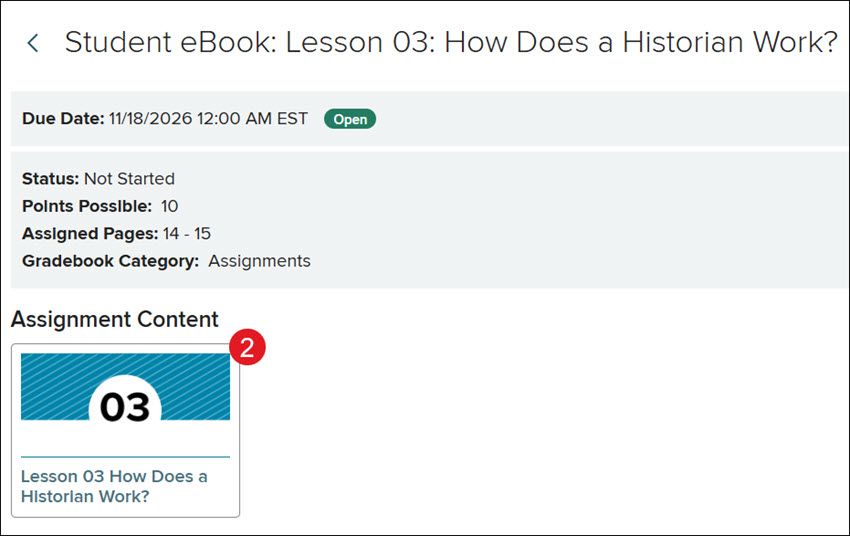
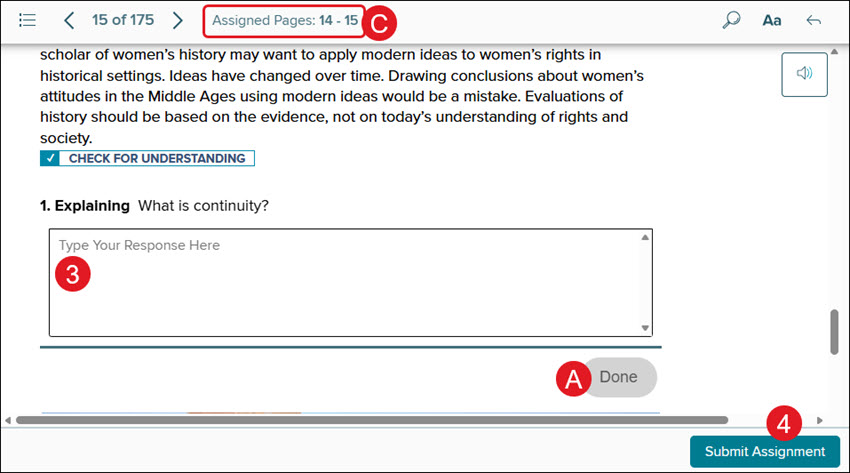
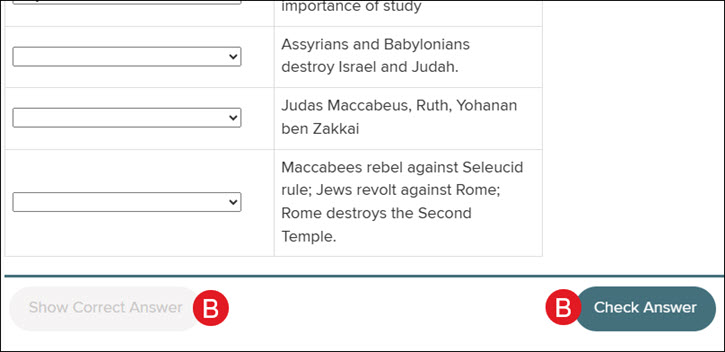
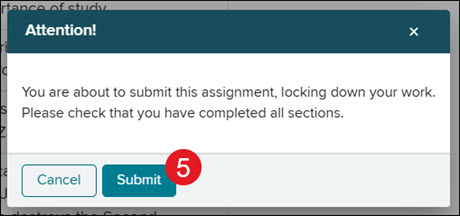
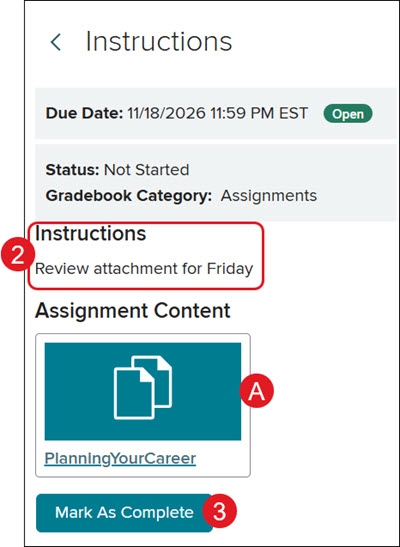
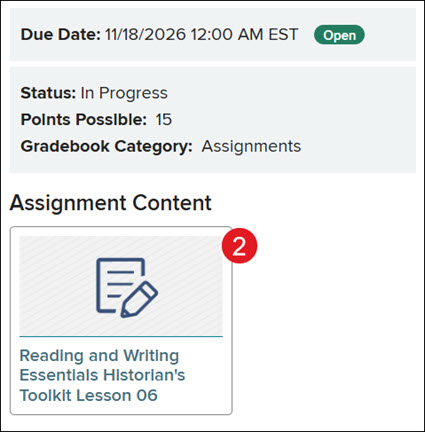
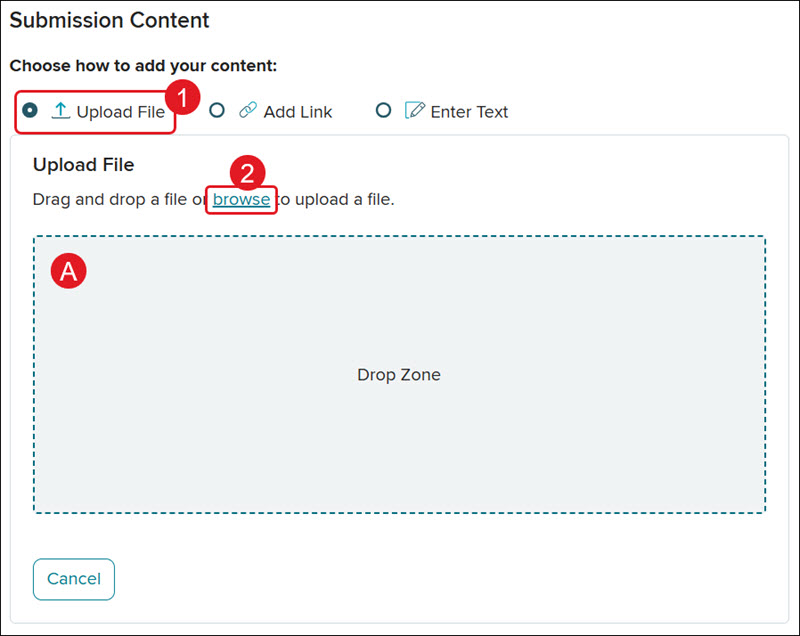
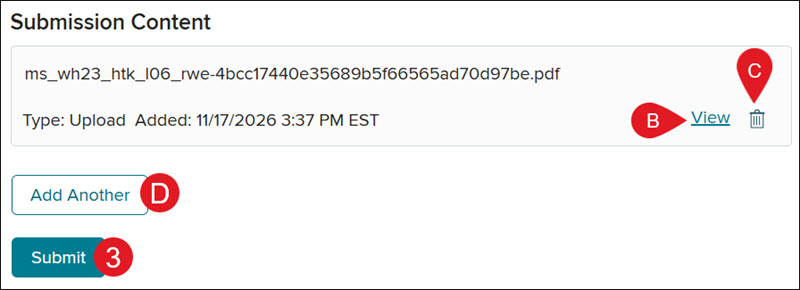
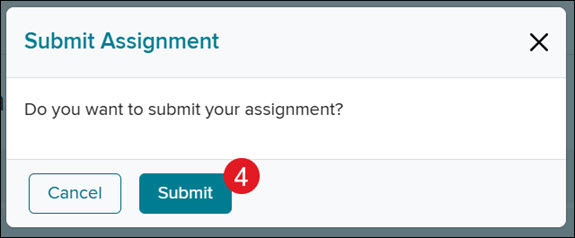
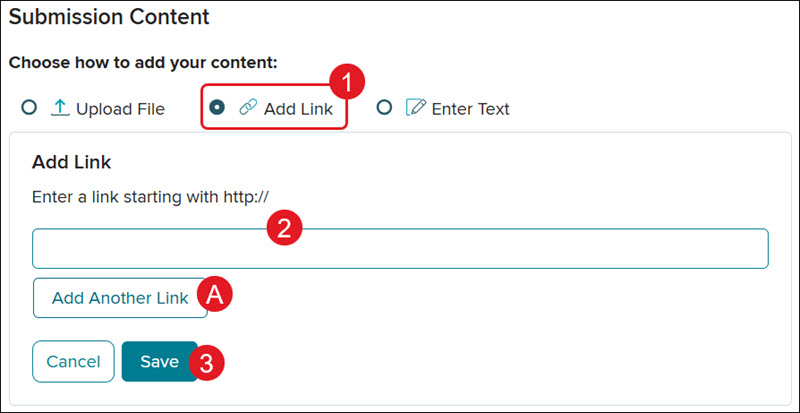
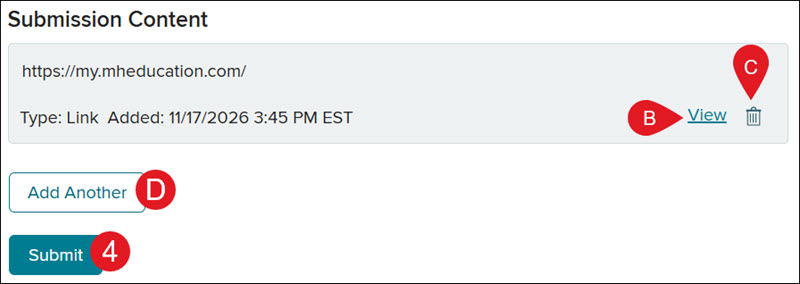
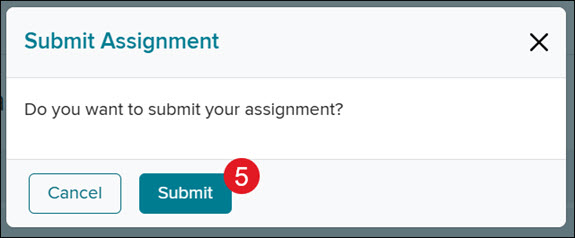
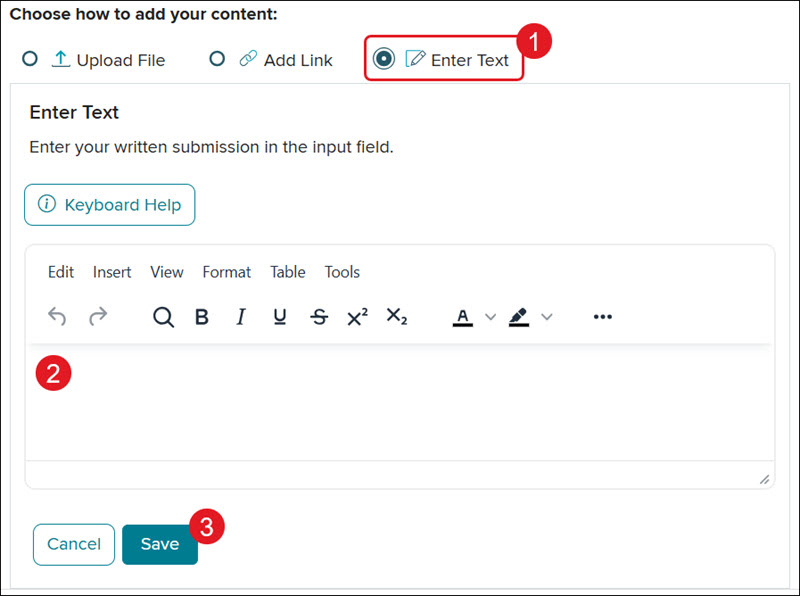
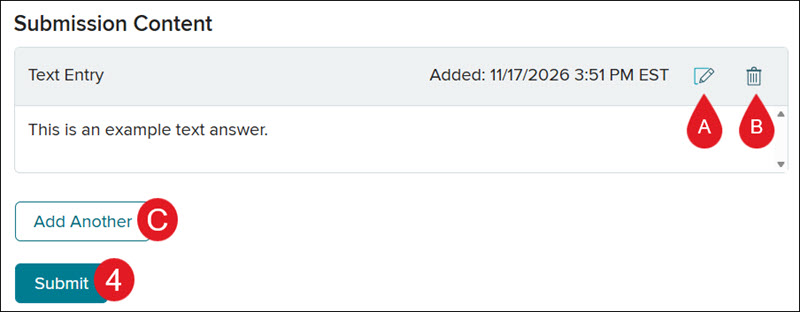
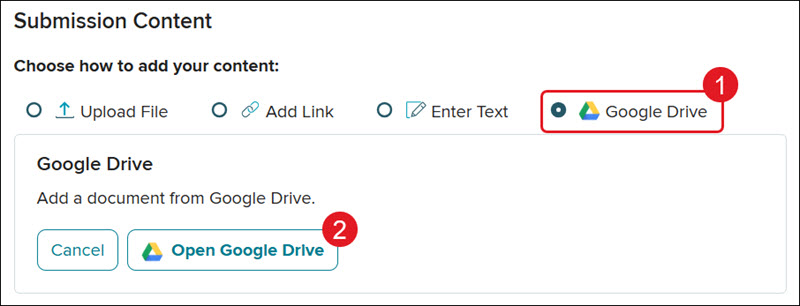
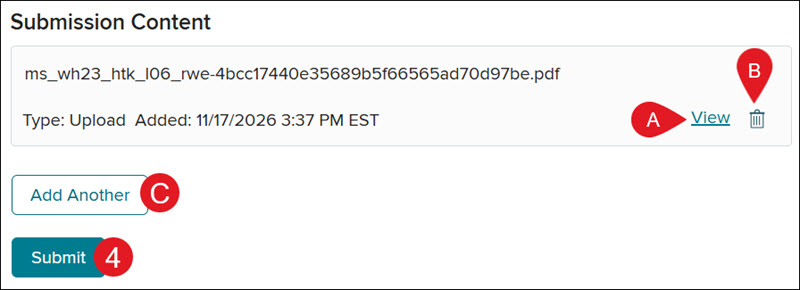
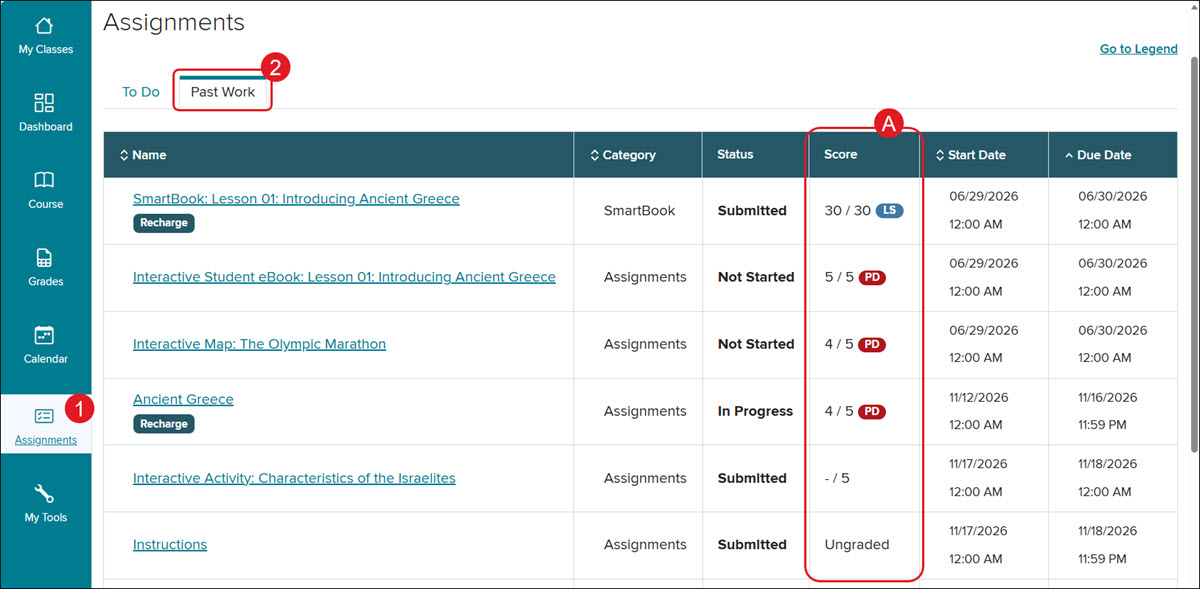
Article Contents Access Assignments List Assignment Page Navigation Complete Assignments Interactive and eBook Assignments Instruction Assignments Submission Assignments Upload a File Add a Link Enter Text Add a File from Google Drive SmartBook or LearnSmart Assignments Online Assessments Assignment Results Assignments Page Gradebook Access Assignments List Assignments can be accessed from multiple locations within your course content. Keep in mind, these options will vary based on the program being used. All past and present assignments can be found by clicking on Assignments from the navigation menu. Assignments are automatically added to the student calendar when created by the teacher. The Calendar widget is accessible from the Dashboard with the list of assignments that have yet to be completed. Click on an assignment name to navigate to that assignment. Assignments are also accessible by clicking on Calendar from the navigation menu. The page will default to the current day and list any assignments that are due. Click on an assignment name to navigate to that assignment. For more information on navigating the course calendar, see the Navigate the Grades 6-12 Student Calendar article. Assignment Page Navigation Access all past and present assignments by clicking on Assignments from the navigation menu. All currently active assignments are located on the To Do tab. All assignments that have been submitted or the due date has passed are located on the Past Work tab. Click on a header to sort the list of assignments by that option. The Category column matches the category the assignment will show under on the Grades page and are set by the teacher. For information on navigating the student gradebook, see the View the Student Gradebook for Grades 6-12 article. The Status of an assignment shows as Not Started, In Progress, or Scheduled. Note: Students cannot access any assignments with a status of Scheduled until the Start Date and Time has been reached. The Score column shows the grade you received for the completed assignment. The Start and Due Date columns provide the dates and times the assignments can be accessed and completed. Click on an assignment Name to open it. Complete Assignments For steps on completing an online assessment, see the Take a McGraw Hill Online Assessment article. For steps on completing SmartBook or LearnSmart assignments, see the Open Learning SmartBook® Student Guide or Open Learning LearnSmart® Student Guide articles. Interactive and eBook Assignments Click on the name of the assignment. Click on the Assignment Content resource tile. Enter your answers in the provided question fields. A. For certain activities, such as eBook assignments, students will need to click the Done button for each answered question to save their responses. B. For some interactive activities, students have the option to check their answers and view the correct answers. Click the Submit Assignment button at the bottom of the resource page. Note: If pages of the eBook were assigned, students need to navigate to the last assigned page for the Submit Assignment button to activate. The Assigned Pages can be found at the top of the resource page (C). On the pop-up, click the Submit button to confirm. Instruction Assignments Instruction assignments are meant to be informational assignments only, with no questions to actually answer or anything to submit. Click on the name of the assignment. Review any Instructions given by the teacher. A. Click on any attached files under Assignment Content to view them. Click the Mark as Complete button to confirm the instructions have been viewed. Submission Assignment A Submission assignment consists of uploading a resource file, a web address, or entering text. Click on the assignment name. Click on any resources shown under Assignment Content to open/download them. In the Submission Content section, click the Upload File, Add Link, Enter Text, or Google Drive radio button depending on what you want to submit. Upload a File Select the Upload File radio button to attach a file, such as a PDF or Word Doc, to submit. Click the browse link to select the saved file from your device to add it to the assignment. A. You can also drag and drop the resource file into the Drop Zone field. B. Click the View link to the right of the file to look at the attachment. C. Click the Delete button (trash can icon) to remove the file. D. Click the Add Another button to add an additional file, link, or enter text for the assignment. This button only shows after the first file has been successfully uploaded. Click the Submit button. On the pop-up, click the Submit button to confirm. Add a Link Click the Add Link radio button to enter a website URL. Enter a link starting with http:// in the provided field. A. Click the Add Another Link button to add an additional link. Click the Save button once all links have been added to the assignment. B. Click the View link to the right of the link to navigate to the added website. C. Click the Delete button (trash can icon) to remove the link. D. Click the Add Another button to add an additional file, link, or enter text for the assignment. This button only shows after the first link has been added. Click the Submit button. On the pop-up, click the Submit button to confirm. Enter Text Click the Enter Text radio button to write out your assignment answer. Enter the text in the provided field. Click the Save button. A. Click the Edit button to the right of the text entry to make changes to what was entered. B. Click the Delete button (trash can icon) to remove the text from the assignment. C. Click the Add Another button to add an additional file, link, or enter text for the assignment. This button only shows after the text has been saved. Click the Submit button. On the pop-up, click the Submit button to confirm. Add a File from Google Drive The option for Google Drive will only be available if the student account is linked to a Google account. For steps on linking to a Google account, see the Pair/Unpair Your McGraw Hill Student Account with Your Google Account article. Click the Google Drive radio button to add a file from your Google account. Click the Open Google Drive button. Select the files from Google Drive you want to add. A. Click the View link to the right of the file to look at the attachment. B. Click the Delete button (trash can icon) to remove the file. C. Click the Add Another button to add an additional file, link, or enter text for the assignment. This button only shows after the first file has been successfully uploaded. Click the Submit button. On the pop-up, click the Submit button to confirm. View Assignment Results on the Assignments Page The scores for assignments and assessments can be viewed from the Assignments page as well as the Grades page. See the View the Student Gradebook for Grades 6-12 article for information on navigating the student gradebook. Click on Assignments from the navigation menu. Click the Past Work tab. A. If an assignment has been scored, it will show in the Score column. Note: If it shows as Ungraded in the Score column, this means that it needs to be manually scored by the teacher before a score will populate.
dts
Customer Support, PreK-12, School Student, School Parent, Middle School, High School, Direct Login & Auto-Rostering, Direct Login & Manual-Rostering, SSO & Auto-Rostering, SSO & Manual-Rostering, Core, Intervention, Supplemental, AP, Honors & Electives, Career & Technical Education, Literacy, Math, Science, Social Studies, Health, Visual & Performing Arts, World Languages, AP Biology, AP Chemistry, AP History & Geography, AP Psychology, AP Economics, AP African American Studies, AP Precalculus, AP Statistics, AP Computer Science, AP Language and Composition, AP Public Speaking, AP Music Theory, 5 Steps to a 5 - AP Test Prep, Glencoe Health 2022, Teen Health 2021, McGraw Hill Literacy Summit!, McGraw Hill Literacy Soar!, CA Reveal Math (K-12), Illustrative Math, Reveal Math (K-12), Texas Math, CA Inspire Science 2020, FL Science 2025 (K-12), Inspire Science 2020, TN Science (K-12), TX Science 2025 (K-12), CA Impact 2019, FL Social Studies 2024 (K-12), Impact Social Studies, McGraw Hill Social Studies, Asi se Dice 2024, CTE - Business, Marketing, and Finance, CTE - Health Science, CTE - Computing and Technology, CTE - Agriculture, CTE - Culinary Arts, CTE - Early Childhood Education, CTE - Criminal Justice, Level Up 6–8, Level Up 9–12, Grades & Assignments