reveal-math
mcgraw-hill-science
student
school-parent
Personas
Personas/School Parent
Context
Context/Curriculum Type
Context/Curriculum Type/Core
Context/Integration Type
Context/Integration Type/Direct Login & Manual-Rostering
Business Unit
Business Unit/PreK-12
Context/Education Level
Context/Education Level/High School
Programs & Solutions
Programs & Solutions/McGraw Hill Science
Programs & Solutions/McGraw Hill Science/FL Science 2025 (K-12)
Personas/School Student
Context/Subject
Context/Subject/Science
Context/Integration Type/Direct Login & Auto-Rostering
Support Topics
Support Topics/Tools & Product Integrations
Support Topics/Tools & Product Integrations/LearnSmart®
Context/Integration Type/SSO & Auto-Rostering
Context/Subject/Math
Asset Format Type
Asset Format Type/Customer Support
Context/Education Level/Middle School
Support Topics/User Guides & Account Management
Support Topics/User Guides & Account Management/User Guide
Programs & Solutions/McGraw Hill Science/TX Science 2025 (K-12)
Support Topics/Assessments & Reporting
Support Topics/Assessments & Reporting/Grades & Assignments
Programs & Solutions/Reveal Math (K-12)
Context/Integration Type/SSO & Manual-Rostering
prek-12
2026-03-24T19:02:44.420-03:00
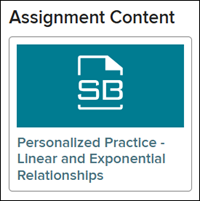
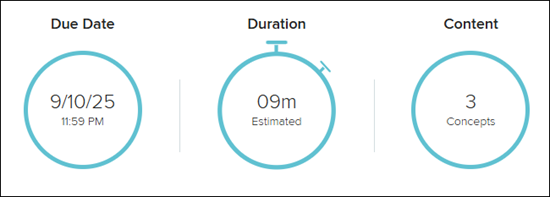
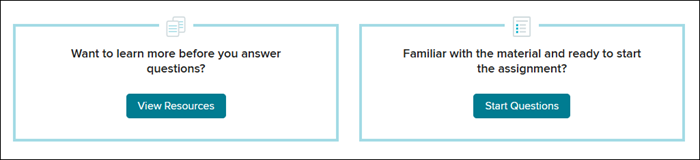
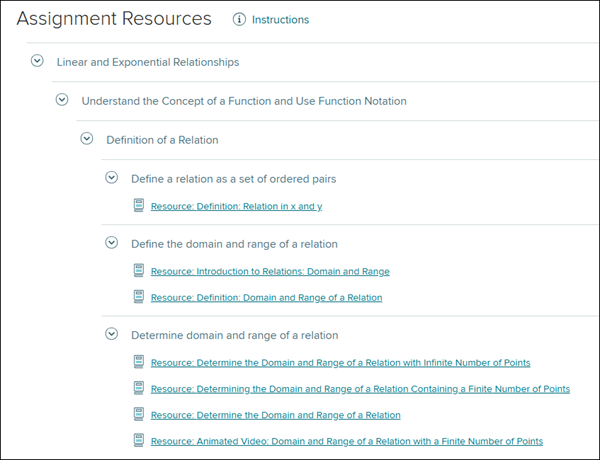
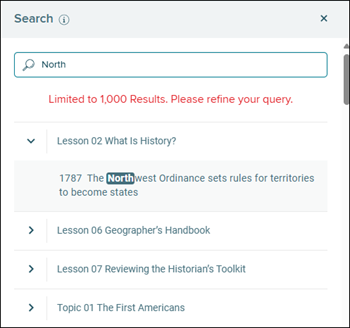
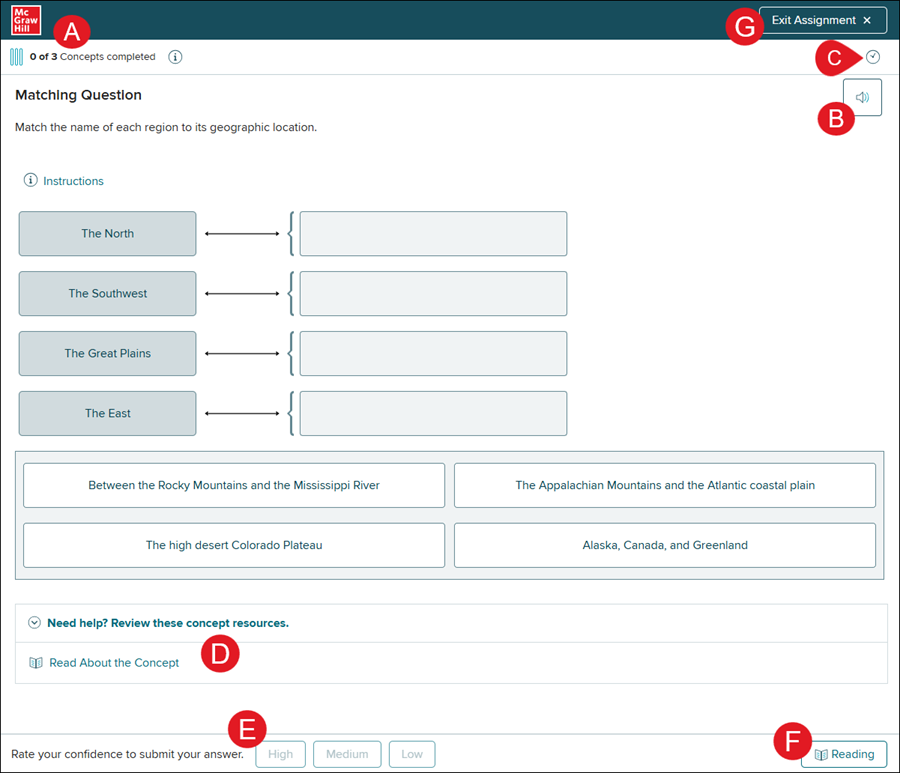
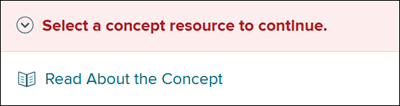
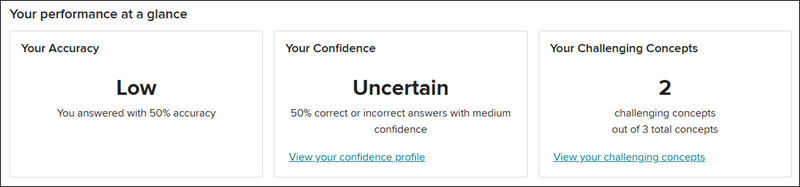
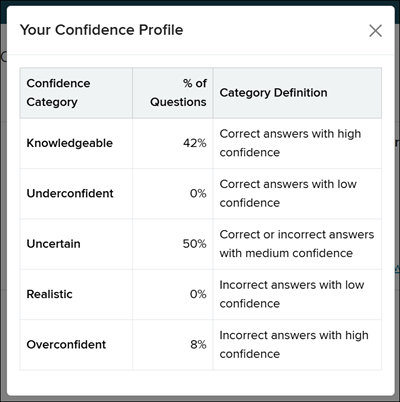
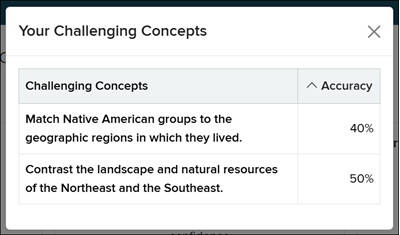
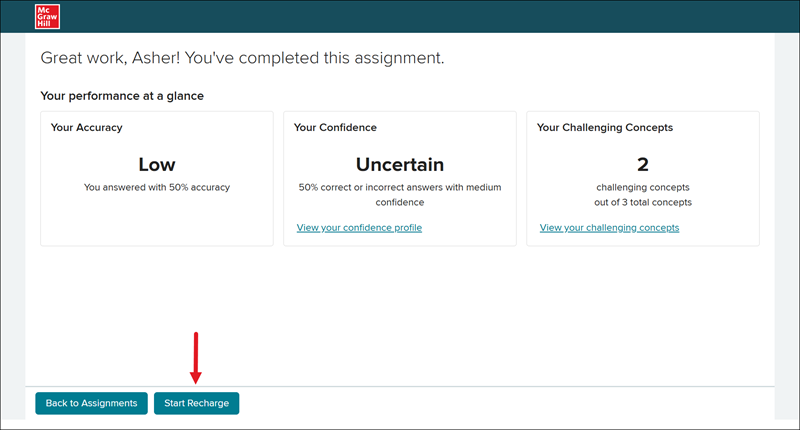
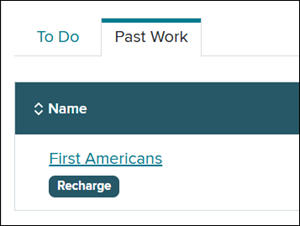
<p><a href="https://hub.mheducation.com/share/knten0ar1ce8" target="_blank">View the demo in a separate tab.</a></p> <p><a href="https://hub.mheducation.com/share/znltggy4nqqt" target="_blank">View the Spanish version of the demo.</a></p> <p> </p> <h2><span><span class="fs-5">Article Contents</span></span></h2> <p><a href="#overview" target="_self">LearnSmart Overview</a></p> <p><a href="#getting_started" target="_self">Getting Started</a></p> <p><a href="#view_resources" target="_self">View Resources</a></p> <p><a href="#start_reading" target="_self">Start Reading</a></p> <p><a href="#start_questions" target="_self">Start Questions</a></p> <p><a href="#performance" target="_self">Performance</a></p> <p><a href="#recharge" target="_self">Recharge</a></p> <p> </p> <h3 class="fs-5"><a id="overview"></a>LearnSmart® Overview</h3> <p>LearnSmart® helps students focus study time, emphasize central topics, and test their understanding. It highlights important concepts in the digital textbook and presents questions to practice what they’ve learned. It’s an adaptive learning tool, meaning it adjusts based on the student’s responses, determining which concepts they have learned and identifying any gaps in their understanding.</p> <p> </p> <h3 class="fs-5"><a id="getting_started"></a>Getting Started</h3> <p>When LearnSmart is assigned, it appears in the students’ assignments list, as well as in the Dashboard calendar. The assignment is attached as a resource, and they will need to click on the SB icon to open the resource.</p> <p><img src="/content/dam/mhe/support/support-images/migrated/rtaImage--1596329060.jpeg" data-assetref="rtaImage--1596329060-1779109588834"></p> <p>When the student launches the LearnSmart resource, they will first see the Overview page. This screen will provide information on the <strong>Due Date</strong>, estimated <strong>Duration</strong>, and the number of <strong>Concepts</strong>.</p> <p><img src="/content/dam/mhe/support/support-images/migrated/rtaImage--1596328550.jpeg" data-assetref="rtaImage--1596328550-1779109588835"></p> <p>The student will have the option to <strong>View Resources</strong> or <strong>Start</strong> <strong>Reading</strong>, depending on the program being used, and <strong>Start Questions</strong>.</p> <p><img src="/content/dam/mhe/support/support-images/migrated/rtaImage--1596329016.jpeg" data-assetref="rtaImage--1596329016-1779109588835"></p> <p> </p> <h3 class="fs-5"><a id="view_resources"></a>View Resources</h3> <p>When the student clicks View Resources, it navigates them to an <strong>Assignment Resources</strong> page. This page is only available for certain programs.</p> <p><img src="/content/dam/mhe/support/support-images/migrated/rtaImage--1596327791.jpeg" data-assetref="rtaImage--1596327791-1779109588835"></p> <p>Clicking a linked resource launches a pop-up with reading material, examples, or videos to watch.</p> <p><img src="/content/dam/mhe/support/support-images/migrated/rtaImage--1596328320.jpeg" data-assetref="rtaImage--1596328320-1779109588835"> <img src="/content/dam/mhe/support/support-images/migrated/rtaImage--1596328289.jpeg" data-assetref="rtaImage--1596328289-1779109588835"></p> <p> </p> <h3 class="fs-5"><a id="start_reading"></a>Start Reading</h3> <p>The reading found within LearnSmart matches the same text as to what is found in the student edition eBook.</p> <p style="margin-left: 40px;"><img src="/content/dam/mhe/support/support-images/migrated/rtaImage--1596325255.jpeg" data-assetref="rtaImage--1596325255-1779109588835"></p> <ol class="list-type-alphabet-uppercase"> <li>When the student clicks on <strong>Start Reading</strong>, it will automatically navigate them to the section of the book they should review.<br> <br> </li> <li>The <strong>Concept</strong> navigation buttons can be used to navigate to the next and previous concepts throughout the book.<br> <br> </li> <li>The <strong>Contents</strong> button can be used to navigate to different chapters and sections within the book.<br> <br> A bookmark is placed to indicate the current location within the book.<br> <br> <img src="/content/dam/mhe/support/support-images/migrated/rtaImage--1596324345.jpeg" data-assetref="rtaImage--1596324345-1779109588836"><br> <br> </li> <li>The <strong>Next</strong> and <strong>Previous</strong> arrows can be used to navigate back and forth from one section to another.<br> <br> </li> <li>The <strong>Read Aloud</strong> icon allows the student to listen to the text while reading through the book.<br> <br> </li> <li>The <strong>Search</strong> button can be used to search for different terms throughout the book.<br> <br> Students can click to expand the section, then click on the link to navigate to the selected location.<br> <br> <img src="/content/dam/mhe/support/support-images/migrated/rtaImage--1596329932.jpeg" data-assetref="rtaImage--1596329932-1779109588836"><br> <br> </li> <li>The <strong>Change Font Size</strong> button can be used to make the wording on the page larger or smaller.<br> <br> </li> <li>The <strong>Go to Previous Location</strong> button can be used to navigate to the last location in the book the student was at.<br> <br> </li> <li>The <strong>To Questions</strong> button navigates them to the questions portion of the assignment.<br> <br> </li> <li>The <strong>Exit Assignment</strong> button navigates the student back to their <strong>Assignments </strong>page.</li> </ol> <p> </p> <h3 class="fs-5"><a id="start_questions"></a>Start Questions</h3> <p style="margin-left: 40px;"><img src="/content/dam/mhe/support/support-images/migrated/rtaImage--1596316178.jpeg" data-assetref="rtaImage--1596316178-1779109588836"></p> <ol class="list-type-alphabet-uppercase"> <li>The <strong>Progress</strong> indicator tracks how far they have gone in completing the concepts.<br> <br> </li> <li>The <strong>Read Aloud</strong> icon allows students to hear all of the text on the page for the question.<br> <br> </li> <li>The <strong>Time Check</strong> allows students to view the due date and estimated completion time.<br> <br> </li> <li>The <strong>Need help</strong> section provides links to resources or reading to help the student answer the question.<br> <br> </li> <li>Once the student has answered the question, they will select their <strong>confidence </strong>level to move forward to the next question.<br> <br> The <strong>Next Question</strong> button appears once they have selected their confidence level, no matter if the question was answered correctly or incorrectly.<br> <br> If multiple questions were answered incorrectly in a row, the student will be prompted to review the reading or resource material for that concept.<br> <br> <img src="/content/dam/mhe/support/support-images/migrated/rtaImage--1596297225.jpeg" data-assetref="rtaImage--1596297225-1779109588836"><br> <br> If the student struggles with a concept, LearnSmart will repeat previous questions to test their knowledge. In some cases, such as when the student is having trouble with a particular concept, LearnSmart will make them view an example before they can continue to the next question.<br> <br> </li> <li>The <strong>Reading </strong>button navigates the student back to the reading portion for the concept they are completing. If the program uses <a href="#view_resources" target="_self">resources</a> instead of reading, this button will not be available.<br> <br> </li> <li>The <strong>Exit Assignment</strong> button navigates the student back to their <strong>Assignments </strong>page.</li> </ol> <p> </p> <h3 class="fs-5"><a id="performance"></a>Performance</h3> <p>On the final screen, once all concepts have been answered correctly, the student will see their <strong>Accuracy</strong>, <strong>Confidence</strong>, and <strong>Challenging Concepts</strong>.</p> <p><img src="/content/dam/mhe/support/support-images/migrated/rtaImage--1596324300.jpeg" data-assetref="rtaImage--1596324300-1779109588837"></p> <p>Clicking on the <strong>View your confidence profile</strong> link provides a pop-up with a breakdown of the student's different confidence levels.</p> <p><img src="/content/dam/mhe/support/support-images/migrated/rtaImage--1596313258.jpeg" data-assetref="rtaImage--1596313258-1779109588837"></p> <p>Clicking on the <strong>View your challenging concepts</strong> link provides a pop-up with a list of concepts that proved difficult for the student and their accuracy percentage.</p> <p><img src="/content/dam/mhe/support/support-images/migrated/rtaImage--1596336359.jpeg" data-assetref="rtaImage--1596336359-1779109588837"></p> <p> </p> <h3 class="fs-5"><a id="recharge"></a>Recharge</h3> <p>LearnSmart allows students to practice the concepts they don’t feel comfortable with, or to review the assignment. This is called <strong>Recharge</strong>.</p> <p>Students will only be able to do this once the assignment has been completed. The progress will not be tracked while working in Recharge, and it will not affect their grade.</p> <p>The LearnSmart algorithm adds questions in the practice that focus on the concepts the student needs more help with. Students can review a completed LearnSmart assignment as many times as they wish.</p> <p>They can access the Recharge by clicking on the <strong>Start Recharge</strong> button on their <strong>Your performance at a glance page</strong>,</p> <p><img src="/content/dam/mhe/support/support-images/migrated/rtaImage--1596323326.jpeg" data-assetref="rtaImage--1596323326-1779109588837"></p> <p>or by accessing the assignment from their <strong>Assignments </strong>page.</p> <p><img src="/content/dam/mhe/support/support-images/migrated/rtaImage--1596316208.jpeg" data-assetref="rtaImage--1596316208-1779109588837"></p> dts Use the LearnSmart student guide to complete adaptive assignments in the Open Learning Platform. 2026-11-17 Open Learning LearnSmart® Student Guide Use the LearnSmart student guide to complete adaptive assignments in the Open Learning Platform. Use the LearnSmart student guide to complete adaptive assignments in the Open Learning Platform.
Use the LearnSmart student guide to complete adaptive assignments in the Open Learning Platform.
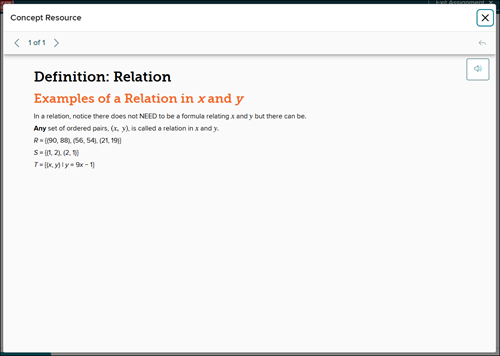
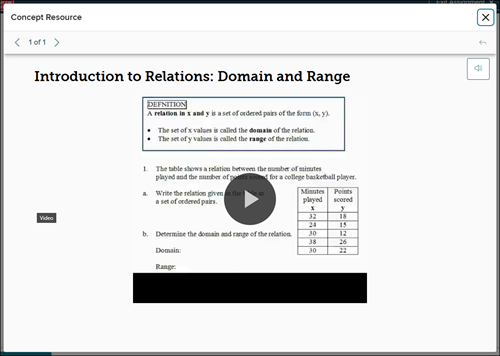
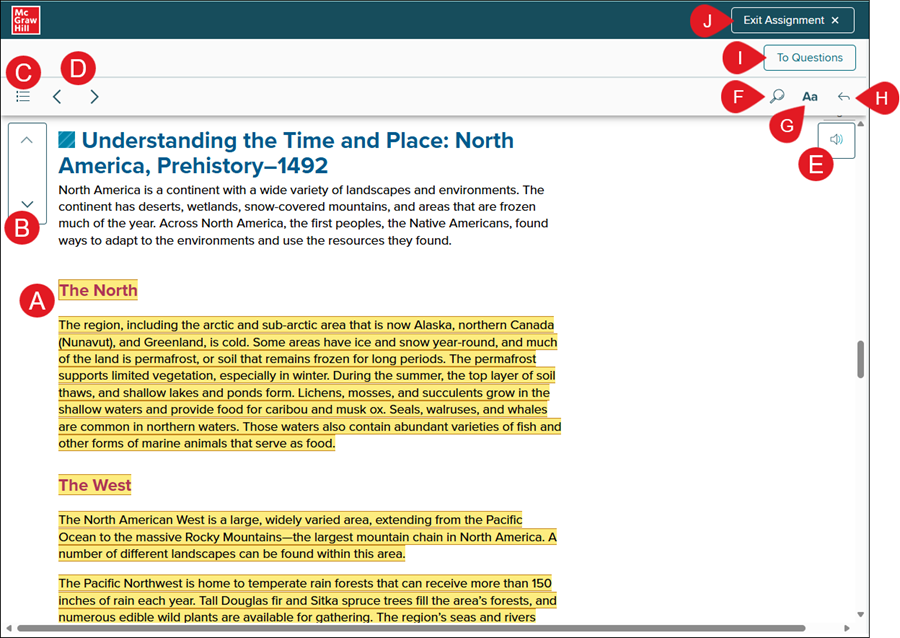
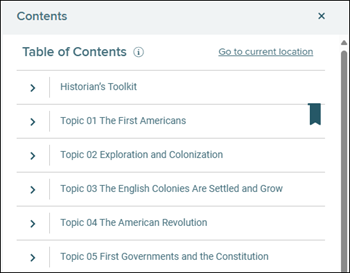
View the demo in a separate tab. View the Spanish version of the demo. Article Contents LearnSmart Overview Getting Started View Resources Start Reading Start Questions Performance Recharge LearnSmart® Overview LearnSmart® helps students focus study time, emphasize central topics, and test their understanding. It highlights important concepts in the digital textbook and presents questions to practice what they’ve learned. It’s an adaptive learning tool, meaning it adjusts based on the student’s responses, determining which concepts they have learned and identifying any gaps in their understanding. Getting Started When LearnSmart is assigned, it appears in the students’ assignments list, as well as in the Dashboard calendar. The assignment is attached as a resource, and they will need to click on the SB icon to open the resource. When the student launches the LearnSmart resource, they will first see the Overview page. This screen will provide information on the Due Date, estimated Duration, and the number of Concepts. The student will have the option to View Resources or Start Reading, depending on the program being used, and Start Questions. View Resources When the student clicks View Resources, it navigates them to an Assignment Resources page. This page is only available for certain programs. Clicking a linked resource launches a pop-up with reading material, examples, or videos to watch. Start Reading The reading found within LearnSmart matches the same text as to what is found in the student edition eBook. When the student clicks on Start Reading, it will automatically navigate them to the section of the book they should review. The Concept navigation buttons can be used to navigate to the next and previous concepts throughout the book. The Contents button can be used to navigate to different chapters and sections within the book. A bookmark is placed to indicate the current location within the book. The Next and Previous arrows can be used to navigate back and forth from one section to another. The Read Aloud icon allows the student to listen to the text while reading through the book. The Search button can be used to search for different terms throughout the book. Students can click to expand the section, then click on the link to navigate to the selected location. The Change Font Size button can be used to make the wording on the page larger or smaller. The Go to Previous Location button can be used to navigate to the last location in the book the student was at. The To Questions button navigates them to the questions portion of the assignment. The Exit Assignment button navigates the student back to their Assignments page. Start Questions The Progress indicator tracks how far they have gone in completing the concepts. The Read Aloud icon allows students to hear all of the text on the page for the question. The Time Check allows students to view the due date and estimated completion time. The Need help section provides links to resources or reading to help the student answer the question. Once the student has answered the question, they will select their confidence level to move forward to the next question. The Next Question button appears once they have selected their confidence level, no matter if the question was answered correctly or incorrectly. If multiple questions were answered incorrectly in a row, the student will be prompted to review the reading or resource material for that concept. If the student struggles with a concept, LearnSmart will repeat previous questions to test their knowledge. In some cases, such as when the student is having trouble with a particular concept, LearnSmart will make them view an example before they can continue to the next question. The Reading button navigates the student back to the reading portion for the concept they are completing. If the program uses resources instead of reading, this button will not be available. The Exit Assignment button navigates the student back to their Assignments page. Performance On the final screen, once all concepts have been answered correctly, the student will see their Accuracy, Confidence, and Challenging Concepts. Clicking on the View your confidence profile link provides a pop-up with a breakdown of the student's different confidence levels. Clicking on the View your challenging concepts link provides a pop-up with a list of concepts that proved difficult for the student and their accuracy percentage. Recharge LearnSmart allows students to practice the concepts they don’t feel comfortable with, or to review the assignment. This is called Recharge. Students will only be able to do this once the assignment has been completed. The progress will not be tracked while working in Recharge, and it will not affect their grade. The LearnSmart algorithm adds questions in the practice that focus on the concepts the student needs more help with. Students can review a completed LearnSmart assignment as many times as they wish. They can access the Recharge by clicking on the Start Recharge button on their Your performance at a glance page, or by accessing the assignment from their Assignments page.
dts
Customer Support, PreK-12, School Student, School Parent, Middle School, High School, Direct Login & Auto-Rostering, Direct Login & Manual-Rostering, SSO & Auto-Rostering, SSO & Manual-Rostering, Core, Math, Science, TX Science 2025 (K-12), FL Science 2025 (K-12), Reveal Math (K-12), User Guide, LearnSmart®, Grades & Assignments