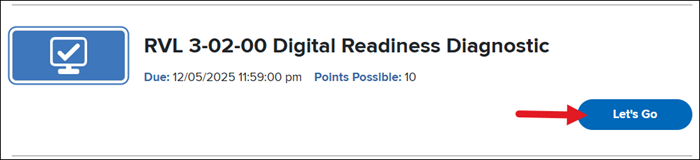
3. For grades K-5, click on the Let's Go button for assessment from your To Do list.
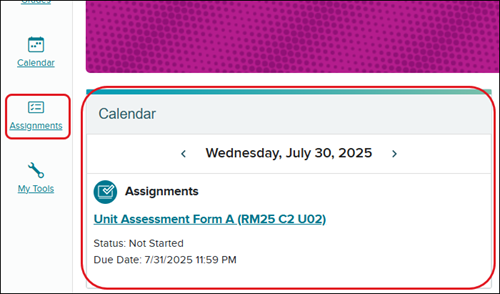
For grades 6-12, click on the assessment from the Calendar (A)or by clicking on Assignments (B)in the navigation menu.
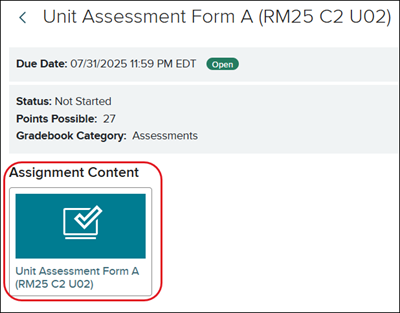
Click on the Assignment Content to launch the assessment.
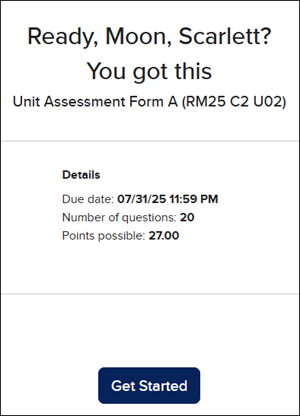
4. Click the Get Started button (all grade levels).
Assessment Navigation
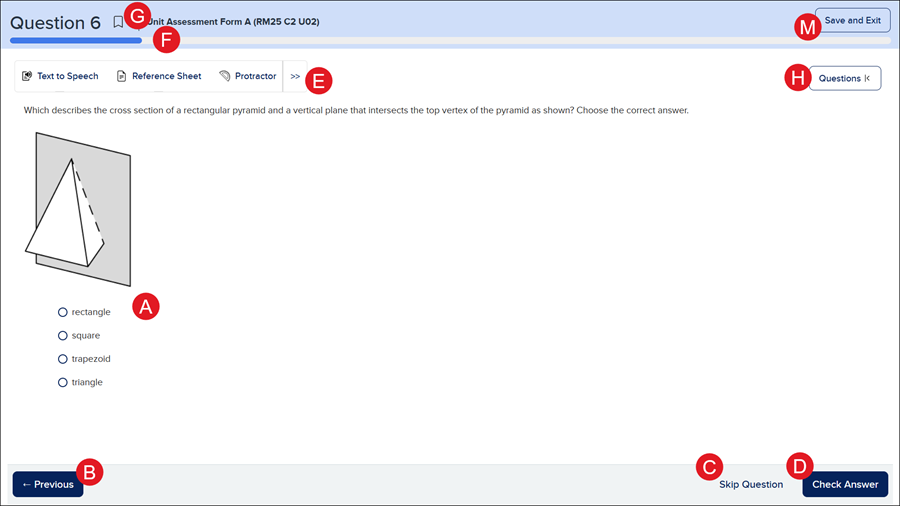
A. Question and Answer selections/fields.
B. Previous button - Click to navigate back to the previous question.
C. Skip Question - Click to navigate to the next question without providing an answer to the current question. This button is only available if the teacher has selected multiple tries on questions.
D. Check Answer button - Click to check if the answer entered/selected is correct. This button is only available if the teacher has selected multiple tries on questions.
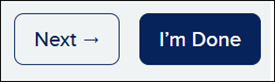
If the teacher did not select multiple tries on a question, or it is an essay/short answer type question, a Next button will show.
E. Assessment Tools - If the teacher selected any assessment tools to be available while completing the test, they will be available in this bar. Click the double arrow to expand/collapse the toolbar.
F. Question Navigation Bar - As progress is made through the questions, the progress bar will show how far along within the assessment the student is.
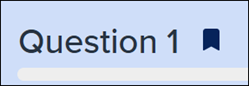
G. Bookmark - To mark a question as a reminder to return to later, click the bookmark icon. If the icon is marked, it will turn blue/solid.
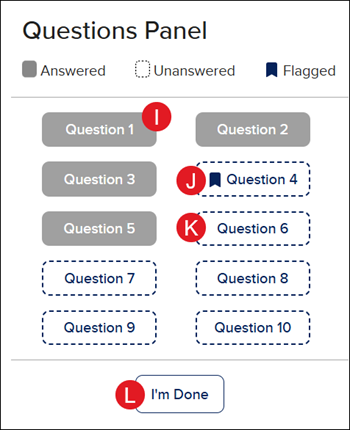
H. Questions panel - Click the Questions |< button to expand/collapse the question panel. The panel shows the number of questions within the assessment. Students can click on a specific question number in the panel to return to navigation to that specific question.
Note: If there are three or less questions on the assessment, the Questions panel is not viewable.
I. Answered questions - Answered questions will show in a solid gray.
J. Bookmarked questions - Any questions that were marked with the bookmark icon will show as answered or unanswered with the solid blue bookmark icon.
K. Unanswered questions - Any questions that have not yet had an answer entered will show with a dashed line around the question number.
L. I'm Done button - Once all questions are answered, students can click the I'm Done button in the question panel.
Once the student answers all questions, they will also have an I'm Done button show at the bottom right.
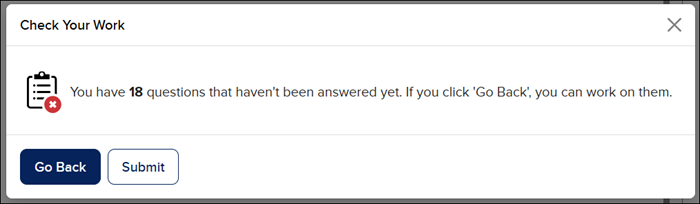
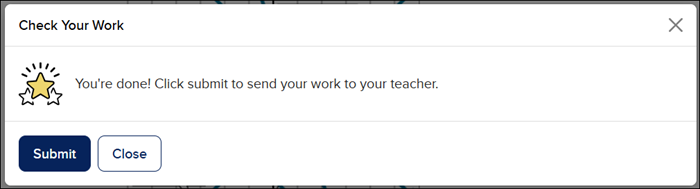
Once the I'm Done button is clicked in either location, a Check Your Work pop-up will show.
If there are any unanswered questions, the number of questions unanswered will be provided and a Go Back button will be available to be able to return to those questions. Otherwise, the student will want to click Submit.
If all questions have been answered, a Submit button and a Close button will be available. Clicking Close will allow students to return to the assessment to look over the questions/answers.
M. Save and Exit - If a student needs to exit the assessment at any time but has not yet finished the assessment, they can click the Save and Exit button. When they reenter the assessment, it will start them where they left off.
View Scores
This option is only available if the teacher has allowed students to view their scores after completing the assessment, once the assessment has closed, or after a certain date has past.
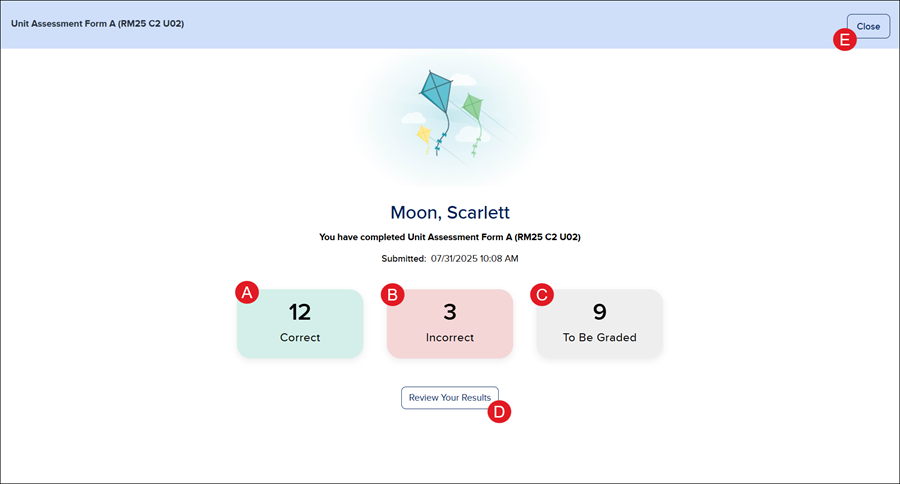
A. Correct - The number of correctly answered questions will show in green.
B. Incorrect - The number of incorrectly answered questions will show in red.
C. To Be Graded - Any questions that require teachers to manually score them, such as short answer and essay questions, they will show in gray.
D. Review Your Results - Click the Review Your Results button to view the student scoresheet.
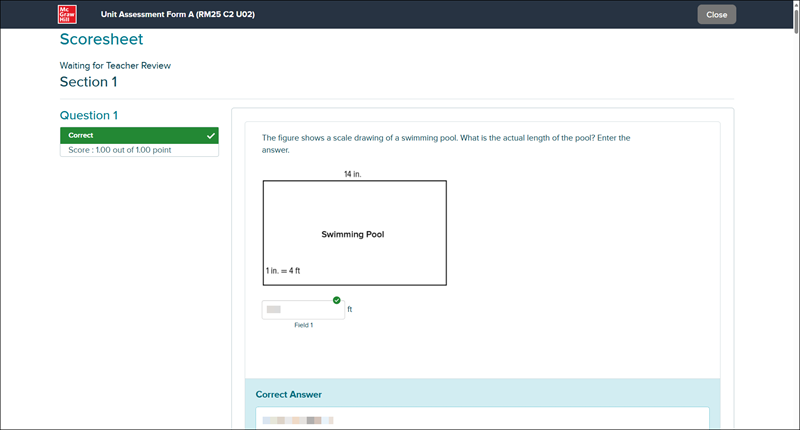
The scoresheet will show all questions that were on the assessment, the answers given, the correct answer, and the overall percentage/score received.
Note: If there are any To Be Graded questions, the Scoresheet will show with a "Waiting for Teacher Review" message.
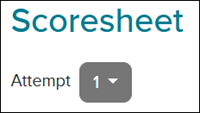
If the teacher allowed for multiple attempts, students can toggle between the attempt results page by clicking on the Attempt drop-down.
E. Close - Click the Close button to exit out of the assessment page.
Multiple Attempts
Sometimes, teachers allow multiple tries with an assessment. These attempts can range from one to three.
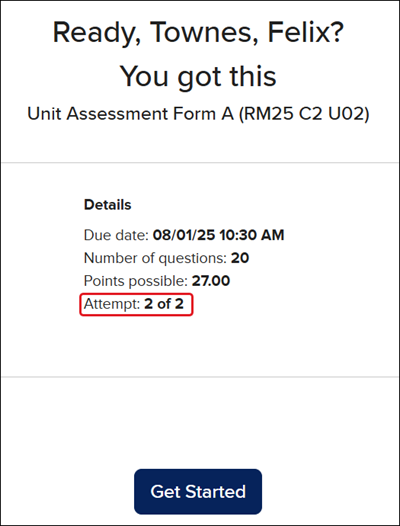
The number of attempts provided for an assessment will show in the Details section before clicking the Get Started button.
It will show the number of attempts completed and the number of attempts provided.
mh-social-studies
asi-se-dice
arrive-math
inspire-science
glencoe-health
impact
wonders
networks
everyday-math
reveal-math
teen-health
building-blocks
mcgraw-hill-literacy
mcgraw-hill-science
number-worlds
maravillas
direct-instruction
my-math
ap-edition
5-steps-to-a-5-test-prep
reading-mastery
reading-laboratory
open-court-reading
illustrative-math
music-its-role
ocr-foundational-skills-kit
spotlight-on-music
mcgraw-hill-cte
student
school-parent
prek-12
McGraw Hill Social Studies, Asi se Dice 2024, Arrive Math, Customer Support, Online Assessments, Inspire Science 2020, Middle School, High School, Glencoe Health 2022, CA Impact 2019, Wonders 2023 2020 2017, Networks 2018, CA Inspire Science 2020, SSO & Auto-Rostering, PreK-12, Everyday Mathematics 4 (K-6), Visual & Performing Arts, Health, Literacy, Social Studies, School Student, Core, AP, Honors & Electives, CA Reveal Math (K-12), Teen Health 2021, FL Social Studies 2024 (K-12), Building Blocks PreK 2025, McGraw Hill Literacy, TX Science 2025 (K-12), SSO & Manual-Rostering, Number Worlds 2024, Maravillas 2020 & 2017, Direct Login & Manual-Rostering, School Parent, Elementary School, FL Science 2025 (K-12), World Languages, Math, Direct Instruction, Intervention, Direct Login & Auto-Rostering, Building Blocks 2024, McGraw Hill My Math 2018, Science, Preschool, AP Biology, AP Chemistry, AP History & Geography, AP Psychology, AP Economics, AP African American Studies, AP Precalculus, AP Statistics, AP Computer Science, AP Language and Composition, AP Public Speaking, AP Music Theory, 5 Steps to a 5 - AP Test Prep, SRA Reading Mastery Transformations, SRA Reading Laboratory 2025, McGraw Hill Literacy Emerge!, McGraw Hill Literacy Summit!, McGraw Hill Literacy Soar!, Open Court Reading, Open Court Reading 2025, Open Court Reading 2016, 2018, 2023, Illustrative Math, Reveal Math (K-12), TN Science (K-12), Impact Social Studies, Wonders Balanced Literacy 2016, Music! Its Role, McGraw Hill My Math, OCR Foundational Skills Kit, OCR Word Analysis Kit, Spotlight on Music, CTE - Health Science, CTE - Agriculture, CTE - Computing and Technology, CTE - Culinary Arts, CTE - Early Childhood Education, CTE - Business, Marketing, and Finance, CTE - Criminal Justice
dts
2026-03-24T18:28:55.015-03:00
For a full page view of the demo, click here. For a Spanish version of the demo, click here. Article Contents Access an Online Assessment Assessment Navigation View Scores Multiple Attempts Access an Online Assessment 1. SSO or log in at my.mheducation.com. 2. Launch your class. 3. For grades K-5, click on the Let's Go button for assessment from your To Do list. For grades 6-12, click on the assessment from the Calendar (A) or by clicking on Assignments (B) in the navigation menu. Click on the Assignment Content to launch the assessment. 4. Click the Get Started button (all grade levels). Assessment Navigation A. Question and Answer selections/fields. B. Previous button - Click to navigate back to the previous question. C. Skip Question - Click to navigate to the next question without providing an answer to the current question. This button is only available if the teacher has selected multiple tries on questions. D. Check Answer button - Click to check if the answer entered/selected is correct. This button is only available if the teacher has selected multiple tries on questions. If the teacher did not select multiple tries on a question, or it is an essay/short answer type question, a Next button will show. E. Assessment Tools - If the teacher selected any assessment tools to be available while completing the test, they will be available in this bar. Click the double arrow to expand/collapse the toolbar. F. Question Navigation Bar - As progress is made through the questions, the progress bar will show how far along within the assessment the student is. G. Bookmark - To mark a question as a reminder to return to later, click the bookmark icon. If the icon is marked, it will turn blue/solid. H. Questions panel - Click the Questions |< button to expand/collapse the question panel. The panel shows the number of questions within the assessment. Students can click on a specific question number in the panel to return to navigation to that specific question. Note: If there are three or less questions on the assessment, the Questions panel is not viewable. I. Answered questions - Answered questions will show in a solid gray. J. Bookmarked questions - Any questions that were marked with the bookmark icon will show as answered or unanswered with the solid blue bookmark icon. K. Unanswered questions - Any questions that have not yet had an answer entered will show with a dashed line around the question number. L. I'm Done button - Once all questions are answered, students can click the I'm Done button in the question panel. Once the student answers all questions, they will also have an I'm Done button show at the bottom right. Once the I'm Done button is clicked in either location, a Check Your Work pop-up will show. If there are any unanswered questions, the number of questions unanswered will be provided and a Go Back button will be available to be able to return to those questions. Otherwise, the student will want to click Submit. If all questions have been answered, a Submit button and a Close button will be available. Clicking Close will allow students to return to the assessment to look over the questions/answers. M. Save and Exit - If a student needs to exit the assessment at any time but has not yet finished the assessment, they can click the Save and Exit button. When they reenter the assessment, it will start them where they left off. View Scores This option is only available if the teacher has allowed students to view their scores after completing the assessment, once the assessment has closed, or after a certain date has past. A. Correct - The number of correctly answered questions will show in green. B. Incorrect - The number of incorrectly answered questions will show in red. C. To Be Graded - Any questions that require teachers to manually score them, such as short answer and essay questions, they will show in gray. D. Review Your Results - Click the Review Your Results button to view the student scoresheet. The scoresheet will show all questions that were on the assessment, the answers given, the correct answer, and the overall percentage/score received. Note: If there are any To Be Graded questions, the Scoresheet will show with a "Waiting for Teacher Review" message. If the teacher allowed for multiple attempts, students can toggle between the attempt results page by clicking on the Attempt drop-down. E. Close - Click the Close button to exit out of the assessment page. Multiple Attempts Sometimes, teachers allow multiple tries with an assessment. These attempts can range from one to three. The number of attempts provided for an assessment will show in the Details section before clicking the Get Started button. It will show the number of attempts completed and the number of attempts provided.
Top
Regional Page Available
It looks like you're outside the United States. Do you want to see your regional version of this page?