How Students Upload Files to Assignments
Learn how students can attach and upload files to homework assignments for teacher review.
Tags
- OCR Foundational Skills Kit
- SSO & Manual-Rostering
- Customer Support
- iScience 2017
- Middle School
- Direct Login & Manual-Rostering
- Spotlight on Music
- Glencoe Algebra 1 2014
- High School
- Open Court Reading
- Glencoe Algebra 1 2018
- Wonders 2023 2020 2017
- School Parent
- SSO & Auto-Rostering
- Glencoe Science 2017
- Pre-Algebra 2012
- PreK-12
- Elementary School
- World Languages
- Visual & Performing Arts
- Inspire Science 2017
- Math
- Asi se Dice 2016
- Health
- Glenoce Algebra 2 2018
- OCR Word Analysis Kit
- Literacy
- Grades & Assignments
- Glencoe Math Course 1
- Direct Login & Auto-Rostering
- McGraw Hill Health 2014
- Glencoe Math Course 2
- Glencoe Math Course 3
- Glencoe Science
- School Student
- Core
- Core Plus Math 2015
- Glencoe Health 2014
- McGraw Hill My Math 2013 & 2016
- McGraw Hill My Math 2018
- Glencoe Algebra 2 2014
- Glencoe Math
- Science
- Preschool
- Music! Its Role
- McGraw Hill My Math
- Networks 2014 (K-5)
- Wonders 2014
- Wonders Balanced Literacy 2016
- Wonders EL 2016
- World of Wonders 2017
- WonderWorks 2022 & 2014


For a full page view of the demo, click here.
For a Spanish version of the demo, click here.
For a video walkthrough, click here.
1. Navigate to your assignment.
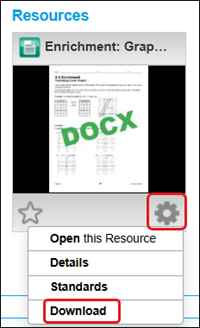
2. Click the Tools button on the resource.
3. Click Download from the menu.
4. Complete and save the document to your device.
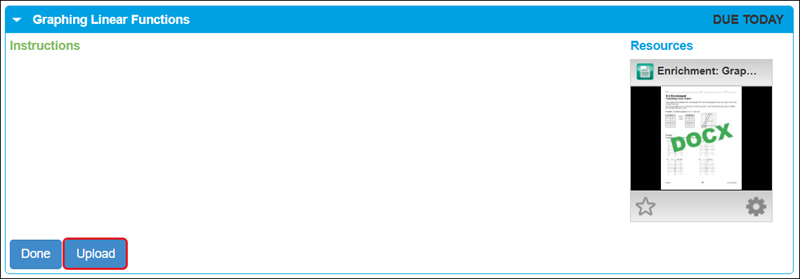
5. On the Homework page, click the Upload button.
6. On the Upload to My Files pop-up, click the Select File button.
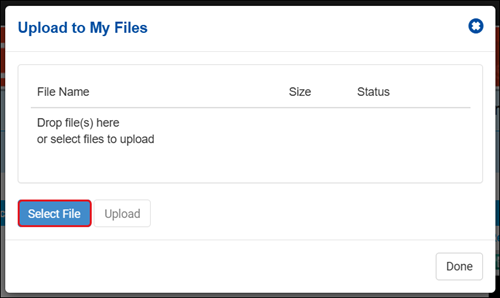
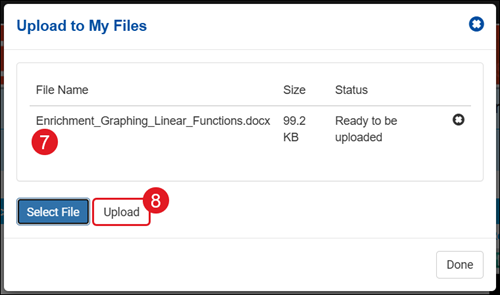
7. Select the file you completed. You can add multiple files to one assignment if needed.
8. Click the Upload button.
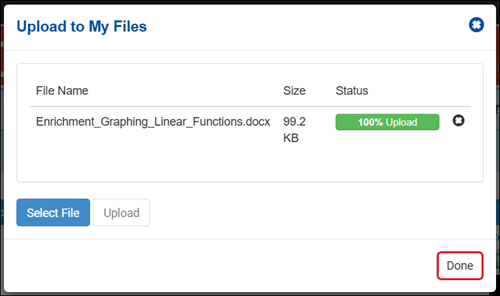
9. When the Status is 100%, click the Done button.
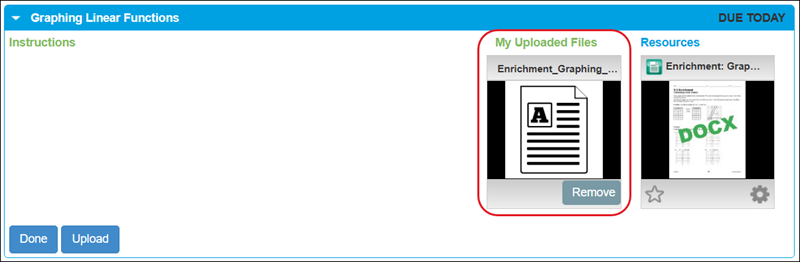
The uploaded file(s) will show beside the resource that was assigned.