View SRA Reading Laboratory Student Progress Reports
Monitor student progress in SRA Reading Laboratory using built-in reports and performance indicators.
- Direct Instruction
- SSO & Manual-Rostering
- Customer Support
- Direct Login & Auto-Rostering
- Reports & Analytics
- Direct Login & Manual-Rostering
- Classroom Teacher
- SSO & Auto-Rostering
- PreK-12
- Preschool
- Elementary School
- Middle School
- High School


This article walks through how to access the Student Progress, which allows the teacher to view the readings that the student has selected and completed.
For a full page view of the demo, click here.
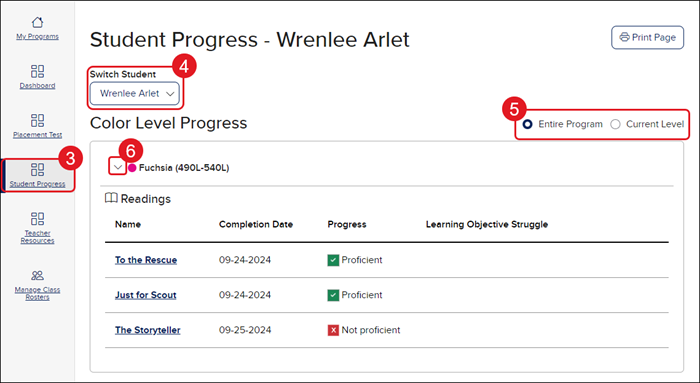
The Student Progress page allows the teacher to view the readings that the student has selected and completed. The teacher can view the list of readings by Entire Program or the Current Level the student is set at.
1. Sign into your teacher account.
2. Launch your SRA Reading Laboratory class.
3. Click on Student Progress in the navigation menu.
4. Select the student you want to view from the Switch Student drop-down.
5. Select the radio button next to Entire Program (default selection) or Current Level.
6. Click on the arrow next to the Color Level Progress you want to view the readings for to expand the blade.
The information provided includes the date the student completed the reading and if they understood what they had read when they answered the questions about the story.
 Proficient - The student was able to fully understand what they had read and answered the associated questions correctly.
 Not proficient - The student was unable to fully understand what they had read and had trouble answering the associated questions for the story.
Click the Print Page button at the top-right of the page to print the list of readings that the student completed for each Color Level Progress.
View Reading Preview
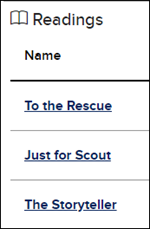
1. Click on the link in the Name column.
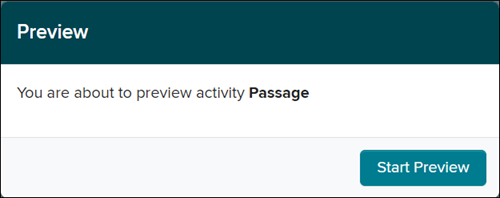
2. On the secondary tab that opened, click the Start Preview button to navigate to the reading.
3. Click Next to navigate to the reading.
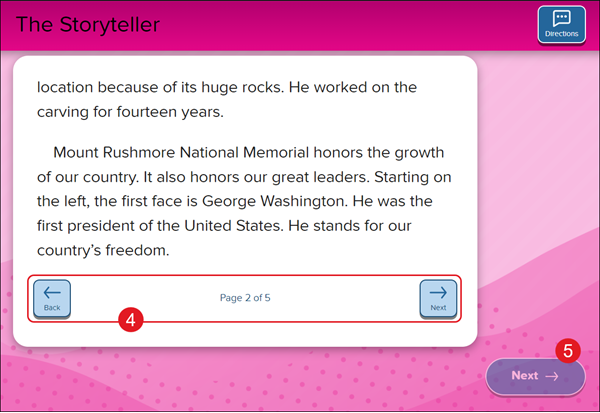
4. Click the Next and Back arrows to navigate through the pages of the reading.
Click the Directions button at the top-right of the page to hear the instructions given to the student.
5. Click the Next button once you have finished navigating through the story. This button is grayed out until you get to the last page of the article.
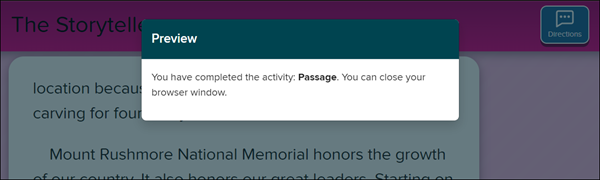
You will then be prompted to close the preview page.