Set a New ALEKS Pie Progress Goal
Learn how to set a Pie Progress Goal for students in the New ALEKS view.
- PreK-12
- Customer Support
- Classroom Teacher
- Elementary School
- Middle School
- High School
- Direct Login & Auto-Rostering
- Direct Login & Manual-Rostering
- SSO & Auto-Rostering
- SSO & Manual-Rostering
- Supplemental
- Math
- ALEKS
- Grades & Assignments


View the demo in a separate tab.
View the Spanish version of the demo.
Best practices for using Pie Progress goals:
If assigning Pie Progress goals, align expectations with the timing of the school year, e.g., if setting a goal due halfway through the school year, consider setting the Pie Progress goal at or around 50%.
1. SSO or log in at my.mheducation.com.
2. Launch your ALEKS course.
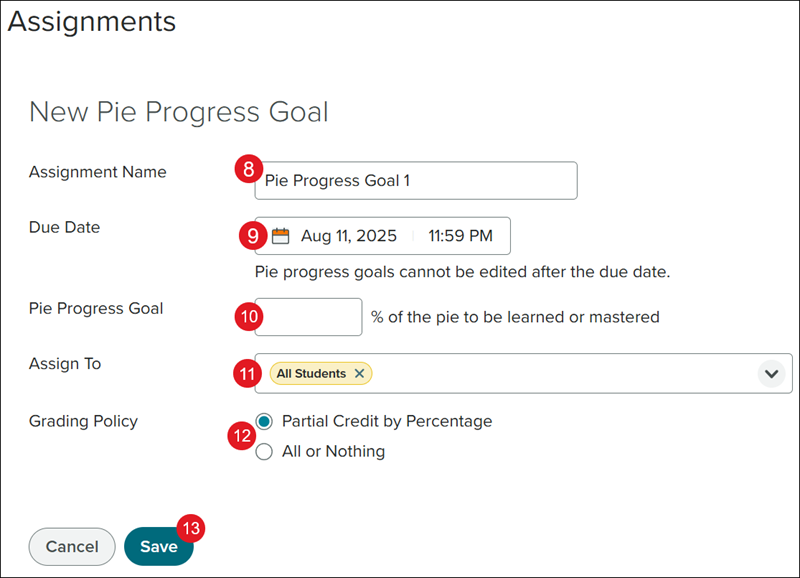
3. Select the Class from the drop-down.
4. Click on Class Content.
5. Click Assignments from the menu.
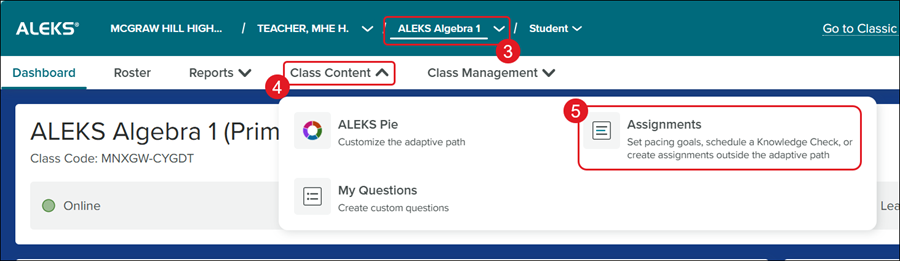
6. Click the +New button.
7. Click Pie Progress Goal from the menu.
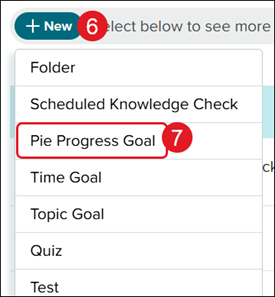
8. Enter an Assignment Name.
9. Select a Due Date and time by clicking on the date field.
10. Enter a Pie Progress Goal percentage.
11. Select the students to Assign To for the assignment. It defaults to all students rostered for the class.
12. Select a radio button for Grading Policy based on if it should be Partial Credit by Percentage or All or Nothing.
13. Click the Save button.