Schedule a New ALEKS Knowledge Check
Learn how to schedule a Knowledge Check in the new ALEKS view.
- PreK-12
- Customer Support
- Classroom Teacher
- Elementary School
- Middle School
- High School
- Direct Login & Auto-Rostering
- Direct Login & Manual-Rostering
- SSO & Auto-Rostering
- SSO & Manual-Rostering
- Supplemental
- Math
- ALEKS
- Grades & Assignments
- Online Assessments


View the demo in a separate tab.
View the Spanish version of the demo.
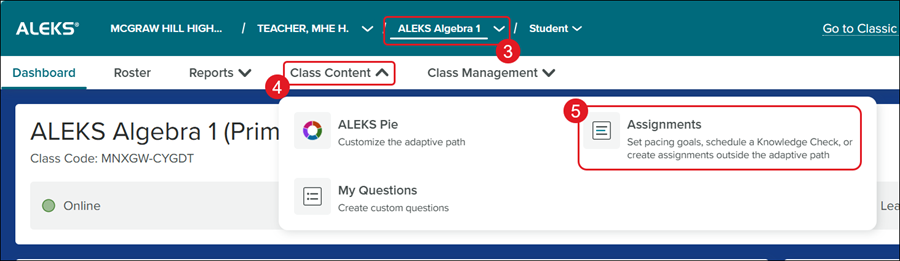
1. SSO or log in at my.mheducation.com.
2. Launch your ALEKS course.
3. Select the Class from the drop-down.
4. Click on Class Content.
5. Click Assignments from the menu.
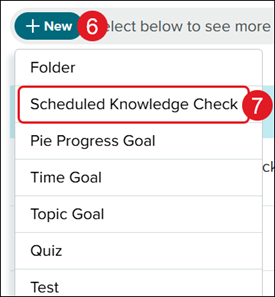
6. Click the +New button.
7. Click Scheduled Knowledge Check from the menu.
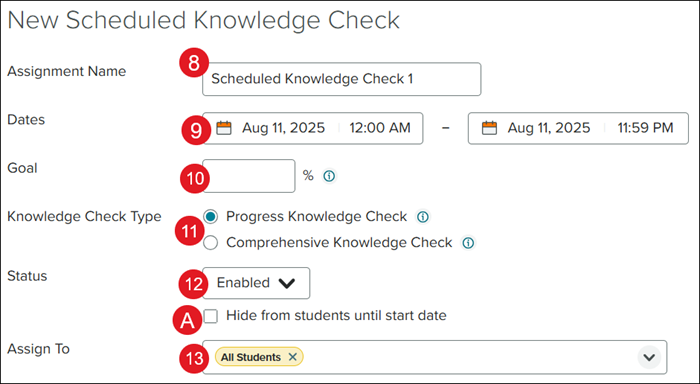
8. Enter an Assignment Name.
9. Select the Dates for the assignment to be open for students to complete.
10. Enter a Goal percentage.
The "Goal" is the percentage of the class that grades on the Knowledge Check are based on.
For example, midway through the class, the goal for a Knowledge Check might be set at 50%. Then, a student who assessed as knowing 40% of the entire class would get a score of 80% on the Knowledge Check. (Exceeding the goal percentage gives a score of 100% for the Knowledge Check.)
11. Select the radio button next to the preferred Knowledge Check Type.
Progress Knowledge Check - Progress knowledge checks consist of approximately 20 questions and will assess your students on material relevant to their individual learning histories (primarily topics recently learned).
Comprehensive Knowledge Check - Comprehensive knowledge checks consist of approximately 25 questions and will assess your students on all the material in the class.
12. Select the Status.
If Disabled is selected, students will not be able to access the assignment.
A. To hide the assignment from student view until the selected start date, select the checkbox next to Hide from students until start date.
13. Select the students you want to assign the assignment to. The assignment is defaulted to assign to all students on the class roster.
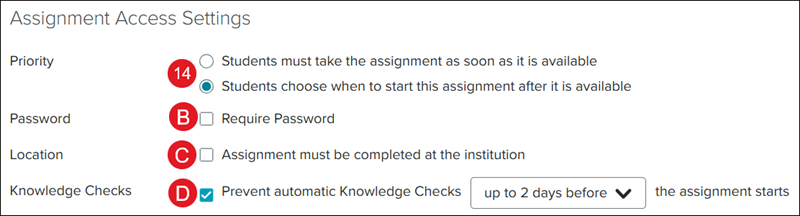
14. Select the radio button next to the Priority.
B. Click the checkbox next to Password if you want students to enter a password to access the assignment.
C. Click the checkbox next to Location if you want students to only complete the assignment at a specific location.
D. Uncheck the box next to Knowledge Checks if you want to stop automated knowledge checks for a few days before the scheduled knowledge check.
This is checked by default and is selected for up to 2 days before the assignment starts.
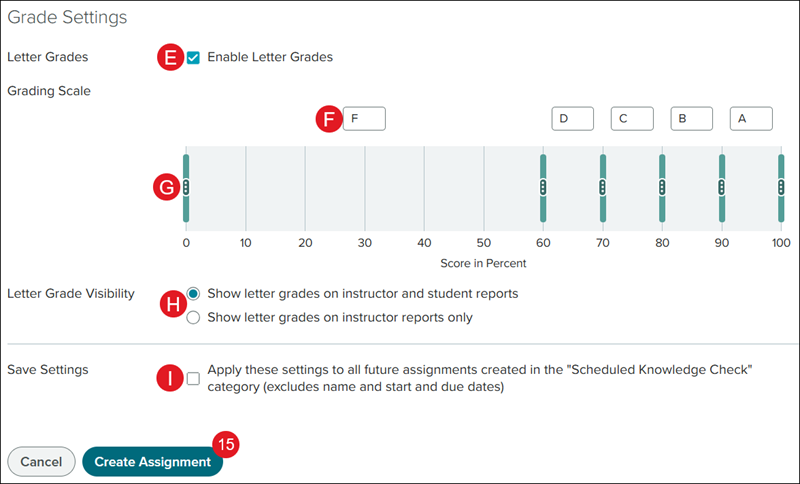
E. The checkbox next to Letter Grades is automatically selected. Uncheck the box if you do not want letter grades associated to the assignment.
F. If the box is checked, you can adjust the letter grades by clicking in the letter box.
G. To add additional letter grades, click the kebob icon on the grade bar and select the + (plus) icon. To remove a letter grade, click the - (minus) icon.
H. If Letter Grades is checked, select the radio button next to Letter Grade Visibility to allow for viewing on instructor and student reports, or only instructor reports.
I. Click the checkbox next to Save Settings if you want to save these same settings for any future "Scheduled Knowledge Check" assignments.
15. Click the Create Assignment button.