Review McGraw Hill Literacy Interactive Activities
Steps on how teachers can review interactive activities completed by students.
- Customer Support
- PreK-12
- Classroom Teacher
- Elementary School
- Middle School
- High School
- Direct Login & Auto-Rostering
- Direct Login & Manual-Rostering
- SSO & Auto-Rostering
- SSO & Manual-Rostering
- Core
- Literacy
- McGraw Hill Literacy Emerge!
- McGraw Hill Literacy Summit!
- McGraw Hill Literacy Soar!
- Grades & Assignments


While interactive practice activities don't count toward a grade, teachers can still monitor student progress using the Activity Details view.
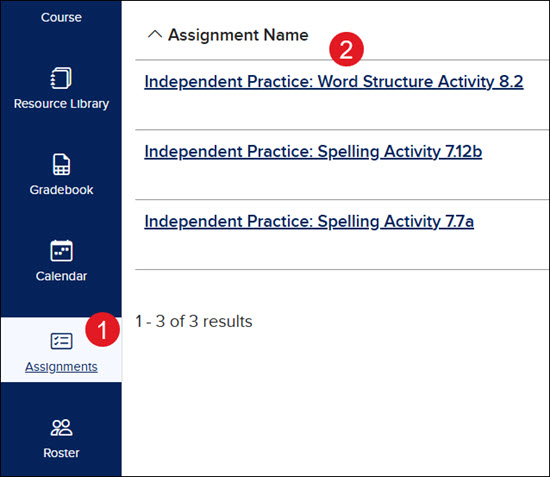
1. Click Assignments on the navigation menu.
2. Click on the Assignment Name.
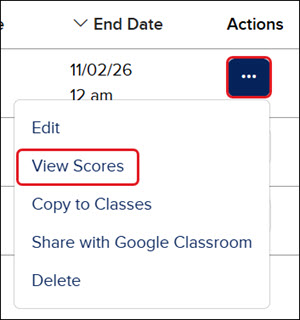
You can also click on the Options menu in the Actions column and then select View Scores from the menu.
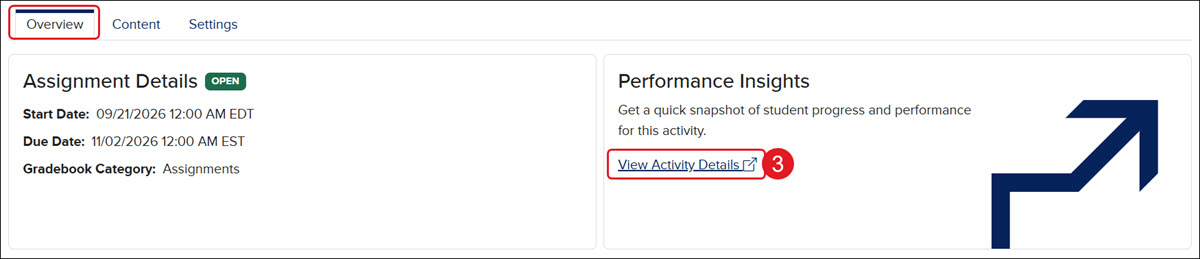
3. On the Overview tab, click the View Activity Details link on the Performance Insights widget.
The page will open in a new browser tab.
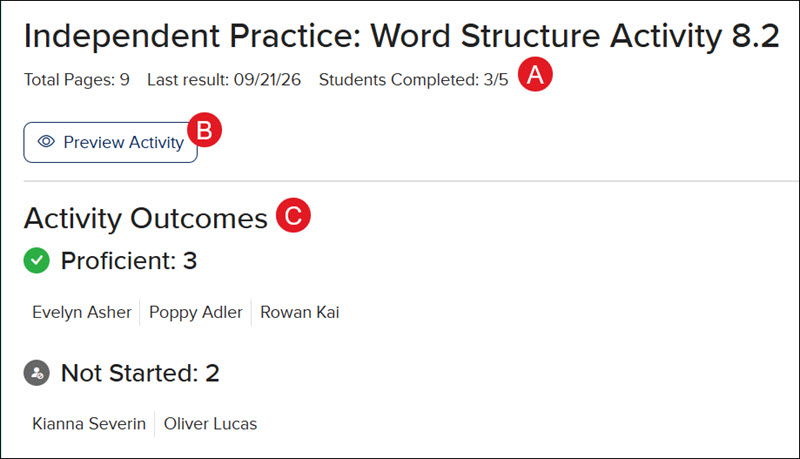
A. View the number of pages the activity has, the date when students last submitted the activity, and how many students have completed the assignment vs. how many were assigned.
B. Click the Preview Activity button to see the activity the students completed.
C. View which students have completed the activity and which students have yet to start it.
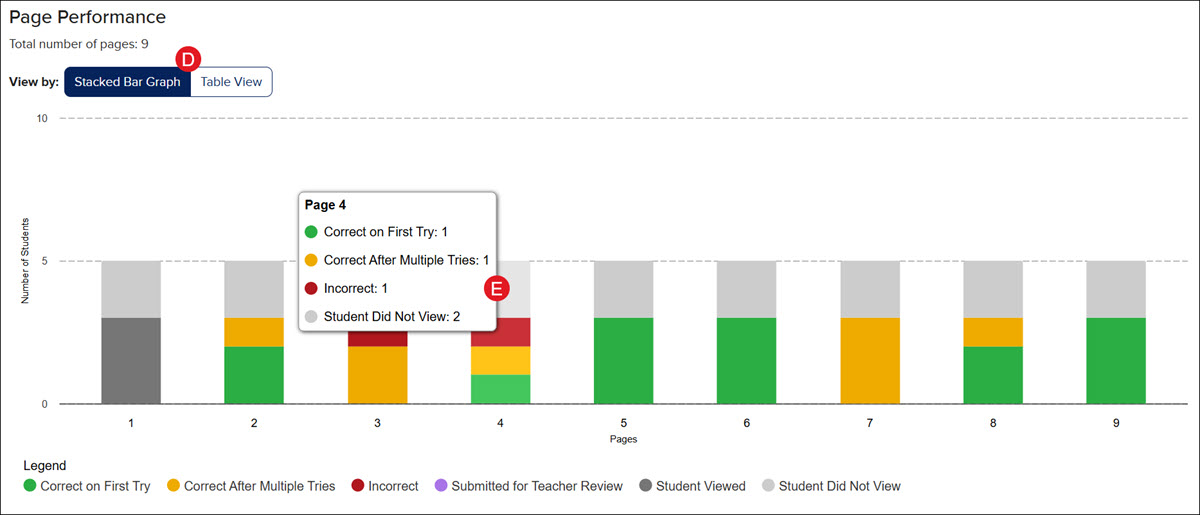
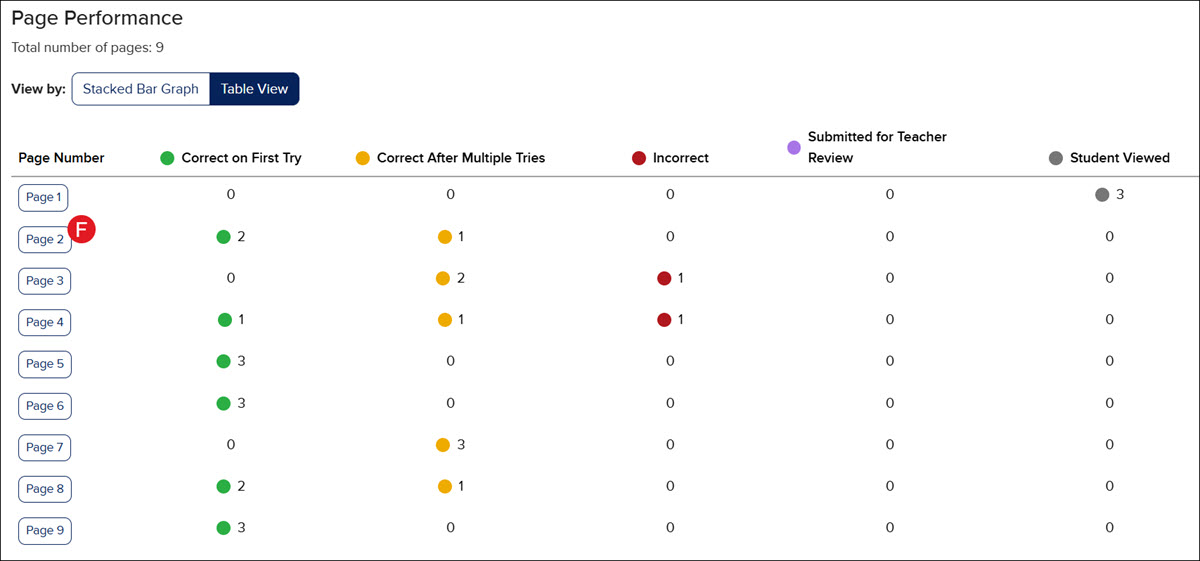
D. Toggle between the Stacked Bar Graph view and the Table View.
E. On the Stacked Bar Graph view, hover over a bar in the graph to view the page number of the activity and how many students got the question correct, incorrect, or have not viewed it.
F. On the Table View, click on a Page Number to view that question in the Page Details section at the bottom.
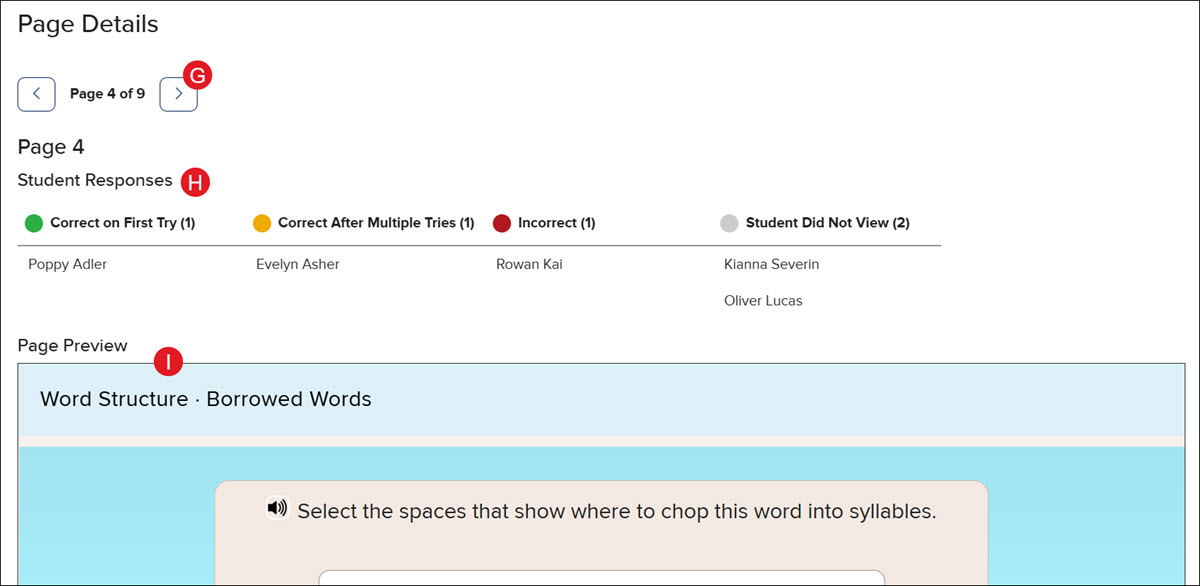
G. In the Page Details section, click the back-and-forth buttons to navigate through the pages of the activity.
H. Each question will show who got the question correct on the first try, correct after multiple attempts, incorrect, or have not viewed the question.
I. View the page of the activity that was completed by the students.