Create ALEKS® Time Goal Assignments in Reveal Math®
Learn how teachers create ALEKS Time Goal assignments in Reveal Math to track student learning time and usage insights.
- Customer Support
- PreK-12
- Classroom Teacher
- Elementary School
- Middle School
- High School
- Direct Login & Auto-Rostering
- Direct Login & Manual-Rostering
- SSO & Auto-Rostering
- SSO & Manual-Rostering
- Supplemental
- Math
- ALEKS
- Reveal Math (K-12)
- CA Reveal Math (K-12)
- Grades & Assignments


View the demo in a separate tab.
View the Spanish version of the demo.
ALEKS® Time Goal Assignments will allow teachers to create an assignment in Open Learning that directs students to work independently in ALEKS for a set amount of time. The assignment will appear on the student’s to-do list and calendar and will include a link for the student to launch directly into ALEKS. The “learning” time spent by students will be reported back into Open Learning for the student and teachers to review and monitor. These assignments are not graded, but used to drive usage and provide teachers with student usage insights.
Note: The Open Learning ALEKS Time Assignments are completely independent of native ALEKS Assignments a teacher might create within ALEKS.
ALEKS will only send the learning time the student spent in ALEKS, so time spent taking assessments or working through the ALEKS content proper. Any time the student spent reviewing reports or dashboards, etc., will not count towards their time goal. As for the session timing, any ALEKS session that ends after the Open Learning Assignment start date/time or before the end date/time counts towards the ALEKS Time Goal Assignment.
A student may start working in ALEKS before the end date of the assignment but finish AFTER the end date/time - the duration of that session will NOT count towards the assignment.
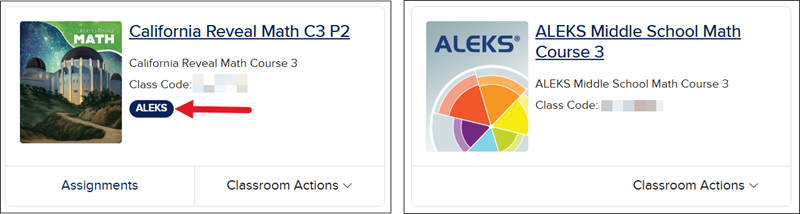
Additional Note: This feature is only available for Reveal programs that have the ALEKS add-on option. If using the separate ALEKS version of the program, this option will not be available within Reveal Math.
Add-On Version vs Separate Version
Article Contents
Create ALEKS Time Goal Assignment
Create ALEKS Time Goal Assignment
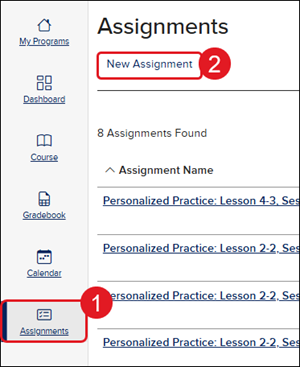
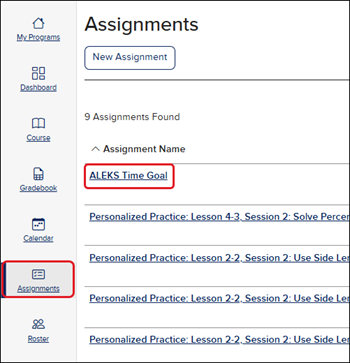
1. Click on Assignments from the Navigation Menu.
2. Click the New Assignment button.
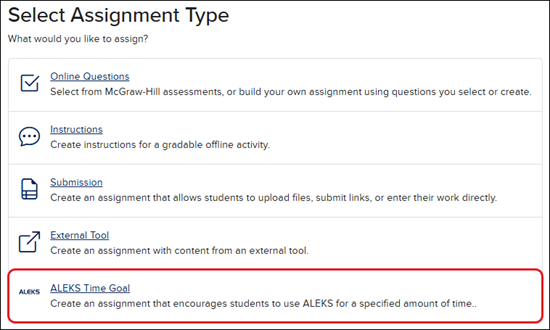
3. Click on ALEKS Time Goal from the Select Assignment Type list.
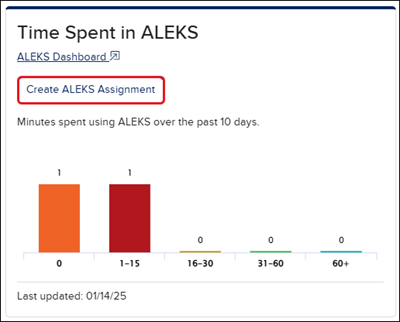
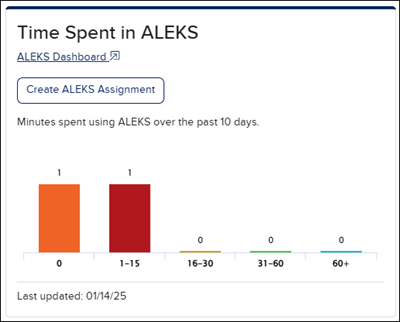
You can also click on the Create ALEKS Assignment button on the Time Spent in ALEKS widget on the Dashboard.
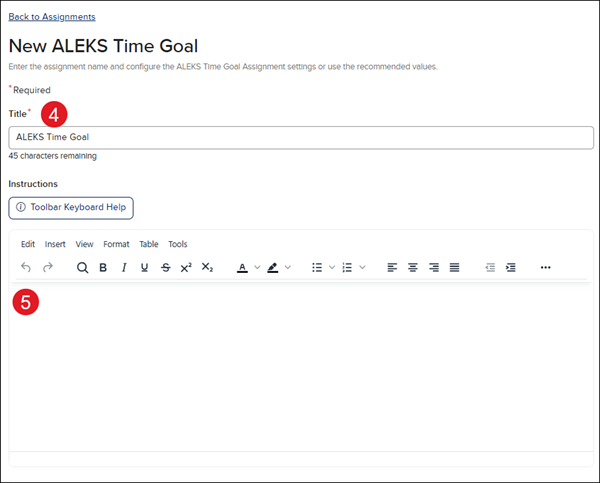
4. Enter a Title or keep the default title for the assignment.
5. Enter any Instructions you want the students to read/follow.
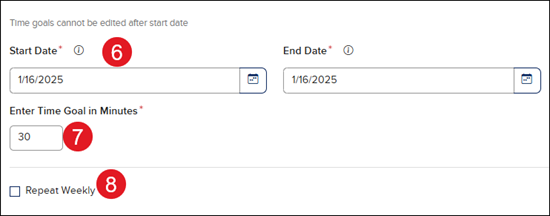
6. Select a Start and End Date.
Note: An ALEKS Time Goal Assignment that has been created but not yet started (i.e., the start date/time is in the future) can be fully edited. An ALEKS Time Goal Assignment that has already started (i.e., the start date/time is in the past) cannot have its Start, End, or Time Goal edited, but the Title and Instructions can still be edited.
7. Enter Time Goal in Minutes in the provided field. The default is set to 30 minutes.
8. If you would like the Time Goal to be assigned every week, check the Repeat Weekly box.
9. All students are assigned to the Time Goal by default. To make adjustments to the assignment roster, click on the pencil icon in the Select Students section.
Click on the student(s) you want to add/remove from the assignment roster. Click the Apply button.
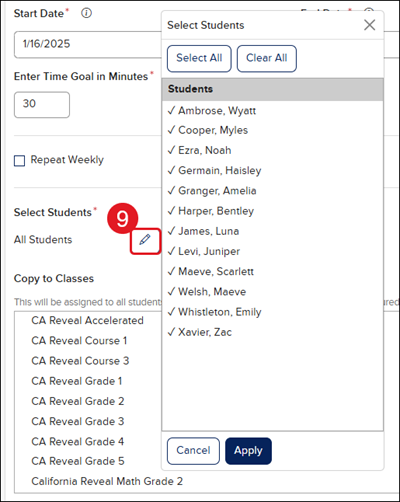
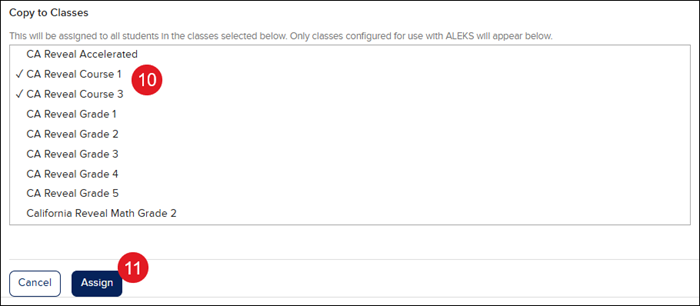
10. To copy the assignment to another class, click on the class name in the Copy to Classes section. Additional classes will only show if they have the ALEKS add-on.
11. Click the Assign button.
View ALEKS Time Goal
Time Goal data can be seen in the Time Spent in ALEKS widget on the Dashboard.
It can also be viewed by navigating to Assignments in the navigation menu and clicking on the Assignment Name.
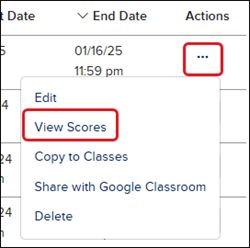
Or by clicking on the Options button in the Actions column to the right of the assignment. Select View Scores from the menu.