Edit Student Redbird Grade Placement and Game Access
Edit a student's grade placement and game access in Redbird to adjust instruction.
- Supplemental
- Math
- Getting Started & Orientation
- Literacy
- SSO & Manual-Rostering
- Customer Support
- Direct Login & Auto-Rostering
- Direct Login & Manual-Rostering
- Classroom Teacher
- SSO & Auto-Rostering
- PreK-12
- Redbird
- Elementary School
- Account Management
- User Management
- Dashboard & Navigation Overview
- Middle School


Clickable Walkthrough: Redbird - Edit Student Grade Placement and Game Access
To edit a student's grade placement and game access for Redbird, you will want to follow the steps within this article.
Note: you will not be able to make these edits until after the student has taken their Course Placement Activity.
Change Grade Placement:
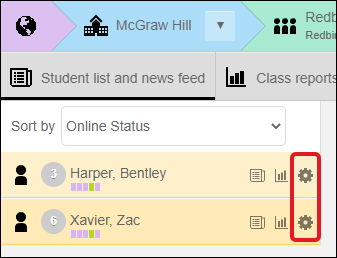
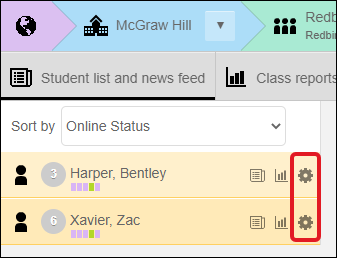
1. From within your Redbird course, click on the Edit Student gear icon to the right of the student name from the News Feed page.
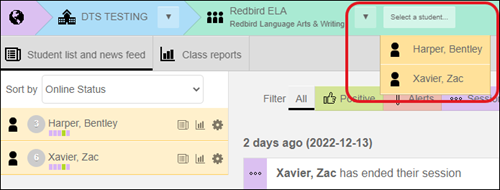
The student's placement can also be changed by selecting a student's name from the Select a student drop-down menu at the top of the page.
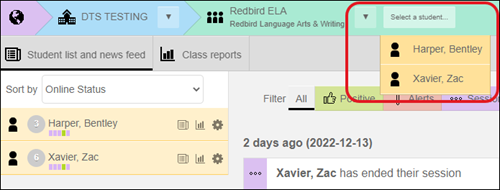
You will then click on Edit 'student name' then follow the rest of the steps.

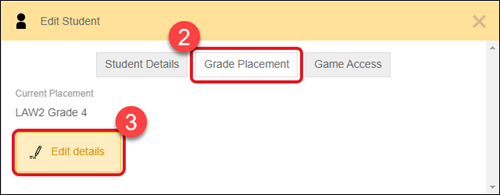
2. Click on the Grade Placement tab in the pop-up window.
You'll also be able to see the student's Current Placement based on the placement assessment on this tab.
3. Click the Edit details button.
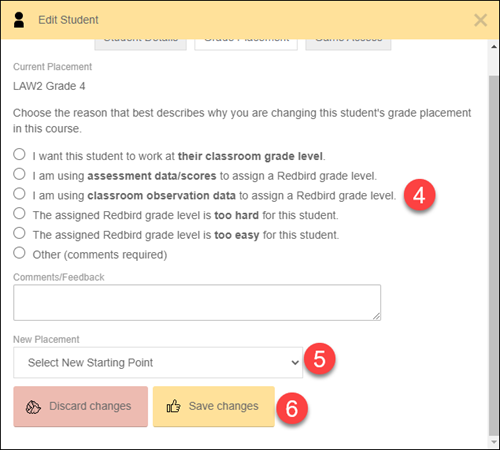
4. Choose the reason that best describes why you are changing this student's grade placement.
5. Select the desired grade placement from the New Placement drop-down menu.
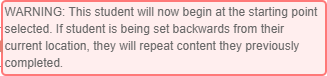
If you select a starting point at a lower grade level than the student is currently at, you will see the following warning:
6. Click Save changes.
Change Game Access:
You will want to follow these steps if you want to disable freeplay games within the program.
1. From within your Redbird course, click on the Edit Student gear icon to the right of the student name from the News Feed page.
The student's placement can also be changed by selecting a student's name from the Select a student drop-down menu at the top of the page.
You will then click on Edit 'student name' then follow the rest of the steps.

2. Click on the Game Access tab.
3. Click the Edit details button.
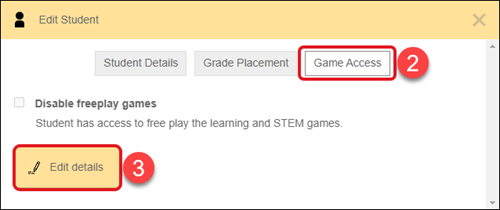
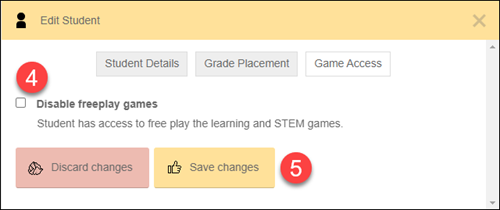
4. Check the Disable freeplay games box.
5. Click the Save changes button.