Quick Start Guide for Schoology® Assignment Sync & Grade Passback
Follow the quick start guide to set up Assignment Sync and Grade Passback for Schoology®.
- PreK-12
- Customer Support
- Classroom Teacher
- Preschool
- Elementary School
- Middle School
- High School
- SSO & Auto-Rostering
- Core
- Intervention
- Supplemental
- AP, Honors & Electives
- Career & Technical Education
- Literacy
- Math
- Science
- Social Studies
- Health
- Visual & Performing Arts
- World Languages
- AP Biology
- AP Chemistry
- AP History & Geography
- AP Psychology
- AP Economics
- AP African American Studies
- AP Precalculus
- AP Statistics
- AP Computer Science
- AP Language and Composition
- AP Public Speaking
- AP Music Theory
- 5 Steps to a 5 - AP Test Prep
- Glencoe Health 2022
- Teen Health 2021
- Arrive Math
- Building Blocks 2024
- Building Blocks PreK 2025
- Number Worlds 2024
- SRA Reading Laboratory 2025
- SRA Reading Mastery Transformations
- Actively Learn
- McGraw Hill Literacy Emerge!
- McGraw Hill Literacy Summit!
- McGraw Hill Literacy Soar!
- Open Court Reading 2025
- StudySync 2021
- CA Reveal Math (K-12)
- Illustrative Math
- Reveal Math (K-12)
- CA Inspire Science 2020
- FL Science 2025 (K-12)
- Inspire Science 2020
- TN Science (K-12)
- TX Science 2025 (K-12)
- CA Impact 2019
- FL Social Studies 2024 (K-12)
- Impact Social Studies
- McGraw Hill Social Studies
- All Sorts 2026 (K-5)
- Asi se Dice 2024
- CTE - Business, Marketing, and Finance
- CTE - Health Science
- CTE - Computing and Technology
- CTE - Agriculture
- CTE - Culinary Arts
- CTE - Early Childhood Education
- CTE - Criminal Justice
- Open Court Reading 2016, 2018, 2023
- Wonders Balanced Literacy 2016
- Maravillas 2020 & 2017
- Music! Its Role
- McGraw Hill My Math 2018
- Networks 2018
- OCR Foundational Skills Kit
- OCR Word Analysis Kit
- Spotlight on Music
- Wonders 2023 2020 2017
- Texas Math
- Assignment Sync & Grade Passback
- Grades & Assignments
- Schoology®
- User Guide


Single Sign-On (SSO) and Auto-Rostering
This article applies to districts that use the SSO and Auto-Rostering Access Service. SSO applies to districts that use an SSO portal, district website, or Learning Management System (LMS) to access McGraw Hill digital programs. Auto-Rostering means that account creation, class setup, and roster management are automated through a process handled by your district.
Not sure which Access Service your district uses? Click here to learn more about the four Access Services that we support.
View the demo in a separate tab.
View the Spanish version of the demo.
View a PDF copy of the article.
This Quick-Start Guide walks teachers through the initial pairing of their McGraw Hill classes with Schoology, allowing them to create and share assignments within Schoology for their McGraw Hill programs.
The McGraw Hill LTI® 1.3 Link: Grades and Assignment Integration tool syncs assignments and grades between the programs hosted on the McGraw Hill platform and your Schoology® Learning Management System (LMS).
Prior to syncing assignments and grades between your McGraw Hill classes and Schoology, you need to pair your class(es). Your McGraw Hill class is automatically generated by your district's nightly roster file sent to McGraw Hill.
Note: If you plan to use section linking for your classes, this must be done before completing the class pairing steps. However, additional classes can be added and paired in the future as necessary.
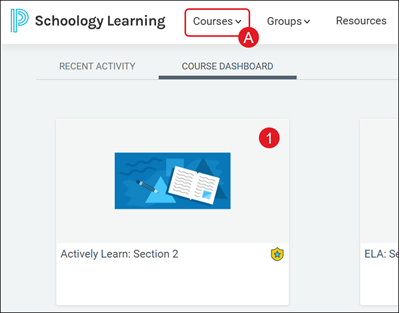
1. On the Course Dashboard, click on the course tile, or select the class from the Courses (A) drop-down.
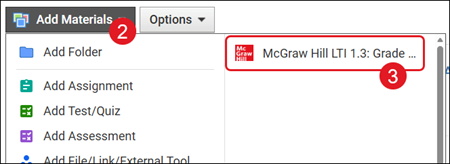
2. Click the Add Materials drop-down.
3. Click on McGraw Hill LTI 1.3: Grade and Assignment Integration from the menu.
Note: Installation of this app is completed by your District Administrator. If you do not see the app, please reach out to your District Administrator or Curriculum Coordinator.
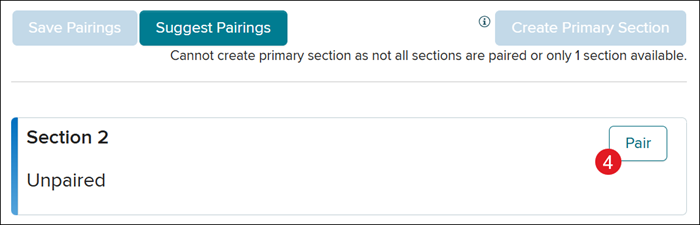
4. Click Pair to the right of the course tile.
Important! Make sure to only click Pair on the course tile that matches the course you selected.
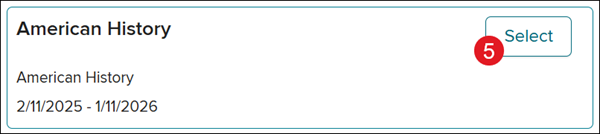
5. On the Course section pop-up, click Select on the course tile that matches the course you selected.
Complete these steps for every class that needs to be paired with the course you selected.
Alternative Option: Smart Pairing
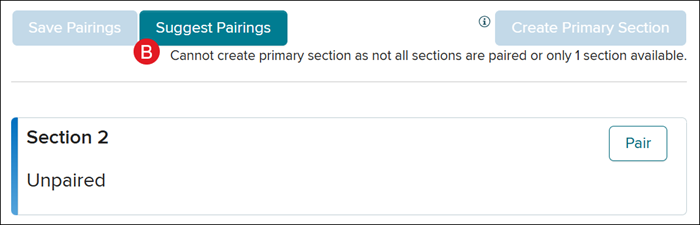
Some schools may have access to the Suggest Pairings (B) option. This button will automatically pair your classes to the selected course.
If you do not have the button available, this means your district does not have a matching identifier between your McGraw Hill classes and your Schoology classes. You will need to reach out to your district IT team to further inquire about this new feature.
If using this option:
- Once your classes are paired, verify that the correct classes are linked to the course by scrolling through the list of classes on the pop-up.
- If a class was incorrectly paired, follow the Unpairing Classes steps.
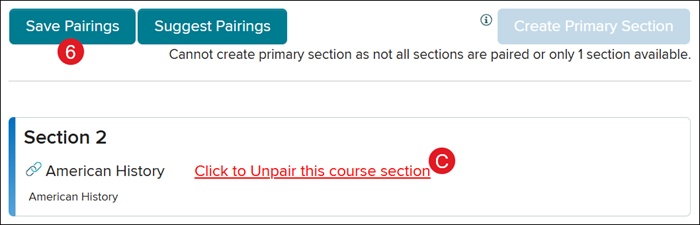
6. Click the Save Pairings button.
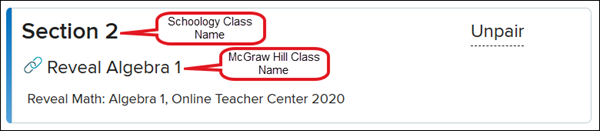
C. If you would like to start over with pairing classes to the selected course, click the Click to Unpair this course section link.
Stop and Double Check! Take time to double check and ensure your class pairings are correct before moving on. Incorrect class pairings, and any resulting issues, is a common issue.
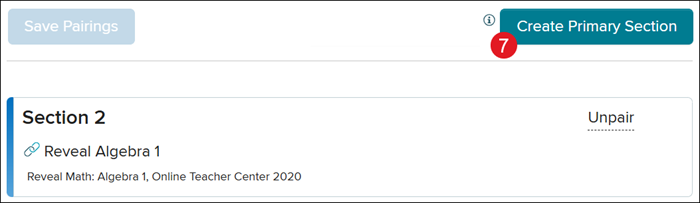
7. Click the Create Primary Section button.
This will create an empty class within Actively Learn with "Schoology® Course" affixed to the title of the class. This class will not have any students rostered to it but will serve as the primary class for creating assignments.
Important! Do not archive the primary section or any of your classes on the McGraw Hill platform. Archiving these classes will prevent the integration between your McGraw Hill classes and Schoology classes from functioning properly.
8. Click the Launch Primary Section button to create assignments.
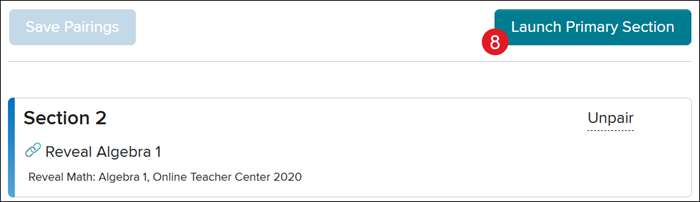
Your options on this screen may vary depending on the program you are using:
- Wonders and Open Court Reading > Create Custom Assignments
- StudySync > Add StudySync Assignments
- Actively Learn > Add Actively Learn Assignments
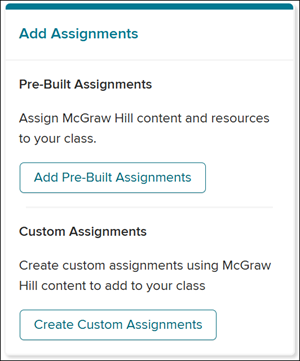
- All other Programs > Add Pre-Built Assignments and Create Custom Assignments