Navigate the Open Learning Gradebook
Learn how to access and navigate through the Open Learning gradebook.
- Customer Support
- PreK-12
- Classroom Teacher
- Preschool
- Elementary School
- Middle School
- High School
- Direct Login & Auto-Rostering
- Direct Login & Manual-Rostering
- SSO & Auto-Rostering
- SSO & Manual-Rostering
- Core
- Intervention
- Supplemental
- AP, Honors & Electives
- Career & Technical Education
- Literacy
- Math
- Science
- Social Studies
- Health
- Visual & Performing Arts
- World Languages
- AP Biology
- AP Chemistry
- AP History & Geography
- AP Psychology
- AP Economics
- AP African American Studies
- AP Precalculus
- AP Statistics
- AP Computer Science
- AP Language and Composition
- AP Public Speaking
- AP Music Theory
- 5 Steps to a 5 - AP Test Prep
- Glencoe Health 2022
- Teen Health 2021
- Arrive Math
- Building Blocks 2024
- Building Blocks PreK 2025
- Number Worlds 2024
- SRA Reading Laboratory 2025
- SRA Reading Mastery Transformations
- McGraw Hill Literacy Emerge!
- McGraw Hill Literacy Summit!
- McGraw Hill Literacy Soar!
- Open Court Reading 2025
- CA Reveal Math (K-12)
- Illustrative Math
- Reveal Math (K-12)
- Texas Math
- CA Inspire Science 2020
- FL Science 2025 (K-12)
- Inspire Science 2020
- TN Science (K-12)
- TX Science 2025 (K-12)
- CA Impact 2019
- FL Social Studies 2024 (K-12)
- Impact Social Studies
- McGraw Hill Social Studies
- All Sorts 2026 (K-5)
- Asi se Dice 2024
- CTE - Health Science
- CTE - Computing and Technology
- CTE - Agriculture
- CTE - Culinary Arts
- CTE - Early Childhood Education
- CTE - Criminal Justice
- Level Up K–5
- Level Up 6–8
- Level Up 9–12
- Grades & Assignments


View the demo in a separate tab.
View the Spanish version of the demo.
Article Contents
Navigate the Gradebook
- SSO or sign in at my.mheducation.com.
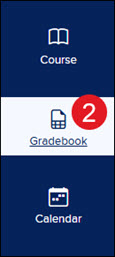
- Click on Gradebook from the navigation menu.
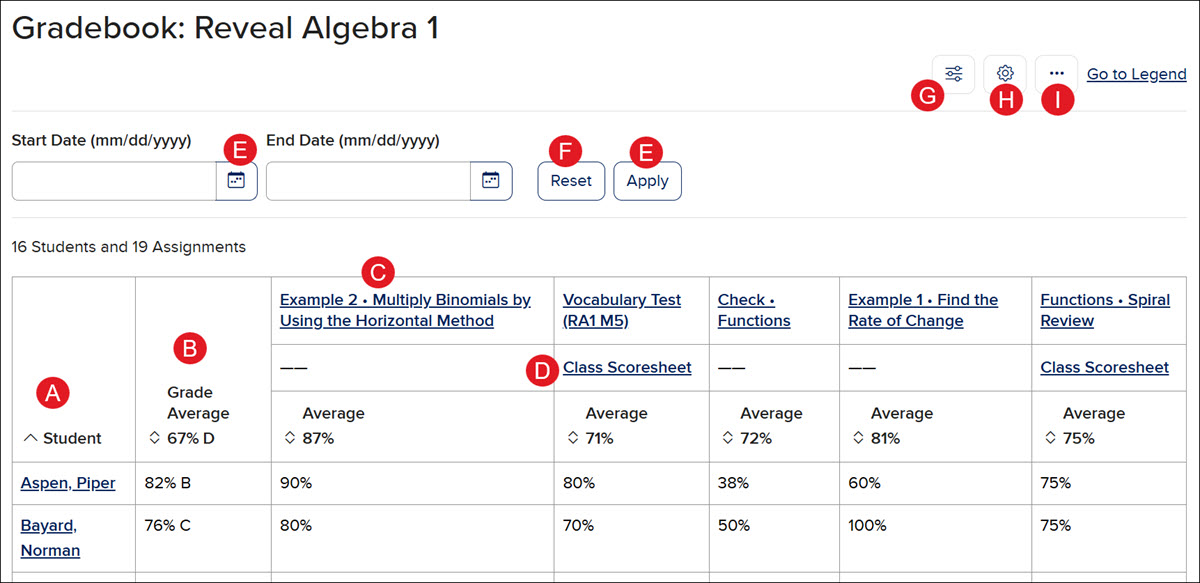
A. All students rostered to the class show in the Student column on the far left.
B. Each student will show a Grade Average for all assignments combined.
C. Click on an assignment title to navigate to the Assignment Details page.
D. For assessments, click the Class Scoresheet to view all assessment questions and easily score manually graded questions.
E. Enter a Start and End Date and click the Apply button to view assignments between those dates.
F. Click the Reset button to clear the Date fields.
G. Click the Filters button to narrow down the grade view by a certain total grade percentage, assigned student groups, or by a certain category.
H. Click the Gradebook Settings button (gear icon) to adjust the Display and Grading Options.
I. Click the Options button (three vertical dots) to view the Grading History, Download File, and Print the gradebook.
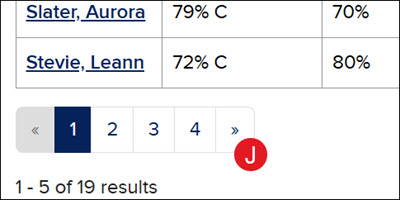
J. At the bottom, navigate between pages of the gradebook by clicking on a number or the back-and-forth arrows.
Individual Student Gradebook
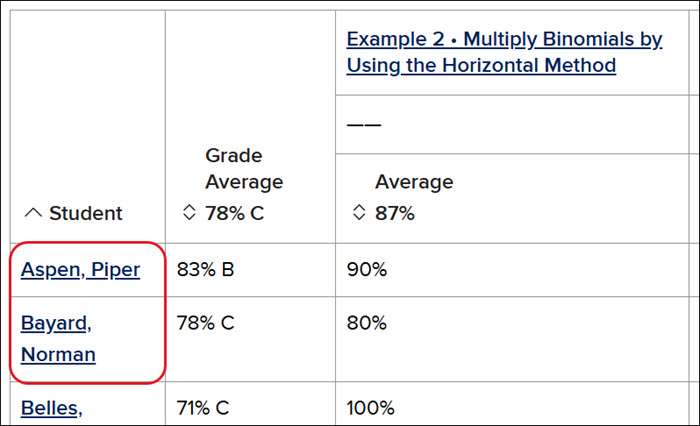
An individual student's gradebook can be accessed by clicking on their name in the Student column.
A student's gradebook will list each Assignment and their Score. It will also include the Due Date and their Submission Date.
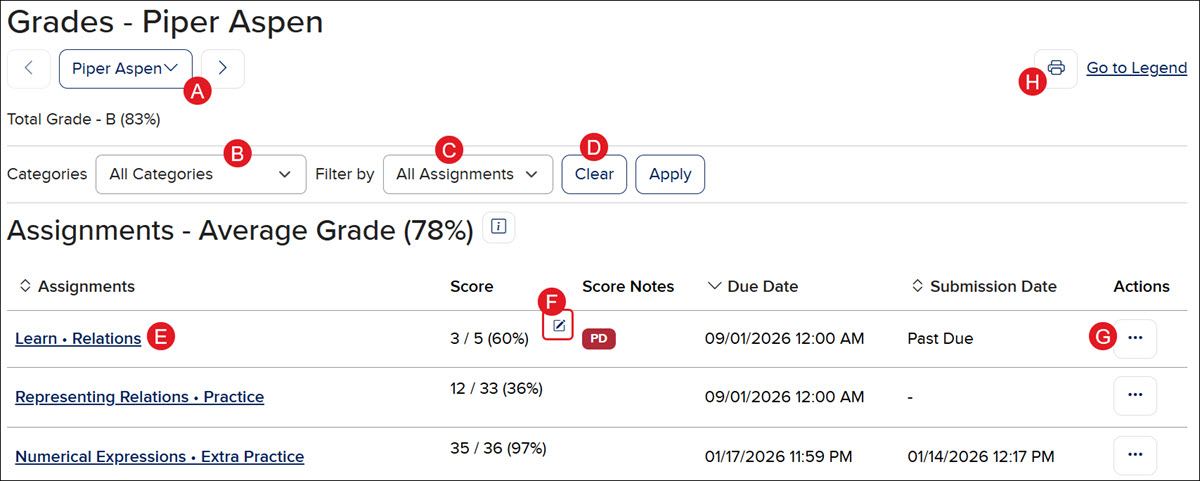
- Navigate between student gradebooks by selecting a student from the drop-down or using the back-and-forth arrows.
- View specific Categories by selecting an option from the drop-down.
- Narrow down the view of assignments in the student gradebook by selecting an option from the Filter by drop-down.
- Click the Clear button to reset all selections.
- Click on an Assignment title to navigate to the Assignment Details page.
- Click the pencil icon to make changes to a student's score for that assignment. This option varies based on the type of assignment.
- Click the Options button in the Actions column to excuse a score, add a note, or give an extension for that assignment. Assessments will show additional options to view the scoresheet and their results.
- Click the Print button to download/save the current view of the student's gradebook.
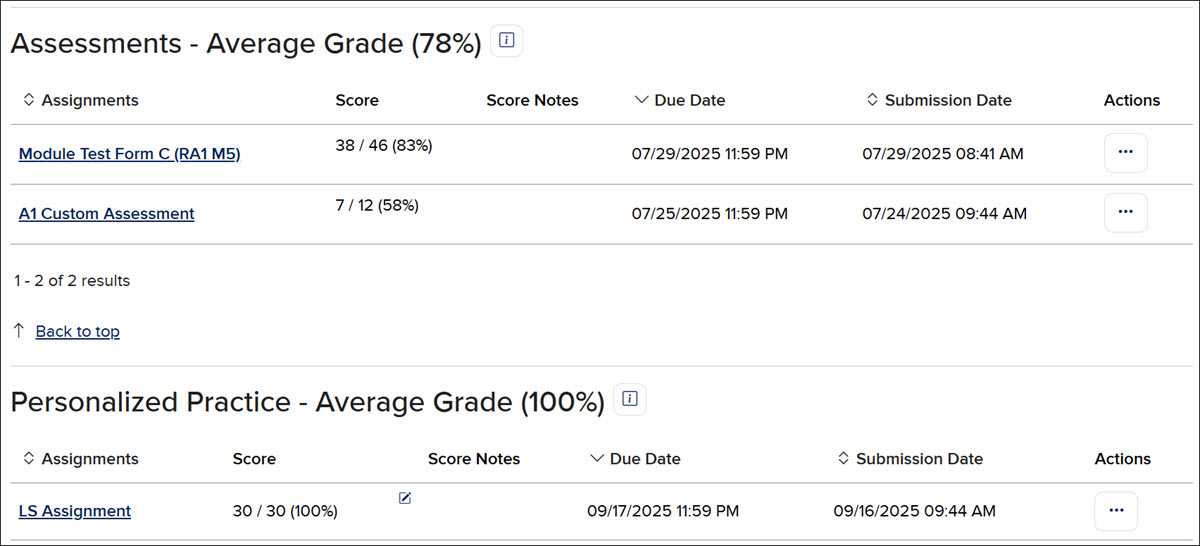
Below the main student gradebook table, you can also view the list of assignments for the student broken down by the individual categories.
Grading Options
The Grading Options allow you to make changes to add or remove grading categories, as well as adjust the grading scale and percentages.
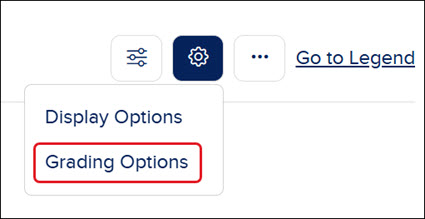
To access the Grading Options, click on the Gradebook Settings button (gear icon).
Gradebook Categories
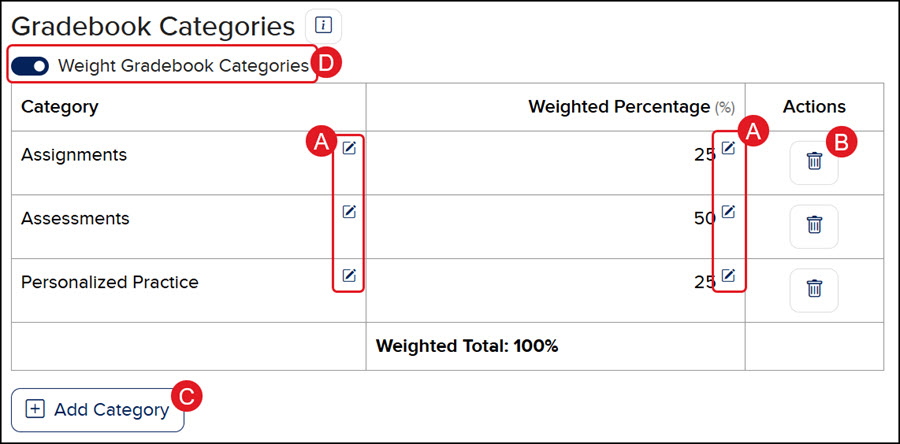
- Click the pencil icon in each column and row to make changes to the Category and Weighted Percentage.
- Click the Delete (trash can) button to remove the Category.
- Click the Add Category button to include additional Gradebook Categories.
- Toggle the Weight Gradebook Categories to show or remove the Weighted Percentage column.
Click the Save button at the bottom to confirm any changes that are made.
Grading Scale
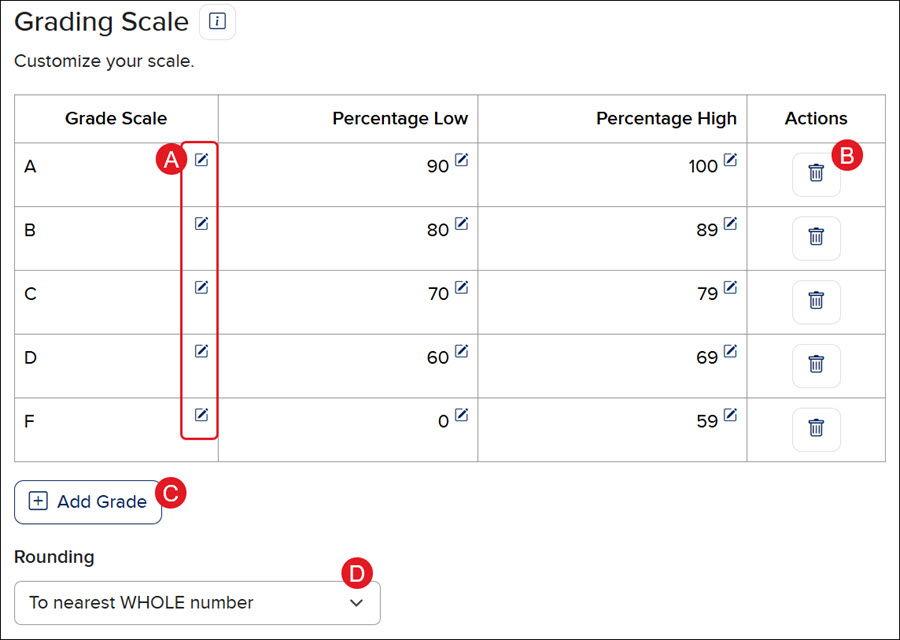
- Click the pencil icon in each column and row to make changes to the Grade Scale, Percentage Low, and/or Percentage High columns.
For the Grade Scale column, you can use letters, numbers, or words. Each cannot be more than 6 characters.
For the Percentage columns, they need to be between 0 and 100.
- Click the Delete (trash can) button to remove the row.
- Click the Add Grade button to include an additional row to the Grade Scale.
- Select an option from the Rounding drop-down.
Click the Save button at the bottom to confirm any changes that are made.
Display Options
The Display Options allow you to adjust what is seen in the Gradebook.
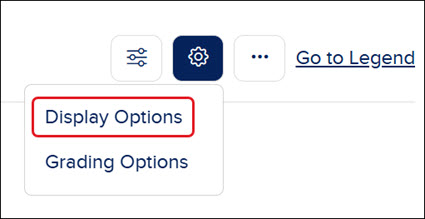
To access the Display Options, click on the Gradebook Settings button.
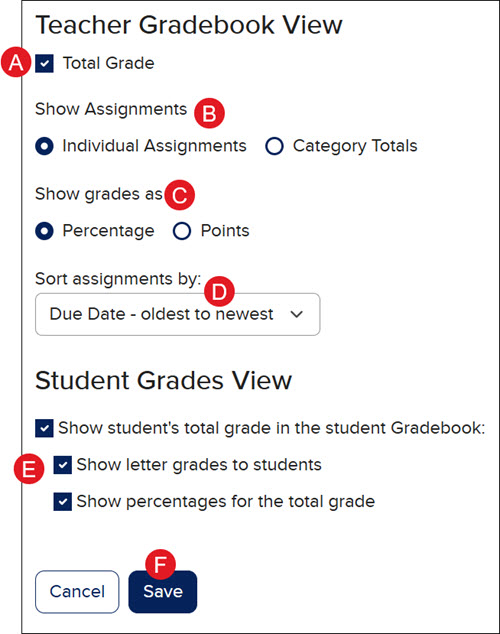
- The Total Grade is checked by default. Uncheck the box to not show this column.
- Select the Show Assignments radio button to view the Individual Assignments or Category Totals.
- Select the Show grades as radio button to view by Percentage or Points.
- Select how you want to sort the data from the Sort assignments by drop-down.
- The Student Grades View options are checked by default. If you do not want them to see their total grade, letter grades, and/or percentages, uncheck the corresponding box.
- Click the Save button to confirm any changes made.
Grading History
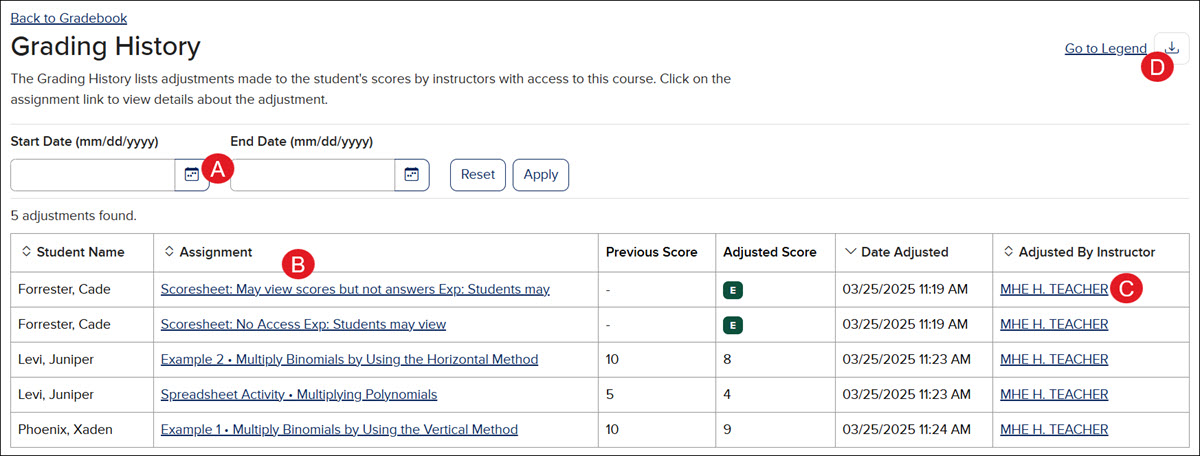
The Grading History lists adjustments made to the student's scores by instructors with access to the course.
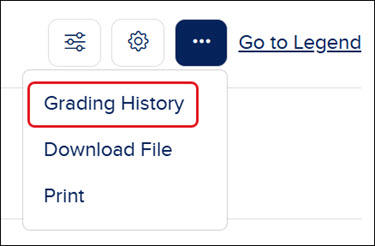
To access the Grading History, click on the Options button.
The page will show details as to which student the grade change was for, the assignment name, their previous score, and their current score. It will also show the date and time of the adjustment and the teacher who made the change.
- Enter a Start and/or End Date to view a certain range of scoring adjustments.
- Click on an Assignment title to view the Assignment Details page.
- Click on the name of the teacher to navigate to the Teacher tab of the Roster page.
- Click the Download History button to save/print the current version of the grading history page.
Download Gradebook File
The Download File option allows you to export the gradebook into an XLSX or CSV file.
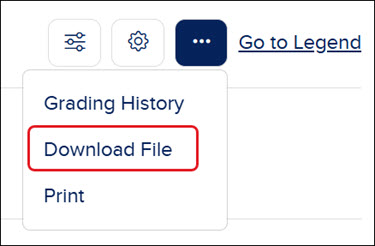
To access the Download File option, click on the Options button.
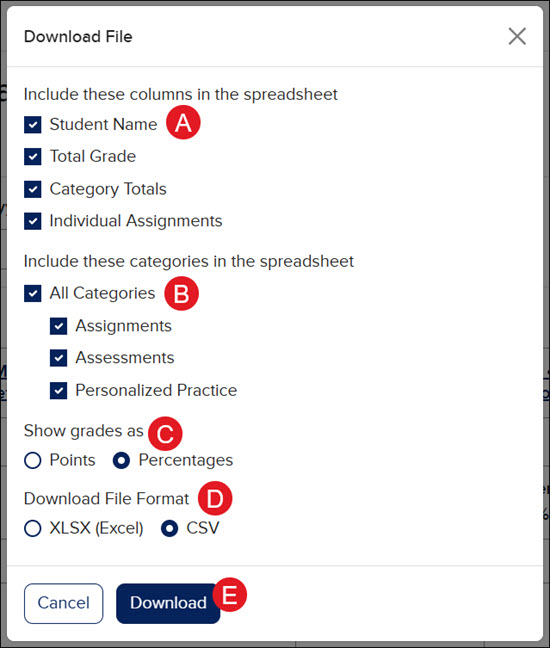
- All columns are selected by default. Uncheck any column options you do not want included in the file.
- All categories are selected by default. Uncheck any category options you do not want included in the file.
- Select the grades radio button to show as Points or Percentages.
- Select the radio button for the File Format to download the file as an XLSX (Excel) or CSV file.
- Click the Download button to download/save the file.
Print Gradebook
The Print option allows you to download, print, or save the gradebook as seen in the program.
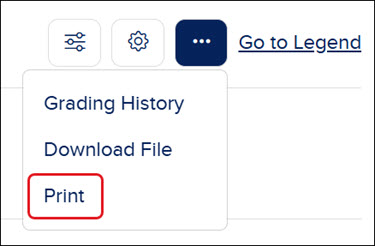
To Print the gradebook, click on the Options button.