
Navigate Grades K-5 To Do List and Complete Assignments
View past work using the To Do List in the Open Learning Platform.
- TX Science 2025 (K-12)
- Arrive Math
- SSO & Manual-Rostering
- Inspire Science 2020
- Customer Support
- Number Worlds 2024
- Direct Login & Manual-Rostering
- CA Impact 2019
- School Parent
- CA Inspire Science 2020
- SSO & Auto-Rostering
- PreK-12
- Elementary School
- FL Science 2025 (K-12)
- Math
- Direct Instruction
- Intervention
- Literacy
- Grades & Assignments
- Social Studies
- Direct Login & Auto-Rostering
- School Student
- Core
- CA Reveal Math (K-12)
- FL Social Studies 2024 (K-12)
- Building Blocks PreK 2025
- Building Blocks 2024
- Science
- McGraw Hill Literacy
- Preschool
- Dashboard & Navigation Overview
- AP Biology
- AP Chemistry
- AP History & Geography
- AP Psychology
- AP Economics
- AP African American Studies
- AP Precalculus
- AP Statistics
- AP Computer Science
- AP Language and Composition
- AP Public Speaking
- AP Music Theory
- 5 Steps to a 5 - AP Test Prep
- Glencoe Health 2022
- Teen Health 2021
- SRA Reading Laboratory 2025
- SRA Reading Mastery Transformations
- McGraw Hill Literacy Emerge!
- McGraw Hill Literacy Summit!
- McGraw Hill Literacy Soar!
- Open Court Reading 2025
- Illustrative Math
- Reveal Math (K-12)
- TN Science (K-12)
- Impact Social Studies
- McGraw Hill Social Studies
- All Sorts 2026 (K-5)
- Asi se Dice 2024
- CTE - Health Science
- CTE - Agriculture
- CTE - Computing and Technology
- CTE - Culinary Arts
- CTE - Early Childhood Education
- CTE - Business, Marketing, and Finance
- CTE - Criminal Justice


This article walks K-5 students through navigating their To Do list and provides steps on completing various assignment types.
For a full page view of the demo, click here.
For a Spanish version of the demo, click here.
Article Contents
To Do List
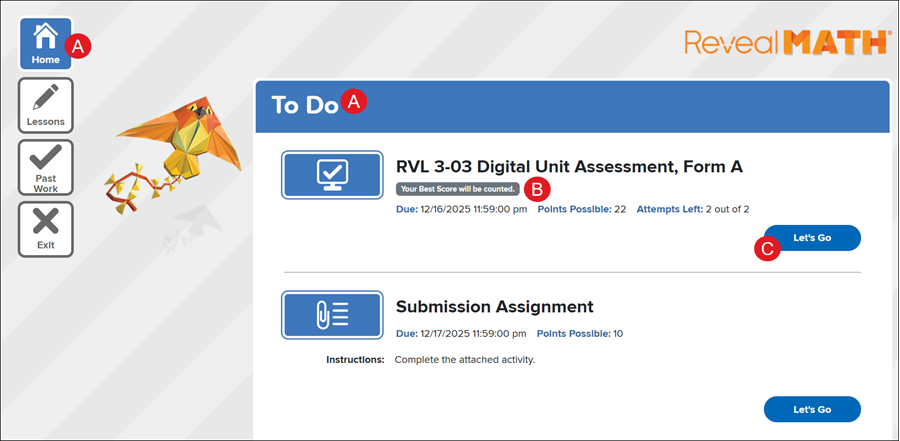
A. All currently active and available assignments can be found within the To Do list on the Home page.
B. The Due date, Points Possible, Status, and any Instructions provided by the teacher are found under the assignment title. Attempts Left may also show for certain assignments depending on the settings selected by the teacher.
C. Click the Let's Go button to launch the assignment.
Note: Some assignments that only require a submission will show with a Submit button instead.
Interactive/eBook Assignments
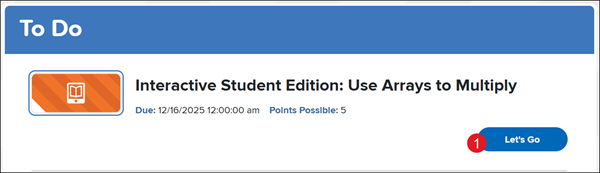
1. Click the Let's Go button.
If the assignment is for eBook pages, it will open on the first page that was assigned.
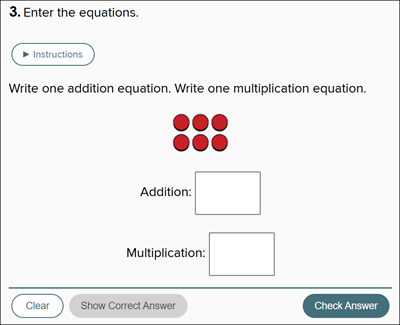
2. Enter your answers in the appropriate fields based on the assignment.
Some questions have Instructions that can be played, as well as have a Check Answer and Show Correct Answer button.
Note: The Clear button only works before you click the Check Answer button for the final time for the question.
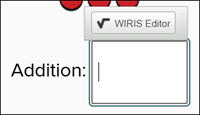
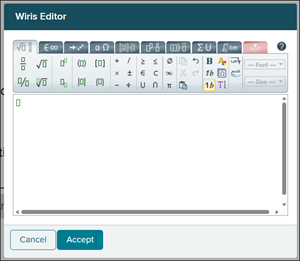
These questions may also need to be answered using the WIRIS Editor. To use the WIRIS Editor, click in the answer space and click the WIRIS Editor button. This will bring up a pop-up to enter your answer into. Click the Accept button once you have entered your full answer.
3. Click the Submit button.
Toolbar Navigation

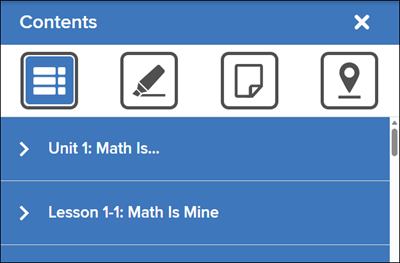
A. Table of Contents - Provides access to eBook Contents, Highlights, Notes, and Placemarks.
B. Previous and Next Buttons - Page navigation buttons to navigate to previous and next pages within the eBook.
C. About This Assignment - Opens a side panel with the name of the assignment, the Due Date, and the Points Possible.
D. Learning Tools - Provides access to the eToolkit. This resource opens in a separate browser window.
E. Search - Opens side panel to be able to search for a keyword within the eBook.
F. Change Font Size - Makes the text smaller or larger.
G. Open in New Tab - Opens the resource in a separate browser tab.
H. Open Full Screen - Opens the resource into full screen mode.
I. Exit - Click the X button to close out of the resource.
Instruction Assignment
Instruction assignments only include any instructions and attached resources provided by your teacher.
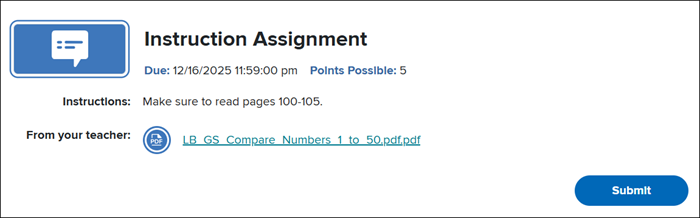
The Instruction assignment tile will include the Due date, Points Possible, Instructions provided, and any From your teacher resources.
To confirm you have completed the assignment, click the Submit button.
Submission Assignments
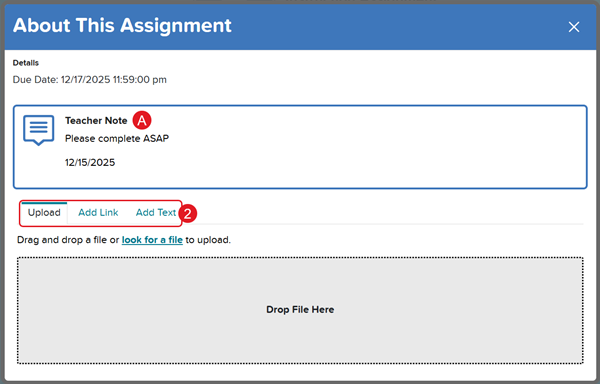
A Submission assignment consists of uploading a resource file, web address, or enter text.
1. Click the Let's Go button.
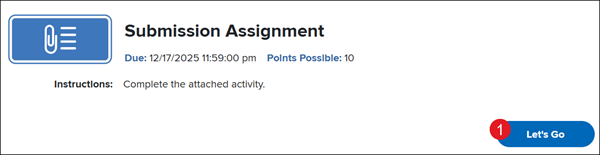
2. On the pop-up, click the Upload, Add Link, or Add Text tab depending on what you want to submit. Only one option can be selected.
A. On the pop-up is also where the student can view any Teacher Notes that were provided for the assignment.
Upload File
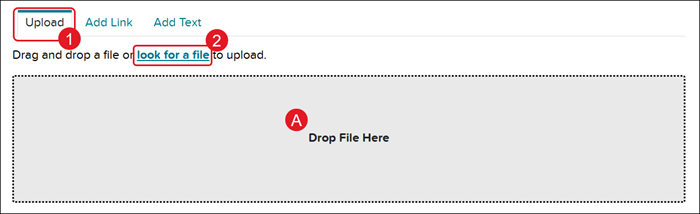
This option is used to attach resource files to the assignment.
1. Click the Upload tab.
2. Click the look for a file link.
3. Select the file from the device.
A. You can also drag and drop the file in the gray space on the pop-up.
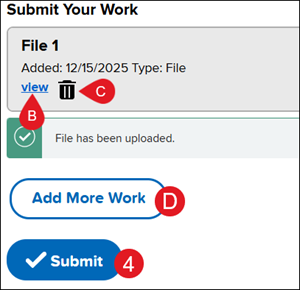
A message will show below the attached file once it has been successfully attached.
B. Click the view link to view the attached resource file.
C. Click the trash can icon to delete the attached resource file.
D. Click the Add More Work button to add additional resource files.
4. Click the Submit button.
Add Link
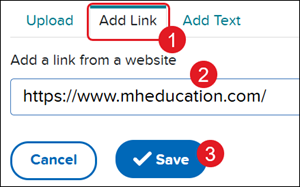
This option is used to attach a web address to the assignment submission.
1. Click the Add Link tab.
2. Enter the web address in the provided field.
3. Click the Save button.
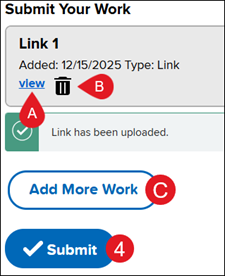
A message will show below the attached link once it has been successfully attached.
B. Click the view link to view the attached link.
C. Click the trash can icon to delete the attached link.
D. Click the Add More Work button to add additional links.
4. Click the Submit button.
Add Text
This option is used if you would like to type in your answer.
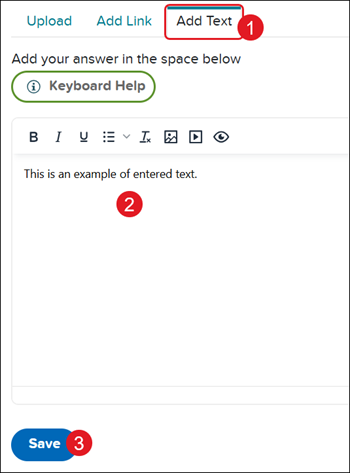
1. Click the Add Text tab.
2. Enter text in the provided field.
3. Click the Save button.
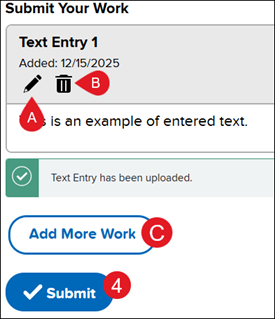
A message will show below the entered text once it has been successfully saved.
A. Click the pencil icon to edit the entered text.
B. Click the trash can icon to delete the entered text.
C. Click the Add More Work button to add additional text.
4. Click the Submit button.
Assessments
For steps on completing assessments, refer to the MH Assess - Take an Online Assessment article.