Open Learning - Student eBook
Learn how students access and use eBooks within the Open Learning Platform.
Tags
McGraw Hill Social Studies
Illustrative Math 2020
TX Science 2025 (K-12)
Asi se Dice 2024
Resources
Arrive Math
SSO & Manual-Rostering
Inspire Science 2020
Customer Support
Middle School
Direct Login & Manual-Rostering
High School
Impact 2020
Glencoe Health 2022
CA Impact 2019
School Parent
CA Inspire Science 2020
SSO & Auto-Rostering
PreK-12
Elementary School
FL Science 2025 (K-12)
World Languages
Visual & Performing Arts
Open Learning Platform
Math
Health
Getting Started & Orientation
Direct Instruction
Intervention
Reveal Math (K-12)
Literacy
Social Studies
Direct Login & Auto-Rostering
School Student
Core
CA Reveal Math (K-12)
AP, Honors & Electives
Teen Health 2021
FL Social Studies 2024 (K-12)
Science
McGraw Hill Literacy
Preschool


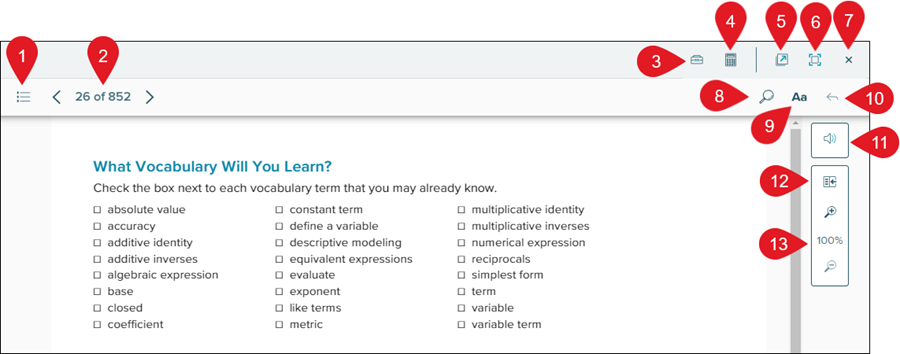
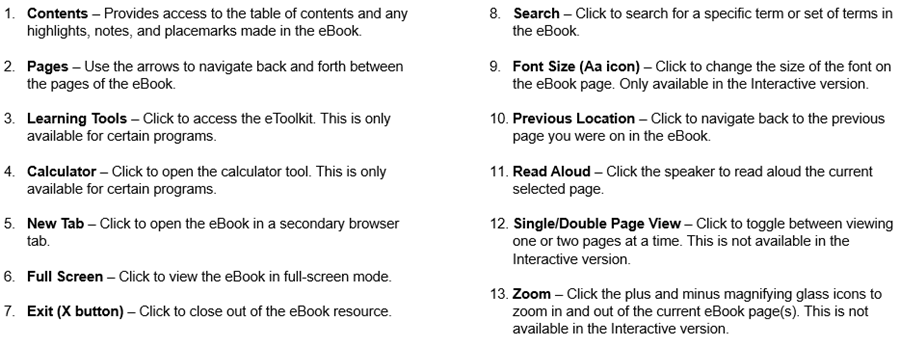
Page Navigation
eBook Tools
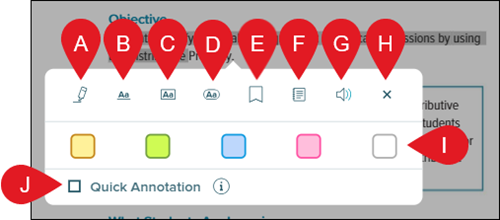
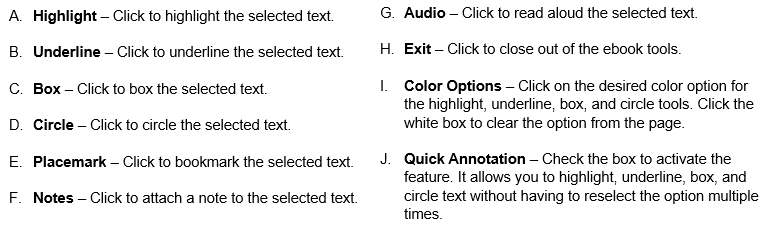
To access the eBook toolbar, click and select a word or set of words within on the page you want highlight, underline, box, circle, add a placemark for, attach a note, or have read aloud.
Contents Menu
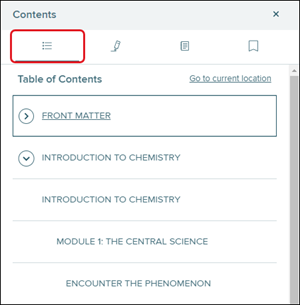
The contents menu is where you can access the table of contents and any text markings, placemarks, and notes you've added within the eBook. To access these options, click the Contents button at the top-left of the eBook.Table of Contents
The table of contents is the default option selected when clicking on the Contents button. Click the arrow to the left of a section and then on an option in the list to navigate directly to that location within the eBook.
Highlights
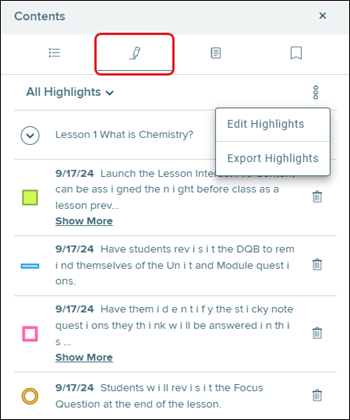
Click on the pencil icon to view any highlighted, underlined, boxed, or circled text. Click the kebob icon to open the Highlights menu where you can edit or export all markings you made within the eBook.
Click the arrow next to the section to view the list of markings for that section. Click the trash can icon to the right of the marking to delete it. Clicking Edit Highlights from the kebob menu allows you to delete multiple marked texts at one time.
Notes
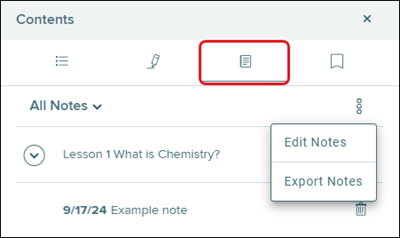
Click on the Notes icon to view any notes created within the eBook. Click the kebob icon to open the Notes menu where you can edit or export all notes made within the book.
Click the arrow next to the section to view the list of notes for that section. Click the trash can icon to the right of the note to delete it. Clicking Edit Notes from the kebob menu allows you to delete multiple notes at one time.
Placemarks
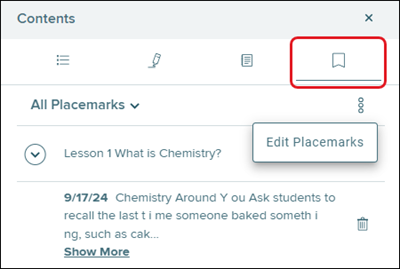
Click on the Placemarks icon to view any bookmarks created within the eBook. Click the kebob icon to open the Placemarks menu where you can edit all placemarks made within the book.
Click the arrow next to the section to view the list of placemarks for that section. Click the trash can icon to the right of the placemark to delete it. Clicking Edit Placemarks from the kebob menu allows you to delete multiple placemarks at one time.
Using the WIRIS Editor
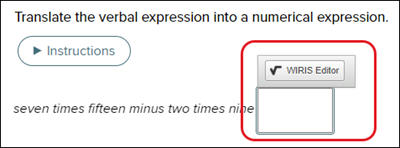
With certain Interactive Student Editions, such as a mathematics course, students will have access to the WIRIS Editor to answer mathematical questions within the eBook.For some activities, the student will need to click into the blank answer field to bring up the WIRIS Editor button.
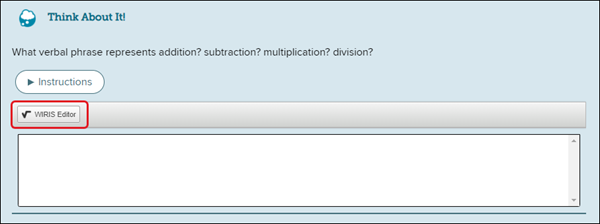
Some activities will automatically show the WIRIS Editor button.
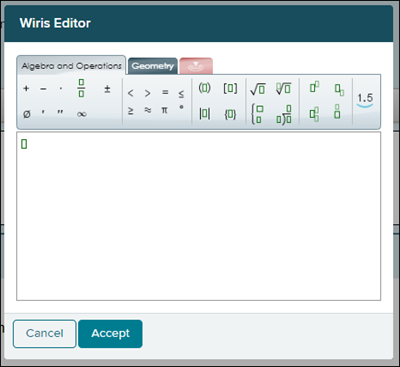
The WIRIS Editor will pop-up, allowing students to use various equation options to enter their answer to the activity. After entering in the answer, click the Accept button.
Interactive Features
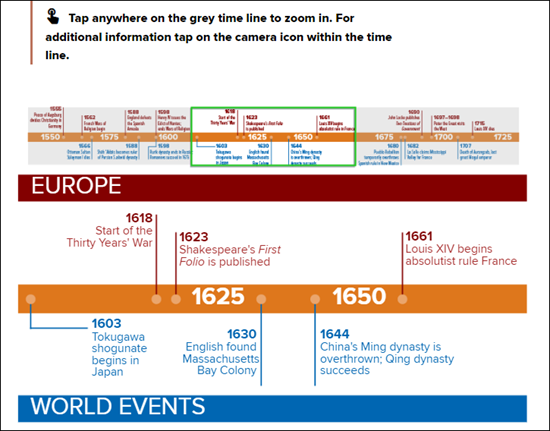
Depending on the course, there will be different interactions available within the Interactive eBook, such as:Clickable Timelines
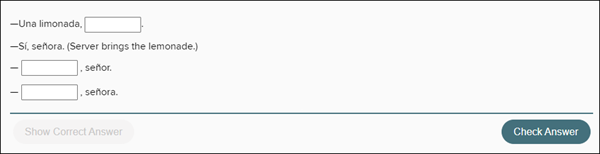
Fill-in-the-Blank
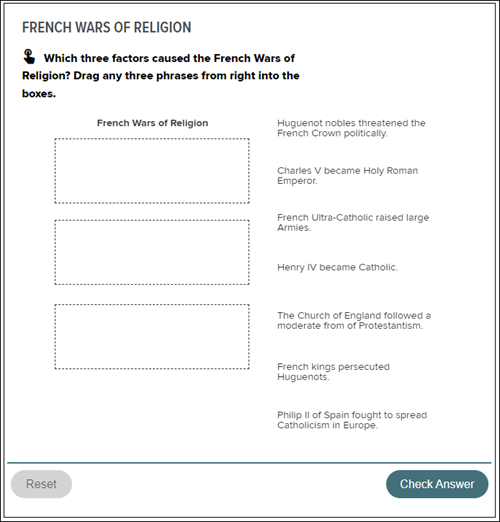
Drag-and-Drop
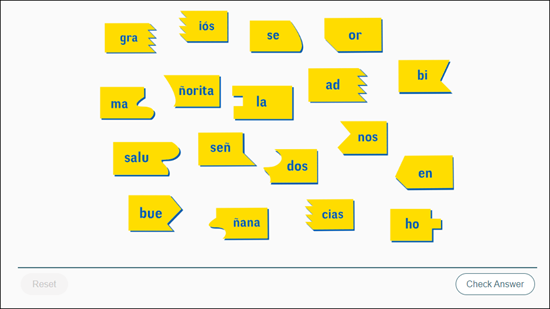
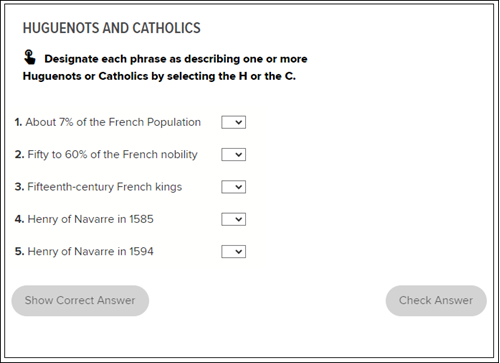
Sorting
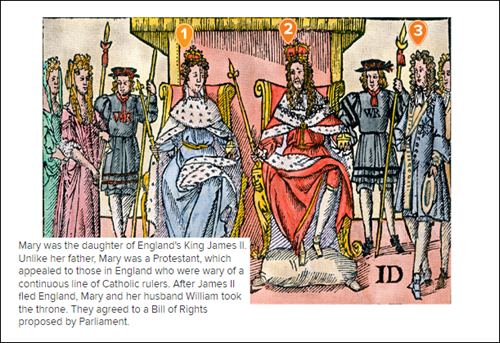
Clickable Images
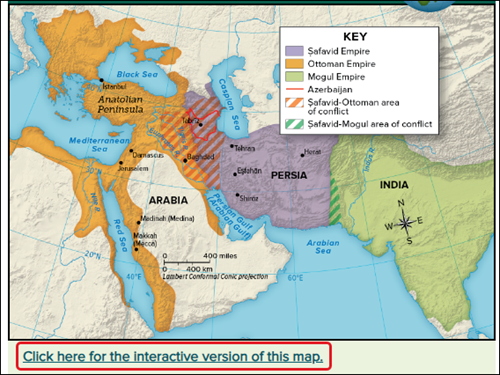
Interactive Maps