
Open Learning - Student Dashboard and Course Navigation (6-12)
Navigate the student dashboard in the Open Learning Platform.
- McGraw Hill Social Studies
- Illustrative Math 2020
- TX Science 2025 (K-12)
- Asi se Dice 2024
- Dashboard & Navigation Overview
- SSO & Manual-Rostering
- Inspire Science 2020
- Customer Support
- Middle School
- Direct Login & Manual-Rostering
- High School
- Glencoe Health 2022
- CA Impact 2019
- School Parent
- CA Inspire Science 2020
- SSO & Auto-Rostering
- PreK-12
- FL Science 2025 (K-12)
- World Languages
- Math
- Health
- Getting Started & Orientation
- Reveal Math (K-12)
- Literacy
- Social Studies
- Direct Login & Auto-Rostering
- School Student
- Core
- CA Reveal Math (K-12)
- AP, Honors & Electives
- Teen Health 2021
- FL Social Studies 2024 (K-12)
- Science
- McGraw Hill Literacy


This article navigates 6-12 students through their student dashboard and course pages.
For a full page view of the demo, click here.
For a Spanish version of the demo, click here.
Article Contents
Dashboard
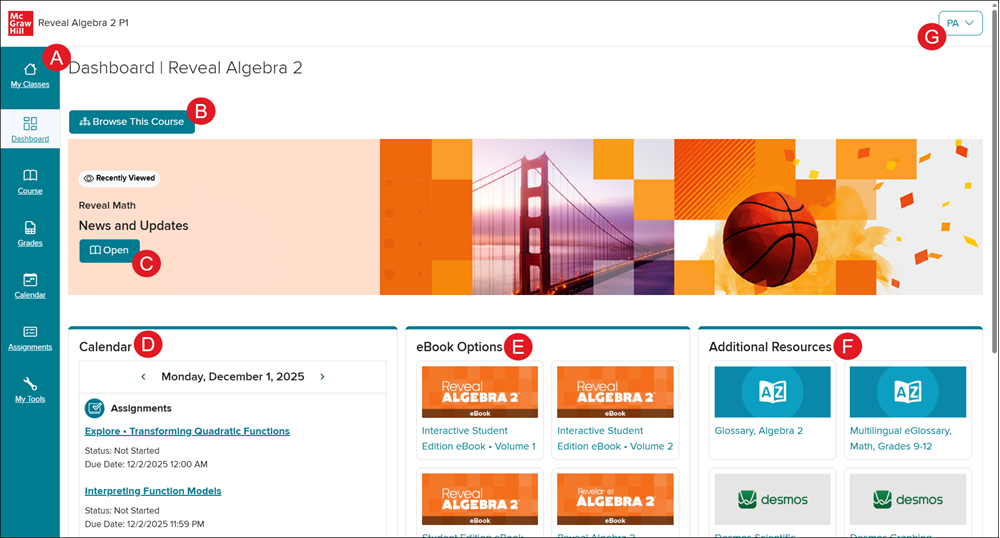
A. Navigation Menu - Click on an option to navigate to that page.
My Classes - Navigates back to the page where all classes are listed.
Dashboard - Default page when a class is launched.
Course - Where all available student resources can be found based on the Unit/Chapter/Module/Lesson selected.
Grades - The student gradebook.
Calendar - Where students can view any calendar events, assignments, and lessons.
Assignments - Where students can find all active and completed assignments.
My Tools - Where students can access any outside sites that have been created by the district.
B. Browse This Course - Click the button to navigate to a specific Unit/Chapter/Module/Lesson for the course.
C. Open Button - Click the button to navigate to the last selected Unit/Chapter/Module/Lesson.
D. Calendar* - Where students can access assignments scheduled for that day, as well as view any scheduled events and lessons.
E. eBook Options* - Digital versions of the student edition book.
Note: Depending on the course selected, different versions of the student edition book are available. Not all courses will have an interactive and/or Spanish version.
F. Additional Resources* - Easily accessible commonly used student resources such as the Glossary, Calculator, and eToolkit. These options vary based on the course assigned.
G. Student Profile - Provides access to Manage Account, Help, and Log Out.
*These options may not be available for all classes assigned.
Course
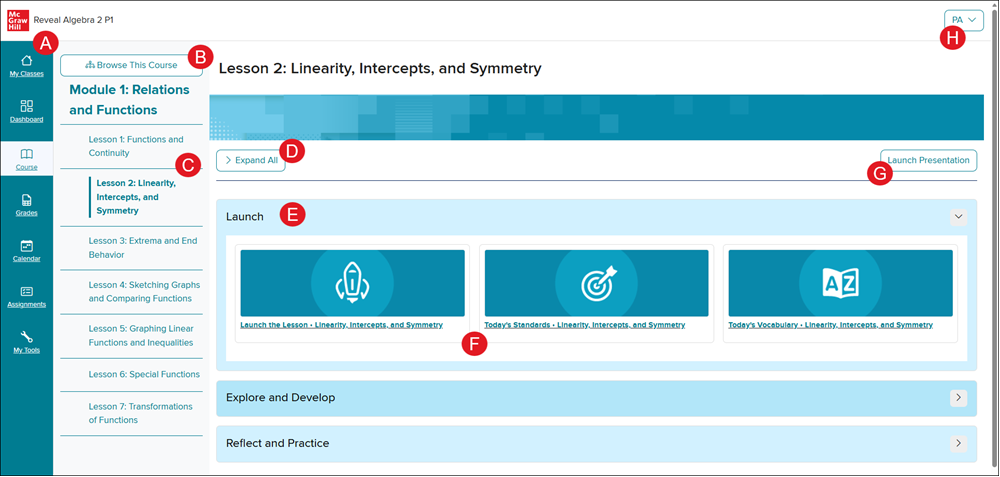
A. Navigation Menu - Click on an option to navigate to that page.
My Classes - Navigates back to the page where all classes are listed.
Dashboard - Default page when a class is launched.
Course - Where all available student resources can be found based on the Unit/Chapter/Module/Lesson selected.
Grades - The student gradebook.
Calendar - Where students can view any calendar events, assignments, and lessons.
Assignments - Where students can find all active and completed assignments.
My Tools - Where students can access any outside sites that have been created by the district.
B. Browse This Course - Click the button to navigate to a specific Unit/Chapter/Module/Lesson for the course.
C. Course Navigation Panel - Select an option from the panel to navigate between the different Lessons for the Chapter/Unit/Module selected.
D. Expand/Collapse All - Click to toggle open/closed all blades for the selected lesson.
E. Resource Blades - Click to open/close the blade and view the available student resources.
F. Student Resources - Click on a tile to open the resource. The resources available are determined by the teacher.
G. Launch Presentation - Click to open the selected lessons presentation. This is not an option for all lessons/courses.
H. Student Profile - Provides access to Manage Account, Help, and Log Out.