Set Student Lexile Level for an Open Learning Class
Review how to set student Lexile levels for specific Open Learning courses.
- SSO & Manual-Rostering
- Customer Support
- Middle School
- Direct Login & Manual-Rostering
- High School
- Classroom Teacher
- SSO & Auto-Rostering
- PreK-12
- Elementary School
- World Languages
- Visual & Performing Arts
- Math
- Health
- Intervention
- Literacy
- Social Studies
- Direct Login & Auto-Rostering
- Core
- AP, Honors & Electives
- Science
- Preschool
- McGraw Hill Social Studies
- TX Science 2025 (K-12)
- FL Science 2025 (K-12)
- FL Social Studies 2024 (K-12)
- McGraw Hill Literacy Emerge!
- McGraw Hill Literacy Summit!
- McGraw Hill Literacy Soar!
- User Management


This article walks teachers through setting the Lexile Level for individual students in the class roster. This option is not available for all programs.
If you need to set the Instructional Level for students, refer to the Open Learning Platform - Set Instructional Level for Students article.
For a full page view of the demo, click here.
For a Spanish version of the demo, click here.
Article Contents
Set for Individual Student
1. Log into your teacher account and launch your class.
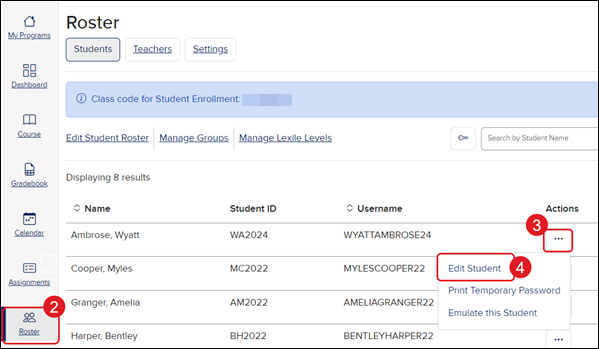
2. Click Roster in the navigation menu.
3. Click the Actions icon to the right of the student.
4. Click Edit Student from the menu.
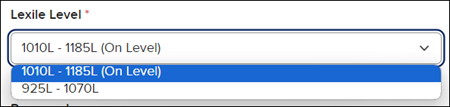
5. Click on the Lexile Level drop-down and select the appropriate level for the student.
6. Click the Update button at the bottom.
Set for Entire Class
1. Log into your teacher account and launch your class.
2. Click Roster in the navigation menu.
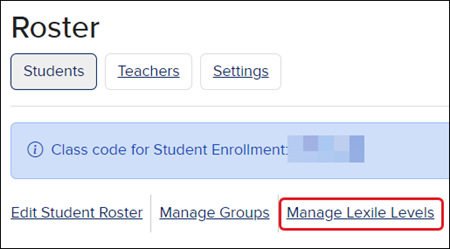
3. Click the Manage Lexile Levels link.
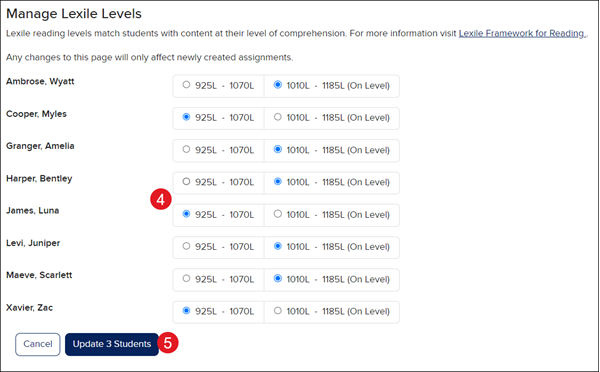
4. Click the radio button next to the appropriate level for each student.
5. Click the Update Students button.