Print or Reset Open Learning Student Simplified Logins
See how to print or reset simplified logins for students using the Open Learning Platform.
Tags
- Customer Support
- PreK-12
- Classroom Teacher
- Preschool
- Elementary School
- Middle School
- High School
- Direct Login & Auto-Rostering
- Direct Login & Manual-Rostering
- SSO & Auto-Rostering
- SSO & Manual-Rostering
- Core
- Intervention
- Supplemental
- AP, Honors & Electives
- Career & Technical Education
- Literacy
- Math
- Science
- Social Studies
- Health
- Visual & Performing Arts
- World Languages
- AP Biology
- AP Chemistry
- AP History & Geography
- AP Psychology
- AP Economics
- AP African American Studies
- AP Precalculus
- AP Statistics
- AP Computer Science
- AP Language and Composition
- AP Public Speaking
- AP Music Theory
- 5 Steps to a 5 - AP Test Prep
- Glencoe Health 2022
- Teen Health 2021
- Arrive Math
- Building Blocks 2024
- Building Blocks PreK 2025
- Number Worlds 2024
- SRA Reading Laboratory 2025
- SRA Reading Mastery Transformations
- Achieve3000 Literacy
- Actively Learn
- McGraw Hill Literacy Emerge!
- McGraw Hill Literacy Summit!
- McGraw Hill Literacy Soar!
- Open Court Reading 2025
- Redbird
- StudySync 2021
- ALEKS
- ALEKS Adventure
- CA Reveal Math (K-12)
- Illustrative Math
- Redbird Math
- Reveal Math (K-12)
- Texas Math
- CA Inspire Science 2020
- FL Science 2025 (K-12)
- Inspire Science 2020
- TN Science (K-12)
- TX Science 2025 (K-12)
- CA Impact 2019
- FL Social Studies 2024 (K-12)
- Impact Social Studies
- McGraw Hill Social Studies
- All Sorts 2026 (K-5)
- Asi se Dice 2024
- CTE - Health Science
- CTE - Computing and Technology
- CTE - Agriculture
- CTE - Culinary Arts
- CTE - Early Childhood Education
- CTE - Criminal Justice
- CTE - Business, Marketing, and Finance
- Level Up K–5
- Level Up 6–8
- Level Up 9–12
- Account Management
- User Management
- Class Management
- Log-In & Passwords
- Simplified Login


For steps on how to enable or disable Simplified Login, refer to the Manage Simplified Login for Open Learning Programs article.
For the steps students would take to sign in with Simplified Login, refer to the How to Log in Using Simplified Login article.
Article Contents
Print Individual Student Login
Reset Student Simplified Login Password
Print Class Simplified Logins
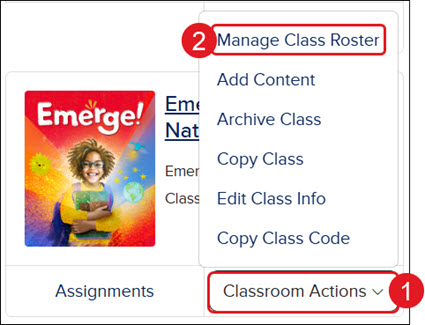
- On the class card, click Classroom Actions.
- Click Manage Class Roster from the menu.
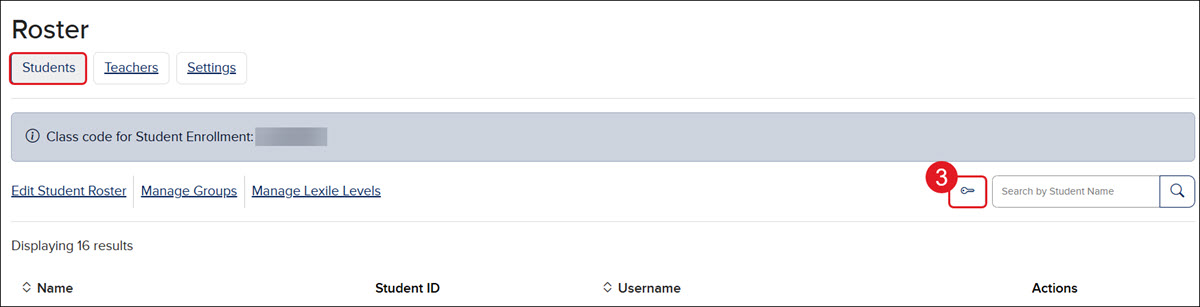
- On the Students page view, click the Print Passwords (key icon) button.
On the Print page that pops up, click the Print button after selecting the preferred layout options.
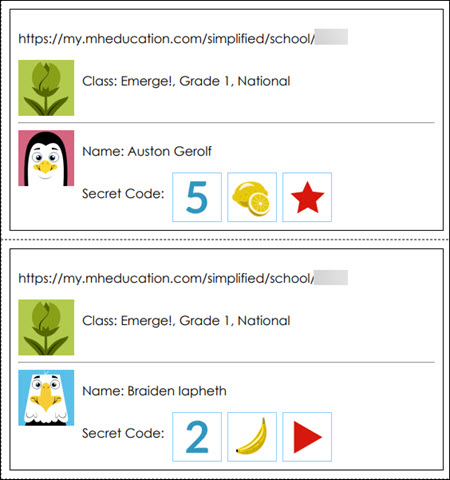
The Simplified Login cards will contain the Login URL, Class Icon, the student's name, and the student's Secret Code that they will enter as their password.
Print Individual Student Login
- On the class card, click Classroom Actions.
- Click Manage Class Roster from the menu.
- Click the Options button in the Actions column to the right of the student.
- Click Print Password from the menu.
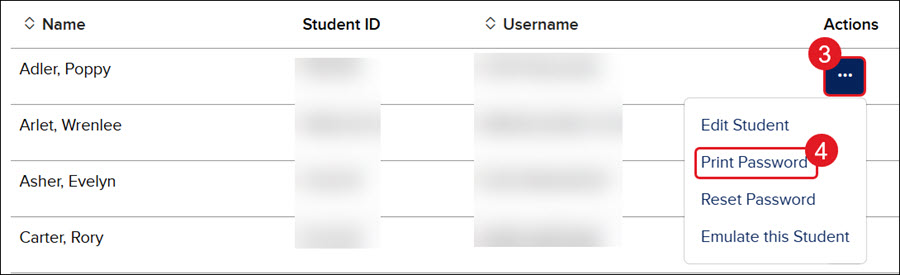
On the Print page that pops up, click the Print button after selecting the preferred layout options.
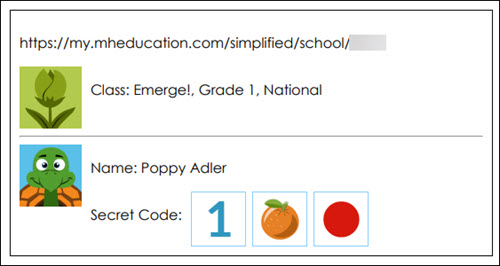
The Simplified Login card contains the Login URL, Class Icon, the student's name, and the student's Secret Code that they will enter as their password.
Reset Student Simplified Login Password
- On the class card, click Classroom Actions.
- Click Manage Class Roster from the menu.
- Click the Options button in the Actions column to the right of the student.
- Click Reset Password from the menu.
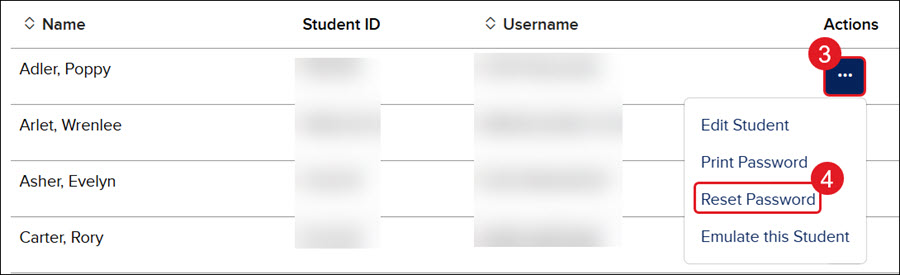
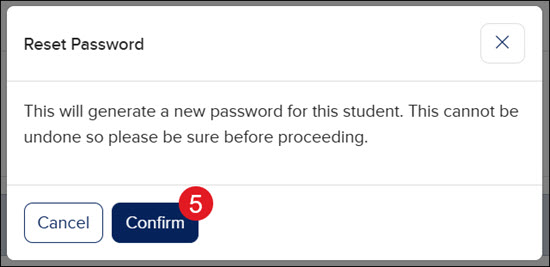
- On the Reset Password pop-up, click the Confirm button.