Open Learning Teacher Course eBook
Learn how to easily navigate around the teacher eBook for Open Learning courses.
- Customer Support
- PreK-12
- Classroom Teacher
- Preschool
- Elementary School
- Middle School
- High School
- Direct Login & Auto-Rostering
- Direct Login & Manual-Rostering
- SSO & Auto-Rostering
- SSO & Manual-Rostering
- Core
- Intervention
- Supplemental
- AP, Honors & Electives
- Career & Technical Education
- Literacy
- Math
- Science
- Social Studies
- Health
- Visual & Performing Arts
- World Languages
- AP Biology
- AP Chemistry
- AP History & Geography
- AP Psychology
- AP Economics
- AP African American Studies
- AP Precalculus
- AP Statistics
- AP Computer Science
- AP Language and Composition
- AP Public Speaking
- AP Music Theory
- 5 Steps to a 5 - AP Test Prep
- Glencoe Health 2022
- Teen Health 2021
- Arrive Math
- Building Blocks 2024
- Building Blocks PreK 2025
- Number Worlds 2024
- SRA Reading Laboratory 2025
- SRA Reading Mastery Transformations
- McGraw Hill Literacy Emerge!
- McGraw Hill Literacy Summit!
- McGraw Hill Literacy Soar!
- Open Court Reading 2025
- CA Reveal Math (K-12)
- Illustrative Math
- Reveal Math (K-12)
- CA Inspire Science 2020
- FL Science 2025 (K-12)
- Inspire Science 2020
- TN Science (K-12)
- TX Science 2025 (K-12)
- CA Impact 2019
- FL Social Studies 2024 (K-12)
- Impact Social Studies
- McGraw Hill Social Studies
- All Sorts 2026 (K-5)
- Asi se Dice 2024
- CTE - Business, Marketing, and Finance
- CTE - Health Science
- CTE - Computing and Technology
- CTE - Agriculture
- CTE - Culinary Arts
- CTE - Early Childhood Education
- CTE - Criminal Justice
- Level Up K–5
- Level Up 6–8
- Level Up 9–12
- Tools & Resources
- Dashboard & Navigation Overview


Article Contents
Interactive Student Edition eBook
Teacher eBook Navigation
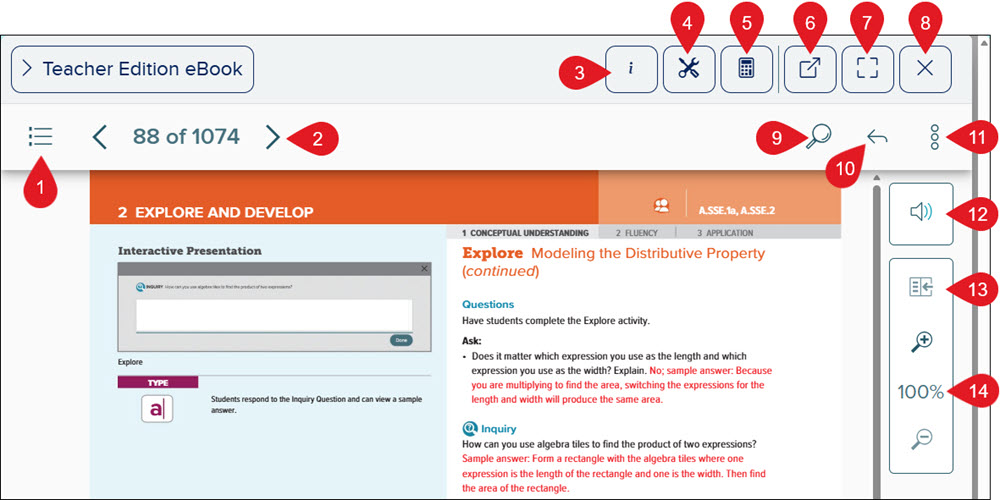
- Contents - Provides access to the table of contents and any highlights, notes, and placemarks made in the eBook.
- Page Navigation - Use the back-and-forth arrows to navigate between the pages.
- About This Resource - Click to view additional information about the eBook.
- Learning Tools - Opens the eToolkit in a separate browser tab. This tool is only available for select programs.
- Calculator - Opens the calculator tool in a secondary browser tab. This tool is only available for select programs.
- New Tab - Opens the eBook in a secondary browser tab.
- Full Screen - Opens the eBook in full-screen mode. Click the button again to exit this mode, or you can exit full-screen mode via the browser tools.
- Exit - Closes out the eBook page.
- Search - Locate specific terms or phrases within the eBook. Clicking on a search result will automatically navigate you to that page.
- Previous Location - Navigates you back to the previous page you were on.
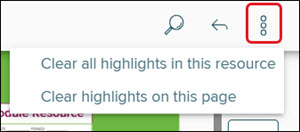
- Teacher Options - Provides options to clear highlights in bulk.
- Read Aloud - Reads aloud the current page(s) you are on in the eBook. This feature is slightly different from the read selected text option available on the eBook Toolbar.
- Single/Double Page View - Allows you to toggle between viewing one or two eBook pages at a time.
- Zoom - Click the plus and minus magnifying glass icons to zoom in and out of the page. This option is only available when in single page view.
eBook Toolbar
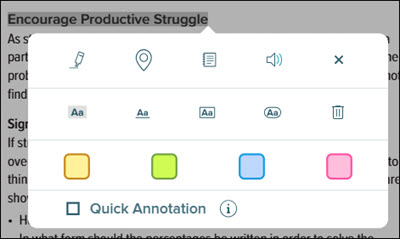
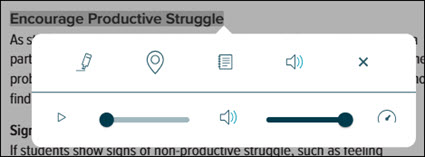
The eBook toolbar is accessed by highlighting text within the eBook.
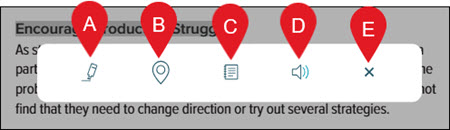
- Add Annotation - Highlight, underline, box, and circle the highlighted word(s). Checking the Quick Annotation option allows you to highlight, underline, box, and circle text without having to reselect the option(s) multiple times
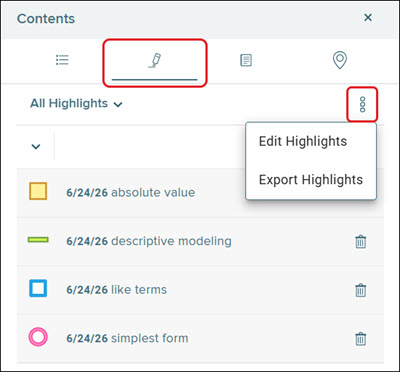
All annotations can be accessed by clicking on Contents and then the Highlights option. Clicking on a highlight will automatically navigate you to that location in the eBook.
Click on the menu icon (three dots) to edit and/or export any highlights that have been made. Click on the trash can icon to delete the annotation.
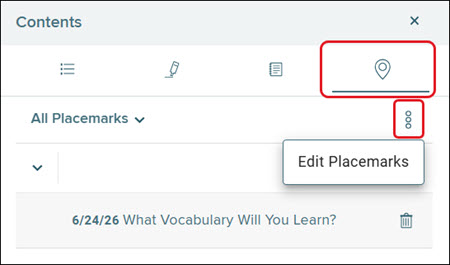
- Add Placemark - Bookmarks the location of the selected text. These can then be accessed by clicking on Contents and then the Placemark option. Clicking on a placemark will automatically navigate you to that location in the eBook.
Click on the menu icon (three dots) to edit any notes that have been made. Click on the trash can icon to delete the placemark.
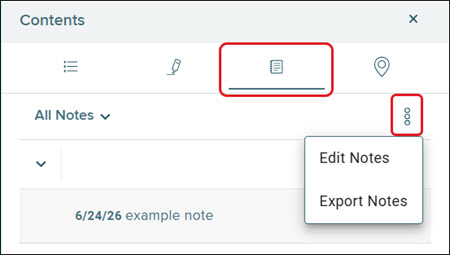
- Add Notes - Add additional teacher notes to that section of the eBook. Enter the preferred text and then click the X icon on the toolbar. The entered text is automatically saved.
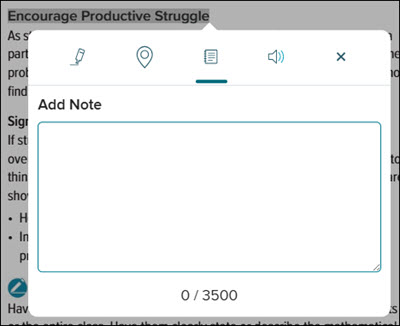
These can then be accessed by clicking on Contents and then the Notes option. Clicking on a note will automatically navigate you to that location in the eBook.
Click on the menu icon (three dots) to edit and/or export any notes that have been made. Click on the trash can icon to delete the note.
- Read Selected Text - Unlike the Read Aloud option located at the top-right of the eBook that reads the entire page, this option only reads aloud the selected portion of the page.
Interactive Student Edition eBook
The interactive student version has the same features available that the teacher version does, with the exception of being able to create assignments, as well as being able to complete the activities within the eBook.
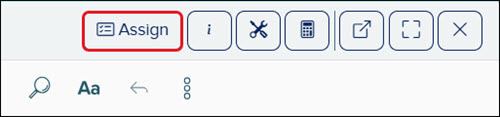
To create assignments from within the interactive eBook, click the Assign button at the top-right of the page.
For in-depth steps on creating assignments, refer to the Create Open Learning Assignments article.
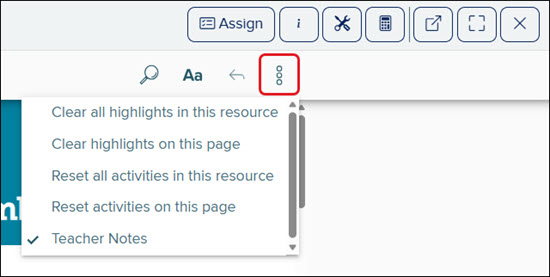
If you've completed any of the activities within the book, or made any annotations, these can be easily cleared by clicking the Teacher options button.
This is also where you can turn the Teacher Notes on and off. Please note, the Teacher Notes option is available within all Open Learning eBooks, but actual teaching notes are only available for certain programs.