View and Complete Assignments in Google Classroom™
Learn how to access assignments in Google Classroom™ and submit them back for teacher review.
Tags
- Customer Support
- PreK-12
- School Student
- School Parent
- Preschool
- Elementary School
- Middle School
- High School
- Direct Login & Auto-Rostering
- Direct Login & Manual-Rostering
- SSO & Auto-Rostering
- SSO & Manual-Rostering
- Core
- Intervention
- Supplemental
- AP, Honors & Electives
- Career & Technical Education
- Literacy
- Math
- Science
- Social Studies
- Health
- Visual & Performing Arts
- World Languages
- AP Biology
- AP Chemistry
- AP History & Geography
- AP Psychology
- AP Economics
- AP African American Studies
- AP Precalculus
- AP Statistics
- AP Computer Science
- AP Language and Composition
- AP Public Speaking
- AP Music Theory
- 5 Steps to a 5 - AP Test Prep
- Glencoe Health 2022
- Teen Health 2021
- Arrive Math
- Building Blocks 2024
- Building Blocks PreK 2025
- Number Worlds 2024
- SRA Reading Laboratory 2025
- SRA Reading Mastery Transformations
- McGraw Hill Literacy Emerge!
- McGraw Hill Literacy Summit!
- McGraw Hill Literacy Soar!
- Open Court Reading 2025
- CA Reveal Math (K-12)
- Illustrative Math
- Reveal Math (K-12)
- Texas Math
- CA Inspire Science 2020
- FL Science 2025 (K-12)
- Inspire Science 2020
- TN Science (K-12)
- TX Science 2025 (K-12)
- CA Impact 2019
- FL Social Studies 2024 (K-12)
- Impact Social Studies
- McGraw Hill Social Studies
- Asi se Dice 2024
- CTE - Health Science
- CTE - Computing and Technology
- CTE - Agriculture
- CTE - Culinary Arts
- CTE - Early Childhood Education
- CTE - Criminal Justice
- Glencoe Health 2014
- McGraw Hill Health 2014
- Building Blocks 2015
- Number Worlds 2015
- WonderWorks 2022 & 2014
- Maravillas 2020 & 2017
- OCR Foundational Skills Kit
- OCR Word Analysis Kit
- Open Court Reading 2016, 2018, 2023
- Wonders
- Wonders 2014
- Wonders 2023 2020 2017
- Wonders Balanced Literacy 2016
- Wonders EL 2016
- World of Wonders 2017
- Core Plus Math 2015
- Everyday Mathematics 4 (K-6)
- Glencoe Algebra 1 2014
- Glencoe Algebra 1 2018
- Glencoe Algebra 2 2014
- Glenoce Algebra 2 2018
- Glencoe Math
- Glencoe Geometry 2014
- Glencoe Geometry 2018
- Glencoe Math Course 1
- Glencoe Math Course 2
- Glencoe Math Course 3
- Glencoe Math Accelerated
- McGraw Hill My Math 2013 & 2016
- McGraw Hill My Math 2018
- McGraw Hill My Math
- Pre-Algebra 2012
- Glencoe Science
- Glencoe Science 2017
- Inspire Science 2017
- iScience 2017
- Networks
- Networks 2014 (K-5)
- Networks 2014 & 2016
- Networks 2018
- Music! Its Role
- Spotlight on Music
- Asi se Dice 2016
- CTE - Business, Marketing, and Finance
- Level Up K–5
- Level Up 6–8
- Level Up 9–12
- Grades & Assignments
- Google Classroom™
- Online Assessments


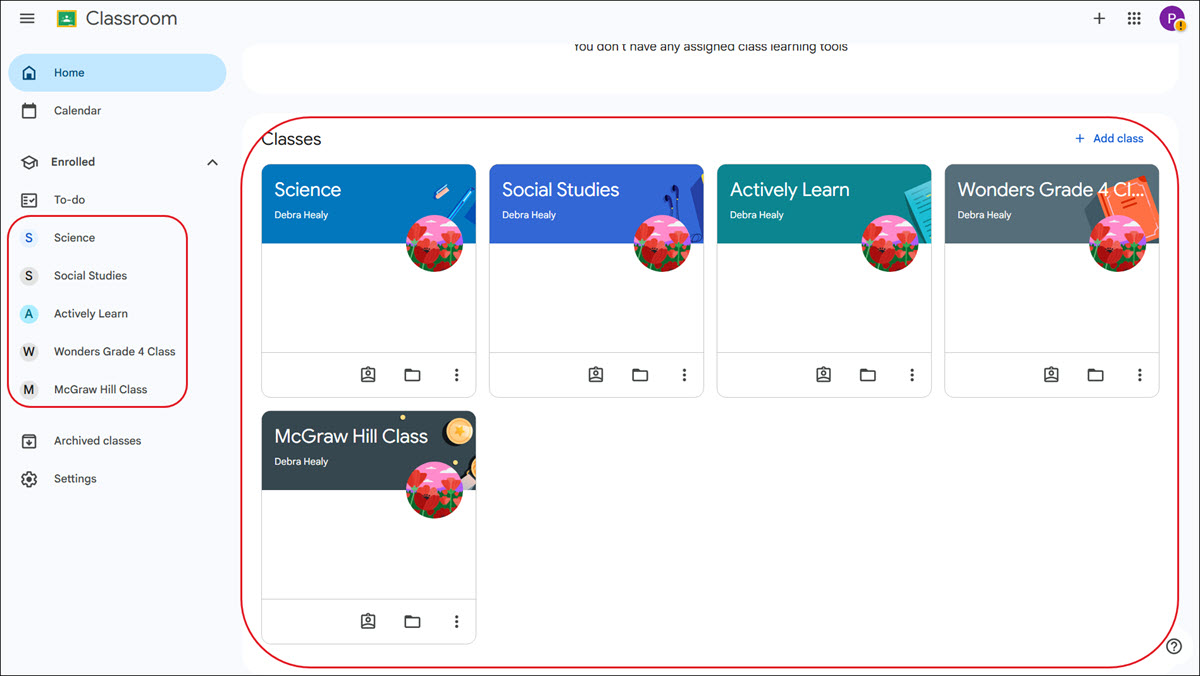
- Navigate to your Google Classroom course.
- Click on the class tile. These can be accessed from your Home page on Google Classroom or by clicking on the class name in the sidebar.
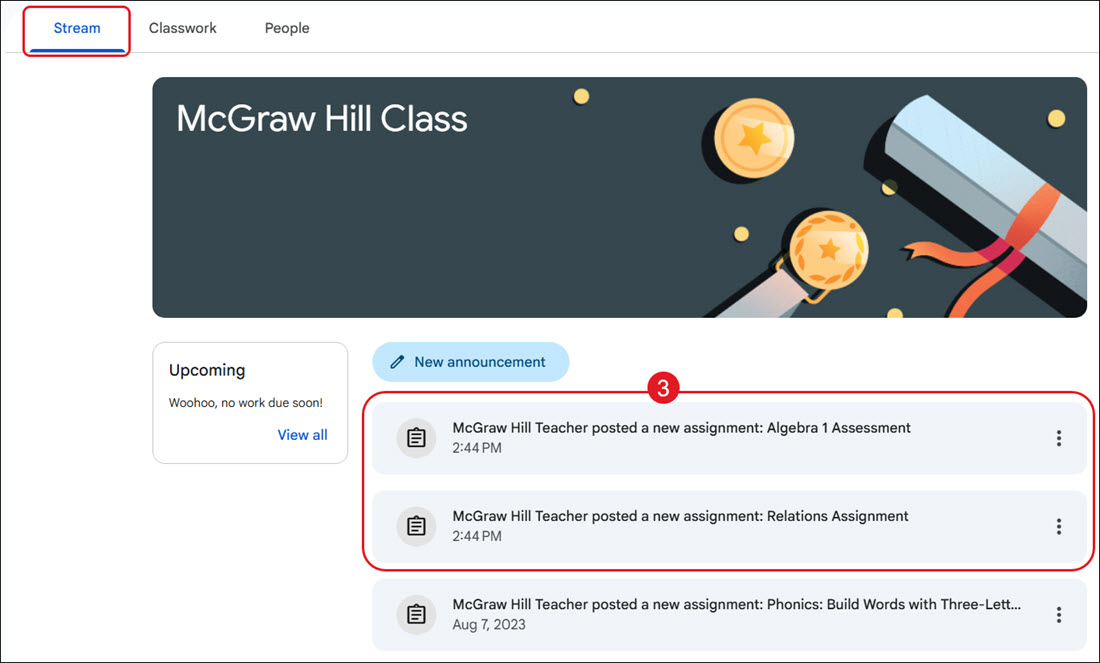
- From the Stream tab, click on an assignment to navigate to the resource page.
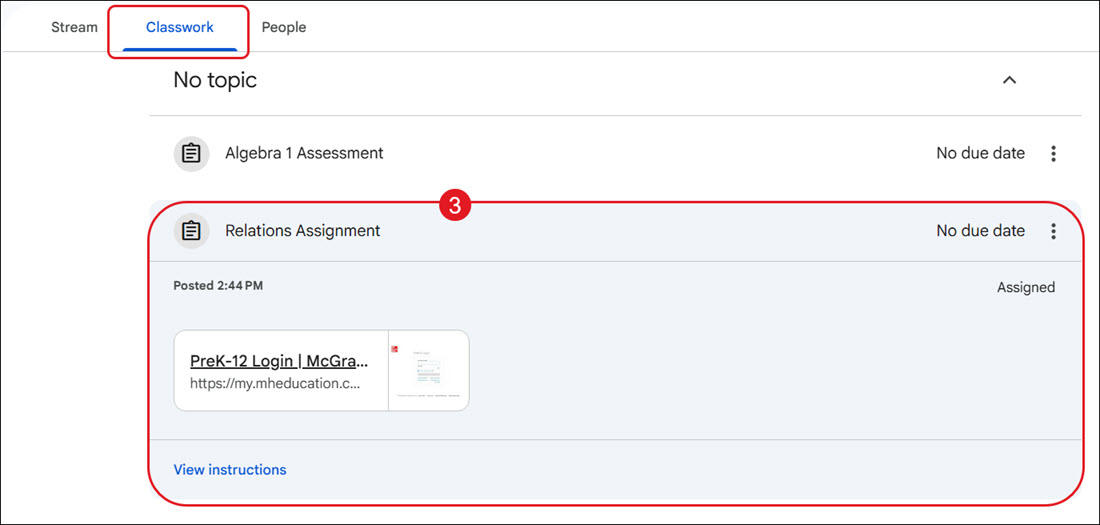
From the Classwork tab, click on an assignment to expand the section.
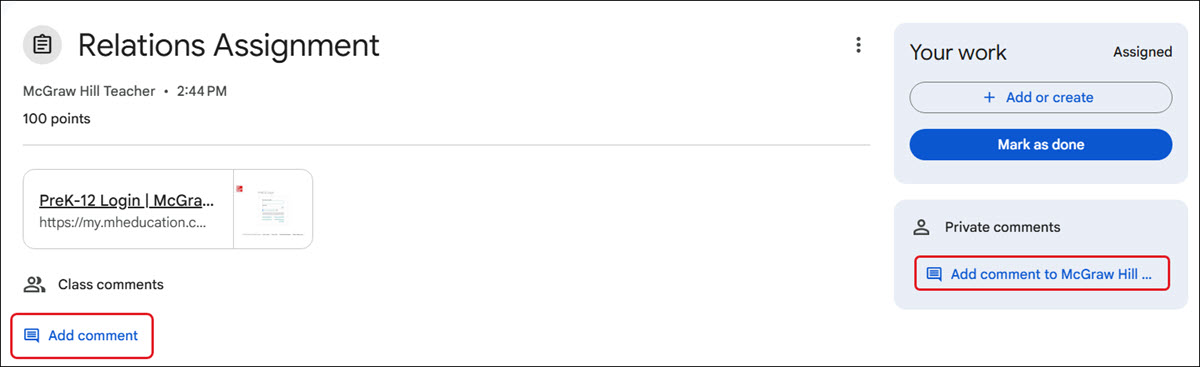
- Click on the attached resource to launch the assignment.
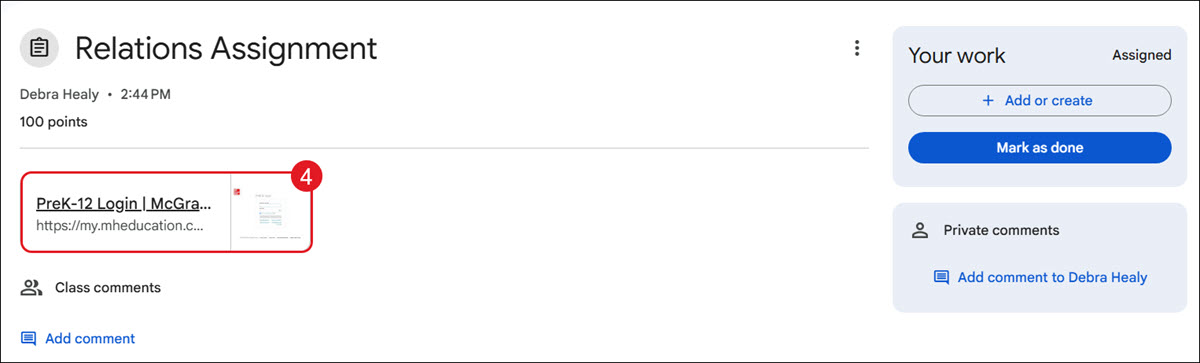
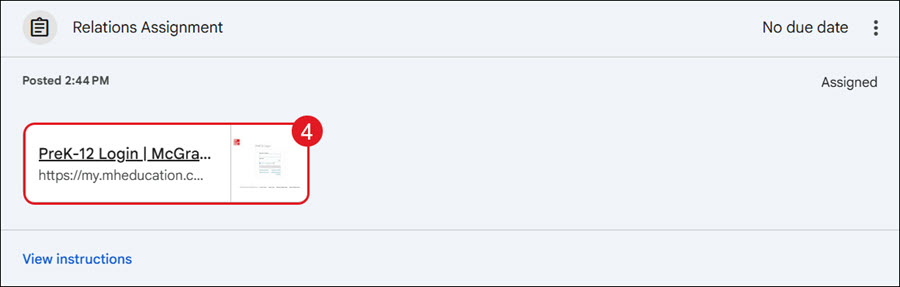
If you are redirected to the McGraw Hill login page when launching the assignment from Google Classroom, this means that your McGraw Hill account is not linked to your Google account. You will want to follow the steps in the Pair/Unpair Your McGraw Hill Student Account with Your Google Account article to link your accounts.
Another option would be to open a new tab and sign in at my.mheducation.com. You would then need to leave that tab open while also having your Google Classroom account open in another browser tab to be able to access the assignments.
Note: If you are associated with a school that uses Single Sign-On (SSO), and choose not to link your McGraw Hill account with your Google account, you will need to sign in through your district's launch page instead of my.mheducation.com.
- Complete the assignment.
- On your Google Classroom assignment page, click the Mark as done button once completed.
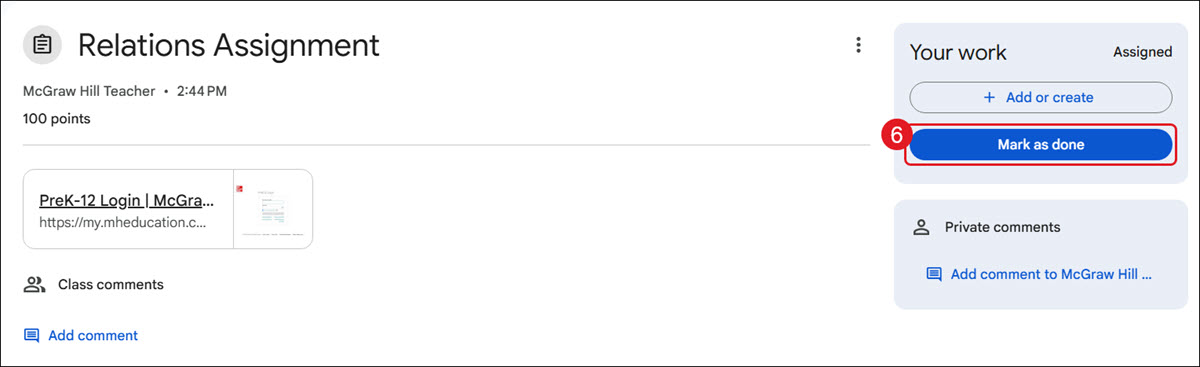
If you launched the assignment from your Classwork tab, you will first need to click the View instructions link to see the Mark as done button.
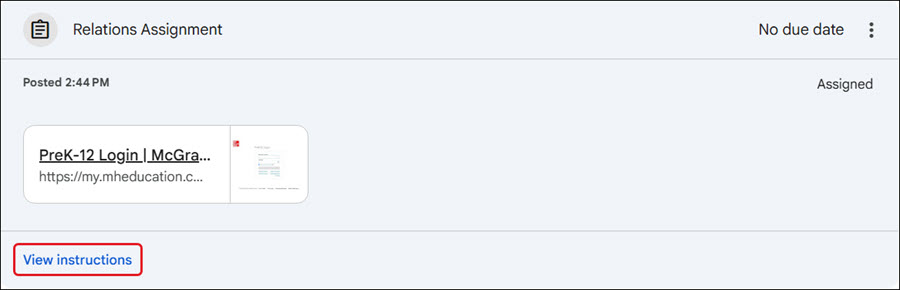
From here, you can also add Class comments and Private comments to your teacher.