Use the Open Learning Teacher Assistant Tool
Learn how to access and use the Teacher Assistant tool to help manage course content and reports.
- Customer Support
- PreK-12
- Classroom Teacher
- Elementary School
- Middle School
- High School
- Direct Login & Auto-Rostering
- Direct Login & Manual-Rostering
- SSO & Auto-Rostering
- SSO & Manual-Rostering
- Core
- Math
- CA Reveal Math (K-12)
- Tools & Resources


View the demo in a separate tab.
View the Spanish version of the demo.
Note: This feature is currently only available for California Reveal and is for teacher use only.
Article Contents
What is the Teacher Assistant?
Teacher Assistant AI Disclosure
What the Teacher Assistant Can Do
Access and Use the Teacher Assistant
Assigning Resources Through the Teacher Assistant
What is the Teacher Assistant?
McGraw Hill’s Teacher Assistant is an AI chatbot that allows teachers to receive instructional planning support through natural language conversations. The Teacher Assistant helps teachers understand what instructional resources are available with the course and quickly find relevant materials to better differentiate instruction for students in the moment. It has the potential to dramatically increase the findability of relevant content within a course, allowing a teacher to more quickly gain value from the Open Learning course experience.
Teacher Assistant AI Disclosure
AI makes mistakes. Check important information. Teacher Assistant uses generative AI and may miss nuances, and responses may not be accurate, complete or reliable.
Users should carefully check responses before implementing suggestions. Outputs from Teacher Assistant are not to be attributed to and do not represent the views of McGraw Hill.
View the Teacher Assistant Disclosure.
What the Teacher Assistant Can Do
The Teacher Assistant is designed to support teachers in teaching their course in several ways:
- Explaining Student Performance: You can view how students are performing overall, or get more detailed information broken down by domains, standards, or specific skills within the course.
- Identifying Student Groups: It can tell you which of your tagged students are struggling or excelling, and highlight where these students are demonstrating these proficiency levels.
- Course Structure Information: You can ask for details on your course structure, including what units and lessons are available.
- Finding Digital Resources: The Assistant can help you locate digital teaching resources that match specific lessons or units.
- Connecting Lessons to Standards: It shows you how lessons connect to state or national frameworks, including prerequisites and post-requisites, and which lessons cover each standard.
- Supporting Course-Aligned Work: All support is tied to your particular course, ensuring that information and resources are relevant to your teaching context.
Limitations & Requirements
- Student Data Privacy: For security, student data is blinded between messages. In order to retrieve information about specific students' proficiency, you must tag individual students using '@' in your last message. This is a required step every time you'd like to see student-level data.
- Privacy and Tagging: To retrieve student performance data, you must tag students with '@' in your last message. This requirement exists to protect student privacy, as the Assistant does not store or retain student identities.
- One Item at a Time: The system works by searching one standard, lesson, or topic at a time. You will need to specify exactly which item you want details about.
- Course Scope: All information and support relates to the content and structure of your current course/grade level—it can't address non-academic concerns, social-emotional issues, or topics outside your course's framework.
- Content Limitations: The Assistant cannot provide advice on teaching strategies, social-emotional concerns, or student behavior, and cannot modify or create digital resources.
- Resource Descriptions: The Assistant can only share what's provided in the resource descriptions; it cannot create or modify resources.
Access and Use the Teacher Assistant
- SSO or log in at my.mheducation.com.
- Launch the course.
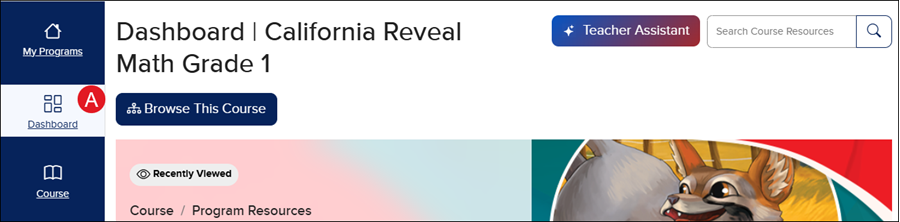
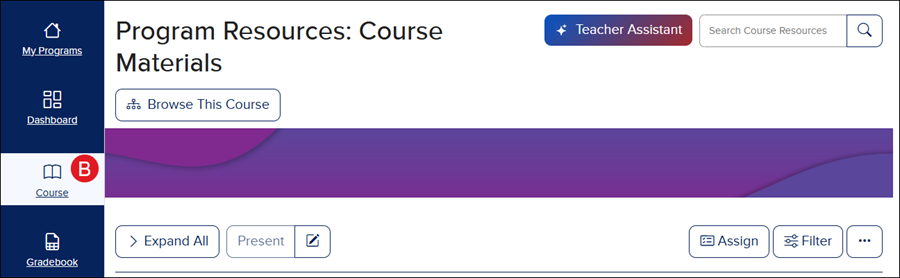
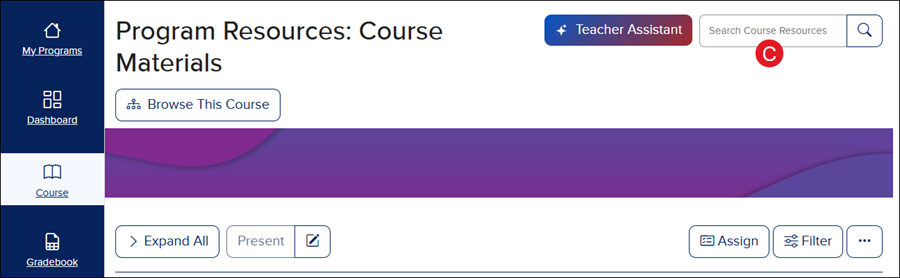
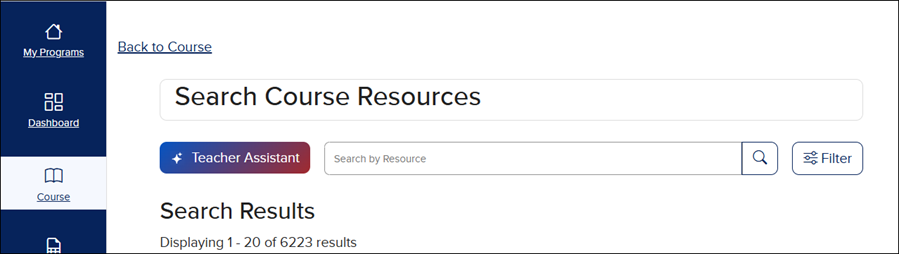
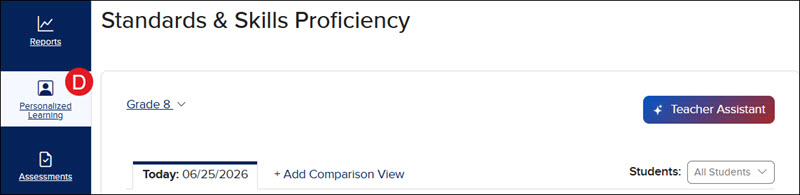
- Navigate to the Dashboard (A), Course (B), Course Resources (C), or the Personalized Learning (D) page.
- Click on the Teacher Assistant button.
A. Dashboard
B. Course
C. Course Resources
D. Personalized Learning
The Teacher Assistant will open in a side panel on the page.
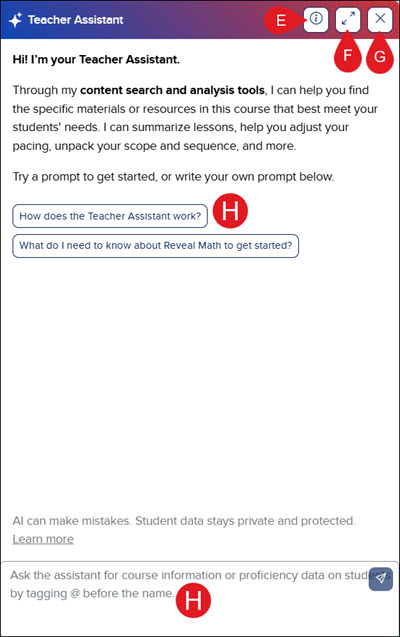
E. Click the information button to view the Teacher Assistant AI Disclosure.
F. Click the arrows button to toggle between Fullscreen and side panel views.
G. Click the X button to close out of the Teacher Assistant.
If you close out of the current chat and reopen the Teacher Assistant, it will reopen with your previous chat history.
H. Click a prompt to get started, or write your own prompt in the Ask Teacher Assistant for field at the bottom.
Note: The suggested prompts will only show if it is a new chat.
As the Teacher Assistant works to provide an answer, it will show the Working on it... phrase.
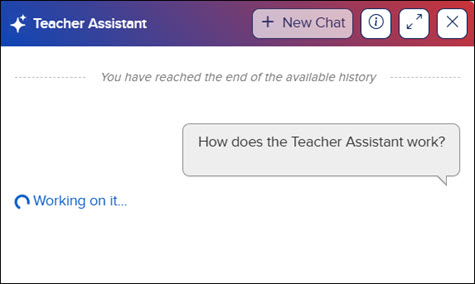
It will then show as Here's what I found once it has an answer for the prompt.
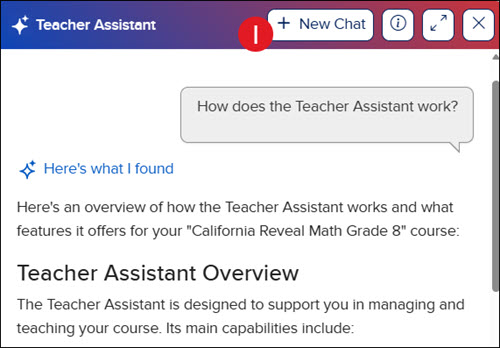
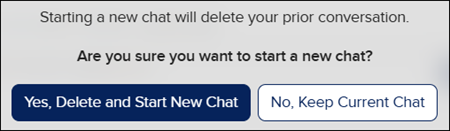
I. Click the +New Chat button to clear the chat history and start over.
Assigning Resources Through the Teacher Assistant
When resources are provided within the Teacher Assistant, teachers have the option to assign those that are student-facing.
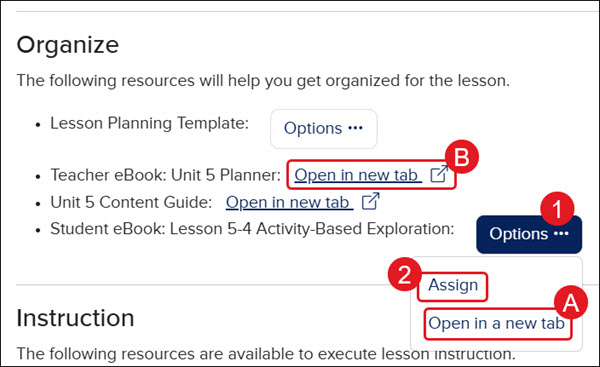
- Click the Options button under the resource.
- Click Assign from the menu.
A. To view the resource, click the Open in a new tab button.
B. If there is only an Open in new tab link and no Options button for the resource, this means that the resource is for teachers only.
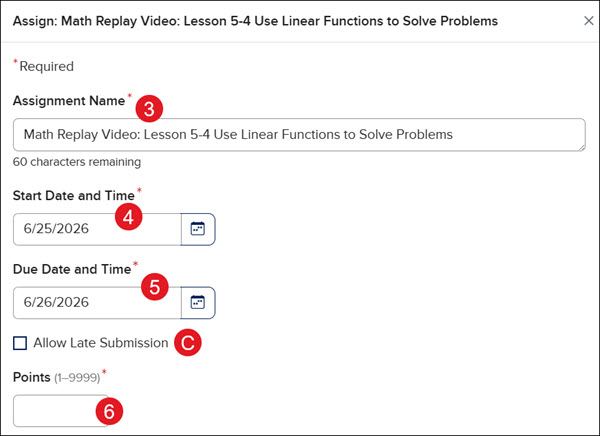
- On the Assign panel, enter an Assignment Name.
- Select a Start Date and Time.
- Select a Due Date and Time.
C. If you would like to allow students to submit the assignment after the selected Due Date and Time, check the Allow Late Submission box.
- Enter the number of Points the assignment is worth. Not all assignment resources will have this option available.
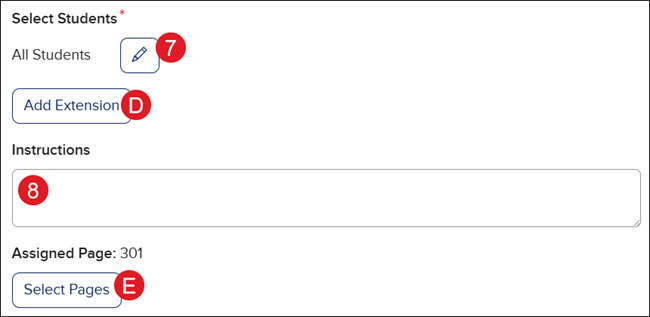
- The assignment automatically selects All Students assigned to the roster. Click the Edit (pencil icon) button to assign specific students to the resource.
D. To provide a different Due Date and Time for select students, click the Add Extension button.
- Add any Instructions you want the students to view for the assignment. Not all assignment resources will have this option.
E. If the resource is the student eBook, to change the pages assigned, click the Select Pages button.
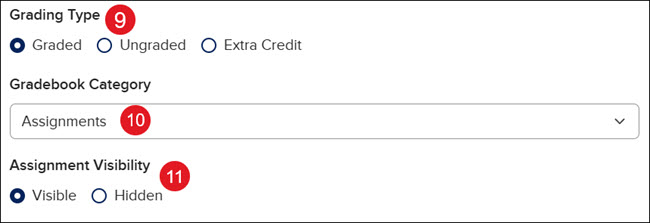
- Select the radio button for the preferred Grading Type. This is not available for all assignment resources.
- Select an option from the Gradebook Category that you would like the assignment to be associated with. For more information about gradebook categories, refer to the Access and Navigate the Open Learning Gradebook article.
- The default Assignment Visibility is set to Visible.
Note: If the Assignment Visibility is set to Hidden, students will not be able to see or access the assignment.
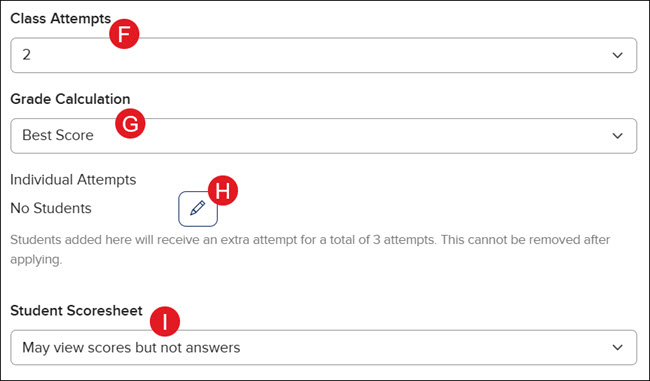
F. Select the number of Class Attempts.
G. If the Class Attempts is selected as 2 or 3, select the preferred Grade Calculation option.
H. To provide specific students with an additional attempt, click the Edit (pencil icon) beside Individual Attempts.
I. Select the preferred Student Scoresheet option. This option is only available if assigning an assessment.
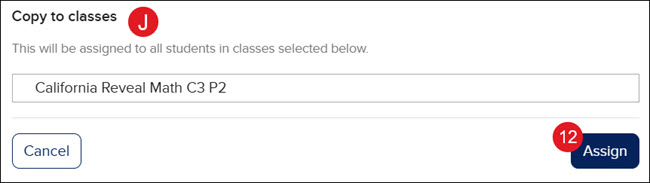
J. To copy the assignment to additional classes, select the class(es) from the Copy to classes section. This option is only available if you have more than one class using the same content.
- Click the Assign button.