SSO & Manual-Rostering, Customer Support, Middle School, Direct Login & Manual-Rostering, High School, Classroom Teacher, SSO & Auto-Rostering, PreK-12, Elementary School, World Languages, Math, Health, Intervention, Literacy, Social Studies, Direct Login & Auto-Rostering, Core, AP, Honors & Electives, Science, Preschool, AP Biology, AP Chemistry, AP History & Geography, AP Psychology, AP Economics, AP African American Studies, AP Precalculus, AP Statistics, AP Computer Science, AP Language and Composition, AP Public Speaking, AP Music Theory, 5 Steps to a 5 - AP Test Prep, Glencoe Health 2022, Teen Health 2021, Arrive Math, Building Blocks 2024, Building Blocks PreK 2025, Number Worlds 2024, SRA Reading Laboratory 2025, SRA Reading Mastery Transformations, McGraw Hill Literacy Emerge!, McGraw Hill Literacy Summit!, McGraw Hill Literacy Soar!, Open Court Reading 2025, CA Reveal Math (K-12), Illustrative Math, Reveal Math (K-12), Texas Math, CA Inspire Science 2020, FL Science 2025 (K-12), Inspire Science 2020, TN Science (K-12), TX Science 2025 (K-12), CA Impact 2019, McGraw Hill Social Studies, All Sorts 2026 (K-5), Asi se Dice 2024, CTE - Health Science, CTE - Agriculture, CTE - Computing and Technology, CTE - Culinary Arts, CTE - Early Childhood Education, CTE - Business, Marketing, and Finance, CTE - Criminal Justice, Grades & Assignments, Online Assessments
dts
2026-03-24T19:15:53.859-03:00
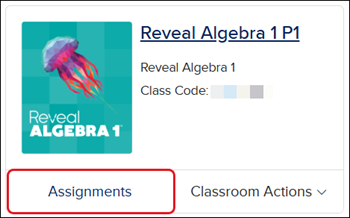
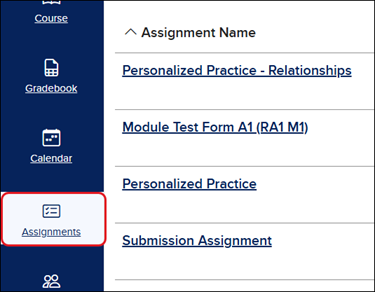
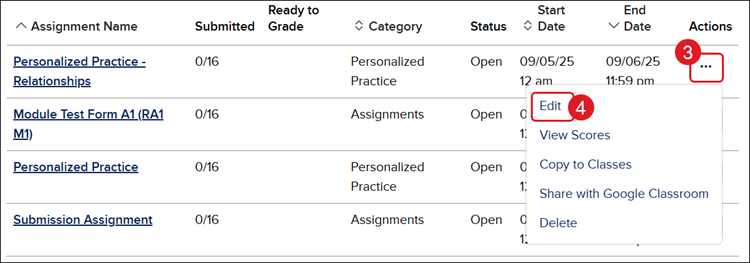
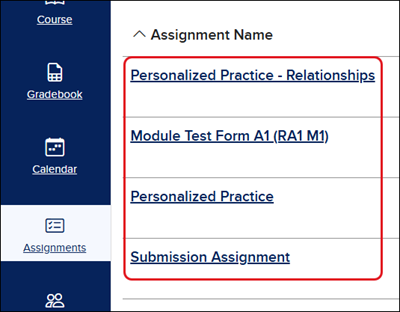
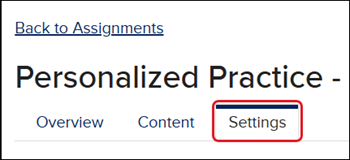
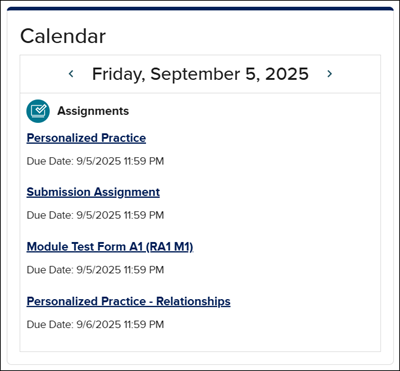
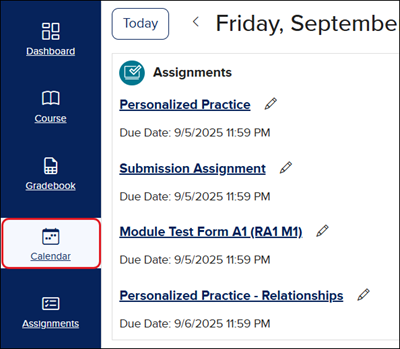
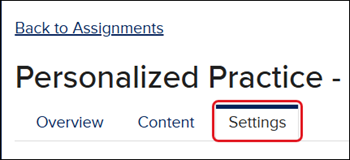
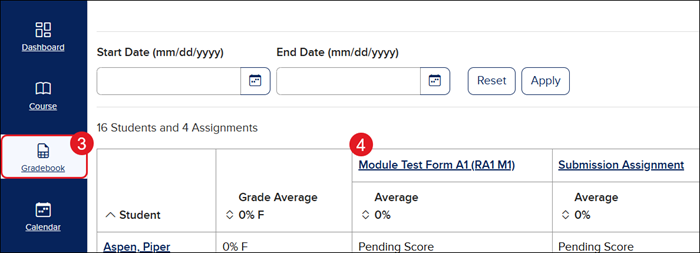
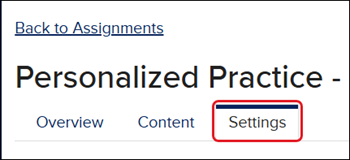
For a full page view of the demo, click here. For a Spanish version of the demo, click here. There are multiple ways to access the Edit page for an assignment: Option 1 - Assignments Page Option 2 - Calendar Option 3 - Gradebook Keep in mind, once an assignment has been started by a student, you are unable to edit the content or certain settings such as the start date. Option 1 - Assignments Page 1. SSO or log in at my.mheduction.com. 2. Click the Assignments button on the course tile, or launch the class and click on Assignments from the navigation menu. 3. Click on the Options button in the Action column. 4. Click Edit from the menu. You can also click on the Assignment Name and then the Settings tab. 5. Make preferred changes and click Save. Option 2 - Calendar 1. SSO or log in at my.mheduction.com. 2. Launch the course. 3. Click on the assignment name in the Calendar widget on your Dashboard, or click on Calendar from the navigation menu and click on the assignment name. 4. Click on the Settings tab. 5. Make preferred changes and click Save. Option 3 - Gradebook 1. SSO or log in at my.mheduction.com. 2. Launch the course. 3. Click on Gradebook from the navigation menu. 4. Click on the name of the assignment. 5. Click the Settings tab. 6. Make preferred changes and click Save.
Help us improve!
Let us know how we can improve our support information by providing feedback in this short survey.
Top
Regional Page Available
It looks like you're outside the United States. Do you want to see your regional version of this page?