Copy an Open Learning Class
Copy an existing class to reuse content, structure, and assignments for new classes.
Tags
- Customer Support
- PreK-12
- Classroom Teacher
- Preschool
- Elementary School
- Middle School
- High School
- Direct Login & Auto-Rostering
- Direct Login & Manual-Rostering
- SSO & Auto-Rostering
- SSO & Manual-Rostering
- Core
- Intervention
- Supplemental
- AP, Honors & Electives
- Career & Technical Education
- Literacy
- Math
- Science
- Social Studies
- Health
- Visual & Performing Arts
- World Languages
- AP Biology
- AP Chemistry
- AP History & Geography
- AP Psychology
- AP Economics
- AP African American Studies
- AP Precalculus
- AP Statistics
- AP Computer Science
- AP Language and Composition
- AP Public Speaking
- AP Music Theory
- 5 Steps to a 5 - AP Test Prep
- Glencoe Health 2022
- Teen Health 2021
- Arrive Math
- Building Blocks 2024
- Building Blocks PreK 2025
- Number Worlds 2024
- SRA Reading Laboratory 2025
- SRA Reading Mastery Transformations
- McGraw Hill Literacy Emerge!
- McGraw Hill Literacy Summit!
- McGraw Hill Literacy Soar!
- Open Court Reading 2025
- CA Reveal Math (K-12)
- Illustrative Math
- Reveal Math (K-12)
- Texas Math
- CA Inspire Science 2020
- FL Science 2025 (K-12)
- Inspire Science 2020
- TN Science (K-12)
- TX Science 2025 (K-12)
- CA Impact 2019
- FL Social Studies 2024 (K-12)
- Impact Social Studies
- McGraw Hill Social Studies
- All Sorts 2026 (K-5)
- Asi se Dice 2024
- CTE - Health Science
- CTE - Computing and Technology
- CTE - Agriculture
- CTE - Culinary Arts
- CTE - Early Childhood Education
- CTE - Criminal Justice
- CTE - Business, Marketing, and Finance
- Level Up K–5
- Level Up 6–8
- Level Up 9–12
- Class Management
- Back-to-School Setup
- Getting Started & Orientation


View the demo in a separate tab.
View the Spanish version of the demo.
- SSO or sign in at my.mheducation.com.
- Create a class.
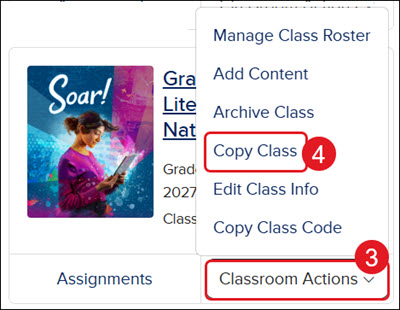
- Click on Classroom Actions.
- Click on Copy Class from the menu.
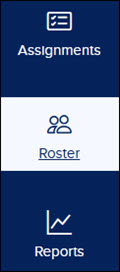
You can also click on the class and then click on Roster from the navigation menu.
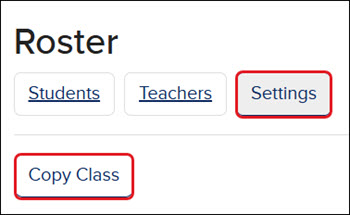
Click on Settings, then click the Copy Class button.
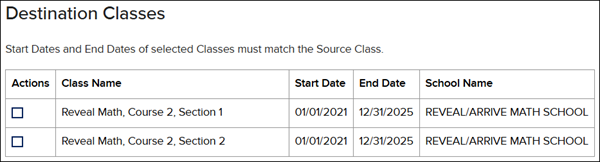
For classes managed by the district, check the box next to the preferred Destination Classes. Then skip to step 9.
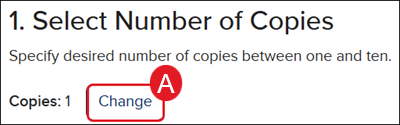
A. The default number of Copies is set to one. If you would like more than one copy, click the Change button.
For classes managed by the district, teachers will not be able to select the Number of Copies.
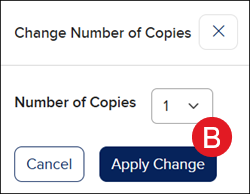
B. Select the number of preferred copies from the drop-down and click the Apply Change button.
- Enter a Class Name if you want something different from the class you're copying.
- Select the Primary Instructor from the drop-down.
- If you want to add co-teachers, select the teacher(s) from the Additional Instructors box.
For classes managed by the district, teachers will not see the Assign Instructors/Class Information section.

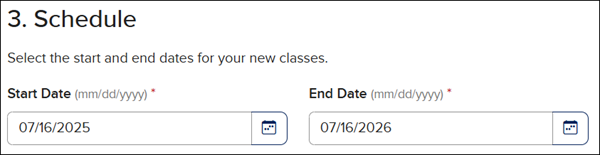
- Select the Start and End Date for the class.
For classes managed by the district, teachers will not be able to set a different Start and End Date.
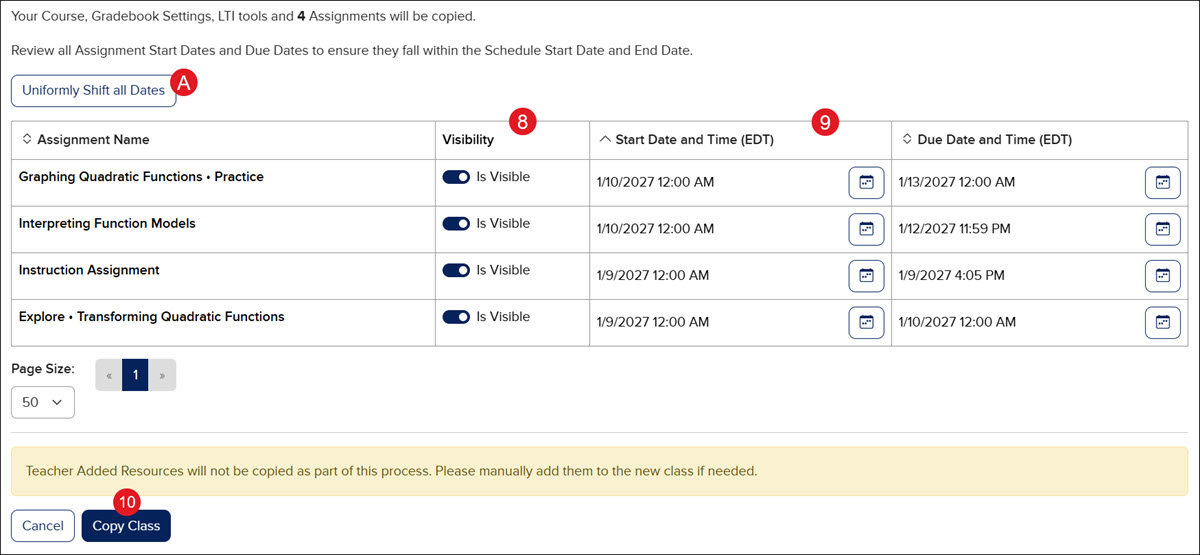
- Select the assignments you would like to copy to the new class by toggling on/off the Is Visible option.
Note: This option will only show if you have assignments set for the class you are copying.
- Select the Start Date and Time and Due Date and Time for each assignment.
C. You can also click the Uniformly Shift All Dates button to adjust all assignments by a certain number of days.
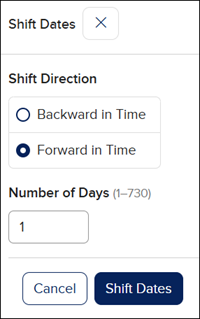
- Click the Copy Class button.
Note: It may take a few minutes for the copy of the class to show on your My Programs page.