Manage Open Learning Assignment Rubrics
Learn how to create and manage rubrics for Open Learning assignments.
Tags
- Customer Support
- PreK-12
- Classroom Teacher
- Preschool
- Elementary School
- Middle School
- High School
- Direct Login & Auto-Rostering
- Direct Login & Manual-Rostering
- SSO & Auto-Rostering
- SSO & Manual-Rostering
- Core
- Intervention
- Supplemental
- AP, Honors & Electives
- Career & Technical Education
- Literacy
- Math
- Science
- Social Studies
- Health
- Visual & Performing Arts
- World Languages
- AP Biology
- AP Chemistry
- AP History & Geography
- AP Psychology
- AP Economics
- AP African American Studies
- AP Precalculus
- AP Statistics
- AP Computer Science
- AP Language and Composition
- AP Public Speaking
- AP Music Theory
- 5 Steps to a 5 - AP Test Prep
- Glencoe Health 2022
- Teen Health 2021
- Arrive Math
- Building Blocks 2024
- Building Blocks PreK 2025
- Number Worlds 2024
- SRA Reading Laboratory 2025
- SRA Reading Mastery Transformations
- McGraw Hill Literacy Emerge!
- McGraw Hill Literacy Summit!
- McGraw Hill Literacy Soar!
- Open Court Reading 2025
- CA Reveal Math (K-12)
- Illustrative Math
- Reveal Math (K-12)
- Texas Math
- CA Inspire Science 2020
- FL Science 2025 (K-12)
- Inspire Science 2020
- TN Science (K-12)
- TX Science 2025 (K-12)
- CA Impact 2019
- FL Social Studies 2024 (K-12)
- Impact Social Studies
- McGraw Hill Social Studies
- Asi se Dice 2024
- CTE - Business, Marketing, and Finance
- CTE - Health Science
- CTE - Computing and Technology
- CTE - Agriculture
- CTE - Culinary Arts
- CTE - Early Childhood Education
- CTE - Criminal Justice
- Level Up K–5
- Level Up 6–8
- Level Up 9–12
- Grades & Assignments


View the demo in a separate tab.
View the Spanish version of the demo.
Note: Adding a rubric is only available for select assignment types, such as Submission and Instruction assignment types. If you want to add a rubric to an assigned assessment, follow the steps on the Create or Delete McGraw Hill Assessment Rubrics article.
Article Contents
Create a New Rubric
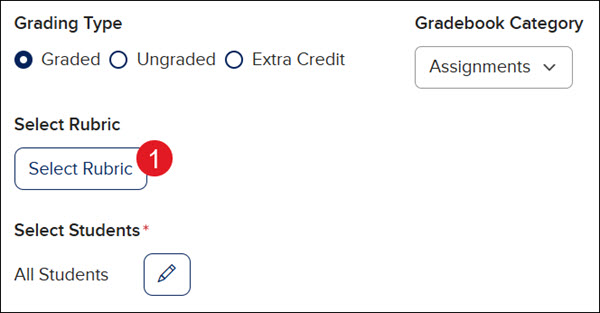
- On the Settings page of the assignment creation, click the Select Rubric button.
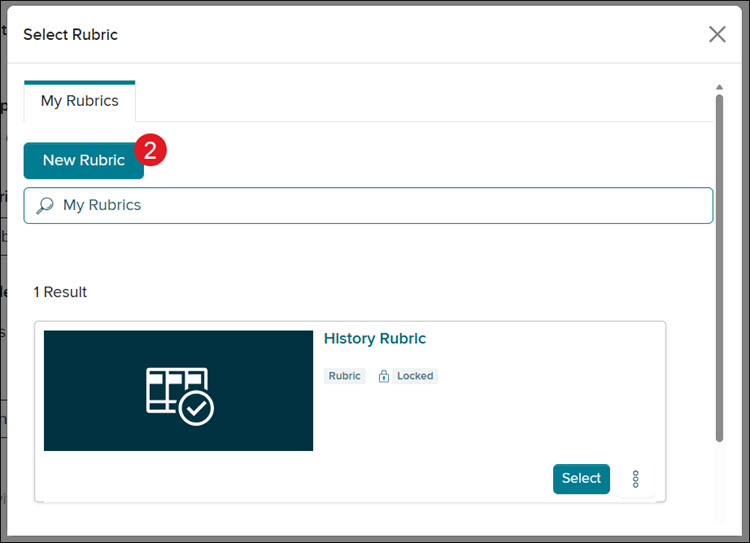
- On the Select Rubric pop-up, click the New Rubric button.
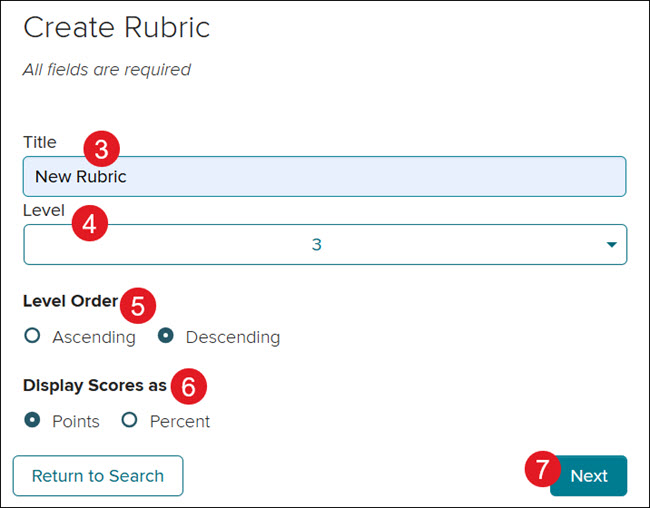
- Enter a Title.
- Select a Level.
- Select a Level Order.
- Select the Display Scores as option.
- Click Next.
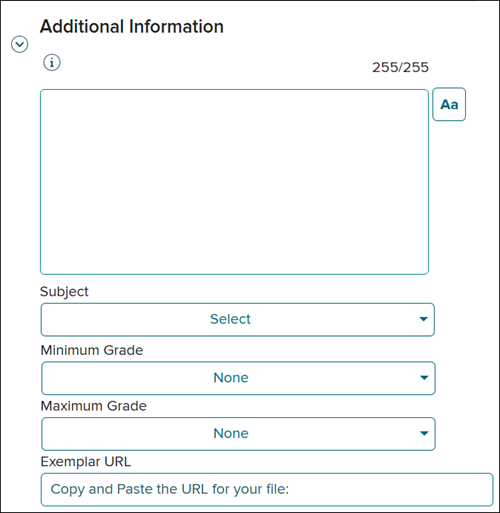
A. Click on Additional Information to add a description for the rubric, select a subject, a minimum and maximum grade, and add an exemplar URL. These are optional fields.
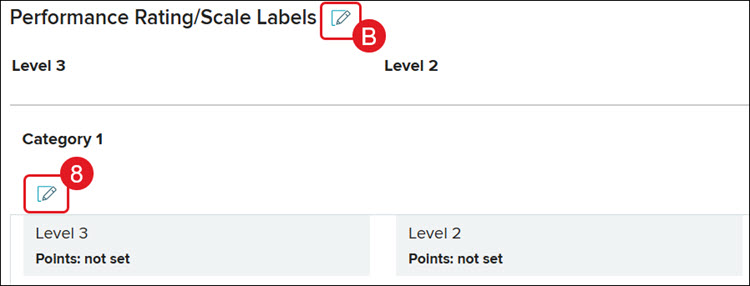
B. Click the Edit button to make changes to the Performance Rating/Scale Labels. This is optional.
- Click the Edit button under Category.
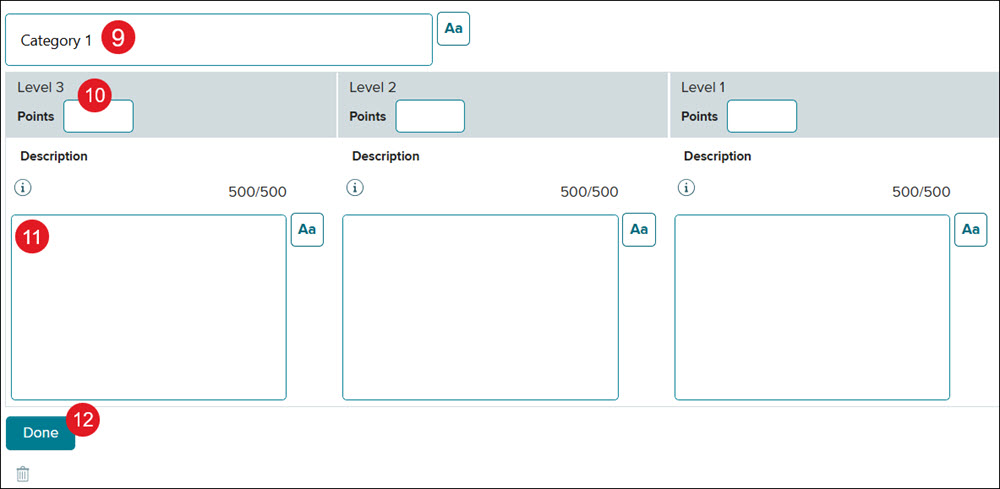
- Enter a Category name.
- Enter Points for each level.
- Enter a Description for each level.
- Click Done.
Note: These sections will need to be completed for each additional category that is created for the rubric.
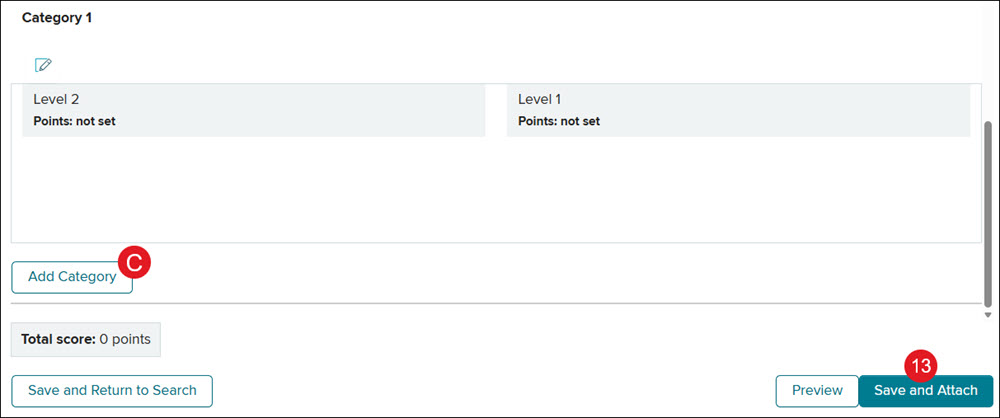
C. Click Add Category to add additional categories to the rubric.
- Click Save and Attach.
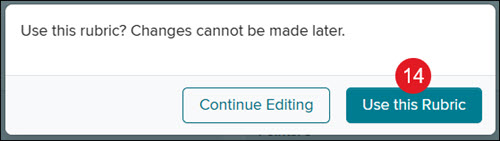
- On the pop-up, click Use this Rubric.
Note: Once a rubric is created, there is not a way to edit the rubric.
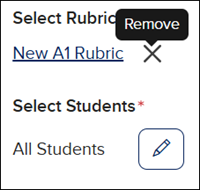
The rubric will automatically attach to the assignment.
To remove the rubric from the assignment, click the Remove (x) button.
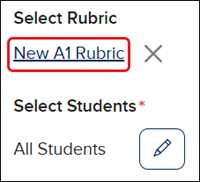
Click on the rubric link to open in a secondary tab, view in full screen, and/or print.
Search for a Rubric
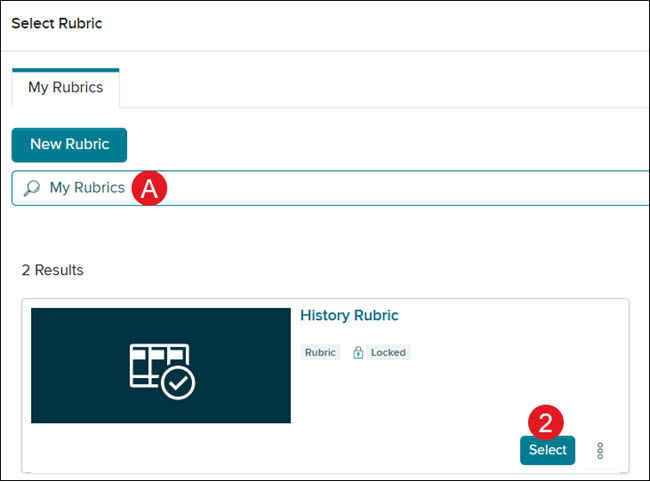
- On the Settings page of the assignment creation, click the Select Rubric button.
A. Use the My Rubrics search to locate the rubric you want to attach.
- Click the Select button to attach the rubric to the assignment.
Duplicate a Rubric
- On the Settings page of the assignment creation, click the Select Rubric button.
- Click the Options kebob.
- Click Duplicate from the menu.

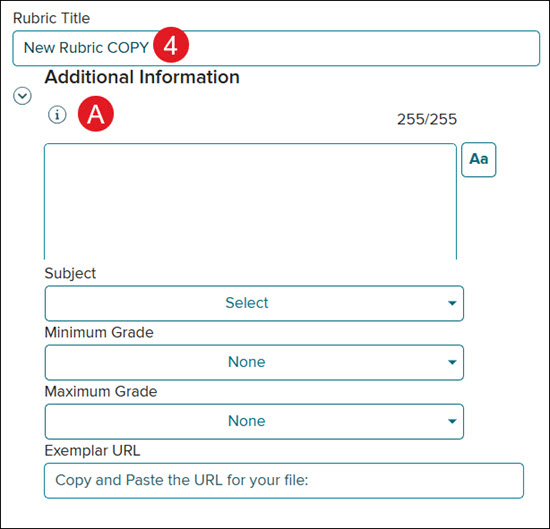
- Enter a Rubric Title.
A. Click on Additional Information to add a description for the rubric, select a subject, a minimum and maximum grade, and add an exemplar URL. These are optional fields.
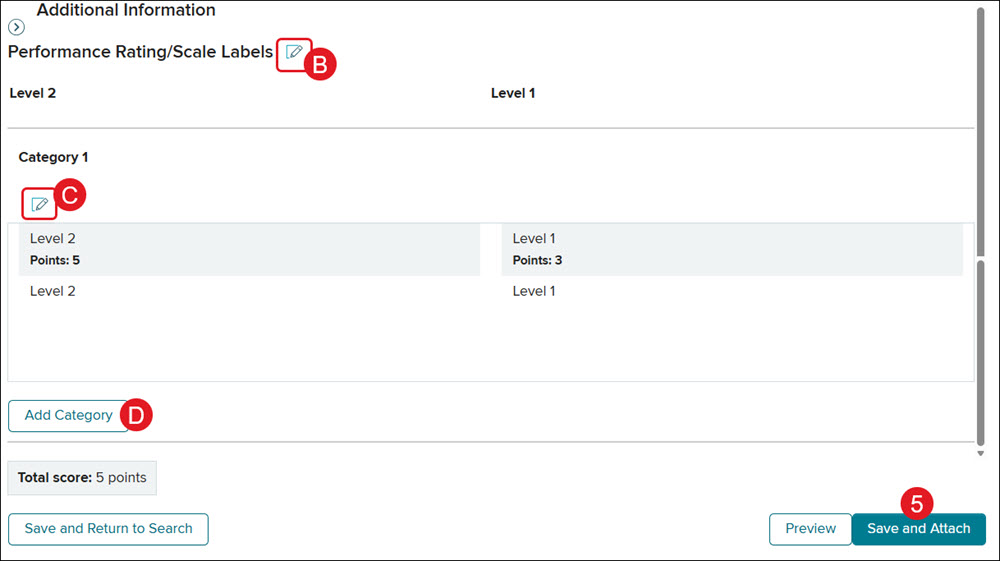
B. Click the Edit button to make changes to the Performance Rating/Scale Labels. This is optional.
C. Click the Edit button under Category to make changes to the associated categories.
D. Click Add Category to add additional categories to the rubric.
- Click Save and Attach.
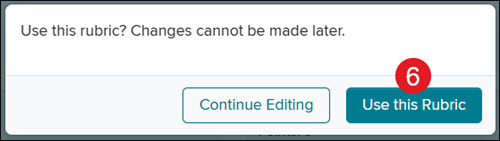
- On the pop-up, click Use this Rubric.
Note: Once a rubric is created, there is not a way to edit the rubric.
Delete a Rubric
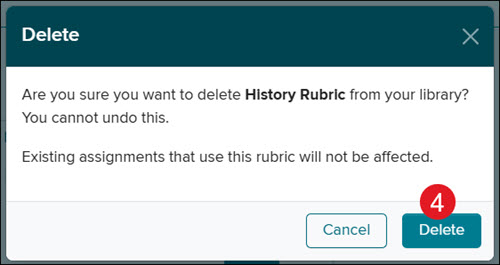
Once a rubric is deleted, there is not a way to get it back, and it would need to be recreated if it is still needed. Assignments attached to the rubric will not be affected if the rubric is deleted.
- On the Settings page of the assignment creation, click the Select Rubric button.
- Click the Options kebob.
- Click Delete from the menu.
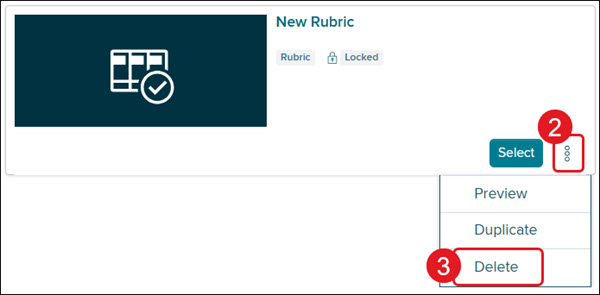
- On the Delete pop-up, click the Delete button to confirm.