Add Notes or Excuse an Open Learning Assignment
Steps for adding a note to an assignment for students to review or for excusing a student from completing the assignment.
Tags
- Customer Support
- PreK-12
- Classroom Teacher
- Preschool
- Elementary School
- Middle School
- High School
- Direct Login & Auto-Rostering
- Direct Login & Manual-Rostering
- SSO & Auto-Rostering
- SSO & Manual-Rostering
- Core
- Intervention
- Supplemental
- AP, Honors & Electives
- Career & Technical Education
- Literacy
- Math
- Science
- Social Studies
- Health
- Visual & Performing Arts
- World Languages
- AP Biology
- AP Chemistry
- AP History & Geography
- AP Psychology
- AP Economics
- AP African American Studies
- AP Precalculus
- AP Statistics
- AP Computer Science
- AP Language and Composition
- AP Public Speaking
- AP Music Theory
- 5 Steps to a 5 - AP Test Prep
- Glencoe Health 2022
- Teen Health 2021
- Arrive Math
- Building Blocks 2024
- Building Blocks PreK 2025
- Number Worlds 2024
- SRA Reading Laboratory 2025
- SRA Reading Mastery Transformations
- McGraw Hill Literacy Emerge!
- McGraw Hill Literacy Summit!
- McGraw Hill Literacy Soar!
- Open Court Reading 2025
- CA Reveal Math (K-12)
- Illustrative Math
- Reveal Math (K-12)
- Texas Math
- CA Inspire Science 2020
- FL Science 2025 (K-12)
- Inspire Science 2020
- TN Science (K-12)
- TX Science 2025 (K-12)
- CA Impact 2019
- FL Social Studies 2024 (K-12)
- Impact Social Studies
- McGraw Hill Social Studies
- Asi se Dice 2024
- CTE - Health Science
- CTE - Computing and Technology
- CTE - Agriculture
- CTE - Culinary Arts
- CTE - Early Childhood Education
- CTE - Criminal Justice
- CTE - Business, Marketing, and Finance
- Level Up K–5
- Level Up 6–8
- Level Up 9–12
- Grades & Assignments


View the demo in a separate tab.
View the Spanish version of the demo.
Article Contents
Add a Note
Adding a note is not an option for all assignment types.
- SSO or log in at my.mheducation.com.
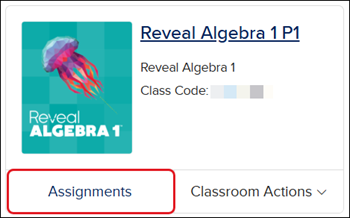
- Click the Assignments button on the class card.
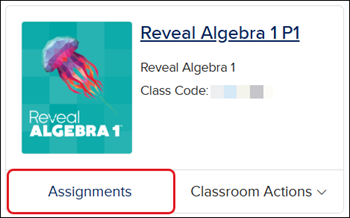
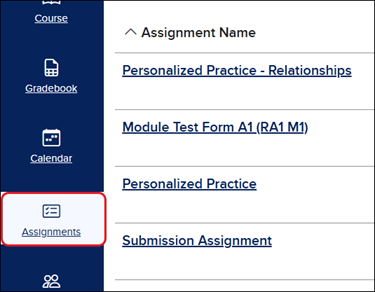
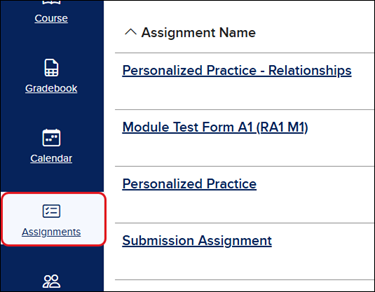
Another option is to launch the class and click on Assignments from the navigation menu.
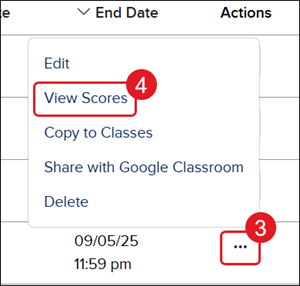
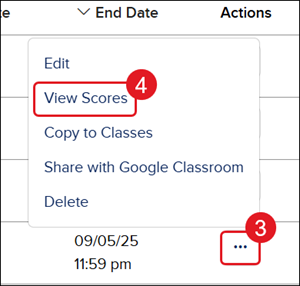
- Click on the Options button in the Action column.
- Click View Scores from the menu.
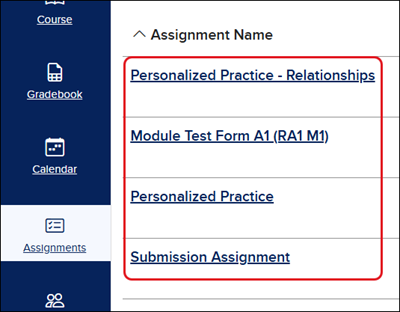
You can also click on the Assignment Name.
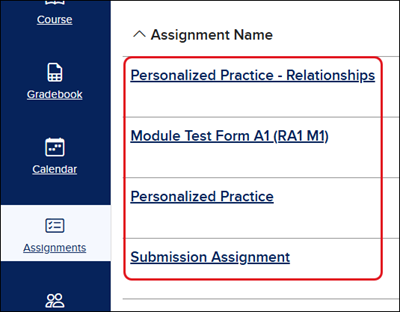
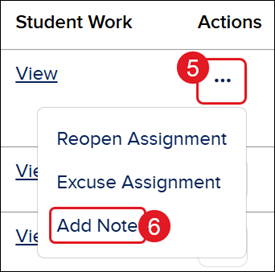
- Click the Options button in the Action column to the right of the student name.
- Click Add Note from the menu.
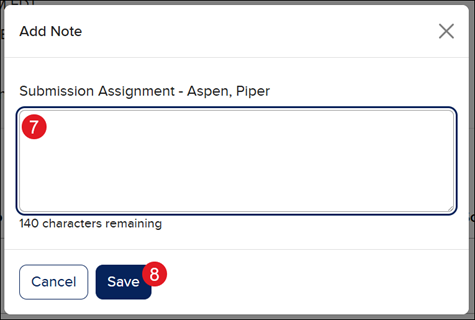
- On the Add Note pop-up, enter the note for the student submission.
- Click Save.
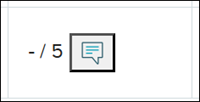
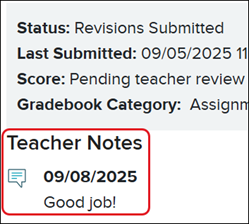
Students will see a note icon on their assignment list and will be able to see the note by launching the assignment.
Excuse Assignment
Excused assignments do not affect the student's grade.
- SSO or log in at my.mheducation.com.
- Click the Assignments button on the class card.
Another option is to launch the class and click on Assignments from the navigation menu.
- Click on the Options button in the Action column.
- Click View Scores from the menu.
You can also click on the Assignment Name.
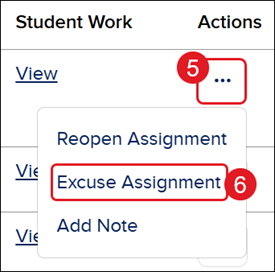
- Click the Options button in the Action column to the right of the student name.
- Click Excuse Assignment from the menu.
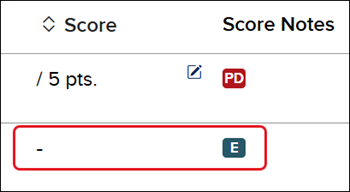
If an assignment has been excused for a student, you will see an E (Excused) icon in the Score Notes and a dash in the Score columns of the assignment.