
OCR Foundational Skills/Word Analysis Kits - Oral Reading Fluency
Learn how teachers use the Oral Reading Fluency tool with OCR Foundational Skills and Word Analysis Kits to assess reading rate and accuracy.
Tags
OCR Foundational Skills Kit
Getting Started & Orientation
OCR Word Analysis Kit
Literacy
SSO & Manual-Rostering
Customer Support
Online Assessments
Direct Login & Auto-Rostering
Core
Direct Login & Manual-Rostering
Classroom Teacher
SSO & Auto-Rostering
PreK-12
Preschool
Elementary School


You can use the Oral Reading Fluency Application (ORFA) to administer Oral Reading Fluency assessments. It provides a quick and easy way to capture students' scores for words per minute (WPM) as well as accuracy (number of errors). Before beginning, have the reading passage available as a printout for the student.
Sections Covered:
Access Oral Reading Fluency ToolConduct Fluency Check
Results Screen
Reports Screen
Access Oral Reading Fluency Tool
1. Click on Menu in the top-left corner and select Assessment/Gradebook from the menu.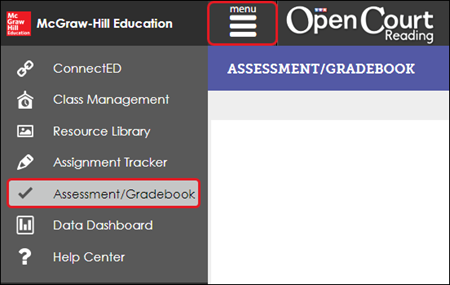
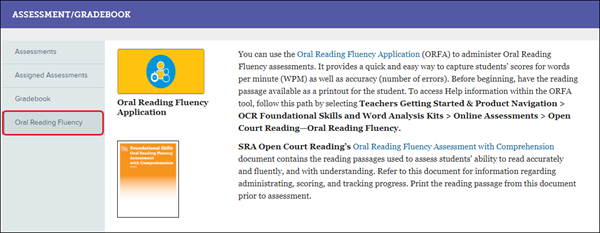
2. From the Assessment/Gradebook page, select Oral Reading Fluency from the navigation menu.
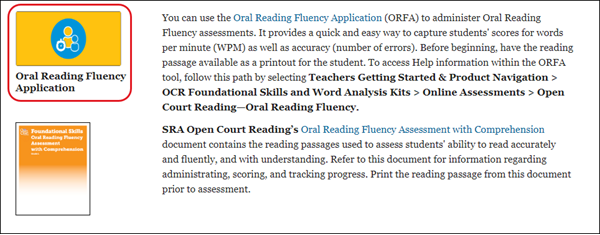
3. Click on the Oral Reading Fluency Application resource. The program will then open in a secondary browser tab.
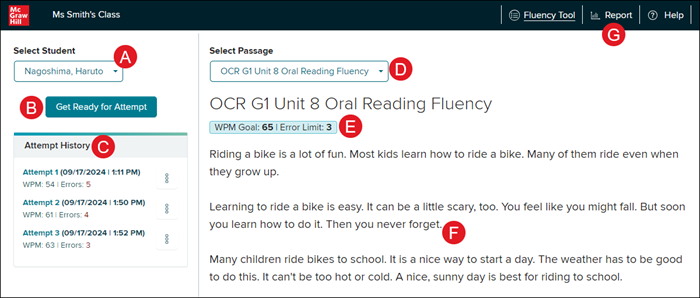
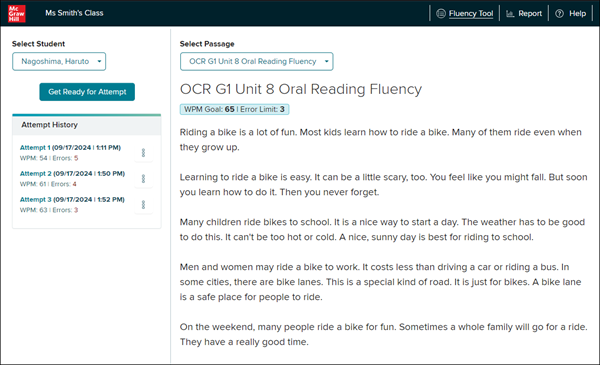
A. Select the student's name from the Select Student drop-down list.
B. To start the fluency check, select the Get Ready for Attempt button.
C. The student's Attempt History of reading the selected passage is listed under their name.
D. Select a different reading passage from the Select Passage drop-down list.
E. Each fluency check provides the Words Per Minute (WPM) goal and the suggested Error Limit.
F. The selected passage appears on the right.
G. Click the Reports tab to view Fluency Performance data.
Conduct Fluency Check
1. Select the student from the Select Student drop-down.2. Click the Get Ready for Attempt button.
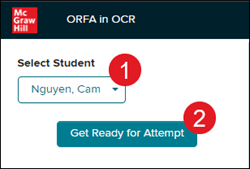
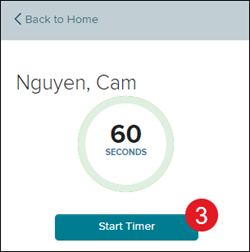
3. Each check includes a 60-second timer. Click the Start Timer button to begin.
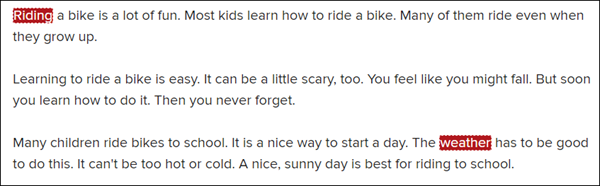
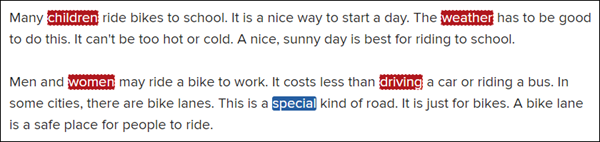
4. As the student reads the passage, select any word to record an error. These will mark as red.
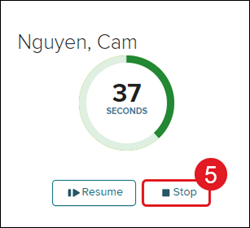
5. Once the student finishes reading the passage, click the Stop button or wait until time has run out.
6. Click the last word that the student read. This will mark in blue.
Results Screen
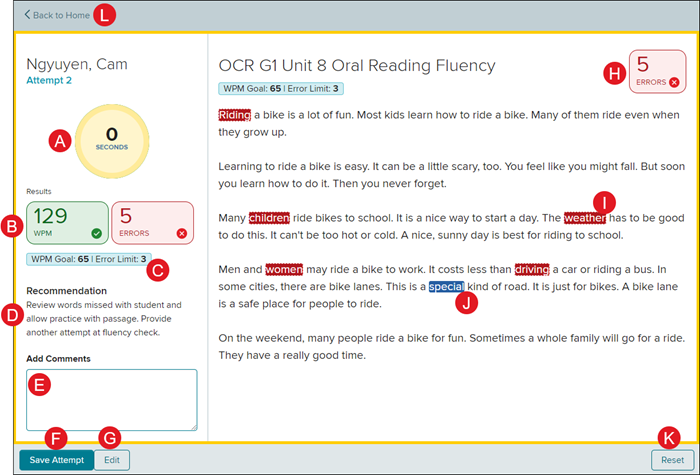
A. The remaining Seconds left in the timer.
B. The student's words-per-minute ( WPM) and number of Errors while reading the passage.
C. The WPM Goal and maximum Error Limit to successfully pass the fluency check.
D. Any Recommendations for completion of future fluency checks.
E. Add any desired teacher Comments for the student.
F. Click the Save Attempt button to record the student's current attempt.
G. Click the Edit button to adjust any comments and selected words.
H. The number of Errors the student had during the reading of the passage.
I. Any words marked in red are marked as errors read by the student.
J. The blue marked word is the last word read by the student.
K. Click the Reset button to remove results and marks for the current fluency attempt.
L. Click the Back to Home link to navigate back to the Fluency Tool homepage.
Report Screen
To access the Fluency Check reports, click the Report link at the top-right of the page.
The Fluency Performance report will open in the same window.
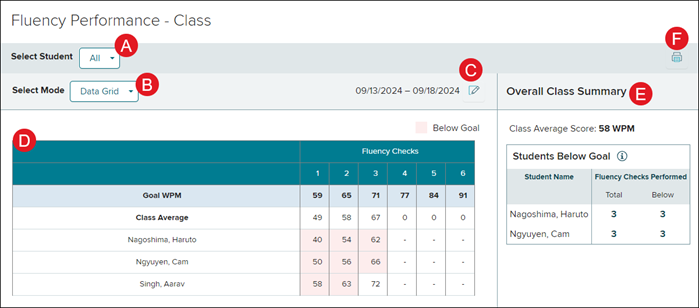
A. Select a student from the Select Student drop-down to view the fluency data for a specific student.
B. Click the Select Mode drop-down to toggle between the Data Grid and Line Graph.
C. Click the Edit (pencil) icon to adjust the date range for the data view.
D. The data will show in the selected Data Grid or Line Graph.
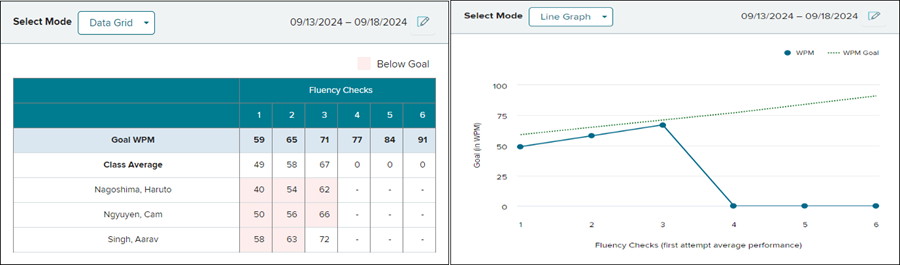
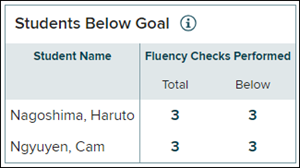
E. The Overall Class Summary section provides the Class Average Score (WPM) and the list of Students Below Goal for performed Fluency Checks.
The Students Below Goal table shows the list of students who scored below goal on 80% or more of their first attempts for all passages.
F. Click the Print icon to print out the current data view.