We're making updates to improve your experience. Some products and checkout may be unavailable on Saturday, November 21 and Sunday, November 22. Thanks for your patience. Check our status page for updates.
This functionality is only available for districts that have completed the setup for NWEA® MAP® Growth™ integration. For more information on getting this completed for your district, see the following articles:
The MAP Growth RIT scores on the Performance Report indicate what students know. Based on the most recent MAP Growth assessment, the report also indicates which students may not be ready for your upcoming unit.
Access the Recommendations to identify the course assets (such as adaptive practice or tutorials) covering critical prerequisite skills before the unit to help students with gaps in their knowledge.
Note: Assigning recommendations is only available for Open Learning programs. Programs such as Wonders and Open Court Reading do not have this option.
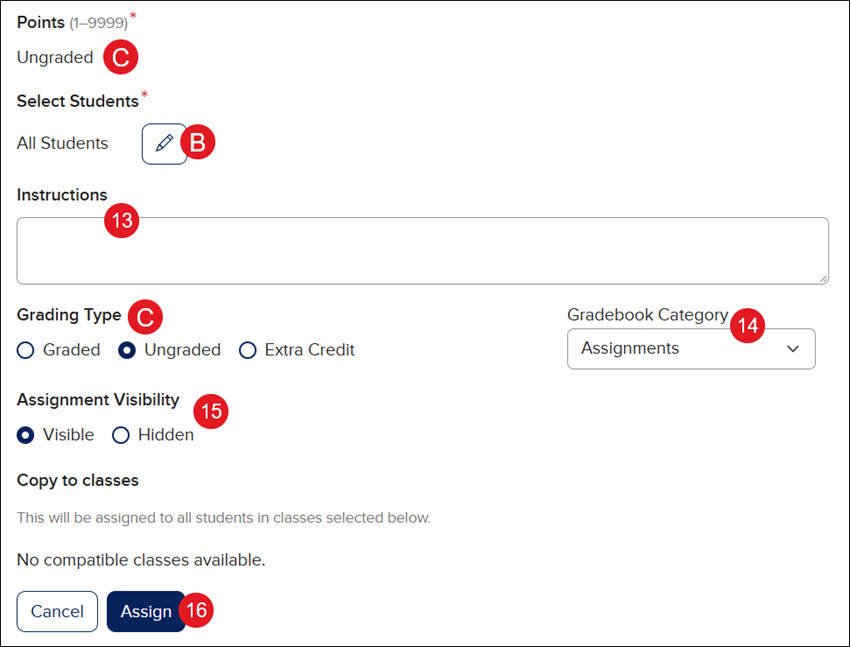
Note: If you mark the assignment as Hidden, the students will not be able to access it until you change it to Visible.
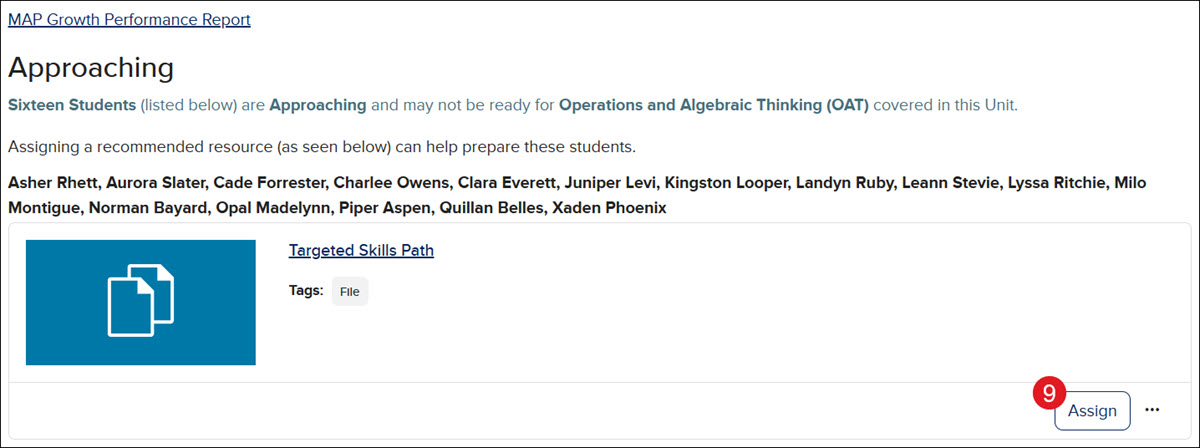
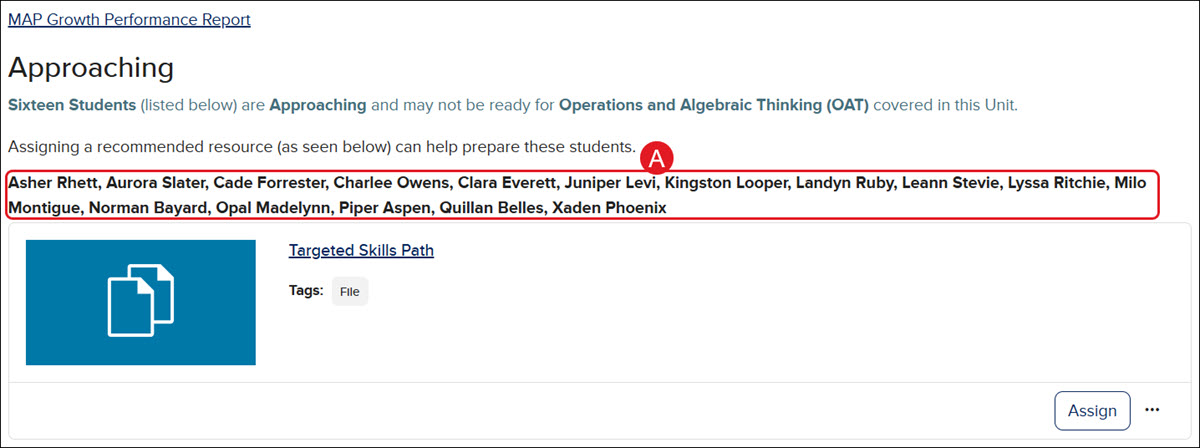
Click the Assign button.
Once the assignment has been created, it appears in the students' Calendars and in their Assignments list. You will also see a Due tag on the resource blade, as well as see it on the Assignments page.
View Recommendation Assignment Progress and Scores
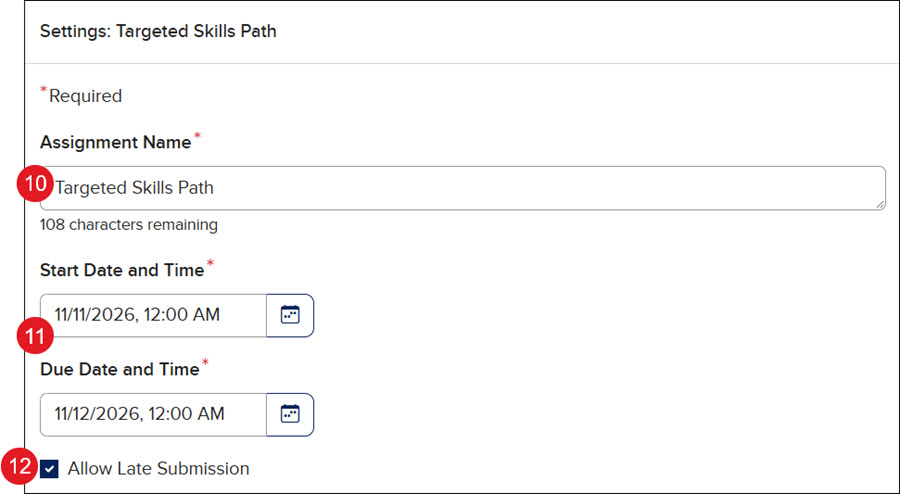
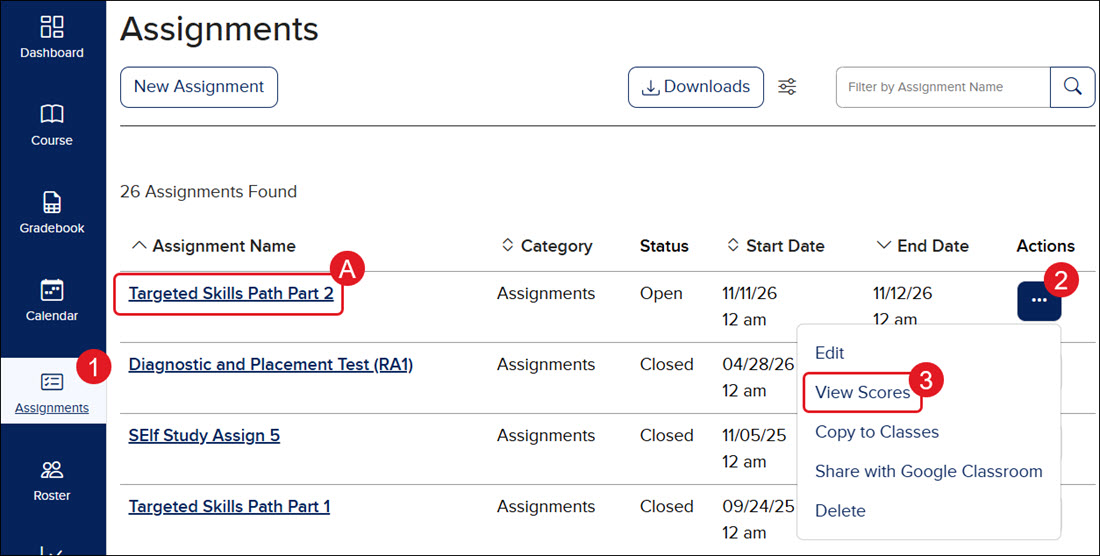
Click Assignments on the navigation menu.
Click on the Options button in the Actions column.
Click View Scores from the menu.
A. You can also click on the Assignment Name.
Help us improve!
Let us know how we can improve our support information by providing feedback in this short survey.
Top
Regional Page Available
It looks like you're outside the United States. Do you want to see your regional version of this page?
Programs & Solutions/McGraw Hill Literacy/McGraw Hill Literacy Emerge!
Context/Integration Type/SSO & Manual-Rostering
prek-12
2026-03-24T19:07:50.871-03:00
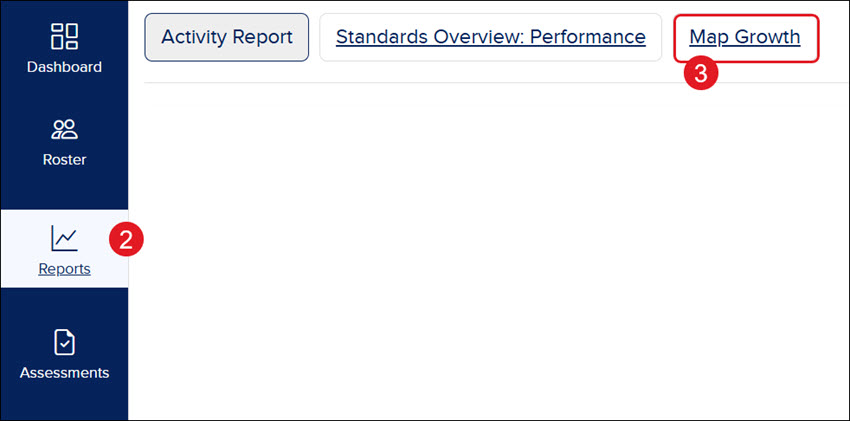
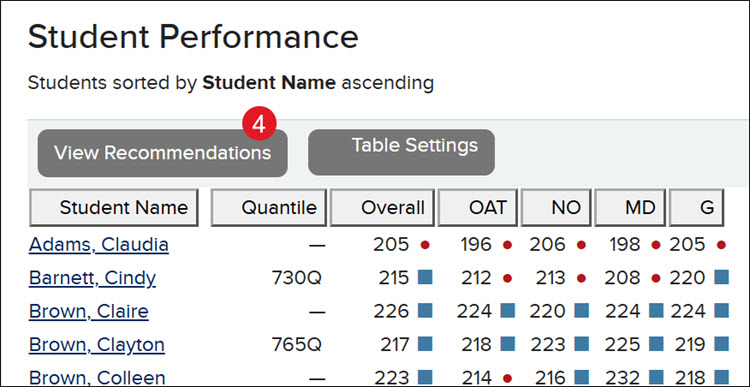
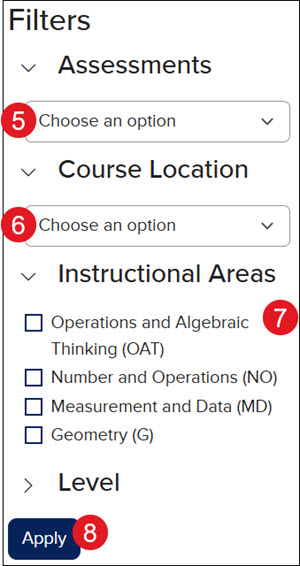
<p><a href="https://hub.mheducation.com/share/r1r1ra9jlmzi" target="_blank">View the demo in a separate tab.</a></p> <p><a href="https://hub.mheducation.com/share/bs04mdvbk843" target="_blank">View the Spanish version of the demo.</a></p> <p> </p> <p>This functionality is only available for districts that have completed the setup for NWEA® MAP® Growth™ integration. For more information on getting this completed for your district, see the following articles:</p> <ul> <li><a href="https://www.mheducation.com/prek-12/support/knowledge/nwea-implementation-guide.html" target="_blank">Implementing the Data Integration with NWEA® MAP® Growth™ with Literacy</a></li> </ul> <ul> <li><a href="https://www.mheducation.com/prek-12/support/knowledge/reveal-math-nwea-implementation-guide.html" target="_blank">Implementing the Data Integration with NWEA® Map® Growth™ with Reveal Math</a></li> </ul> <p>The MAP Growth RIT scores on the Performance Report indicate what students know. Based on the most recent MAP Growth assessment, the report also indicates which students may not be ready for your upcoming unit.</p> <p>Access the Recommendations to identify the course assets (such as adaptive practice or tutorials) covering critical prerequisite skills <strong>before </strong>the unit to help students with gaps in their knowledge.</p> <p><strong>Note:</strong> Assigning recommendations is only available for Open Learning programs. Programs such as <em>Wonders </em>and Open Court Reading do not have this option.</p> <p> </p> <p>For information on NWEA MAP Growth™ Reports, refer to the <a href="https://www.mheducation.com/prek-12/support/knowledge/nwea-map-growth-for-teachers.html" target="_blank">NWEA® MAP® Growth™ Teacher Reports</a> article.</p> <p> </p> <h2 class="fs-5">Article Contents</h2> <p><a href="#access" target="_self">Assign Recommendations</a></p> <p><a href="#scores" target="_self">View Recommendation Assignment Progress and Scores</a></p> <p> </p> <h3 class="fs-5"><a id="access"></a>Assign Recommendations</h3> <ol> <li>SSO or sign in at <a href="https://my.mheducation.com/login" target="_blank">my.mheducation.com</a>.<br> <br> </li> <li>Click <strong>Reports </strong>on the navigation menu.<br> <br> </li> <li>Click the <strong>Map Growth</strong> button.<br> <br> <img src="/content/dam/mhe/support/support-images/dts-k12-images/assign-nwea-recommendations/nwea-recs-reports-1.jpg" data-assetref="nwea-recs-reports-1-1794404397577"><br> <br> </li> <li>On the <strong>Class Performance</strong> tab, click the <strong>View</strong> <strong>Recommendations </strong>button under <strong>Student Performance</strong>.<br> <br> <img src="/content/dam/mhe/support/support-images/dts-k12-images/assign-nwea-recommendations/nwea-recs-reports-2.jpg" data-assetref="nwea-recs-reports-2-1794404853903"><br> <br> </li> <li>Select the <strong>Assessment </strong>from the drop-down.<br> <br> </li> <li>Select the <strong>Course Location</strong>.<br> <br> </li> <li>Check the <strong>Instructional Areas</strong> needed.<br> <br> </li> <li>Click the <strong>Apply</strong> button.<br> <br> <img src="/content/dam/mhe/support/support-images/dts-k12-images/assign-nwea-recommendations/nwea-recs-reports-4.jpg" data-assetref="nwea-recs-reports-4-1794405488860"><br> <br> </li> <li>Click the <strong>Assign </strong>button on the resource blade.<br> <br> <img src="/content/dam/mhe/support/support-images/dts-k12-images/assign-nwea-recommendations/nwea-recs-reports-5.jpg" data-assetref="nwea-recs-reports-5-1794406425224"><br> <br> </li> <li>The <strong>Assignment Name</strong> defaults to the resource title. You can enter a new name if needed.<br> <br> </li> <li>Select the <strong>Start</strong> and <strong>Due Date and Time</strong>.<br> <br> </li> <li>Uncheck <strong>Allow Late Submission </strong>if you do not want students to be able to submit the assignment after the Due Date.<br> <br> <img src="/content/dam/mhe/support/support-images/dts-k12-images/assign-nwea-recommendations/nwea-recs-reports-6.jpg" data-assetref="nwea-recs-reports-6-1794406704263"><br> <br> A. The <strong>Students </strong>listed on the resource blade will automatically be assigned to the resource.<br> <br> <img src="/content/dam/mhe/support/support-images/dts-k12-images/assign-nwea-recommendations/nwea-recs-reports-7.jpg" data-assetref="nwea-recs-reports-7-1794407833426"><br> <br> B. Click the pencil and select the desired students. If you make changes to the roster, click <strong>Apply</strong> on the <strong>Select Students</strong> pop-up.<br> <br> </li> <li>Enter any desired <strong>Instructions</strong>.<br> <br> C. The <strong>Grading Type</strong> defaults to <strong>Ungraded</strong>. If you change the option to <strong>Graded</strong>, you must enter a <strong>Points </strong>value above.<br> <br> </li> <li>Select the <strong>Gradebook Category. </strong>For steps on adding additional gradebook categories, see the <a href="https://www.mheducation.com/prek-12/support/knowledge/overview-gradebook.html" target="_blank">Navigate the Open Learning Gradebook</a> article.<br> <br> </li> <li>Select the <strong>Assignment Visibility</strong>.<br> <br> <strong>Note:</strong> If you mark the assignment as <strong>Hidden</strong>, the students will not be able to access it until you change it to Visible.<br> <br> </li> <li>Click the <strong>Assign </strong>button.<br> <br> <img src="/content/dam/mhe/support/support-images/dts-k12-images/assign-nwea-recommendations/nwea-recs-reports-8.jpg" data-assetref="nwea-recs-reports-8-1794407959593"><br> <br> Once the assignment has been created, it appears in the students' <strong>Calendars </strong>and in their <strong>Assignments </strong>list. You will also see a <strong>Due </strong>tag on the resource blade, as well as <a href="#scores">see it on the <strong>Assignments </strong>page</a>.</li> </ol> <p> </p> <h3 class="fs-5"><a id="scores"></a>View Recommendation Assignment Progress and Scores</h3> <ol> <li>Click <strong>Assignments </strong>on the navigation menu.<br> <br> </li> <li>Click on the <strong>Options </strong>button in the <strong>Actions </strong>column.<br> <br> </li> <li>Click <strong>View Scores</strong> from the menu.<br> <br> A. You can also click on the <strong>Assignment Name</strong>.<br> <br> <img src="/content/dam/mhe/support/support-images/dts-k12-images/assign-nwea-recommendations/nwea-recs-reports-9.jpg" data-assetref="nwea-recs-reports-9-1794411003075"></li> </ol> dts Discover how to assign NWEA MAP Growth recommendations to help students build prerequisite skills. 2026-11-11 Assign NWEA® MAP® Growth™ Recommendations Discover how to assign NWEA MAP Growth recommendations to help students build prerequisite skills. Discover how to assign NWEA MAP Growth recommendations to help students build prerequisite skills.
Discover how to assign NWEA MAP Growth recommendations to help students build prerequisite skills.
View the demo in a separate tab. View the Spanish version of the demo. This functionality is only available for districts that have completed the setup for NWEA® MAP® Growth™ integration. For more information on getting this completed for your district, see the following articles: Implementing the Data Integration with NWEA® MAP® Growth™ with Literacy Implementing the Data Integration with NWEA® Map® Growth™ with Reveal Math The MAP Growth RIT scores on the Performance Report indicate what students know. Based on the most recent MAP Growth assessment, the report also indicates which students may not be ready for your upcoming unit. Access the Recommendations to identify the course assets (such as adaptive practice or tutorials) covering critical prerequisite skills before the unit to help students with gaps in their knowledge. Note: Assigning recommendations is only available for Open Learning programs. Programs such as Wonders and Open Court Reading do not have this option. For information on NWEA MAP Growth™ Reports, refer to the NWEA® MAP® Growth™ Teacher Reports article. Article Contents Assign Recommendations View Recommendation Assignment Progress and Scores Assign Recommendations SSO or sign in at my.mheducation.com. Click Reports on the navigation menu. Click the Map Growth button. On the Class Performance tab, click the View Recommendations button under Student Performance. Select the Assessment from the drop-down. Select the Course Location. Check the Instructional Areas needed. Click the Apply button. Click the Assign button on the resource blade. The Assignment Name defaults to the resource title. You can enter a new name if needed. Select the Start and Due Date and Time. Uncheck Allow Late Submission if you do not want students to be able to submit the assignment after the Due Date. A. The Students listed on the resource blade will automatically be assigned to the resource. B. Click the pencil and select the desired students. If you make changes to the roster, click Apply on the Select Students pop-up. Enter any desired Instructions. C. The Grading Type defaults to Ungraded. If you change the option to Graded, you must enter a Points value above. Select the Gradebook Category. For steps on adding additional gradebook categories, see the Navigate the Open Learning Gradebook article. Select the Assignment Visibility. Note: If you mark the assignment as Hidden, the students will not be able to access it until you change it to Visible. Click the Assign button. Once the assignment has been created, it appears in the students' Calendars and in their Assignments list. You will also see a Due tag on the resource blade, as well as see it on the Assignments page. View Recommendation Assignment Progress and Scores Click Assignments on the navigation menu. Click on the Options button in the Actions column. Click View Scores from the menu. A. You can also click on the Assignment Name.
dts
Customer Support, PreK-12, Classroom Teacher, Elementary School, Middle School, High School, Direct Login & Auto-Rostering, Direct Login & Manual-Rostering, SSO & Auto-Rostering, SSO & Manual-Rostering, Core, Literacy, Math, CA Reveal Math (K-12), Reveal Math (K-12), SRA Reading Mastery Transformations, McGraw Hill Literacy Emerge!, McGraw Hill Literacy Summit!, McGraw Hill Literacy Soar!, NWEA, Grades & Assignments